

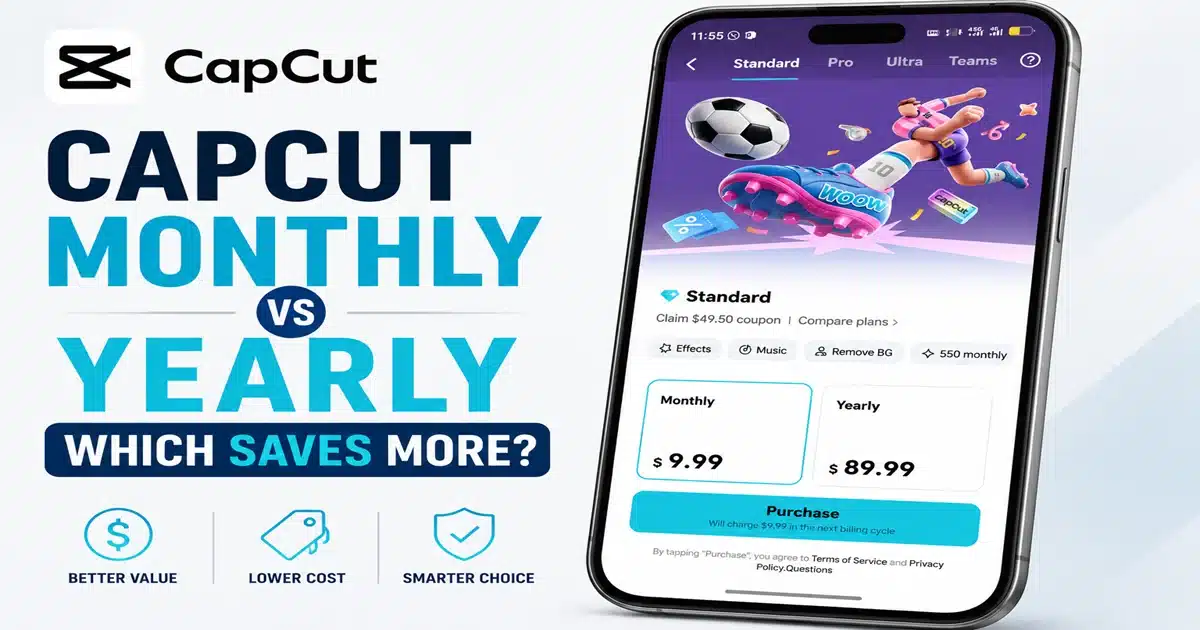
If you’re staring at CapCut’s checkout screen trying to decide between monthly and yearly billing, you’ve probably already seen the headline claim: “save with yearly.”
What you likely haven’t seen is the actual math behind that claim, what changed in CapCut’s pricing structure this year, or why where you subscribe can matter almost as much as which plan you pick.
We have carefully put together this guide to cover all three questions.
Table of Contents
- CapCut Monthly vs. Yearly Pricing at a Glance
- How Much You Actually Save With the Yearly Plan (The Real Math)
- What You Get With Either Plan (Standard vs. Pro Features)
- The Break-Even Point: When Yearly Stops Being a Gamble
- Web vs. App Store Pricing: Why Where You Subscribe Matters More for Yearly
- Who Should Choose CapCut Monthly (and Why It's Not "Wasting Money")
- Who Should Choose CapCut Yearly
- How to Switch Between Plans or Cancel Without Losing Money
- Frequently Asked Questions
- Conclusion
CapCut Monthly vs. Yearly Pricing at a Glance
CapCut runs multiple paid tiers, and it’s worth being precise about which ones actually offer a monthly-vs-yearly choice.
Standard and Pro both do, Standard at $9.99/month or $89.99/year, Pro at $19.99/month or $179.99/year.
CapCut also offers an Ultra tier above Pro and a Team plan billed per seat, both aimed at heavier or collaborative use cases rather than the typical solo-creator decision this guide focuses on.
Since Standard and Pro cover what most individual creators and YouTube editors are actually choosing between, they’re the focus below.
Choosing yearly on the Pro plan works out to roughly a 25% discount compared to paying month-to-month for a full year.
That’s a real number, not the “save big!” language most pricing pages lead with — and it’s worth being precise about, because a quarter of the annual cost is meaningful whether you’re deciding to commit or not.
One quick clarification before going further: CapCut is a recurring subscription service, not a one-time purchase, on either billing cycle.
If you’re unsure how that works or want the full breakdown of what “subscription” means here, see our guide on whether CapCut is a one-time purchase or subscription.
How Much You Actually Save With the Yearly Plan (The Real Math)
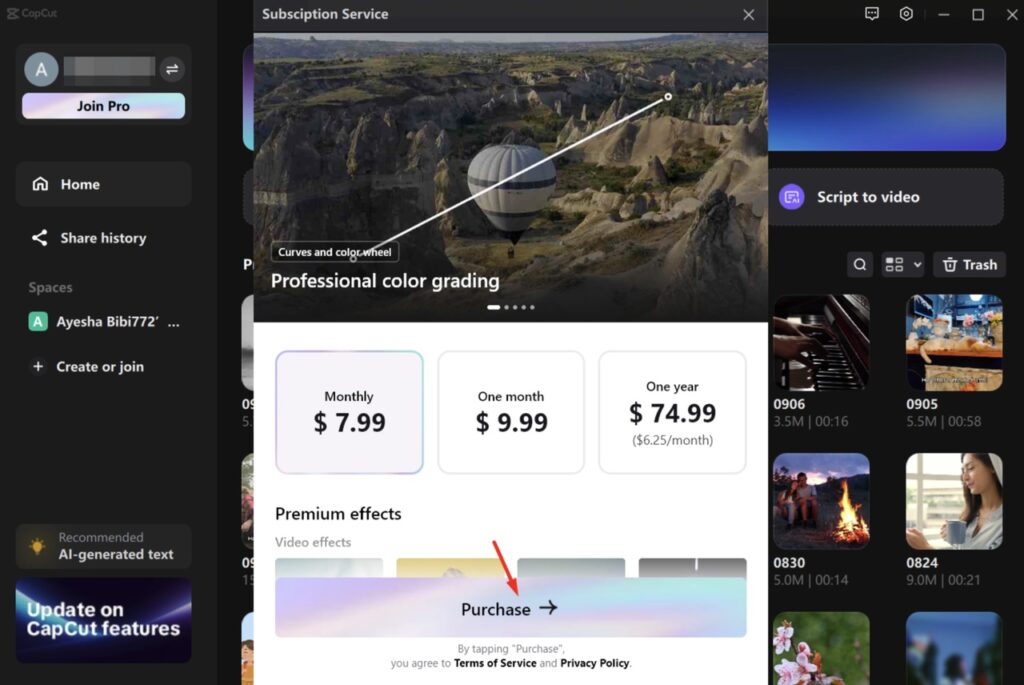
Here’s the comparison most pricing posts skip: what monthly billing costs you over a full year, side by side with the yearly price.
- Monthly billing, 12 months: $19.99 × 12 = $239.88
- Yearly billing, 12 months: $179.99
- Total savings: $59.89, or almost exactly 25% off the monthly-equivalent total
That $59.89 gap is the real number to anchor on — not a vague percentage, but an actual dollar figure you’re trading for a year-long commitment. It’s also worth noting this discount only materializes if you use the full year. Cancel three months in, and you’ve effectively paid $60/month for those three months of Pro access, which is considerably worse value than staying monthly.
For the full breakdown of what each tier unlocks at these prices, see our guide to CapCut pricing plans.
What You Get With Either Plan (Standard vs. Pro Features)
Both billing cycles unlock the same feature set — monthly and yearly don’t differ in what you get, only in how you pay for it. The real feature gap is between Standard and Pro, not between billing periods:
- Standard ($9.99/mo or $89.99/yr): Watermark-free exports on mobile, core paid editing tools, moderate cloud storage
- Pro ($19.99/mo or $179.99/yr): Full cross-platform access (mobile, desktop, web), 4K/HDR export, the complete AI toolkit, expanded cloud storage, and a monthly AI credit allotment
If you’re still deciding between the two tiers themselves — separate from the monthly/yearly question — our detailed comparison of CapCut Standard vs. Pro walks through the feature differences in full.
A mechanism worth understanding before you commit to yearly: Pro’s AI credit allotment resets every billing period, not every calendar month regardless of plan.
On a yearly plan, that means you get 12 fresh credit resets locked in at one upfront price — useful if you lean heavily on AI tools like background removal or auto captions throughout the year.
On monthly billing, you get the same resets, but you can pause or cancel between projects instead of pre-paying for months you might not use.
This is a genuine factor in the decision that most comparison posts leave out entirely, and it matters more the heavier your AI-tool usage is.
The Break-Even Point: When Yearly Stops Being a Gamble
Instead of just saying “yearly is cheaper long-term,” here’s the actual break-even point: yearly becomes the better deal once you’d otherwise pay for roughly 9 months on the monthly plan.
For Pro, that’s $19.99 × 9 = $179.91, almost exactly matching the $179.99 annual price. Standard follows the same ratio — $9.99 × 9 = $89.91, right in line with its $89.99 annual price — so whichever tier you’re on, the break-even math lands in roughly the same place: about 9 months of realistic use.
Here’s the math I’d actually use: if you know you’ll need Pro for a defined 6-week campaign — say, a product launch or a client project — monthly costs you roughly $19.99 × 1.5 ≈ $30. Yearly locks you into $179.99 whether you use it for six weeks or twelve months.
For anything shorter than about 9 months of realistic, ongoing use, monthly wins decisively. Yearly only makes sense once you’re confident you’ll still be actively editing with CapCut in month 10, 11, and 12 — not just hopeful that you will be.
Web vs. App Store Pricing: Why Where You Subscribe Matters More for Yearly
This is the part almost no monthly-vs-yearly comparison mentions: the price you see depends on where you subscribe, and that gap compounds significantly on a 12-month commitment.
| Checkout Location | Typical Pro Monthly Price | Approx. Yearly-Equivalent Impact |
|---|---|---|
| Web (capcut.com) | $19.99/month | Baseline — lowest available rate |
| iOS App Store | ~$21.99–$22.99/month | Meaningfully higher due to platform fees |
| Google Play Store | Similar markup to iOS | Meaningfully higher due to platform fees |
App stores typically pass along a platform fee that pushes in-app pricing above web checkout.
On a single month, that difference feels small. Locked into a 12-month yearly plan, subscribing through an app store instead of the web can mean paying noticeably more over the year for the identical Pro plan.
If you’re planning to commit to yearly billing, subscribing through CapCut’s website rather than your phone’s app store is the more cost-effective route.
Who Should Choose CapCut Monthly (and Why It’s Not “Wasting Money”)
Monthly billing gets framed as the “worse” option in most pricing content, but it’s the right call in several genuine situations:
- You’re working on a short-term or seasonal project with a defined end date
- You’re not yet sure CapCut Pro is worth it for your workflow and want to test it properly first (our CapCut free trial page covers how to try Pro features before paying anything)
- Your content output is inconsistent, and you’d rather pause during slow months than pre-pay for a full year
- You want the flexibility to switch to a competing tool without losing a large prepaid balance
None of these are “wasting money” — they’re just optimizing for flexibility over the raw discount, which is a legitimate trade-off depending on how predictable your editing workload actually is.
Who Should Choose CapCut Yearly
Yearly billing makes sense once your usage pattern is established rather than experimental:
- You post regularly — weekly or more — and know Pro will stay part of your workflow for the full year
- You lean on the AI toolkit consistently enough that the reset AI credits provide real ongoing value
- You’d rather pay once and not think about the subscription again for 12 months
- You’ve already used CapCut Pro on monthly billing for at least a couple of months and know it fits your workflow before locking in
Ready to move forward? Our step-by-step walkthrough on how to subscribe to CapCut Pro covers the process for both billing options.
How to Switch Between Plans or Cancel Without Losing Money
A few practical notes that affect the monthly-vs-yearly decision directly:
- You can typically switch between monthly and yearly billing from your account settings, though changes usually take effect at the next renewal rather than immediately
- Canceling a yearly plan early generally doesn’t refund the unused portion — you keep access until the period ends, but you won’t get a prorated refund for the remaining months
- Canceling monthly billing is lower-risk by design: you lose access at the end of the current billing cycle, with no larger prepaid balance at stake
If you’re unsure how cancellation works in practice or want the exact steps, see our full guide on how to cancel a CapCut subscription.
Frequently Asked Questions
Is CapCut yearly cheaper than monthly?
Yes. On the Pro plan, paying yearly costs $179.99 versus $239.88 if you paid $19.99 monthly for 12 months — a savings of about $59.89, or roughly 25%. Standard follows the same pattern: $89.99/year versus $119.88 paid monthly, saving about $29.89. Both plans save you roughly a quarter of the annual cost if you commit for the full year.
Can I switch from monthly to yearly on CapCut?
Yes, you can switch billing cycles from your account subscription settings on either the Standard or Pro plan. The change usually takes effect at your next renewal date rather than immediately, so you’ll finish out your current billing period before the new cycle starts.
How many credits do you get a month with CapCut Pro?
CapCut Pro includes a monthly AI credit allotment used for credit-based tools like AI image generation and background removal. This allotment resets every billing period regardless of whether you’re on monthly or yearly billing — on yearly, that means 12 fresh resets locked in at one upfront price, which matters most if you rely heavily on AI tools throughout the year.
Does CapCut give a refund if I cancel the yearly plan early?
Generally, no. Canceling a yearly plan early keeps your access active until the current billing period ends, but CapCut doesn’t prorate or refund the unused remaining months. Keep this in mind before committing to yearly billing if you’re not confident you’ll use it for the full 12 months.
How can I get CapCut cheaper?
Subscribe through CapCut’s website (capcut.com) instead of the iOS App Store or Google Play — mobile app stores typically charge $2–3 more per month due to platform fees, and that gap compounds significantly over a 12-month yearly commitment. Choosing yearly billing over monthly on either Standard or Pro is also a straightforward way to lower your effective monthly cost by roughly 25%.
Conclusion
There’s no universal right answer between CapCut monthly and yearly — it comes down to where you land on the 9-month break-even point.
If you’re testing Pro or Standard for a short-term project, monthly keeps your risk small.
If you already know CapCut is staying in your workflow past the 9-month mark, yearly saves you roughly a quarter of what you’d otherwise pay — and subscribing through the web instead of an app store stretches that saving further.
When in doubt, start monthly, confirm CapCut earns a place in your routine, then switch to yearly once you’re sure rather than betting on it upfront.
