

If you’re deciding between CapCut vs DaVinci Resolve, you’re probably torn between two very different vibes: fast social edits versus full-on professional control.
CapCut is built for quick cutting, templates, effects, and captions so you can post TikTok, Reels, and Shorts without overthinking.
DaVinci Resolve is built for serious editing, color grading, and finishing, the kind of stuff that makes a video look truly “pro.”
This post compares them using the same checklist every time: pricing, ease of use, templates, captions, export quality, watermark rules, and whether you’re editing on mobile or desktop.
TL;DR Verdict Box
Pick CapCut if:
- You want fast edits for TikTok, Reels, and Shorts with templates and effects
- You rely on quick auto captions and easy subtitle styling
- You want a simple workflow that gets you to “postable” fast
Pick DaVinci Resolve if:
- You want pro-level editing with deep timeline control
- You care about color grading and a polished, cinematic look
- You’re editing longer YouTube videos, client work, or serious projects
Biggest difference: CapCut is built for speed and short-form; DaVinci Resolve is built for professional editing and color grading.
Best for TikTok/Reels: CapCut
Best for YouTube/long-form: DaVinci Resolve
Best for pro work: DaVinci Resolve
Table of Contents
- CapCut vs DaVinci Resolve at a Glance
- What They’re Really Built For
- Learning Curve: Which Feels Easier in 10 Minutes?
- Free vs Paid: What Actually Gets Locked?
- Pricing and Free Plan
- Feature Battle: CapCut vs DaVinci Resolve (Real Creator Categories)
- Best For: Pick the Tool That Matches How You Edit
- CapCut vs DaVinci Resolve FAQs
- Final Verdict
- Official Resources
CapCut vs DaVinci Resolve at a Glance
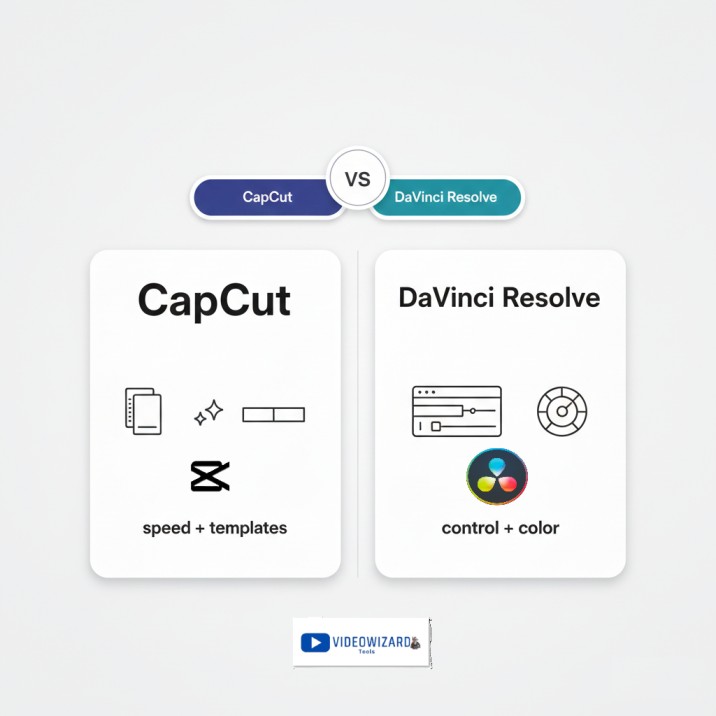
Overall vibe: CapCut is fast + social-native. DaVinci Resolve is pro-first + finish-focused.
- Price vibe: CapCut is free-first with upgrades; DaVinci Resolve has a powerful free version + a one-time Studio upgrade
- Platforms: CapCut is strongest on mobile (plus desktop/web options); DaVinci Resolve is desktop-first (Windows/Mac/Linux)
- Learning curve: CapCut is beginner-friendly; DaVinci Resolve takes longer but gives far more control
- Templates: CapCut is template-heavy; DaVinci Resolve is manual editing (not templates)
- Captions: CapCut is faster for quick subtitles; DaVinci Resolve is more technical for caption-heavy short-form
- Exports: CapCut is fast for social; DaVinci Resolve is better for high-quality exports and finishing
- Best use case: CapCut for short-form speed; DaVinci Resolve for long-form, color grading, and pro finishing
To see CapCut comparison with more editors? See the full CapCut comparisons hub .
What They’re Really Built For
Here’s the part most comparisons miss: CapCut and DaVinci Resolve can both edit videos, but they don’t feel the same while you’re editing.
One is built to get you to a finished short-form video fast. The other is built to give you control while you polish the edit like a “real” production.
CapCut’s “speed + social editing” vibe
CapCut is like walking into a kitchen where everything is already chopped and seasoned.
You can pick a template, swap in clips, add captions, throw on effects, and get to export fast. The app is clearly designed to help you finish—especially for TikTok, Reels, and Shorts.
That’s why CapCut is so popular for short-form. It matches the social style: fast cuts, bold captions, punchy transitions, and effects that make basic footage look more polished.
If you post often, this matters. The best tool isn’t the one with the most power. It’s the one that gets you from idea → upload without friction.
DaVinci Resolve’s “control + finishing” vibe
DaVinci Resolve feels like a full editing suite, not a shortcut.
You’re working in a pro timeline with real trimming tools, proper audio control, and color grading that’s in a different league. Instead of “pick a look,” Resolve is “build the look,” then finish it clean.
This is why Resolve wins for YouTube long-form, client projects, and anything where consistency and polish matter. You can shape the pacing, lock in the audio, and grade the video so it looks intentional—not just “social-edited.”
The tradeoff is time. Resolve rewards you when you learn it, but it’s not built for five-minute, template-first edits.
Quick takeaway: CapCut helps you finish fast. DaVinci Resolve helps you finish like a pro.
Learning Curve: Which Feels Easier in 10 Minutes?
If you’re brand new, CapCut usually feels easier right away because templates and presets do a lot of the heavy lifting. You can trim clips, drop in captions, add effects, and end up with something that looks “done” fast.
DaVinci Resolve is powerful, but it’s not a quick-start tool. The interface has more panels, more settings, and more pro concepts to learn before you feel fast and confident.
So the real question isn’t “which one is easier?” It’s this:
Do you want a tool that helps you finish faster (CapCut), or a tool that rewards you once you learn it (DaVinci Resolve)?
Winner for beginners: CapCut
Winner for long-term control: DaVinci Resolve
Free vs Paid: What Actually Gets Locked?
Both tools offer a “free” option, but they lock different things—and that changes how usable they feel once you’re editing regularly.
The question isn’t “which one is free?” It’s which one stays usable for your workflow without slowing you down mid-edit.
CapCut Pricing (Free vs Paid)
CapCut Free is one of the most usable free options for short-form. You can finish real edits without paying, but you’ll see Pro labels on certain tools and assets.
What CapCut Free usually includes:
- Basic editing (trim, split, speed, transitions, filters)
- Auto captions (some styles/tools may be limited)
- Lots of effects/templates (premium ones show “Pro”)
- Exports that are often clean (watch template/asset restrictions)
CapCut pushes upgrades when you tap premium templates, effects, fonts, stock assets, and newer AI-style tools.
DaVinci Resolve Pricing (Free vs Paid)
DaVinci Resolve’s free version is genuinely powerful. For a lot of creators, Resolve Free is already “enough editor.”
What Resolve Free usually includes:
- Full timeline editing tools
- Pro-level color grading tools
- Strong audio tools (Fairlight workflow)
- High-quality export options
Resolve Studio is the paid upgrade with extra features and a one-time price, mainly for people who need advanced tools, faster workflows, and higher-end finishing.
Which Feels Worth Paying For?
If you’re trying to post short-form consistently with the least friction, CapCut often feels worth it because Pro removes annoying “locked asset” moments when you rely on templates and premium effects.
If you want a serious editor with pro finishing and color grading, DaVinci Resolve is the better value because the free version is extremely capable, and Studio is a one-time upgrade—not a monthly subscription.
Quick takeaway: CapCut is “free-to-post.” DaVinci Resolve is “free-to-finish like a pro.”
Pricing and Free Plan
CapCut pricing
- CapCut Free: $0
- CapCut Pro (monthly): $19.99/month
- CapCut Pro (annual): $179.99/year (about $14.99/month when averaged)
Note: CapCut also offers other options (like a Standard/mobile-focused plan and a Teams plan). See the full breakdown here: CapCut pricing guide.
DaVinci Resolve pricing
- DaVinci Resolve (Free): $0
- DaVinci Resolve Studio (one-time purchase): $295
Which is better for value?
If you want to edit and post short-form content for the lowest cost, CapCut is usually the better value, because you can do a lot on the free plan and only upgrade if you want Pro features.
If you want a serious editor with pro finishing and color grading, DaVinci Resolve is the better value because the free version is extremely capable, and Studio is a one-time payment instead of a monthly subscription.
Feature Battle: CapCut vs DaVinci Resolve (Real Creator Categories)
Instead of listing every button, this is about the moments where one tool actually feels better while you’re editing.
Templates and trending effects
This is CapCut’s home turf.
CapCut: Packed with templates, trending effects, text animations, and transitions. Pick a style, swap clips, post fast.
DaVinci Resolve: Not template-first. You build the look manually, which takes more time.
Winner: CapCut (especially for trend-driven short-form)
Manual editing control and timeline workflow
This is where Resolve starts to dominate.
CapCut: You get control, but the app nudges you toward speed and presets.
DaVinci Resolve: Deep timeline tools, precise trimming, better organization, and more control over every detail.
Winner: DaVinci Resolve (for precision and long-form)
Color grading and “cinematic” look
This is Resolve’s signature advantage.
CapCut: Quick filters and looks, but you’ll hit limits if you want consistent, scene-by-scene grading.
DaVinci Resolve: Pro-level color tools built for real grading and consistent finishing.
Winner: DaVinci Resolve
Captions and text styling
CapCut: Faster auto captions and social-style subtitle looks.
DaVinci Resolve: Can do subtitles, but it’s a more traditional workflow and usually slower for caption-heavy short-form.
Winner: CapCut (for speed)
Audio and overall polish
CapCut: Fine for simple audio needs, but not built for deep audio work.
DaVinci Resolve: Stronger audio tools and a more complete finishing workflow.
Winner: DaVinci Resolve
Export workflow
CapCut: Quick exports in social formats with minimal thinking.
DaVinci Resolve: More control over codecs, bitrates, and delivery settings for clean YouTube/client exports.
Winner: DaVinci Resolve (for quality); CapCut (for speed)
Watermark behavior (what to expect)
CapCut: Often clean, but watermark/limits can show up depending on the template/asset used.
DaVinci Resolve: No watermark in Free or Studio (watermarks only come from third-party trial plugins or watermarked media).
Winner: DaVinci Resolve
Speed vs focus
CapCut: Faster when you want the app to do more for you.
DaVinci Resolve: Slower, but better when you want control, consistency, and a polished finish.
Winner: CapCut for speed; DaVinci Resolve for control
Best For: Pick the Tool That Matches How You Edit
Most people don’t pick the wrong tool because it’s “bad.” They pick the wrong tool because it doesn’t match how they actually edit.
Best for TikTok, Reels, and Shorts
CapCut is usually the easier choice for short-form because it’s built around speed: templates, effects, and captions that look social-ready fast.
DaVinci Resolve can absolutely do short-form, but it’s more manual. It makes more sense when you care about control and consistency more than quick trends.
Best for YouTube videos (and long-form)
DaVinci Resolve is usually better for long-form. It’s easier to manage longer timelines, polish the edit, and keep quality consistent from start to finish.
CapCut can handle basic YouTube edits, but it shines most when the job is quick and social.
Best for beginners
CapCut usually feels easier in the first 10 minutes because templates and presets do the heavy lifting.
DaVinci Resolve makes more sense if you’re willing to learn a pro tool for deeper control and a higher-end look.
Best for creators who care about color
If you want a more cinematic grade and consistent color across videos, DaVinci Resolve wins.
Best for speed and volume
If you post often and want the fastest path from idea to upload, CapCut wins because it removes steps.
Quick takeaway: CapCut wins when speed, trends, captions, and volume matter. DaVinci Resolve wins when control, color, audio, and finishing matter more.
Common Scenarios (Quick Picks)
Pick the line that sounds like you. The winner is on the right.
CapCut vs DaVinci Resolve FAQs
Is CapCut better than DaVinci Resolve?
CapCut is better if you want fast short-form edits, templates, effects, and quick captions for TikTok, Reels, and Shorts. DaVinci Resolve is better if you want professional timeline control, color grading, audio tools, export settings, and a more polished final result.
Is DaVinci Resolve good for beginners?
DaVinci Resolve can be used by beginners, but it has a steeper learning curve than CapCut. CapCut is easier in the first few minutes because templates and presets do more of the work. Resolve takes longer to learn, but it gives you much more control once you understand the workflow.
Which is better for TikTok, Reels, and Shorts?
CapCut is usually better for TikTok, Instagram Reels, and YouTube Shorts because it is built around speed, templates, trending effects, vertical video, and fast captions. DaVinci Resolve can make short-form videos too, but the workflow is more manual.
Which is better for YouTube videos, CapCut or DaVinci Resolve?
DaVinci Resolve is usually better for longer YouTube videos because it gives you deeper timeline control, stronger audio tools, better color grading, and more export control. CapCut can still work for simple YouTube edits, but it shines more for quick social videos.
Which is better for color grading?
DaVinci Resolve is much better for color grading. It is known for professional color tools, scene-by-scene control, and cinematic finishing. CapCut has filters and basic adjustments, but it is not built for serious color grading.
Does DaVinci Resolve add a watermark?
No. DaVinci Resolve does not add a watermark to normal exports in the free or Studio version. Watermarks usually only appear if you use third-party trial plugins, stock assets, or media that already includes a watermark.
Is CapCut or DaVinci Resolve better for captions?
CapCut is usually better for quick captions because auto captions and social-style subtitle editing are faster. DaVinci Resolve can handle subtitles, but it is a more traditional workflow and may feel slower for caption-heavy short-form videos.
Should I learn DaVinci Resolve if I already use CapCut?
Yes, if you want to grow beyond quick social edits. CapCut is great for speed and short-form content, but DaVinci Resolve is worth learning if you want deeper editing control, better color grading, stronger audio tools, and a more professional workflow.
Final Verdict
Pick CapCut if you want the fastest way to edit and post short-form videos. It’s built for TikTok, Reels, and Shorts, and it makes templates, effects, and captions feel effortless.
Pick DaVinci Resolve if you want pro-level control and a more polished finish. It takes longer to learn, but it’s better for long-form YouTube videos, serious color grading, and projects where quality matters.
If you’re mainly making short-form, CapCut wins. If you want deeper control and better finishing, DaVinci Resolve wins.
