

If you’re deciding between CapCut vs Canva Video, you’re really choosing between two different ways of making content.
CapCut is an editor first. You edit clips fast, lean on effects, and push out TikTok, Reels, and Shorts quickly.
Canva is design first. It’s built for people who want clean layouts, text, brand colors, and marketing-style videos that look like a polished poster, but moving.
This post compares them using the same checklist every time: pricing, ease of use, templates, captions, export quality, watermark rules, and whether you’re editing on mobile, desktop, or web.
TL;DR Verdict
Pick CapCut if:
- You want faster video editing for TikTok, Reels, and Shorts
- You rely on effects, transitions, and creator-style edits
- You want a workflow that starts with clips, not designs
Pick Canva Video if:
- You make promos, ads, announcements, or brand content with lots of text/layouts
- You want Brand Kit-style consistency (fonts, colors, spacing)
- You care more about clean visuals than deep video editing control
Biggest difference: CapCut is built for editing footage fast. Canva video editing is built for designing polished, branded videos that look polished.
Best for TikTok/Reels: CapCut
Best for YouTube/long-form: CapCut
Best for brand/marketing videos: Canva Video
Table of Contents
- CapCut vs Canva Video Editing at a Glance
- Pricing and Free Plan
- Ease of Use (Beginner Friendliness)
- Templates and Speed for Short-Form
- Captions and Subtitles
- Export Quality and Formats
- Watermark (What to Expect)
- Features That Actually Matter (Real Editing Depth)
- Performance and Stability
- Where Each One Fits in Your Workflow
- Common Scenarios (Quick Picks)
- CapCut vs Canva Video FAQs
- Final Verdict
- Official Resources
CapCut vs Canva Video Editing at a Glance
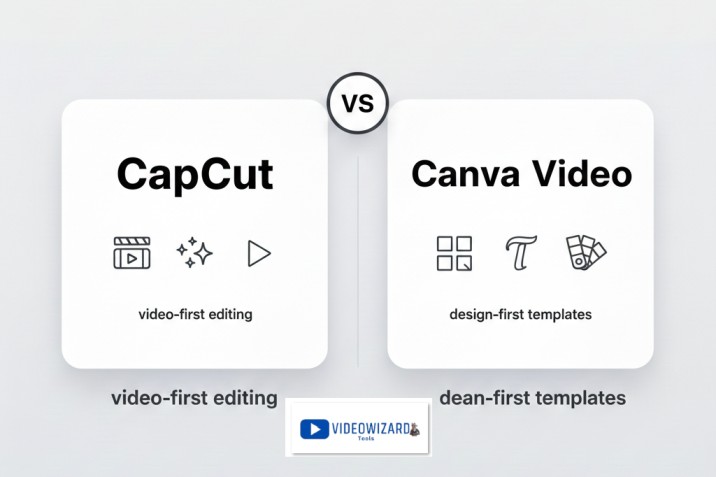
- Price vibe: CapCut is free-first with optional upgrades; Canva is freemium with paid plans for Pro features
- Platforms: CapCut is strongest on mobile (desktop options vary); Canva runs on web + desktop + mobile
- Learning curve: Both are beginner-friendly, but Canva feels easier if you think in layouts
- Templates: Both have templates—CapCut leans trend templates; Canva leans toward branded design templates
- Captions: CapCut is faster for auto captions; Canva is better for designed text overlays (captions are more manual)
- Export & quality: CapCut is fast for social; Canva is great for crisp text + clean marketing exports
- Best use case: CapCut for footage-first short-form editing; Canva for design-led promos and brand posts
Want to compare CapCut with more editors? See the full CapCut comparisons hub
Pricing and Free Plan
CapCut pricing
- CapCut Free: $0
- CapCut Pro (monthly): $19.99/month
- CapCut Pro (annual): $179.99/year (about $14.99/month when averaged)
Note: CapCut also offers other options (like a Standard/mobile-focused plan and a Teams plan). See the full breakdown here: CapCut pricing guide.
Canva Video pricing
- Canva Free: $0
- Canva Pro (monthly): $15/month
- Canva Pro (annual): $120/year (about $10/month when averaged)
- Canva Teams: pricing depends on team size and region, and is billed per team member on most plans
Canva Prices can vary by country, taxes, and platform.
Which is better for value?
If your main goal is editing clips fast for TikTok, Reels, and Shorts, CapCut is usually better value because it’s video-first and built for speed.
If your main goal is branded marketing videos with consistent fonts, layouts, and brand colors, Canva Pro is usually better value because the design tools and brand kit save a ton of time.
Ease of Use (Beginner Friendliness)
CapCut learning curve
CapCut is easy to start with, especially if you’re working with real video clips. You import footage, trim, add effects, drop in music, generate captions, and export fast.
It’s built for a “post this today” workflow, so the app pushes you toward quick results with templates and social-friendly tools.
Canva Video learning curve
Canva Video is even easier if you already think in designs. You pick a template, swap text, drop in clips or stock, apply brand colors, and you’re basically done.
It feels more like building a slideshow that moves, not editing footage. The downside is if you want real editing control, Canva can feel limited compared to CapCut.
Best for beginners
If you want the simplest way to make clean marketing-style videos with text and layouts, Canva Video is usually easier.
If you want to edit footage quickly with effects, transitions, and captions for TikTok and Reels, CapCut is usually easier.
Templates and Speed for Short-Form
CapCut is built for short-form speed. Templates, effects, and creator-style edits make it easy to turn raw clips into TikTok, Reels, and Shorts quickly.
If your content starts with footage and you want it to feel trendy, CapCut gets you there faster.
Canva Video is also template-heavy, but it’s a different kind of speed. It’s fast when your video is mostly text, layouts, and brand visuals, like promos, announcements, quotes, or simple product clips.
But if you’re trying to edit a bunch of raw footage with tight pacing, Canva can feel slower and more limited than CapCut.
For creator-style short-form editing, CapCut wins. For quick branded posts with text and design, Canva can be faster.
Best for short-form: CapCut for footage editing; Canva for branded template posts
Captions and Subtitles
CapCut is usually faster for captions. Auto captions are easy to generate, quick to fix, and simple to style for TikTok and Reels. If subtitles are part of every short-form video you post, CapCut saves time.
Canva Video can add text and subtitles, but it’s often more manual, especially if you want captions synced tightly to speech.
Canva shines more when the text is part of the design, like headlines, callouts, and on-screen points, rather than fast auto-subtitle workflows.
If you need auto captions and quick subtitle styling, CapCut wins. If your “captions” are more like designed text overlays, Canva can work well.
Best for captions: CapCut for auto subtitles; Canva for designed text overlays
Export Quality and Formats
CapCut exports are built for social. Switching between 9:16, 1:1, and 16:9 is quick, and the final video usually looks clean after upload. For TikTok, Reels, and Shorts, CapCut’s export workflow is fast and simple.
Canva Video exports are usually very clean for marketing-style content, especially when your visuals are mostly text, shapes, and images.
It’s great when you want crisp typography, consistent layouts, and a polished “brand” look. If your video relies on heavy footage edits, transitions, and effects, CapCut tends to feel better suited.
Both can export good-looking videos. CapCut is better for footage-heavy edits. Canva is better for design-heavy videos with lots of text.
Best for export quality: Tie (CapCut for footage; Canva for crisp design and text)
Watermark (What to Expect)
CapCut is often clean for basic exports, but watermarks or restrictions can show up when you use locked templates or premium assets.
The safe habit is to check the export screen and avoid locked items if you want a watermark-free result.
Canva Free can include limitations depending on the assets you use. Some elements, stock media, or features are Pro-only, and that’s where people get surprised. If you stick to free elements, exports are usually fine.
If you build a design using Pro assets without a Pro plan, you may be prompted to pay to download or license the design.
If you want the least surprise, the safest approach in either tool is the same: use free assets only, and check what’s locked before export.
Least watermark hassle: CapCut (for basic edits); Canva Pro (for full access without asset limits)
Features That Actually Matter (Real Editing Depth)
CapCut is a video editor first. You get stronger control for trimming, pacing, transitions, effects, audio syncing, and the kind of editing that makes footage feel dynamic.
It’s better when your workflow is “I have clips, now I need to shape a video.”
Canva Video is design first. It’s amazing for layouts, brand colors, fonts, and templates that keep everything consistent.
It’s perfect for promos, ads, presentations, announcements, and social content that’s driven by text and visuals. But it’s not built for deep video editing, complex timelines, or heavy footage work.
If you want editing depth, CapCut wins. If you want design depth and brand consistency, Canva wins.
Best for advanced editing: CapCut for video editing; Canva for design and branding workflows
Performance and Stability
CapCut is usually smooth for short-form editing on most modern phones. Because it’s built for quick edits, it often feels fast day to day.
It can slow down when projects become heavy, such as when multiple effects are stacked, timelines are long, or files are large, especially if your phone storage is low.
Canva Video performance depends more on your browser or device because it’s often web-based.
On a good connection and a decent computer, it runs fine for most design-video projects. On slower devices or weak internet, it can feel laggy, especially with larger designs or lots of elements.
For footage-heavy editing and fast exports, CapCut usually feels smoother. For design-heavy projects on desktop, Canva is stable as long as your device and connection are solid.
Runs smoother for most people: CapCut for video editing; Canva for design work on desktop with good internet
Where Each One Fits in Your Workflow
Best for TikTok/Reels/Shorts
CapCut is usually the better choice for short-form creators because it’s built for fast footage editing, effects, and captions.
Best for YouTube (longer videos)
CapCut is usually the better fit if you’re editing real footage. Canva Video can work for simple explainer-style content, but it’s not designed for long, footage-heavy edits.
Best for client/pro work
It depends on what “pro” means. For professional editing work, CapCut isn’t the standard. For professional brand content, Canva Video can be very effective because it maintains consistent and polished visuals.
Best if you edit only on your phone
CapCut wins. Canva works on mobile too, but CapCut’s workflow is more natural for phone-first video editing.
Best if you want desktop control
Canva Video wins if your goal is design control, layouts, and brand consistency on desktop. If your goal is deep video editing control, CapCut is still the better fit between these two.
Common Scenarios (Quick Picks)
Pick the line that sounds like you. The winner is on the right.
CapCut vs Canva Video FAQs
Is CapCut better than Canva for video editing?
CapCut is usually better for editing real video clips because it has stronger tools for trimming, pacing, effects, transitions, captions, and short-form exports. Canva Video is better when your video is more design-focused, such as promos, announcements, slides, ads, and branded social posts.
Is Canva Video good for TikTok, Reels, and Shorts?
Canva Video can work for simple TikTok, Reels, and Shorts, especially if the video is based on text, templates, images, or brand graphics. But if you are editing footage, adding fast captions, using trends, or cutting clips to music, CapCut is usually faster and more natural.
Which is better for marketing videos, CapCut or Canva?
Canva Video is usually better for marketing videos that need clean layouts, brand colors, fonts, product graphics, slides, and consistent design. CapCut is better when the marketing video depends more on footage, creator-style editing, captions, transitions, and social-first pacing.
Which is easier for beginners, CapCut or Canva Video?
Canva Video is usually easier if you think in layouts, templates, and designs. CapCut is still beginner-friendly, but it is better for people who want to edit actual clips quickly for TikTok, Reels, Shorts, or YouTube.
Does Canva Video have auto captions like CapCut?
CapCut is usually stronger for fast auto captions and subtitle styling. Canva Video is better for designed text overlays, headlines, callouts, and branded text layouts, but it is not as quick as CapCut for caption-heavy short-form editing.
Which is better for YouTube videos, CapCut or Canva?
CapCut is usually better if you are editing real footage for YouTube because it gives you better pacing, trimming, audio, captions, and video editing control. Canva Video can work for simple explainer videos, slides, promos, or design-led YouTube content.
Can I use Canva and CapCut together?
Yes. A good workflow is to design thumbnails, graphics, slides, logos, or branded elements in Canva, then edit the actual video in CapCut. This gives you Canva’s design strength and CapCut’s faster video editing tools.
Which should I choose, CapCut or Canva Video?
Choose CapCut if your content starts with video clips and you want fast editing, effects, transitions, captions, and social exports. Choose Canva Video if your content starts with design and you need branded layouts, text, templates, and polished marketing visuals.
Final Verdict
Pick CapCut if your content starts with real footage and you want fast editing, effects, transitions, and auto captions for TikTok, Reels, and Shorts. It’s video-first, and it gets you to “postable” quickly.
Pick Canva Video if your content starts with design. It’s the better choice for branded marketing videos, promos, announcements, and social posts where layouts, typography, and brand consistency matter most.
If you’re mainly editing clips: CapCut wins.
If you’re mainly designing branded videos: Canva Video wins.
