

Are your videos looking fine… but not professional?
The difference is often the template.
The best CapCut template for video does more than add transitions. It controls pacing, highlights key moments, and keeps viewers watching until the end. And in short-form content, retention decides everything.
Some templates are built for strong hooks. Others are perfect for storytelling or business content. If you choose the wrong one, your video feels off. If you choose the right one, even simple clips look sharp and intentional.
Let’s break down the templates that actually work.
Table of Contents
9 Best CapCut Templates For Video (Clean, Professional, and High Retention)
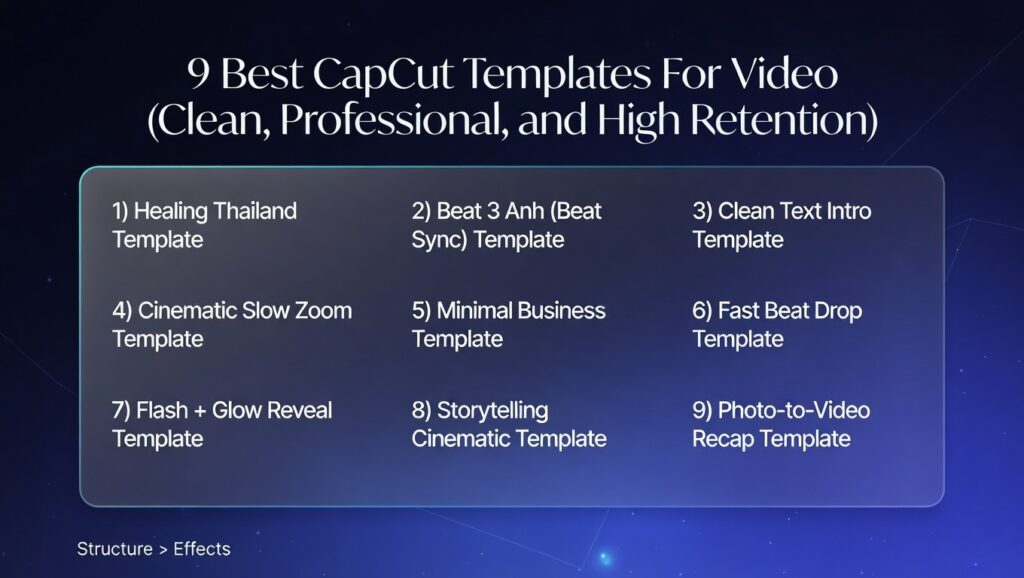
If you want your videos to look professional on Shorts, Reels, or TikTok, pick templates that control pacing and keep the subject clear.
These are the best CapCut templates for video based on common video styles, though some lean more masculine or feminine — see our breakdowns for the best CapCut template for boys and the best CapCut templates for girls for more tailored picks.
1) Healing Thailand Template
Best for: travel, lifestyle, storytelling
Why it works: soft cinematic pacing makes basic clips feel premium.
2) Beat 3 Anh (Beat Sync) Template
Best for: transformations, glow-ups, highlight reels
Why it works: fast cuts + beat drops increase replay value.
3) Clean Text Intro Template
Best for: personal brand, speaking clips, story content
Why it works: strong intro structure keeps attention on your message.
4) Cinematic Slow Zoom Template
Best for: talking head videos, calm reels, educational content
Why it works: looks professional without distracting effects.
5) Minimal Business Template
Best for: tips, tutorials, product explanations
Why it works: clean transitions keep viewers focused on the info.
6) Fast Beat Drop Template
Best for: hype edits, gym clips, high-energy content
Why it works: built-in hook grabs attention in the first seconds.
7) Flash + Glow Reveal Template
Best for: reveals, outfit switches, dramatic moments
Why it works: adds impact fast (best used sparingly).
8) Storytelling Cinematic Template
Best for: day-in-the-life, mini stories, emotional reels
Why it works: pacing supports the storyline instead of rushing it.
9) Photo-to-Video Recap Template
Best for: recaps, events, mixed photo + video posts
Why it works: keeps flow and watch time higher than a basic slideshow. (If your content is mostly photos, check out the best CapCut template for photos instead.)
Best CapCut Template For Video By Content Type
| Talking head/education | Best template style | Why it works |
|---|---|---|
| Travel / lifestyle | Healing Thailand / Cinematic | Mood + smooth pacing looks premium |
| Transformations / highlights | Beat Sync (Beat 3/5) | Beat timing boosts replays |
| Talking head / education | Slow Zoom / Minimal Business | Clarity stays high, effects don’t distract |
| Hype edits | Fast Beat Drop | Strong hook and high energy |
| Recaps (photos + clips) | Photo-to-Video Recap | Keeps flow better than slideshows |
What Makes A Video Template “Good”
Not every CapCut template works well for video. Some look impressive in previews but fall apart once you add your own clips. A good video template does three simple things well.
First, it protects clarity. Your subject should always be easy to see. If text overlays block faces or transitions feel chaotic, the template is hurting your content instead of helping it.
Second, it controls pacing. A strong template knows when to move fast and when to slow down, similar to how the 80/20 rule in video editing works — a small number of key moments (like beat drops) carry most of the impact.
Slower moments should support storytelling. If every second feels rushed, viewers will feel it.
Third, it supports the message. If you are making a tutorial, motivational clip, or brand video, the template should not overpower your words.
Clean zoom-ins and simple transitions usually outperform heavy effects for speaking content.
The best CapCut template for video makes your content look structured, not edited for the sake of editing. When pacing, clarity, and energy align, your video feels intentional and professional.
How To Keep Video Quality High
A good CapCut template will not fix poor-quality footage. If you want your videos to look professional, you need to protect clarity from start to finish.
Start with high-resolution clips. Record in 1080p or higher whenever possible. Templates compress and resize content slightly, so beginning with sharp footage prevents visible quality loss.
Next, match the aspect ratio to your platform. For TikTok, Reels, and Shorts, use 9:16 vertical format. If you use horizontal clips inside a vertical template, black bars or awkward cropping can reduce visual impact.
Pay attention to lighting. Even the best CapCut template for video will look flat if the original footage is dark or grainy. Natural light or soft front-facing lighting instantly improves results.
Before exporting, select the highest available resolution and frame rate. Avoid lowering quality just to reduce file size.
Platforms already compress videos after upload, so you want to start with the best possible version.
When your footage is sharp and well-framed, the template enhances it. When the footage is weak, no template can fully save it. Quality starts before you even open CapCut.
Platforms already compress videos after upload, so you want to start with the best possible version. If you want a quick step-by-step fix, follow this guide on how to make CapCut video quality better.
How To Use Video Templates In CapCut
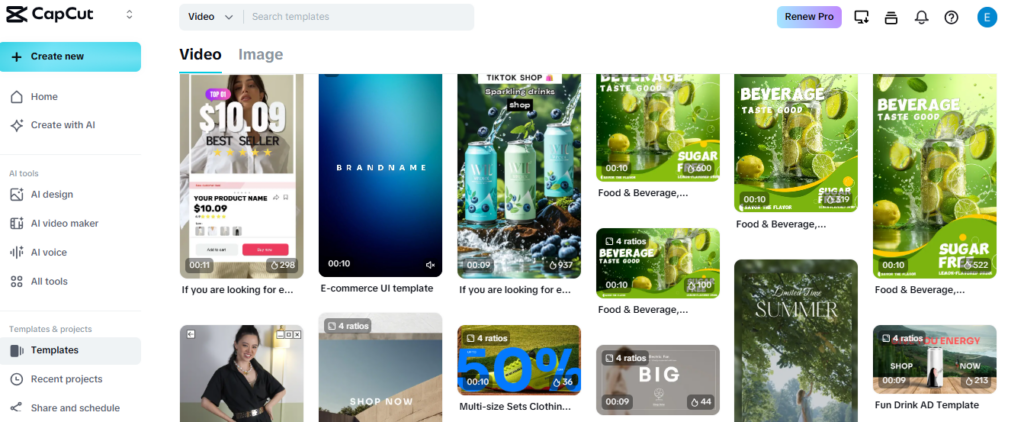
Using a video template in CapCut is simple, but small decisions change how professional the final result looks.
Start by opening the Templates section and searching for the CapCut template name you want, such as Healing Thailand, Beat 3 Anh, or a cinematic slow zoom style. Tap “Use Template” to begin.
Upload your clips in the order the template requests. Pay attention to timing. The first clip usually acts as the hook, so choose something visually strong. If there is a beat drop, place your most impressive scene at that exact moment.
After your clips load, preview the entire video without skipping. Watch for awkward cuts, cropped faces, or text blocking important details. If something feels off, swap the clip instead of forcing it to work.
Check text overlays carefully. If the template includes automatic captions or intro text, adjust wording so it fits your message. Clean, readable text makes a big difference in short-form content.
Before exporting, select the highest resolution and confirm the aspect ratio is 9:16 for TikTok, Reels, and Shorts. A properly formatted video always performs better than one that looks cropped or compressed.
When used correctly, CapCut video templates save time while still giving your content structure, pacing, and a polished finish.
Common Mistakes To Avoid
Even the best CapCut template for video can underperform if it’s used incorrectly. Most problems come from small decisions that hurt pacing or clarity.
One common mistake is choosing a template that does not match the content. A heavy beat drop template might look exciting, but it can feel distracting in a calm storytelling or educational video.
Another mistake is placing weak clips at key moments. If the hook is boring, viewers scroll. If the beat drop lands on an average shot, you waste the impact. Always reserve your strongest visual for the most dramatic point in the template.
Overediting is another issue. Some creators stack additional effects on top of the template. This often makes the video feel messy instead of professional.
If a template’s built-in filter clashes with your footage, it’s worth knowing whether you can take a filter off a CapCut template instead of layering more effects on top to compensate.
Finally, ignoring text readability hurts performance. If captions are too small or blocked by transitions, viewers lose interest quickly. Clean, clear messaging always wins over flashy design.
Templates only work when you customize them properly. If you want to tighten pacing, fix text placement, and make your edits feel intentional across TikTok, Reels, and Shorts, read our full guide on how to use CapCut templates for social media before you export.
It shows you exactly how to structure and tweak templates so they don’t look generic.
Avoiding these mistakes helps your video feel structured and intentional instead of rushed or chaotic.
Frequently Asked Questions
What is the best CapCut template for video?
The best CapCut template for video depends on your goal. Use cinematic templates for storytelling, beat sync templates for transformations and highlights, slow zoom templates for talking-head videos, and clean minimal templates for tutorials or business content.
Are CapCut templates good for professional-looking videos?
Yes, CapCut templates can make videos look professional when you choose a clean structure, use high-quality clips, and avoid too many effects. Professional-looking videos usually need clear pacing, readable text, good lighting, and smooth transitions.
Which CapCut template is best for TikTok, Reels, and Shorts?
For TikTok, Reels, and Shorts, beat sync, cinematic, slow zoom, and clean text intro templates usually work well. The safest choice is a vertical 9:16 template that grabs attention in the first few seconds and keeps the subject easy to see.
What CapCut template is best for talking-head videos?
Cinematic slow zoom and minimal business templates usually work best for talking-head videos. They keep attention on the speaker and message instead of distracting viewers with too many transitions, flashes, or effects.
What template is best for transformations or highlight videos?
Beat sync, Beat 3, Beat 5, fast beat drop, and flash reveal templates work well for transformations and highlight videos. Place your strongest clip on the music drop so the edit has a clear payoff moment.
Why do my videos look worse after using a CapCut template?
Your video may look worse if the source footage is low quality, the lighting is poor, the clips are cropped badly, or the template does not match the energy of your content. Templates amplify what you give them, so strong footage still matters.
Do CapCut templates reduce video quality?
Templates do not automatically reduce video quality. Most quality loss comes from low-resolution footage, heavy effects, bad cropping, or poor export settings. Use clear clips, keep the aspect ratio correct, and export at the highest suitable resolution.
Should I add extra effects on top of CapCut templates?
Usually, no. Adding too many extra effects can make the video look messy. If the template already has transitions, music sync, filters, and text, keep your extra edits light so the final video stays clean and professional.
How do I choose the right CapCut video template?
Choose based on your video goal. Use beat sync for retention, cinematic templates for storytelling, clean minimal templates for clarity, and photo-to-video templates for recaps. If the template feels forced after previewing, switch to a better match.
Final Recommendations
If you want the best CapCut template for video, choose based on your goal, not just popularity.
For emotional storytelling and travel content, templates like Healing Thailand create smooth pacing and cinematic mood.
For high-energy transformations and highlight videos, styles like Beat 3 Anh deliver strong beat drops and fast cuts.
For personal brand videos, speaking clips, and motivational content, clean cinematic or slow zoom templates usually perform better than heavy effects.
Do not rely on one template for everything. Test different structures and see which keeps viewers watching longer. Watch your retention and adjust.
The right CapCut video template should make your content clearer, sharper, and more intentional. When pacing, clip selection, and quality align, even simple footage can look professional.
