


CapCut is one of those editors that feels way more powerful than people expect — especially for quick, clean social videos.
If you’re wondering whether you can edit in CapCut Offline, yes… You can. You don’t need Wi-Fi just to cut clips, add text, or build a full timeline.
The only catch? Anything that needs to download (like new effects, templates, or cloud syncing) still needs internet.
But the actual editing workflow can run perfectly fine offline.
Table of Contents
- Does CapCut Need Internet to Work?
- Does CapCut Need Wi-Fi to Edit Videos?
- How CapCut Works Offline
- How to Edit Offline in CapCut: Step-by-Step Guide
- Does CapCut Need Internet to Export Videos?
- What You Can Do When You Edit in CapCut Offline
- What You Can’t Do While Editing Offline in CapCut
- Troubleshooting: CapCut Offline Not Working
- Pros and Cons of Editing in CapCut Offline
- Frequently Asked Questions
- Conclusion
Does CapCut Need Internet to Work?
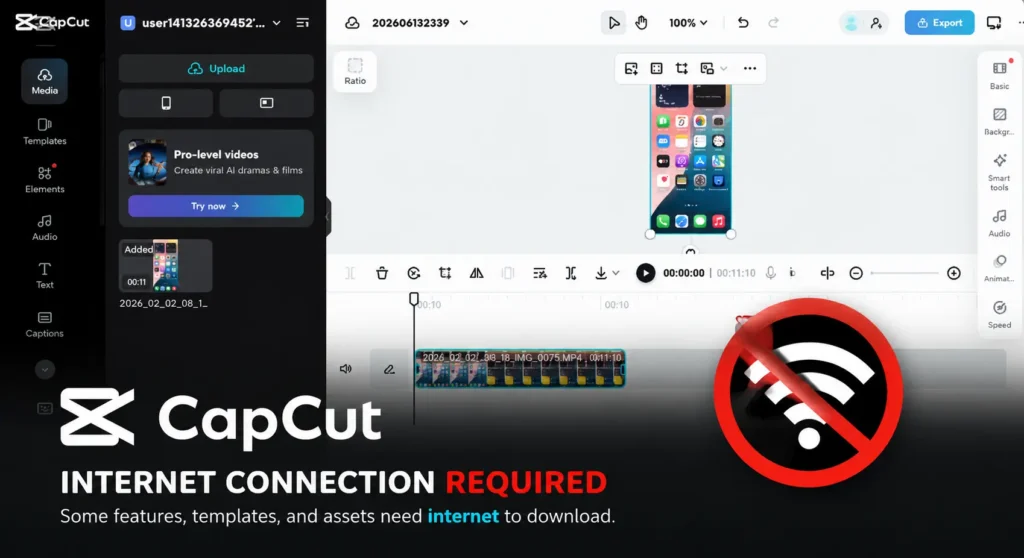
No, CapCut does not need internet for most basic editing tasks.
You can import videos, trim clips, add text, apply many effects, edit audio, and export completed projects without being connected to Wi-Fi or mobile data.
However, some CapCut features depend on an internet connection. These include cloud syncing, templates, online effects, stock assets, AI tools, and account-related features.
This is why some users believe CapCut requires internet, while others use it completely offline. It depends on which features you are using.
Does CapCut Need Wi-Fi to Edit Videos?
No, CapCut does not need Wi-Fi to edit videos.
Once your video files are stored on your device, you can open CapCut and continue editing even when you have no internet connection.
Most core editing tools work offline, including trimming, splitting, keyframes, text overlays, filters, transitions, speed adjustments, and audio editing.
If you only need standard editing tools, CapCut can function like a traditional offline video editor.
How CapCut Works Offline
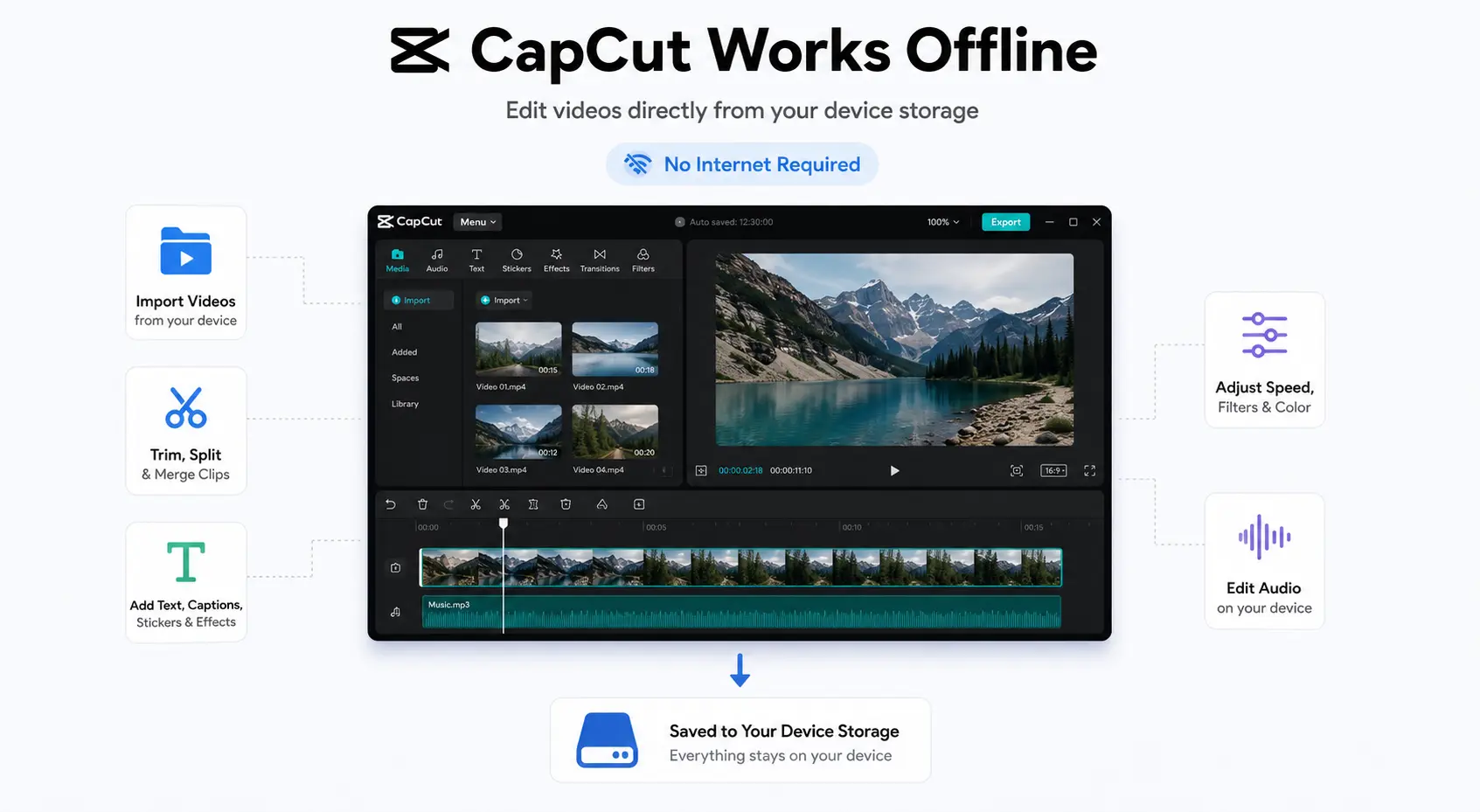
Once CapCut is installed on your phone or computer, it can run in offline mode without any issues for everyday editing.
That’s because most editing happens locally on your device — your clips, timeline, and changes are saved to your storage, not the internet. So you can still:
- import videos from your device
- trim, split, and merge clips
- add text, captions, stickers, and basic effects
- adjust speed, filters, and color settings
- edit audio (as long as the audio file is already on your device)
The only time you really need internet is when CapCut has to download something (like new effects, templates, fonts, or music) or when you want to sync/share online. So the smart move is simple: download any extras you want while you’re online, then you can edit freely offline.
How to Edit Offline in CapCut: Step-by-Step Guide
1) Install CapCut (one-time setup)
Download and install CapCut on your phone or computer while you’re online. After that, you can open and edit projects without the internet.
2) Download anything you’ll want to use later
Before going offline, download the extras you plan to use, like:
- music or sound effects
- filters, effects, transitions
- fonts or stickers (if they require download)
If it needs a “download” button, grab it now—otherwise it won’t show up offline.
3) Turn off data/Wi-Fi (optional, but useful)
If you want to confirm you’re truly offline, switch on Airplane Mode or disable Wi-Fi/data. CapCut should still launch and work.
4) Start a new project (or open an existing one)
Open CapCut → tap New project (or open your saved draft) → import videos from your device storage.
5) Edit like normal
Do your main edits offline:
- trim/split/merge clips
- add text/captions
- add transitions and effects you already downloaded
- adjust audio (using files already on your device)
6) Export when you’re done
You can export to your device offline.
When you’re ready to upload to TikTok/YouTube or sync to cloud, reconnect to the internet.
Does CapCut Need Internet to Export Videos?
In most cases, no. CapCut does not need internet to export videos that use local files and standard editing tools.
You can export completed projects directly to your device without being connected to Wi-Fi.
However, internet access may be required if your project uses cloud-based assets, online templates, AI features, or content that has not been fully downloaded to your device.
If you plan to edit and export completely offline, download all required assets before disconnecting from the internet.
What You Can Do When You Edit in CapCut Offline
When you edit in CapCut Offline, you still get all the “core” tools you actually need to build a full video. As long as your clips (and any audio you want) are already on your device, you can keep working normally.
1) Trim, split, and reorder clips
Cut out dead space, split scenes, rearrange your timeline, and merge clips — all offline.
2) Add transitions (downloaded ones included)
You can apply transitions and tweak timing. If a transition needs downloading, it won’t load offline unless you grabbed it earlier.
3) Add text, captions, and subtitles
Add titles, captions, and on-screen text. Most basic text tools work offline (fonts may vary depending on what’s already downloaded).
4) Use filters, effects, and adjustments
You can apply filters/effects and fine-tune things like brightness, contrast, saturation, and sharpness.
Tip: anything marked “download” needs to be saved before you go offline.
5) Basic audio editing
You can:
- trim audio
- adjust volume and timing
- add voiceovers
- use music/sound effects already saved on your phone/computer
6) Export to your device
Even offline, you can export the final video to your device storage. (Uploading to TikTok/YouTube comes later when you reconnect.)
What You Can’t Do While Editing Offline in CapCut
CapCut works surprisingly well without internet, but some features depend on online services, cloud syncing, or downloadable content.
1. Download New Assets
If an asset has not already been downloaded to your device, you won’t be able to access it while offline.
- New filters and effects
- Transitions
- Templates
- Stickers
- Music and sound effects from CapCut’s library
- Fonts that require downloading
2. Use Cloud Projects and Cross-Device Syncing
CapCut’s cloud storage system requires an active internet connection.
If you’re asking does CapCut need internet to work across devices, the answer is yes. Without internet access, projects remain stored locally on your current device and cannot sync to another phone, tablet, or computer.
3. Share Videos Directly to Social Media
You can export videos offline, but posting directly to platforms such as TikTok, YouTube, Instagram, or Facebook requires an internet connection.
Your finished video will still save to your device normally.
4. Use Some AI and Online-Powered Features
Many users ask whether CapCut requires Wi-Fi for AI tools. In many cases, it does.
Features that commonly require internet access include:
- AI effects and AI-generated content
- Text-to-speech tools
- Cloud-based assets
- Online templates
- Stock videos and stock images
- Online music libraries
- Account syncing
- Downloading new effects, transitions, filters, and fonts
If one of these features stops working while you’re offline, the problem is usually the missing internet connection rather than a bug in CapCut itself.
Troubleshooting: CapCut Offline Not Working
If CapCut is not working offline, the problem is usually related to missing downloads, cloud-based features, storage limitations, or an outdated app version.
Here are the most common offline issues and how to fix them.
CapCut Keeps Saying No Internet Connection
If CapCut keeps saying “No Internet Connection”, don’t panic. This does not always mean the entire app has stopped working.
Many CapCut features rely on online services, including templates, cloud projects, AI tools, stock assets, and account syncing.
If you are offline, these features may display internet or network error messages even though basic editing tools still work normally.
Try this:
- Switch to a stable Wi-Fi or mobile data connection.
- Close and reopen CapCut.
- Sign back into your account if syncing features are unavailable.
- Check whether the feature you are trying to use requires internet access.
CapCut Keeps Saying Network Error
If CapCut shows a network error, it usually means the app cannot connect to CapCut’s servers.
This can happen because of a weak connection, temporary server issues, VPN conflicts, firewall restrictions, or regional availability problems.
Try this:
- Test another website or app to confirm your internet is working.
- Disable any VPN or proxy temporarily.
- Switch between Wi-Fi and mobile data.
- Check whether CapCut services are experiencing temporary outages.
Templates, Effects, or Assets Are Missing Offline
If templates, transitions, effects, music, stickers, or fonts disappear when you go offline, they were probably never downloaded to your device.
Many assets are streamed from CapCut’s servers and require internet access the first time you use them.
Fix:
- Reconnect to the internet.
- Download the assets you need.
- Open the project again and allow everything to load fully.
- Save the project before going offline.
CapCut Music Won’t Play Offline
If audio stops working offline, the music file may be stored online rather than locally on your device.
Fix:
- Download the music while connected to the internet.
- Store audio files locally on your device.
- Re-import the audio into your project.
- Avoid using cloud-only music sources when planning to edit offline.
CapCut Won’t Export Offline
If you’re wondering does CapCut need internet to export, the answer is usually no.
Most local projects can export completely offline.
However, exports may fail if your project contains online-only assets, cloud resources, unsupported media, or your device is running low on storage.
Try this:
- Free up storage space.
- Close background apps.
- Lower export settings if your device struggles with large files.
- Replace any online-only assets with downloaded versions.
- Export a short test clip first.
CapCut Is Not Saving Offline Changes
CapCut normally saves local projects offline, but low storage space or corrupted app data can sometimes prevent drafts from updating correctly.
Try this:
- Check available device storage.
- Keep CapCut updated.
- Export important projects as a backup.
- Back up critical projects before clearing cache or reinstalling the app.
Pros and Cons of Editing in CapCut Offline
Editing offline is super convenient, but it’s not perfect. Here’s the real breakdown.
Pros ✅
- No internet needed: You can edit anywhere—on the road, in low-signal areas, or during outages.
- Core tools still work: Trimming, splitting, text, captions, filters, and basic audio edits are available offline.
- Fewer interruptions: No buffering, no random loading screens, and fewer distractions while you work.
- Works on mobile and desktop: You can edit in CapCut Offline on both your phone and the desktop app.
Cons ❌
- No new downloads: You can’t pull new effects, templates, transitions, fonts, or music while offline.
- No cloud sync: Projects stay on your device until you reconnect (so switching devices won’t work offline).
- Sharing needs internet: You can export offline, but uploading to TikTok/YouTube/Instagram requires a connection.
- Storage matters more: Offline projects and exports can eat space fast—low storage can cause lag or export issues.
Frequently Asked Questions
Does CapCut need Wi-Fi?
No. CapCut can perform most editing tasks without Wi-Fi. Internet is only required for online features such as templates, cloud syncing, AI tools, and downloadable assets.
Does CapCut need internet to edit videos?
No. You can edit videos offline using CapCut’s core editing tools, including trimming, text, transitions, filters, and audio editing.
Does CapCut need internet to export videos?
Usually no. Projects created with local files can normally be exported without internet. However, some cloud-based or online assets may require a connection.
Does CapCut require Wi-Fi for templates?
Yes. Most CapCut templates are hosted online and must be downloaded through an internet connection before they can be used.
Can I use CapCut completely offline?
You can perform most editing and exporting tasks offline, but certain features such as templates, cloud storage, AI tools, and online assets require internet access.
Conclusion
So yes, you can edit in CapCut Offline, and for most creators, that’s all you really need day-to-day.
As long as CapCut is installed and your clips (plus any music/effects you want) are already saved on your device, you can trim, add text, apply filters, edit audio, and export your video without Wi-Fi.
Just remember the simple rule: editing works offline, downloading and syncing don’t.
Download your assets ahead of time, keep enough storage space, and reconnect only when you’re ready to upload or use cloud features.
