
CapCut Auto Captions Limit: How to Work Around the 5-Generation Cap

You open CapCut, start a new project, tap Auto Captions and either the option has vanished, it’s greyed out with a Pro badge, or you tap it and get hit with: “You’ve reached your limit” / “This is a Pro feature” / “Upgrade to generate more.”
You don’t remember burning through your free monthly uses. CapCut never displayed a clear counter, never sent a warning, and barely explains the rules upfront.
Yet here you are: video edited, deadline closing in, ready to post and captions are blocked.
This is CapCut’s quietly restricted auto captions feature. Unlike obvious limits (watermarks, 4K exports), the free tier’s access to AI-powered auto captions isn’t prominently advertised or tracked in-app until you’re cut off.
For many free users, it’s down to just a handful of uses per month (often 2–5, resetting monthly), or fully Pro-locked with occasional free trials.
In this guide, you’ll learn exactly how the current CapCut auto captions limitation works (including quota variations by region/device), how to check your remaining uses (when visible), and seven legitimate workarounds to keep adding accurate, timed captions—without jumping to Pro unless it fits your workflow.
All solutions are tested, practical, and account-safe.
What Is the CapCut Auto Captions Limit?
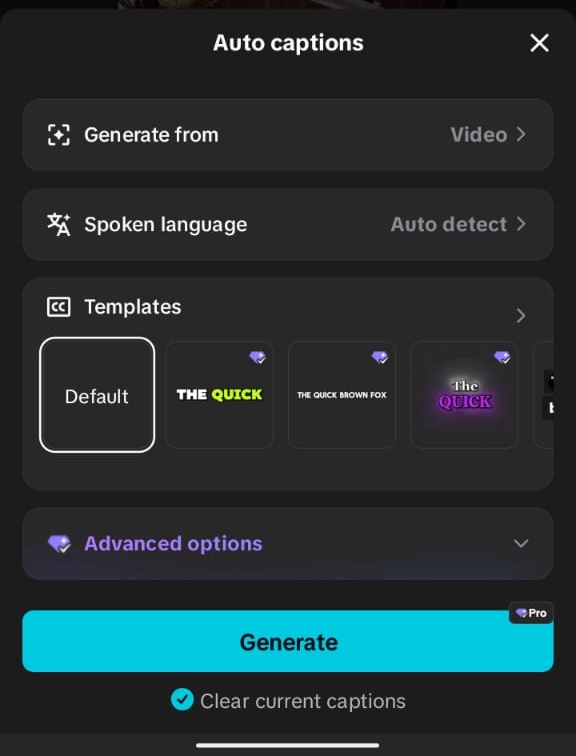
CapCut limits free-tier users to 5 auto caption generations per month, per account.
This is account-wide across all your devices, mobile, desktop, and tablet. Not per device. Not per project.
Five total generations every 30 days, then you’re locked out until the oldest generation expires. Unless you Upgrade to Pro.
The limit applies specifically to CapCut’s AI-powered speech recognition engine that automatically transcribes your video audio into synced text captions.
Once you’ve triggered this process five times, the Auto Captions button either disappears entirely or displays a hard limit message until your rolling reset begins.
If you’re struggling with auto captions not working This step-by-step guide walks you through everything, including both auto and manual caption methods: How to Add and Use Captions in CapCut (Step-by-Step Guide)
Note: If auto captions keep failing, learning manual captions from this guide can save your project fast.
How the CapCut Caption Limit Actually Works
Understanding what counts against your limit and what doesn’t saves you from accidentally burning through generations.
What Counts as a Generation
- Every time you tap Generate and processing completes (even if you immediately delete the captions)
- Regenerating captions on the same video after making edits (each tap counts separately)
- Generating captions on split clips individually (each clip processed separately counts as one)
- Retrying after a failed generation if the failure happens mid-process
What Does NOT Count
- Editing existing captions (moving, restyling, correcting text, changing fonts)
- Copying caption tracks between projects using duplicate project features
- Manually typed text captions added through the Text tool
- Re-opening a project that already has generated captions (no new generation triggered)
- Exporting the same project multiple times with existing captions
Real-World Examples
Scenario A: You generate captions on a 2-minute vlog, spot three spelling errors, fix them manually. Result: 1 generation used.
Scenario B: You generate captions, decide the timing is off, delete all captions, and regenerate. Result: 2 generations used.
Scenario C: You split a 5-minute video into five 1-minute clips and generate captions on each separately. Result: 5 generations used—your entire monthly allowance on one video.
The Rolling 30-Day Reset (Why It Feels Confusing)
CapCut doesn’t reset your caption limit on the first of each month. Instead, it uses a rolling 30-day window, meaning each generation expires exactly 30 days after you created it.
This system makes tracking your remaining allowance nearly impossible without manual logging.
You can’t simply count “3 left this month” because your allowance changes daily based on usage from 30 days prior.
Example Timeline
You generate captions on:
- January 5
- January 12
- January 15
- January 20
- January 25 (final generation—limit reached)
Your reset schedule:
- February 5: 1 generation restored (Jan 5 expires)
- February 12: 1 generation restored (Jan 12 expires)
- February 15: 1 generation restored (Jan 15 expires)
Until February 5, you’re completely locked out. This staggered recovery system means heavy users often feel perpetually capped, with single generations returning unpredictably.
Why CapCut Limits Auto Captions
Auto captions aren’t disabled to annoy you they’re expensive to provide.
Speech recognition requires significant cloud processing power. Every generation sends your audio to ByteDance servers (CapCut’s parent company), where AI models transcribe, timestamp, and sync text to your video. This computational cost scales with the user base.
The 5-generation cap serves two purposes: controlling infrastructure costs for free users, and creating a clear upgrade path to CapCut Pro for creators who need unlimited processing. It’s a freemium business model common in AI-powered creative tools.
How to Check If You’ve Hit Your CapCut Auto Captions Limit (Or It’s a Bug)
Before assuming you’ve hit the cap, verify that’s actually the problem. Several technical issues mimic limit symptoms.
Symptoms Comparison
| Symptom | Likely Limit | Likely Technical Issue |
|---|---|---|
| Auto Captions menu completely missing | ✓ Hit limit | App version outdated |
| “You’ve reached your limit” message appears | ✓ Hit limit | — |
| The button grayed out with no explanation | ✓ Hit limit | No audio track detected |
| Processing starts then fails at 99% | The button grayed out with no explanation | ✓ Corrupted audio file |
| Captions generate but appear blank | ✓ Unsupported language/dialect | |
| Option available but nothing happens when tapped | ✓ App cache issue |
Three Verification Methods
Method 1: Test Generation
Create a new project with a 10-second clip of clear speech. Try auto captions. If it works immediately, you have at least one generation remaining. If it fails with a limit message, you’ve hit the cap.
Method 2: Cross-Device Check
Log into the same CapCut account on both mobile and desktop. If auto captions are missing on both platforms, it’s an account-level limit. If available on one but not the other, it’s a device-specific bug requiring app update or cache clear.
Method 3: Recent Project Review
Scroll through your last 30 days of CapCut projects. Count how many likely used auto captions based on project dates and content type. If you’ve been captioning regularly, you’ve likely consumed your allowance.
Real Workarounds to Bypass the CapCut Caption Limit
Manual Captions: Your Reliable Backup
When CapCut auto captions are exhausted, manual captioning becomes your primary tool. With practice, it’s not as slow as you expect.
Efficient Manual Workflow:
Setup Phase:
- Import video and place on timeline
- Play through once, noting natural speech breaks (every 3-6 words for readability)
- Split the video at these breaks using the Split tool. This creates visual timing guides
Caption Phase:
- Position playhead at the first split point
- Tap Text > Add Text
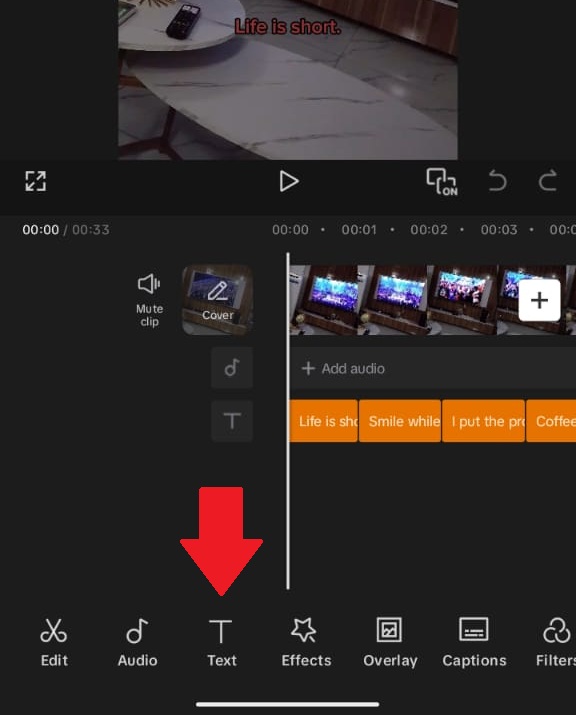
Tap the “Text” button in CapCut to add text overlays or captions. - Type spoken phrase (keep under 6 words per caption for mobile readability)
- Drag text layer edges to match audio waveform visually
- Copy text layer style (font, size, color) for consistency across all captions
- Repeat for each segment
Speed Techniques:
- Use keyboard shortcuts: Space to play/pause, arrow keys to nudge playhead frame-by-frame
- Copy and paste text layers instead of creating new ones—just change text content
- Batch styling: create one perfect caption style, duplicate and edit text only
- When duplicating and layering many manual captions quickly, watch for flickering or glitching on playback.
Here’s how to fix CapCut captions flickering or glitching if you notice it.
Split-and-Stretch: One Generation, Multiple Videos
If you have one auto caption generation remaining but multiple videos need captions, maximize that single generation across several clips.
How It Works: Auto captions generate for an entire timeline. Combine multiple short videos into one long project, generate captions once, then split the results back into individual exports.
Step-by-Step involved:
- Create a new “batch” project
- Import all short clips (keep under 60 seconds each) end-to-end on timeline
- Add 2-second black screen gaps between clips (aids separation later)
- Generate auto captions for entire timeline (counts as 1 generation)
- Export full captioned timeline
- Re-import exported video, use Split tool at black gaps to separate original clips
- Export each segment individually
In batch exports like this, captions can sometimes end up behind objects or elements in the video, learn how to position CapCut captions behind (or in front of) objects to avoid occlusion issues.
Limitations:
- All clips must share the same language (auto captions can’t switch mid-generation)
- You lose individual project editing flexibility—best for final exports only
- Timing precision is lower than individual captioning
- Requires remaining clips to fit CapCut’s processing length limits
Best For: Multiple short TikToks, Reels, or Shorts filmed the same day with similar content.
Third-Party Caption Tools: Free Alternatives
External tools generate captions without touching CapCut’s generation limit. Import the results as manual text or burned-in video.
YouTube’s Free Captions:
- Upload video as unlisted to YouTube
- Wait 10-30 minutes for auto captions to generate
- Download the .srt file from YouTube Studio > Subtitles
- Use a free SRT-to-text converter for the transcript
- Paste segments into CapCut manually
Pros: Unlimited, reasonably accurate, completely free
Cons: Requires an upload/download cycle, privacy concerns for sensitive content
Veed.io Free Tier:
Upload to veed.io, use the auto subtitle generator, and export as .srt or .txt. Good accuracy, simple interface, no installation. Free tier adds a watermark and limits videos to 10 minutes.
OpenAI Whisper (Technical):
OpenAI’s Whisper is free, open-source, and highly accurate speech recognition. Run locally via command line, get a precise transcript, and paste into CapCut. Supports 99 languages. Requires technical comfort with CLI tools and sufficient local processing power.
Descript Free Plan:
Upload to Descript for auto-transcription with excellent accuracy and text-synced editing interface. Export text or burn-in captions. Free plan limited to 1 hour total transcription monthly.
Regeneration Recovery Trick
Sometimes you can recover “spent” generations through project management—though this is inconsistent and not officially documented.
How to Attempt Recovery:
- Identify recent projects where you generated captions but never exported
- Delete these projects completely—including from cloud sync
- Wait 24 hours
- Test auto captions on a dummy project
Important Caveats:
- Doesn’t work if you export the video with captions
- Doesn’t work if the project was cloud-synced
- CapCut may have patched this in newer versions
- Never rely on this for critical deadlines
Multiple Accounts Strategy
CapCut accounts are free and quick to create. The limit is per account, not per person or device.
Legitimate Multi-Account Approach:
Create separate accounts for genuine organizational separation:
- One account for personal/TikTok content
- One account for client work
- One account for YouTube long-form projects
Management Requirements:
- Each account needs unique email/phone number
- Projects don’t sync between accounts—transfer via export/import only
- Requires logout/login switching, which is cumbersome
Terms of Service Note: CapCut’s ToS doesn’t explicitly prohibit multiple accounts for personal use. However, creating accounts solely to circumvent limits may violate spirit-of-service clauses. Use this for genuine organizational separation, not pure limit evasion.
CapCut Pro: When Paying Makes Sense
Sometimes, upgrading is the most efficient solution—but only if it actually fits your workflow.
If you’re consistently hitting the auto caption limit, working on tight deadlines, or producing multiple videos weekly, relying on workarounds can quickly become more time-consuming than helpful.
What you get with CapCut Pro for captions:
- Unlimited auto caption generation
- Faster processing speeds (priority access)
- Broader language and dialect support
- More advanced caption styles and animation options
When it makes sense to upgrade:
If manual captioning or workaround methods are slowing down your workflow, the real cost isn’t money—it’s time. Creators posting consistently often spend hours each week fixing or recreating captions, especially when auto captions fail or are limited.
Instead of guessing whether the upgrade is worth it, it’s better to look at the full CapCut Pricing breakdown of what you actually get across all plans.
If you are not ready to commit? See our CapCut Pro free trial guide and learn how you can try CapCut Pro for free and test unlimited captions before upgrading.
Before Subscribing:
- Verify auto captions work well on your specific content type using free generations
- Confirm needed features are actually Pro-tier (some “advanced” features remain limited)
- Check annual billing for 30-40% savings
Hidden Pro Limitation: Pro removes the 5-generation cap but doesn’t fix audio quality requirements, language gaps, or processing failures on corrupted files. Test thoroughly before committing.
Script-Based Pre-Captioning
For planned content (YouTube scripts, TikTok talking points, courses), generate perfect captions from your script before recording. Here is the workflow:
- Write script with natural breaks marked (/// indicates 1-second pause)
- Use text-to-speech (ElevenLabs, Play.ht, or CapCut’s TTS) to generate audio from script
- Import TTS audio to CapCut
- Generate auto captions on crystal-clear TTS audio (uses 1 generation on perfect speech)
- Export caption timing as reference
- Record actual video matching timing closely
- Import real video, apply the same caption timing, and adjust manually for minor differences
Why This Helps: TTS audio is clear, maximizing auto caption accuracy. You get perfect captions on “fake” audio that serve as timing templates. Your real recording follows the same rhythm, so manual adjustments are minimal. You use one generation for perfect reference instead of multiple attempts on messy real audio.
This method is best for Educational content, scripted tutorials, and any video where you control the exact wording.
How to Track Your CapCut Caption Usage
Since CapCut provides no counter, create your own tracking system.
Simple Logging Method
Create a phone note titled “CapCut Auto Captions Log.” Each generation, add:
Jan 15 - TikTok product review - 1 used (4 remaining)
Jan 18 - YouTube intro clip - 1 used (3 remaining)
Jan 22 - Client video draft - 1 used (2 remaining)
Calendar Recovery Trick
Set calendar reminders for 30 days after each use. When the reminder fires, check if your generation restored by attempting a test caption on a dummy project.
How to Avoid Wasting Your 5 Generations
Conservation strategies stretch your monthly allowance further.
Batch Processing
Combine multiple short videos using the split-and-stretch method rather than consuming separate generations. If you have three 30-second clips, batch them into one generation instead of three.
Audio Quality Checks
Always preview audio before generating. Don’t waste generations on clips with obvious problems—heavy background music, wind noise, or muffled speech that will produce garbage captions requiring complete manual replacement anyway.
Smarter Usage Habits
- Save “regeneration” for true emergencies—editing existing captions is unlimited, so get timing right the first time
- Complete all video edits before generating captions to avoid regeneration after changes
- Use manual captions for simple, short content where auto would be overkill
When Manual Captions Are Actually Better Than Auto
The time you “save” with auto captions is often lost in cleanup. Manual captions, once practiced, frequently produce superior results.
Manual Captions Excel When:
- Audio contains background music that confuses speech recognition
- You use technical terms, brand names, or slang that AI misses
- You need precise timing for comedic effect or emphasis
- You want consistent branding across all captions (auto captions vary in line breaks unpredictably)
- Content is short-form where every word matters for retention
Auto captions often create awkward line breaks, misspell names, and fail on accents. Manual control ensures accuracy that builds viewer trust and professional polish.
If the timing feels off even after manual placement (e.g., captions drift during speech), use these targeted fixes to get CapCut captions perfectly in sync without relying on auto generation.
Frequently Asked Questions
Why is the Auto Captions option missing in CapCut?
The Auto Captions option may disappear if you’ve hit your monthly generation limit or if the feature has been moved to Pro in your region. It can also vanish due to outdated app versions or temporary server-side changes. Updating the app or checking on another device can help confirm whether it’s a limit or a bug.
Why is CapCut showing “This is a Pro feature” for auto captions?
CapCut sometimes restricts auto captions to Pro users depending on region, account type, or ongoing tests. If you’re seeing a Pro badge, it means your account currently doesn’t have free access. This can change over time, but for now, captions are locked unless you upgrade or use alternative methods.
Why did CapCut auto captions stop working suddenly?
If auto captions worked before but suddenly stopped, you’ve most likely reached your generation limit. Since CapCut uses a rolling 30-day system without clear tracking, the feature can stop without warning once your quota is used up.
Does CapCut auto captions limit reset every month?
No, it doesn’t reset on a fixed date. CapCut uses a rolling 30-day system, meaning each caption generation is restored exactly 30 days after it was used. This makes it harder to track compared to a standard monthly reset.
Can I use auto captions on CapCut desktop if it’s locked on mobile?
No. The auto captions limit is tied to your CapCut account, not your device. If you’ve hit the limit on mobile, it will also be locked on desktop and tablet unless you’re using a different account.
Why does CapCut not show how many caption uses I have left?
CapCut currently doesn’t provide a visible usage counter for auto captions. This lack of tracking is part of why many users hit the limit unexpectedly. The only way to estimate usage is by manually tracking your caption generations.
Are there free alternatives to CapCut auto captions?
Yes. Tools like YouTube auto captions, Veed.io, and OpenAI Whisper can generate captions for free or with minimal limits. You can then import or manually add these captions into CapCut without using your generation quota.
Conclusion
The CapCut auto captions limit is frustrating, poorly communicated, and designed to push you toward either Pro subscription or manual skills development. But it doesn’t have to stop your publishing schedule.
If you’re in this situation:
One video left, deadline tomorrow: Use the split-and-stretch method or a third-party tool like YouTube captions. Fast, free, no subscription required.
Regular creator, time-sensitive workflow: Subscribe to CapCut Pro or master manual captioning. The time savings justify either investment.
Scripted content creator, perfectionist: Implement script-based pre-captioning for perfect timing and accuracy, or commit to manual captions for ultimate control.
Privacy-conscious or technically inclined: Run OpenAI Whisper locally for unlimited, free, accurate transcription without cloud dependency.
Track your usage, conserve generations for genuine emergencies, and develop manual caption skills as your reliable backup. The limit only defeats you if you let it stop creating.
