
CapCut Karaoke Captions: How to Make Lyrics Pop

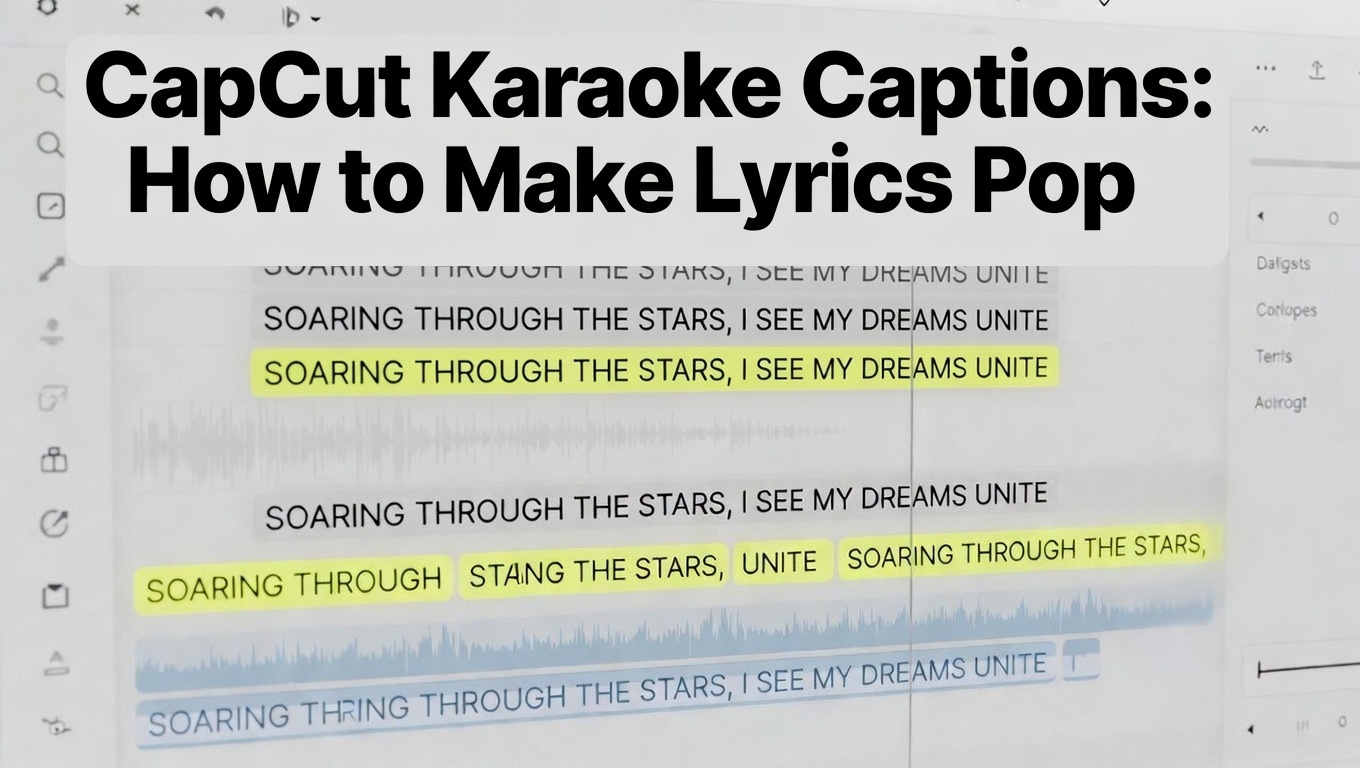
Karaoke-style captions aren’t just about showing lyrics anymore.
Have you noticed how some videos highlight each word perfectly with the beat, while others just dump a full sentence on screen? One feels alive. The other feels… flat.
That difference matters. On platforms like TikTok and Reels, timing and movement are what keep people watching.
Here’s the problem. CapCut doesn’t have a built-in “karaoke mode.” No button automatically makes lyrics light up word by word.
But that doesn’t mean you can’t do it.
With the right setup, splitting text, syncing to the beat, and using simple color changes, you can create captions that move with the music and actually pull viewers in.
In this guide, I’ll show you how to make CapCut Karaoke Captions captions in CapCut step by step.
You’ll also learn how to highlight lyrics word by word, sync them to the beat, and handle fast sections without making your captions feel messy or overwhelming.
Understanding Karaoke Caption Styles
“Karaoke captions” isn’t a single method—there are three distinct styles, each with its own complexity and viewer impact.
Style 1: Line-by-Line Reveal
- The full lyric line appears at once, then highlights as it’s sung before fading out.
- Medium complexity, ideal for choruses or repeated sections.
- Viewers can read ahead, following the highlighted portion.
Style 2: Word-by-Word Reveal
- Each word appears and highlights individually in sync with the audio.
- High complexity, offering maximum engagement.
- Viewers follow the lyrics exactly as sung—no reading ahead.
Style 3: Syllable-by-Syllable (Advanced)
- Individual syllables within words are highlighted precisely with the music.
- Very high complexity, achieving professional lyric-video quality.
- Requires precise timing and often manual splitting—best for frame-by-frame motion graphics workflows.
This guide focuses on Style 1 and 2. Style 3 is possible but goes beyond standard CapCut tools and workflows.
If you are a beginner still seeking the basics of CapCut Caption, see our How to Add Captions on CapCut (Auto & manual method) guide.
How to Create CapCut Karaoke Captions
CapCut doesn’t have a built-in karaoke mode, but with color transitions, word-by-word timing, and beat-synced animations, you can make lyrics pop like a professional lyric video.
Method 1: The Color Transition Technique (Line-by-Line)
The simplest karaoke effect: show the full line, then highlight words as they’re sung.
Step-by-Step:
- Create base lyric line:
Add a text layer with the full lyric: “We’re soaring flying there’s not a star in heaven that we can’t reach”
Style: Large, bold font (Bebas Neue or Montserrat Black), centered
Color: Gray (#888888) or white at 50% opacity for the “unplayed” state - Duplicate for “played” state:
Copy the text layer
Change color to bright yellow (#FFDD00), cyan (#00DDFF), or white
Align exactly over the gray layer - Split the “played” layer by timing:
Listen to the audio and split the colored layer at word or phrase start points
Delete segments before the lyrics are sung
Keep segments for active words - Fine-tune timing:
Each colored segment should start exactly with the sung word
End segment at next word start, or hold through line then fade
Visual Effect: Gray text shows the full lyric line. Colored segments appear as words are sung, giving a “filling in” effect.
Timing Variations:
| Effect | Segment Duration | Best For |
|---|---|---|
| Instant pop | 0.1s | Fast rap, high-energy songs |
| Fade fill | 0.3s | Standard singing, smooth flow |
| Hold & fade | Full word + 0.2s | Emphasis words, slow ballads |
Method 2: Word-by-Word Appearance (True Karaoke)
Each word appears individually as it’s sung—no preview, maximum synchronization.
Step-by-Step:
- Prepare lyric breakdown:
Add timestamps for each word:
0:02.5 “We’re” 0:03.0 “soaring” 0:03.8 “flying” 0:04.5 “there’s” - Create word template:
Add text layer with first word: “We’re”
Style: Large, bold, bright color
Animation: In > Pop or Bounce, 0.2s - Duplicate and sequence:
Copy layer to next timestamp (0:03.0)
Replace text with next word
Repeat for all words - Overlap technique:
Add 0.1–0.2s overlap where both words are visible
Prevents flickering and maintains flow - Exit strategy:
Instant cut: disappears when next word appears
Fade out: fades over 0.3s
Slide away: slides up/down while next word enters
Visual Effect: Words appear exactly when sung, forcing viewers to follow the music moment-by-moment.
Method 3: Beat Pulse Effect (For Chorus/Hook)
Focus on key phrases pulsing with the beat.
Step-by-Step:
- Identify beat drops: Listen for drum hits, bass drops, or emphasized musical moments
- Create phrase layer:
Text with 2–4 words
Style: Extra large, bold, centered
Animation: Loop > Pulse or Breathing - Sync to beat:
Set Loop duration to match BPM (e.g., 0.5s for 120 BPM)
Or manually keyframe scale: 100% → 110% → 100%
Optional: Add beat sound effect - Add color flash:
Keyframe text color: White → Bright → White
Or keyframe background glow pulsing with beat
Visual Effect: Text pulses with the music, reinforcing rhythm without animating every word.
Handling Fast Lyrics & Visual Design for Karaoke Captions in CapCut
Handling Fast Lyrics: The Grouping Strategy
Rap and fast-paced singing make traditional word-by-word captions difficult—too many changes overwhelm viewers. The solution is to group multiple words sung rapidly into manageable chunks.
Step-by-Step Grouping:
- Original line: “The quick brown fox jumps over the lazy dog” (9 words, too fast)
- Grouped approach: “The quick brown” / “fox jumps over” / “the lazy dog” (3 groups, easier to follow)
- Visual indications:
- Fast groups: No entrance animation (instant appearance)
- Emphasis words: Add a Bounce animation to highlight key words
- Color shifts: Gray for standard fast groups, bright color for emphasis
Example: “She said she’s” (gray, instant) “NEVER” (yellow, bounce) “going back” (gray, instant)
Beat Matching: Technical Workflow
Professional karaoke captions require precise audio-visual synchronization. Here’s how to match lyrics to beats on different platforms:
Desktop: Waveform Method
- Import song into CapCut
- Zoom timeline fully to see waveform peaks
- Identify beat spikes (regular peaks)
- Place lyric layer boundaries exactly at these peaks
- Enable Snap to Playhead for precision
Mobile: Tap Method
- Play song and tap along to the beat physically
- Count BPM (beats per minute) or identify rhythm pattern
- Calculate beat interval:
60 ÷ BPM = seconds per beat - Space lyric changes according to beat intervals
- Example: 120 BPM = 0.5s per beat. Change lyrics every 0.5s or multiples (1.0s, 1.5s)
Manual Scrub Method
- Play audio and pause precisely when a word is sung
- Note timestamp and position lyric layer
- Repeat for all words (time-consuming but extremely precise)
Color Psychology for Karaoke Captions
Colors aren’t just aesthetic—they communicate emotion and energy. Use a consistent palette for musical impact.
| Color | Emotional Signal | Best For |
|---|---|---|
| Yellow (#FFDD00) | Energy, happiness, optimism | Upbeat choruses, pop |
| Cyan (#00DDFF) | Cool, modern | EDM, synth-heavy tracks |
| Red (#FF4444) | Passion, intensity | Rock, emotional peaks |
| White (#FFFFFF) | Clean, versatile | Any genre, safe default |
| Pink (#FF88CC) | Playful, youthful, fun | K-pop, bubblegum pop |
| Green (#44FF88) | Freshness, calm | Acoustic, indie, reggae |
Color Transition Rule: Establish a palette along song structure:
Verse: White/Gray
Pre-Chorus: Building colors (Cyan/Pink)
Chorus: Peak colors (Yellow/Red)
Font Selection for Music Captions
Choose fonts optimized for legibility, impact, and musical style.
Best Karaoke Fonts:
- Bebas Neue: All caps, dramatic, fills screen; perfect for short phrases, hooks, titles
- Montserrat Black: Clean, modern, readable; great for full lyrics
- Impact: Heavy, condensed; classic karaoke/retro vibe
- Arial Black / Helvetica Bold: Neutral, accessible; safe for any genre
Fonts to Avoid:
- Script fonts (hard to read quickly)
- Thin fonts (disappear against bright video backgrounds)
- Decorative or overly stylized fonts (distract from lyrics)
Background Handling & Platform-Specific Karaoke Optimization
Background Handling: Lyrics vs. Visuals
Music videos often have dynamic, busy backgrounds. Lyrics need to remain legible and engaging. Here are proven techniques:
1. Background Box Technique
- Add a rectangle shape layer behind the text
- Color: Black or dark, 40–60% opacity
- Rounded corners: 20–30px radius
- Padding: 20–40px space around text within the box
2. Blur Technique
- Duplicate the video layer behind text
- Apply Gaussian Blur: 20–30px
- Darken the blurred layer (brightness -20%)
- Creates a frosted-glass effect separating text from busy backgrounds without a solid box
3. Glow Technique
- Add a bright shadow matching text color
- Blur: 10–15px, opacity 50%
- Creates a halo effect that separates lyrics from varied backgrounds
Platform-Specific Karaoke Optimization
TikTok
- Fast lyrics: Use grouping strategy (2–3 words per caption max)
- Heavy shadow or background box essential (compression destroys subtle effects)
- Beat pulse effects highly effective
- Enhance key beats with trending sounds for engagement
Instagram Reels
- Slower pace is acceptable; viewers watch slightly longer
- Aesthetic backgrounds are common—ensure lyrics remain readable
- Gradient text works well; less need for opaque background boxes
YouTube Shorts
- Full lyric videos perform well; longer attention span
- Syllable-level precision appreciated
- Background blur technique effective at high resolution
- Closed captions or burned-in captions both supported; burned-in karaoke style boosts shareability
Speed Workflow: Creating Karaoke Captions Efficiently
Template Method
- Create one perfect word/line with styling and animation
- Save as favorite or duplicate for subsequent words
- Change only text content and position; keep styling consistent
Batch Timing Method
- Listen to full song and mark all lyric start points with split markers
- Add text layers to pre-marked positions
- Fine-tune timing after all layers are placed
For maximum efficiency, you can also add captions directly from a script, letting CapCut auto-place lines before fine-tuning them to the beat.
AI Assistance Method (External Tools)
- Use tools like Vocal Remover or LALAL.AI to isolate vocals
- Import isolated vocals into CapCut to make waveform timing clear
- Delete vocal track after captioning; retain original audio for export
Time Investment
- Line-by-line: 10–15 minutes per song
- Word-by-word: 45–60 minutes per song
- Syllable-level professional: 2–3 hours per song
- Match workflow effort to content type (e.g., 15-second TikTok hook vs. full song cover)
Common Karaoke Caption Mistakes
- Lyrics too early: Appear before sung; fix by syncing precisely to audio
- Lyrics too late: Appear after sung; fix by testing playback with eyes closed
- Overcrowding fast sections: Group rapid words; emphasize only key phrases
- Ignoring musical phrasing: Align captions to vocal phrasing, not just drum beat
- Static color throughout: Use a color progression: neutral → building → peak → release
Final Thoughts
Karaoke captions transform music content from passive viewing to active engagement. From simple color transitions to word-by-word animation, the principle is consistent: visual rhythm must match audio rhythm.
Start with the color transition method for quick entry, move to word-by-word for maximum impact, and use beat pulse effects for hooks and drops. Though time-intensive, professional karaoke captions significantly increase watch time, shares, and saves.
Your lyrics deserve to be seen as well as heard. These methods ensure they stand out on every platform.
