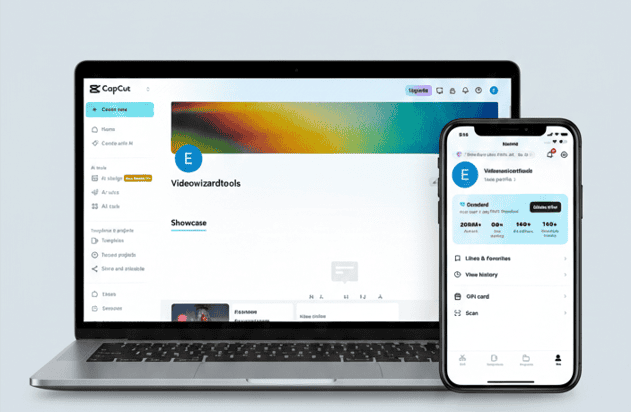
CapCut works great on both phone and laptop — but they feel like two different editing experiences.
If you mostly make short TikToks/Reels and want fast edits anywhere, CapCut on your phone is hard to beat.
But if you want more control, faster workflow, cleaner timeline editing, and a setup that handles longer videos without feeling cramped, CapCut on a laptop/desktop is usually the better choice.
In this guide, you’ll see the real differences between CapCut mobile vs desktop: what you get on both, where each version shines, where each one falls short, and how to choose the best option for your workflow (and your device).
Table of Contents
What CapCut Offers on Both Phone and Laptop
CapCut gives you the same core editing toolkit on both phone and laptop, so you’re not starting from zero on either device.
On both versions, you can usually do things like:
Import clips and trim/split them on a timeline
Add transitions, filters, and effects
Add text, captions, stickers, and overlays
Adjust speed, color/lighting, and basic audio
Export for social platforms in common formats
And if you’re logged into the same account, CapCut can also support cloud-based workflows in many regions — meaning you can start a project on one device and continue on another (depending on the project type and whether it’s saved/synced properly).
So the decision isn’t “which one can edit?” — both can.
The real difference shows up when you care about workflow speed, timeline space, precision, exporting control, and how well your device handles heavier edits.
CapCut on Mobile: The Case for Editing on the Go
Editing on a phone is appealing for one reason: it’s always with you.
If you film on your phone and publish mainly to TikTok, Instagram Reels, or YouTube Shorts, CapCut mobile can be the fastest “capture → edit → post” workflow you’ll find.
What CapCut mobile gets right
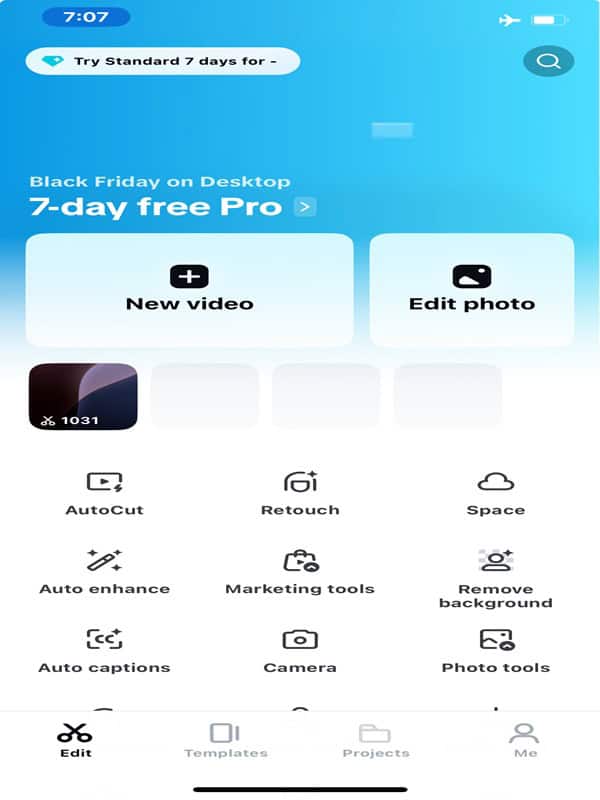
Fast, intuitive editing: Tap, drag, pinch, trim — it’s built for speed, especially for short videos.
Great for short-form content: Perfect for quick cuts, captions, trendy effects, and simple timelines.
No file transfers: You can record, open CapCut, edit immediately, and export without moving footage to another device.
Portable setup: If you don’t have a strong laptop, a decent phone can still produce high-quality edits.
Where CapCut mobile hits its limits
Small screen = less precision: Multi-layer projects, keyframes, fine audio work, and detailed timing can feel cramped.
Performance depends on your phone: Heavy effects, long timelines, large files, or 4K clips can lag on older/low-RAM devices.
Fewer “pro workflow” controls: Depending on your device/region, you may have less control over export settings, file formats, and advanced timeline management.
Harder asset management: Managing lots of files, versions, and shared assets is usually easier on a laptop.
If your content is short, you edit on the move, and speed matters most, CapCut mobile is a great choice.
But if you’re consistently doing longer edits, layered timelines, or client-ready exports, you’ll eventually feel those mobile limits.
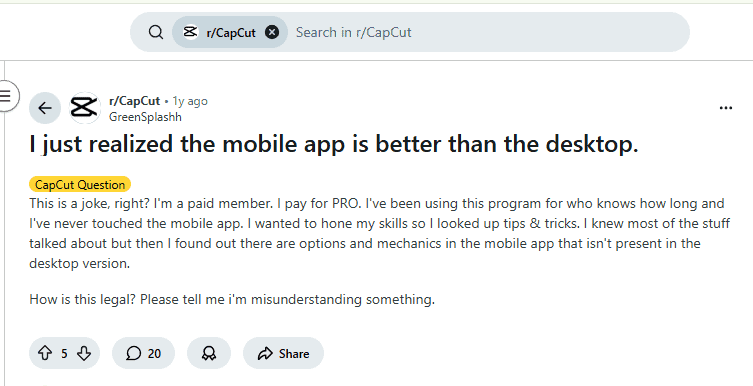
Creator note: Some editors actually prefer the mobile app because it can feel simpler and faster for everyday cuts — and there are occasional mobile-only templates/effects that don’t show up the same way on desktop. So if your workflow is mostly short-form, mobile can still be the smoother experience.
CapCut on Laptop: Why Desktop Users Swear by It
Once you move to a laptop or desktop, CapCut starts feeling less like a “quick edit app” and more like a real editing workspace.
A bigger screen, a mouse/trackpad, and a keyboard make a noticeable difference — especially when your projects get longer, more layered, or more detailed.
What laptop/desktop editing does best
More comfortable timeline editing: Multi-track projects are easier to see, manage, and fine-tune without feeling cramped.
Better control and precision: It’s easier to hit exact cut points, adjust keyframes, line up audio, and work faster with shortcuts.
Stronger file + asset management: Handling folders, music, b-roll, versions, and multiple projects is simply easier on a computer.
More export flexibility (often): Desktop workflows typically give you more control for higher-quality exports, especially if your system can handle heavier renders.
Where laptop/desktop may not be ideal
Less portable: You can’t beat phone convenience for editing anywhere.
Can feel “more complex”: More space and more controls can overwhelm beginners at first.
Still hardware-dependent: A weak laptop can struggle just like a weak phone — especially with long timelines, effects, and high-resolution footage.
Overkill for quick edits: For a 20–30 second clip with basic cuts and captions, mobile can actually be faster.
If you’re doing longer videos, more layers, client work, or you want editing to feel smoother and more “studio-like,” the laptop/desktop version is usually the better experience.
Is It Easier to Use CapCut on Phone or Laptop?
It depends on what you mean by “easy.”
CapCut on phone feels easier if you’re doing quick edits because the app is built around touch controls and fast social workflows. If your typical project is short-form content (TikTok, Reels, Shorts), the phone version can be the quickest path from idea to upload.
CapCut on laptop feels easier once your edits get more detailed. A bigger screen makes it easier to see your timeline and layers, and a keyboard/mouse makes precise trimming, audio alignment, and multi-track edits less frustrating.
A simple way to decide:
Choose phone if you edit fast, mostly short-form, and publish on the go.
Choose laptop if you do longer videos, multi-layer edits, or you want more control and a smoother workflow.
Are the Prices on CapCut Phone and Laptop the Same?
Not always.
CapCut pricing can change based on where you subscribe (App Store/Google Play vs CapCut on desktop/web), your country/currency, taxes, and promos — so two people can see different prices for the “same” plan. CapCut even notes that pricing can vary by region and platform.
That said, CapCut commonly offers tiers like:
Free: basic editing on mobile/desktop
Standard (often mobile-only): a cheaper upgrade meant for people who only edit on phone
Pro (cross-platform): typically unlocks premium tools across mobile + desktop + web
Teams: built for collaboration/workspaces (pricing often starts above Pro)
If you subscribe through iOS/Android app stores, the price you see may be different from what’s offered on CapCut’s website/desktop app (regional pricing + platform billing differences). The safest move is to check pricing in the same place you’ll actually renew.
What this means in practice
If you only edit on phone, Standard (mobile-only) can be the cheaper option in many regions.
If you want to edit on laptop + phone, you’ll usually need a cross-platform plan (often labeled Pro).
If you work with a team/workspace, Teams is the tier to look for.
Quick tip: before you pay, open CapCut → go to Upgrade/Subscription on the exact device/platform you’ll use, and confirm the plan name, included devices, and renewal price (a screenshot helps for reference). Get CapCut from the CapCut Official website.
Are There Any Differences Between CapCut on Phone and Laptop?
Yes — CapCut is powerful on both, but the experience is different.
The biggest differences usually come down to workspace, precision, performance, exporting control, and how you manage files/projects.
Key differences (phone vs laptop)
Editing space + control
Phone: touch controls, smaller workspace, great for quick cuts
Laptop: bigger timeline, easier multi-track editing, more precise control
Workflow speed
Phone: fastest for “record → edit → post” short-form workflows
Laptop: faster once your project has layers, lots of clips, audio work, or fine timing
Project complexity
Phone: best for simple to medium edits and shorter timelines
Laptop: handles longer videos, more layers, and detailed fine-tuning more comfortably
Performance (depends on your device)
Phone: can lag on older devices or heavy edits
Laptop: usually smoother for big projects (if your laptop has decent specs)
Export flexibility
Phone: often fewer advanced export controls depending on device/region
Laptop: typically more comfortable for higher-quality exporting and file handling
Asset management + teamwork
Phone: managing lots of files/versions can feel limiting
Laptop: easier to organize assets, reuse files, and work in a more “production” setup
If your videos are moving from “quick social clips” to “longer edits, multiple layers, brand consistency, or client deliverables,” the laptop workflow usually becomes the better fit.
CapCut on Phone or Laptop: Which Version Is Better for You?
The best version is the one that matches your workflow, not just what feels “more powerful.”
Choose CapCut on phone if you…
Mostly create TikTok / Reels / Shorts
Film on your phone and want the fastest record → edit → post flow
Prefer simple timelines and quick effects/captions
Edit while traveling, at school/work, or between tasks
Use lots of clips, multiple layers, keyframes, or detailed audio timing
Need a smoother workspace for precision cuts and revisions
Want easier file organization, versioning, and asset reuse
If you want the best of both (what many creators do)
Use phone for speed and laptop for polish:
Start ideas and quick rough cuts on mobile
Finish detailed edits, audio cleanup, and final export on desktop
If budget or hardware is the limiting factor
If your laptop is weak but your phone is decent, mobile can still carry you far. Use mobile until you consistently hit limits (lag, cramped timeline, slow workflow), then upgrade your editing setup when it makes sense.
Bottom line: neither option is “wrong.” Pick the one that helps you edit faster, with fewer headaches, for the kind of videos you actually make.
Final Takeaway
If your goal is fast short-form content, CapCut on your phone is more than enough. It’s quick, portable, and perfect for TikToks, Reels, and Shorts — especially when you’re filming and editing on the same device.
But if you want more control and a smoother editing workflow, CapCut on a laptop/desktop is usually the better experience. The bigger workspace makes multi-layer timelines, longer videos, audio timing, and detailed adjustments feel easier (and less frustrating).
The smartest setup for many creators is simple: use your phone for speed, and your laptop for polish. Start anywhere, then finish where you can edit cleanly and export confidently.
FAQs
Is CapCut desktop free?
Yes. CapCut has a free desktop version. Some advanced features, premium assets, and certain AI tools may require a paid plan depending on your region and account.
Does CapCut mobile have the same features as desktop?
Not exactly. Many tools overlap, but the experience can differ. Desktop usually feels better for precision and multi-layer workflows, while mobile often has a faster short-form workflow and may surface templates/effects more prominently.
Can I sync CapCut projects between phone and laptop?
Often yes — if you’re logged into the same account and your project is saved/synced using CapCut’s cloud workflow (when available on your plan/region). For important projects, test the sync once before relying on it.
Which version is better for YouTube videos?
For longer YouTube edits with lots of clips, layers, and detailed audio timing, the laptop/desktop version is usually the better choice. For Shorts, mobile is usually enough.
Which version exports higher quality?
Quality depends on your source footage and export settings, but desktop editing typically gives a more comfortable workflow for higher-quality exports and file handling (especially for longer videos).
Should I use CapCut on PC or phone?
Use phone for fast, short-form edits and portability. Use PC/laptop when you need precision, longer timelines, and a smoother workspace. Many creators use both.
Other Related CapCut Guides
If you’re choosing between mobile and desktop editing, these guides will help you pick the right setup, avoid common issues, and get better results.
Okulu Ebubechukwu is the founder of VideoWizardTools.com and a video editing software writer who reviews tools and publishes practical editing guides for creators. His work covers editing workflows, feature breakdowns, export quality, and common troubleshooting across popular editors on mobile and desktop. He also shares software updates and plan changes on LinkedIn, and refreshes articles when features or pricing change.