

CapCut AI features can save a lot of editing time, but it is not always clear which tools are free, which ones need Pro, and which ones are actually worth using.
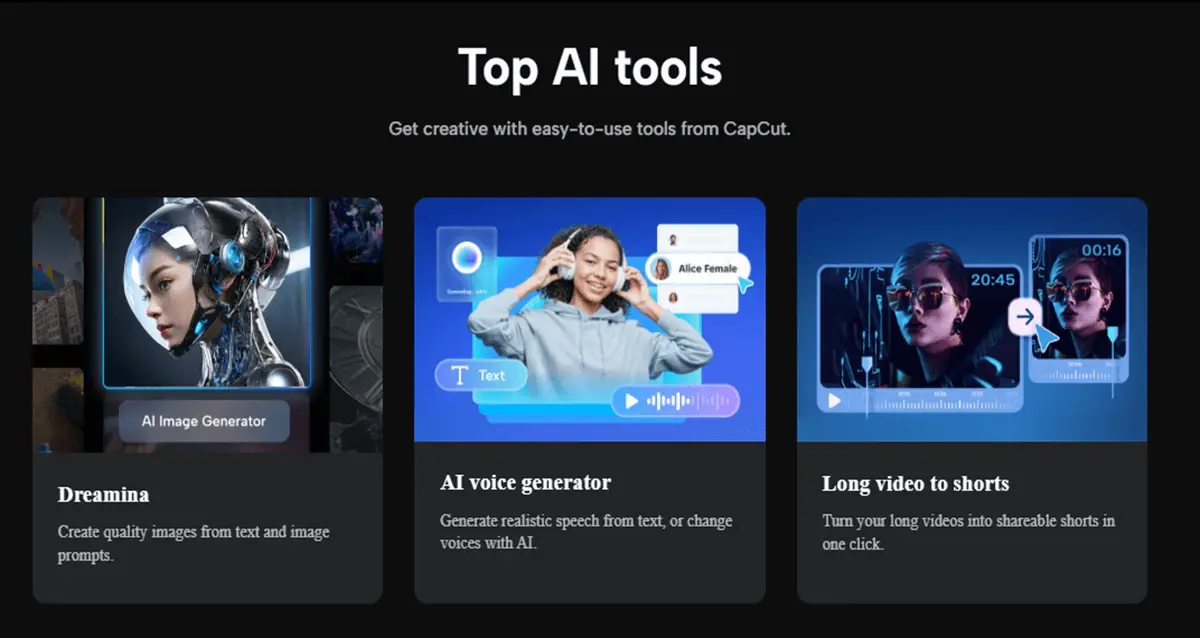
Some tools help with simple tasks like auto captions, background removal, and beat sync. Others go further, like AI video generation, script to video, AI avatars, voice translation, and long video to shorts.
In this guide, you’ll see what the main CapCut AI features do, where they work best, and what limits to know before you build your whole editing workflow around them.
Table of Contents
Quick Answer: What Are the Best CapCut AI Features?
The best CapCut AI features depend on what you want to create, but these are the most useful tools for most creators:
- Auto Caption Generator: Best for turning speech into captions quickly.
- AI Video Generator: Best for creating video ideas or scenes from prompts.
- AI Image Generator: Best for making visuals, backgrounds, or creative assets.
- AI Voice Generator: Best for voiceovers when you do not want to record your own voice.
- Background Remover: Best for removing image backgrounds for thumbnails, product shots, and social posts.
- Image Enhancer: Best for improving image quality before using visuals in a video.
- AI Design: Best for creating layouts and marketing-style visuals faster.
- AI Character Generator: Best for creating character-style visuals or creative assets.
For beginners, start with Auto Caption Generator, Background Remover, and AI Voice Generator. These solve common editing problems quickly and are easier to use than the more advanced generative tools.
What Are CapCut AI Features?
CapCut’s AI features are intelligent automation tools that handle complex video editing tasks from generating captions to removing backgrounds without requiring technical expertise.
CapCut leverages cutting-edge machine learning models, including OmniHuman and Seedance to power features that were impossible on mobile devices just two years ago.
Unlike traditional editing that demands frame-by-frame precision, CapCut AI analyzes your content, makes intelligent decisions, and executes edits in seconds. The platform offers three tiers of AI access:
- Free Tier: Core AI tools with standard resolution exports and occasional watermarks on premium assets
- CapCut Pro: Full AI suite, 4K exports, advanced customization, and no watermarks. See complete Pro benefits
- CapCut Business: Team collaboration, AI presenters, and priority processing
Key advantage: Most AI features work across mobile, desktop, and web versions, so you can literally start a project on your phone and finish on your laptop with cloud sync. Learn about multi-device access.
Does CapCut Use AI and Generative AI?
Yes. CapCut uses artificial intelligence across many of its editing tools. Features such as Auto Captions, AI Voice Generator, Background Remover, Image Enhancer, AI Video Generator, AI Image Generator, and AI Design all rely on AI technology to automate tasks that would normally require manual editing.
Some CapCut features also use generative AI. Generative AI tools create new content rather than simply editing existing content. Examples include AI Video Generator, AI Image Generator, AI Character Generator, and other tools that generate videos, images, scripts, or creative assets from prompts.
Not every CapCut feature uses generative AI. For example, Auto Captions and Background Remover use AI to analyze and process content rather than generate entirely new content.
CapCut AI Features List: What Each Tool Does
CapCut offers AI tools across video, image, audio, design, and creative workflows.
Some tools appear inside the editor, while others may appear as separate CapCut online tools depending on your device, region, account type, and app version.
To make this easier to understand, here are the main CapCut AI features grouped by what they help you create or fix.
1. AI Video Tools
These tools are for creators who want to make videos faster, turn ideas into content, or add captions without doing everything manually.
- AI Video Generator: Helps create video content from prompts or ideas. This can be useful when you need a quick starting point for social videos, creative drafts, or short-form content ideas.
- AI Dialogue Scene: Helps create dialogue-style scenes for storytelling, skits, explainers, and character-based content.
- Auto Caption Generator: Turns spoken audio into captions automatically. This saves time and makes videos easier to watch without sound, especially on TikTok, Reels, Shorts, and other social platforms.
2. AI Image Tools
These tools help when you need better visuals for thumbnails, product shots, social posts, backgrounds, or video assets.
- AI Image Generator: Creates images from text prompts. You can use it for backgrounds, thumbnails, social posts, creative visuals, or extra assets for video projects.
- AI Art Generator: Helps generate stylized artwork and creative visuals for content, social graphics, or design ideas.
- Background Remover: Removes image backgrounds with AI. It is useful for product photos, portraits, thumbnails, social posts, and cleaner visual layouts.
- Image Enhancer: Improves image quality and clarity before you use the image in a video, post, or design.
- Image Resizer: Resizes images for different platforms, formats, and layouts, which helps when you need the same visual for multiple social channels.
3. AI Design and Branding Tools
These tools are useful when you want graphics, layouts, or simple brand assets without designing everything from scratch.
- AI Design: Helps create layouts for social media posts, covers, and marketing materials faster. This is useful when you need visuals but do not want to start from a blank canvas.
- AI Logo Generator: Helps generate simple logo-style graphics or brand visuals for basic creative projects.
4. AI Voice and Character Tools
These tools help when you need voiceovers, character visuals, or creative assets for faceless videos, explainers, and social content.
- AI Voice Generator: Turns text into voiceovers. This is useful for tutorials, explainers, faceless videos, narration, and quick social content when you do not want to record your own voice.
- AI Character Generator: Helps create character-style visuals or creative assets for videos, posts, and design projects. (If you’re pairing AI voiceovers with a character or face, check out whether CapCut has lip sync for matching mouth movement to audio.)
Which CapCut AI Features Should You Try First?
If you are new to CapCut AI, start with the tools that solve the most common creator problems.
- Auto Caption Generator: Best first tool if your video has speech.
- Background Remover: Best for thumbnails, product photos, and cleaner visuals.
- AI Voice Generator: Best for quick voiceovers and faceless videos.
- AI Image Generator: Best for creating backgrounds, concepts, and visual assets.
- AI Video Generator: Best for testing ideas or creating quick video drafts.
How to Use CapCut AI Features
Most CapCut AI tools follow the same basic process: choose the AI tool, upload or select your media, let CapCut generate the result, then review and edit before exporting.
The exact buttons may look different on mobile, desktop, and CapCut Web, but the workflow is usually simple once you know what each tool is meant to do.
How to Use Auto Caption Generator in CapCut
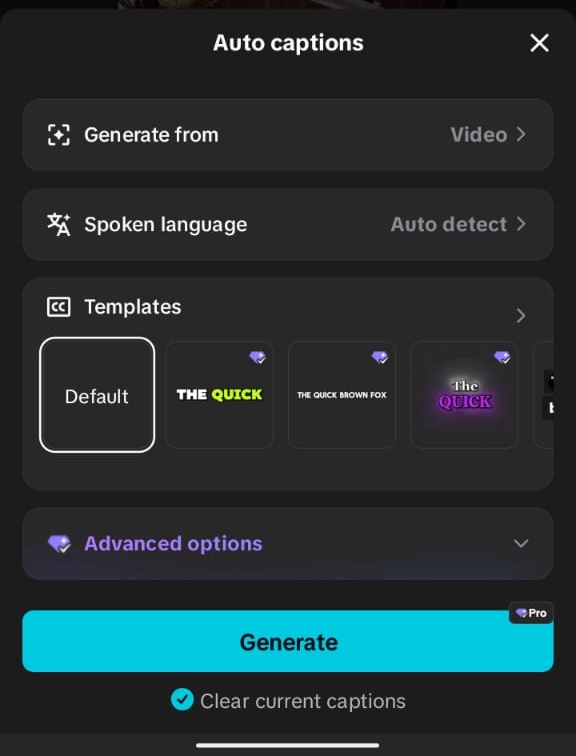
Auto Caption Generator is one of the easiest CapCut AI features to use. It turns spoken audio into captions, which is useful for TikTok, Instagram Reels, YouTube Shorts, tutorials, and talking videos.
- Open your video project in CapCut.
- Go to the text or captions area.
- Choose Auto Captions or Auto Caption Generator.
- Select the spoken language if CapCut asks.
- Generate the captions.
- Review the text and fix any wrong words, names, or timing issues.
- Style the captions with your preferred font, color, size, and position.
Do not publish auto captions without checking them. AI captions can still get names, slang, accents, or fast speech wrong.
How to Use Background Remover in CapCut
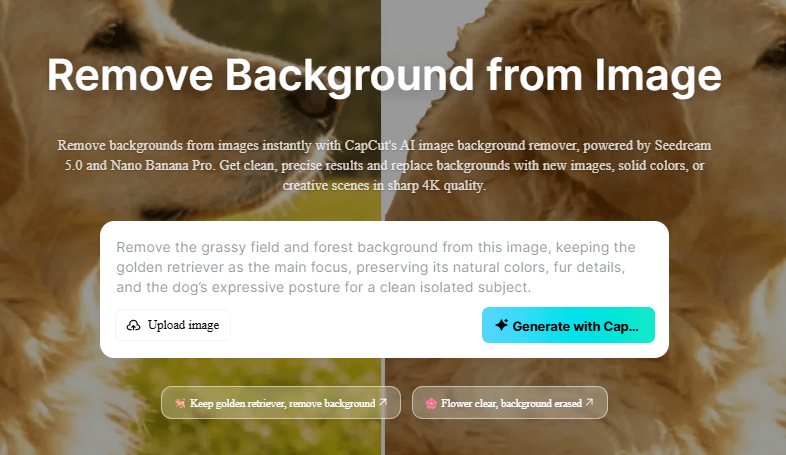
Background Remover helps remove the background from an image or visual asset. This is useful for thumbnails, product photos, portraits, social posts, and cleaner video layouts.
- Open the Background Remover tool or select the image you want to edit.
- Upload or choose the image from your device.
- Let CapCut remove the background automatically.
- Check the edges around hair, hands, products, or small details.
- Replace the background, keep it transparent, or add the image to your video project.
This tool is best when the subject is clear and separated from the background. Busy backgrounds may need extra cleanup.
How to Use AI Video Generator in CapCut
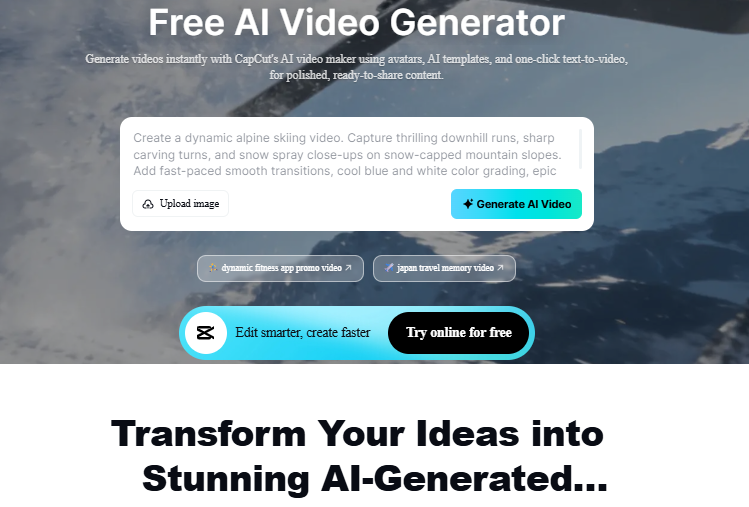
AI Video Generator helps turn prompts or ideas into video content. It is useful when you need a quick starting point, a rough concept, or creative direction for a short video.
- Open CapCut’s AI Video Generator tool.
- Enter a clear prompt describing the video you want.
- Choose any available style, format, or setting options.
- Generate the video draft.
- Review the result and adjust anything that feels off.
- Edit the video further in CapCut before exporting.
For better results, write prompts that include the topic, mood, style, audience, and format. A vague prompt usually gives a weaker result.
How to Use AI Voice Generator in CapCut
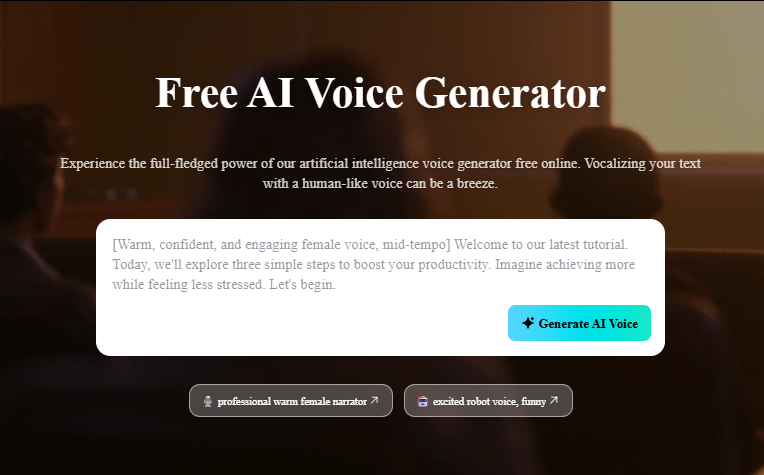
AI Voice Generator turns text into voiceovers. It is useful for faceless videos, tutorials, explainers, product videos, and creators who do not want to record their own voice.
- Open the AI Voice Generator or text-to-speech tool.
- Paste or type your script.
- Choose a voice style if options are available.
- Generate the voiceover.
- Listen carefully for pronunciation, pacing, and tone.
- Edit your script and regenerate if the voice sounds unnatural.
- Add the voiceover to your video timeline.
Keep the script short and conversational. AI voices usually sound better when sentences are simple and easy to read.
How to Use AI Image Generator in CapCut
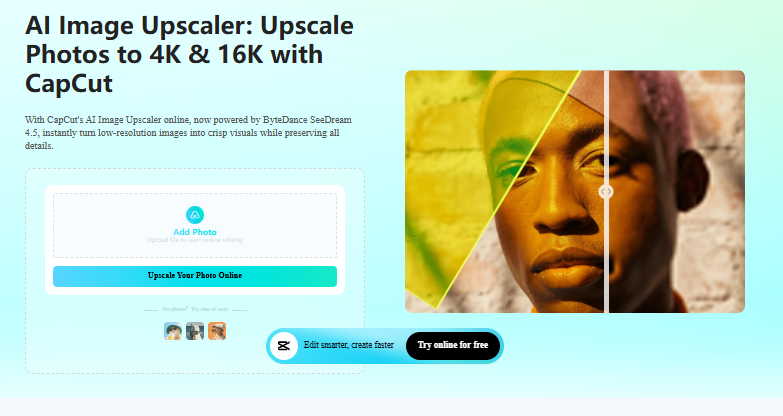
AI Image Generator creates images from text prompts. You can use it for backgrounds, thumbnails, concept art, social graphics, and creative assets for your videos.
- Open the AI Image Generator tool.
- Type a clear prompt describing the image you want.
- Add details like style, color, scene, mood, and purpose.
- Generate the image.
- Pick the best result and edit it if needed.
- Use it as a background, thumbnail asset, or visual inside your CapCut project.
Always check generated images before using them in business, client, or brand content. AI visuals can sometimes include strange details or elements you did not ask for.
How to Use AI Design in CapCut
AI Design helps create layouts for social media posts, covers, marketing graphics, and other visual assets. It is helpful when you need a quick design but do not want to start from a blank page.
- Open the AI Design tool.
- Choose the type of design you want to create.
- Add your text, images, product details, or brand idea.
- Let CapCut generate layout options.
- Choose the best design and adjust the colors, text, images, and spacing.
- Export the design or use it inside your video project.
This works best for quick social graphics, covers, simple promo visuals, and content ideas.
Important Note Before Using CapCut AI Tools
CapCut AI features can vary by device, region, app version, account type, and Pro access. If you do not see a tool, update CapCut, check CapCut Web, make sure you are signed into the right account, and look for any Pro label before starting a large project.
CapCut AI Limitations and Workarounds
CapCut AI tools can save time, but they are not perfect. Some features may depend on your device, region, app version, browser version, account type, or CapCut Pro access.
Before you build your whole editing workflow around one AI feature, it helps to know where CapCut AI can still fall short.
1. Some AI Features May Not Be Available to Everyone
Not every CapCut AI feature appears for every user. You may see one tool on CapCut Web but not inside the mobile app. Another user may see a feature you do not have yet.
This can happen because CapCut features may vary by region, device, app version, account type, and subscription access.
Workaround: Update CapCut, check CapCut Web, sign into the right account, and look for any Pro label or account requirement. If the tool still does not appear, it may not be available for your region or device yet.
2. Some AI Tools May Require CapCut Pro
Some CapCut AI tools may be free, while others may be limited, locked, or tied to Pro access. This is especially important if you are using premium assets, advanced AI tools, or higher-quality exports.
Workaround: Before editing a full project, check whether the feature shows a Pro badge, watermark warning, export limit, or subscription prompt. That way, you do not finish an edit and discover later that you need to upgrade.
3. AI Results Still Need Manual Review
CapCut AI can speed up editing, but it can still make mistakes.
Auto captions may miss names, slang, accents, fast speech, or background chatter. Background remover may struggle with hair, hands, blurry edges, busy backgrounds, or low-quality images. AI-generated images or videos may also create odd details that need checking.
Workaround: Always review AI results before publishing. Fix captions, check edges, preview the full video, and look closely at generated visuals before using them in public, client, or business content.
4. Many AI Features Need Internet
Basic editing can often work without a strong connection, but many AI tools need internet access because they rely on online processing.
This can affect tools like AI video generation, AI image generation, auto captions, AI voice tools, background remover, and other online creative features.
Workaround: Use a stable Wi-Fi connection when working with AI tools. If you need to edit offline, plan to use basic tools like trimming, splitting, arranging clips, and simple text until you are back online.
5. AI Tools Can Take Longer With Large Files
Large videos, high-resolution clips, long recordings, and heavy projects can make AI tools slower. Processing may take longer, previews may lag, or the app may ask you to wait while it generates results.
Workaround: Use shorter clips when testing AI features. For long projects, try working in smaller sections first. Also keep enough free storage on your device before using AI-heavy tools.
6. AI-Generated Content May Not Always Fit Your Brand or Style
AI tools can create quick results, but those results may not always match your tone, brand colors, audience, or content style.
This matters more for client work, business content, YouTube branding, product videos, and paid campaigns.
Workaround: Treat CapCut AI as a starting point, not the final editor. Adjust the script, captions, visuals, music, colors, layout, and timing so the final video still feels like your content.
7. Copyright and Commercial Use Still Matter
AI tools can help create videos, images, voices, designs, and assets, but you still need to be careful when using them for business, ads, clients, monetized YouTube videos, or sponsored content.
Do not assume every generated asset, music track, template, or visual is safe for every commercial use.
Workaround: Check CapCut’s terms, license details, and any usage notes before using AI-generated or built-in assets for commercial work. For important business projects, use assets you own or have clear permission to use.
💡: CapCut AI is best when you use it to speed up repetitive work, not replace your judgment. Let the AI create a first draft, then clean it up manually so the final video looks accurate, polished, and ready to publish.
Looking for more than just CapCut AI tools? Learn about the Best CapCut Features and Capabilities, your complete guide to mastering every major editing tool in CapCut.”
Frequently Asked Questions
Are CapCut AI features free?
Some CapCut AI features are free, but not all of them. Basic tools may be available for free, while advanced AI tools, premium assets, higher-quality exports, or certain features may require CapCut Pro depending on your device, region, and app version.
Is CapCut auto captions free?
CapCut auto captions may be free for some users, but many users report that auto captions can appear as a Pro feature depending on platform, region, or app version. If auto captions show as locked, update CapCut, check your account, and look for any Pro label before editing a full project.
Is CapCut background remover free?
CapCut background remover may not be free for everyone. Some users report that background removal moved behind CapCut Pro in their app. If you see a Pro badge or export warning, the feature may require a paid plan on your current version.
Does CapCut AI work offline?
Most CapCut AI features need an internet connection because they rely on online or cloud processing. Basic editing like trimming, splitting, adding clips, and arranging the timeline may work offline, but AI tools like captions, background removal, translation, or generation usually need internet.
Why don’t I see all CapCut AI features?
You may not see all CapCut AI features because availability can vary by region, device, app version, account type, and subscription plan. Update CapCut, sign into the right account, check whether the feature has a Pro label, and remember that some AI tools roll out gradually.
Does CapCut use AI?
Yes. CapCut uses artificial intelligence across many tools including Auto Captions, AI Voice Generator, AI Video Generator, Background Remover, Image Enhancer, AI Design, and other automation features.
Does CapCut use generative AI?
Yes. Some CapCut tools use generative AI to create new content from prompts. Examples include AI Video Generator, AI Image Generator, AI Character Generator, and other content-generation tools.
Does CapCut make AI videos?
Yes. CapCut offers AI Video Generator tools that can create video drafts, scenes, and visual content from prompts, images, or other inputs. The final result often benefits from additional editing and customization.
Does CapCut have AI voice over?
Yes. CapCut includes AI voice generation and text-to-speech tools that can turn written scripts into spoken voiceovers for tutorials, explainers, faceless videos, and social media content.
Does CapCut transcribe videos?
Yes. CapCut can automatically transcribe spoken audio using its Auto Caption Generator. The generated captions can then be edited before exporting the video.
Why does CapCut AI take so long?
CapCut AI tools may take longer when processing large files, long videos, high-resolution footage, complex prompts, or during periods of high server demand. A stable internet connection and updated app version can help improve performance.
Conclusion
CapCut’s AI features deliver professional editing speed without the learning curve. Free users get powerful automation for casual content. Pro unlocks generative tools that scale production for serious creators.
Your move: If you edit weekly or earn from video, Pro pays for itself in hours saved. If you post occasionally, the free tier already outperforms most alternatives.
Test it yourself. Download the CapCut app, import a recent video, and try one AI feature. The speed difference between manual editing and an AI-assisted workflow becomes obvious immediately.
Whether that speed justifies a subscription depends entirely on how much you value your time—and how much your audience values your content.
