

If you’re deciding between CapCut vs InShot, you’re probably trying to pick the better mobile editor for everyday content.
The annoying part is they can both make good videos, but they feel totally different once you’re actually editing.
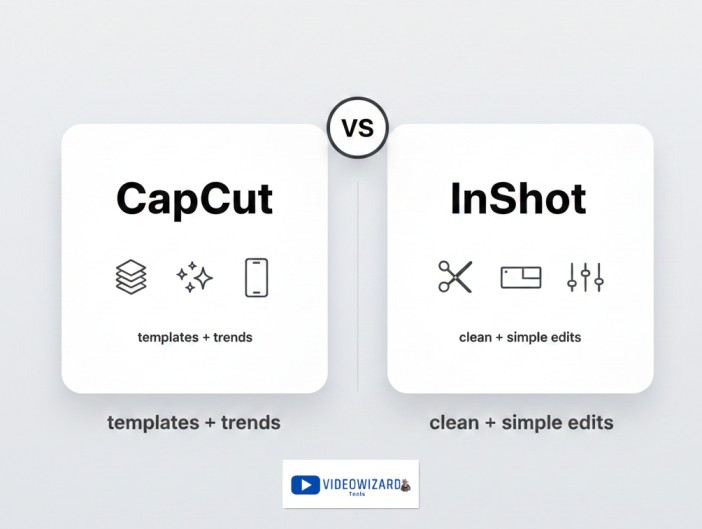
CapCut is built for trends: templates, effects, and fast captions for TikTok, Reels, and Shorts. InShot is more “clean and simple,” with a straightforward workflow that a lot of creators like for quick edits without the extra noise.
This post compares them using the same checklist every time: pricing, ease of use, templates, captions, export quality, watermark rules, and which one fits your phone-first workflow.
TL;DR Verdict
Pick CapCut if:
- You want templates, trending effects, and faster short-form edits
- You rely on auto captions and quick subtitle styling
- You want the most “TikTok/Reels-ready” workflow
Pick InShot if:
- You want a simpler editor that feels clean and easy to control
- You prefer manual editing without templates pushing your style
- You want a straightforward mobile workflow for everyday videos
Biggest difference: CapCut is trend/template-driven. InShot is simpler and more manual.
Best for TikTok/Reels: CapCut
Best for YouTube/Long-Form (on mobile): InShot
Best for Pro Work: Neither (both are mobile-first)
Table of Contents
- CapCut vs InShot at a Glance
- Pricing and Free Plan
- What They’re Really Built For
- Ease of Use (Beginner Friendliness)
- Templates and Speed for Short-Form
- Captions and Subtitles
- Export Quality and Formats
- Watermark (What to Expect)
- Features That Actually Matter (Real Editing Depth)
- Where Each One Fits in Your Workflow
- Common Scenarios (Quick Picks)
- Final Verdict
- CapCut vs InShot FAQs
- Official Resources
CapCut vs InShot at a Glance
- Price vibe: CapCut is free-first with optional upgrades; InShot is freemium with optional subscription (and sometimes a one-time option, depending on region)
- Platforms: Both are mobile-first (iOS/Android)
- Learning curve: Both are beginner-friendly, but InShot usually feels simpler and cleaner
- Templates: CapCut is template-heavy for short-form; InShot is more manual with fewer trend templates
- Captions: CapCut is faster for auto captions + styling; InShot text is usually more manual
- Export & quality: Both can export clean social videos; CapCut is faster for social formats, InShot is steady for simple exports
- Best use case: CapCut for TikTok/Reels/Shorts speed; InShot for clean, straightforward mobile editing without the extra noise
For the full index of CapCut matchups, see the full CapCut comparisons hub.
Pricing and Free Plan
CapCut pricing
- CapCut Free: $0
- CapCut Pro (monthly): $19.99/month
- CapCut Pro (annual): $179.99/year (about $14.99/month when averaged)
Note: CapCut also offers other options (like a Standard/mobile-focused plan and a Teams plan). See the full breakdown here: CapCut pricing guide.
InShot pricing
- InShot Free: $0 (free exports may include a watermark and ads)
- InShot Pro (monthly): $4.99/month
- InShot Pro (annual): $19.99/year (about $1.67/month when averaged)
- InShot Pro (lifetime): $49.99 one-time
Prices can vary by country, device, and app store.
Which is Better for Value?
If you want the most features for short-form and you love templates and auto captions, CapCut can be worth it, but it’s the most expensive upgrade.
If you want a simple, reliable mobile editor at a much lower price, InShot is usually better value, especially on the yearly plan or lifetime option.
What They’re Really Built For
Here’s the part most comparisons miss: CapCut and InShot can both edit videos, but they don’t feel the same while you’re editing.
One is built to get you to a finished short-form video fast. The other is built to keep the workflow simple, clean, and predictable.
CapCut’s “trends + speed” vibe
CapCut is like editing in a kitchen where everything is already prepped.
Templates, effects, and social-style captions are right there, so you can go from clips → post without doing much setup. That’s why it feels so “TikTok/Reels-ready.”
If you post often, CapCut saves time because it removes steps. The app is designed to help you finish fast, even if the raw clips are basic.
InShot’s “clean + simple” vibe
InShot feels more like a tidy workbench.
It’s less template-first and more “do the edit yourself.” Trim, arrange, add text, add music, export. No pressure to pick a trending style before you even start.
That’s why a lot of creators stick with InShot for everyday videos. It’s calmer, more predictable, and easier to keep your edits consistent without the app steering your look.
Quick takeaway: CapCut helps you finish trend-ready edits fast. InShot helps you edit clean without the extra noise.
Ease of Use (Beginner Friendliness)
CapCut Learning Curve
CapCut is easy to start with, especially if you like being guided by templates and ready-made effects. Drop clips in, pick a style, generate captions, and you can get a TikTok or Reel ready fast.
The tradeoff is it can feel a bit “busy” because it constantly pushes trending tools and options.
InShot Learning Curve
InShot is beginner-friendly in a calmer way. The interface is clean, the tools are straightforward, and it’s easy to do the basics without getting distracted.
If you like manual control and don’t want templates steering your edit, InShot often feels simpler and more predictable.
Best for Beginners
If you want the fastest path to a trendy short-form video with effects and captions, CapCut is usually easier. If you want a clean, simple editor that’s hard to mess up, InShot is often the better beginner pick.
Templates and Speed for Short-Form
CapCut is built for short-form speed. Templates, trending effects, and ready-made styles are part of the core workflow, so you can turn raw clips into a TikTok, Reel, or Short quickly.
InShot can edit short-form fast too, but it’s more manual. You’ll be trimming, adding text, music, and effects yourself—which is great if you want a clean, consistent style that doesn’t look like a template.
If your priority is fast, trend-driven content, CapCut wins. If your priority is simple, controlled edits without template pressure, InShot wins.
Best for short-form: CapCut for templates; InShot for simple manual edits
Captions and Subtitles
CapCut is usually faster for captions. Auto captions are easy to generate, quick to fix, and simple to style in a way that looks right for TikTok and Reels. If subtitles are part of your regular workflow, CapCut saves a lot of time.
InShot can add text and subtitles too, but it’s usually more manual. You’ll spend more time typing, timing, and styling compared to CapCut’s auto caption flow. If you only caption sometimes, InShot is fine. If you caption every video, CapCut is the smoother choice.
Best for captions: CapCut
Export Quality and Formats
CapCut is designed around social exports, so switching between 9:16, 1:1, and 16:9 is quick. For TikTok, Reels, and Shorts, exporting is fast and the results usually look clean after upload.
InShot also exports clean videos and covers the common social formats. It can feel more predictable if you like a basic workflow and don’t need advanced export tweaks.
Both can produce great-looking social videos. CapCut is faster and more “creator-ready” for trends. InShot is steady and simple for everyday exports.
Best for export quality: Tie (CapCut for speed; InShot for simplicity)
Watermark (What to Expect)
CapCut is often clean for basic exports, but watermark surprises can show up when you use locked templates, premium effects, or certain assets. The simple habit is to check the export screen and avoid Pro-locked items if you want a guaranteed clean video.
InShot’s free version often includes a watermark on export (and may show ads, depending on your device/region). InShot Pro typically removes the watermark and unlocks more effects and features.
If you want watermark-free exports without paying, CapCut is usually easier. If you’re fine paying a low-cost upgrade, InShot Pro removes the watermark issue.
Least watermark hassle: CapCut (free); InShot (paid)
Features That Actually Matter (Real Editing Depth)
CapCut gives you more “creator features”: templates, effects, quick styling, auto captions, and social-first tools that make videos look finished fast. It’s not trying to be a deep pro editor, but for mobile editing, it covers a lot.
InShot is more basic on purpose. It focuses on clean trimming, simple effects, text, music, and quick adjustments. It doesn’t have the same template ecosystem or flashy tools as CapCut, but it can feel more controlled if you prefer manual editing and consistent results.
If you want more “creator features” and speed, CapCut wins. If you want simple, clean editing without distractions, InShot wins.
Best for advanced editing: CapCut (more tools); InShot (simpler control)
Where Each One Fits in Your Workflow
Best for TikTok/Reels/Shorts
CapCut is usually better if you want trending templates, fast captions, and a workflow that’s built for short-form posting.
InShot can still do short-form, but it’s more manual. It’s better when you want clean edits that don’t scream “template.”
Best for YouTube (Longer Videos)
InShot can be the better fit for longer, simple edits on mobile because it stays clean and manageable.
CapCut can do longer videos too, but it often feels more optimized for short-form styles and quick turnaround.
Best for Client/Pro Work
Neither is a true pro standard. Both are mobile-first editors that are best for creator content, not heavy client workflows.
Best if You Edit Only on Your Phone
Both work well on mobile.
Pick CapCut if you want speed, templates, and captions.
Pick InShot if you want a simple, controlled workflow that stays calm.
Best if You Want Desktop Control
Neither is desktop-first. If you want serious desktop control, you’ll usually be happier with a pro editor like Premiere Pro or DaVinci Resolve.
Common Scenarios (Quick Picks)
Pick the line that sounds like you. The winner is on the right.
Final Verdict
Pick CapCut if you want the most “TikTok/Reels-ready” editor with templates, effects, and fast captions. It’s built to help you post quickly and keep up with trends.
Pick InShot if you want a clean, simple mobile editor that feels more manual and predictable. It’s great for straightforward edits, and it often runs smoother on more phones.
If you’re mainly making trend-driven short-form, CapCut wins. If you want simple, controlled mobile edits, InShot wins.
CapCut vs InShot FAQs
Which app is better, CapCut or InShot?
CapCut is usually better for trend-driven short-form videos because it has templates, effects, auto captions, and faster TikTok/Reels-style tools. InShot is better if you want a cleaner, simpler mobile editor with more manual control and fewer distractions.
Is InShot completely free?
InShot is free to use, but the free version may show ads and can add a watermark on exports depending on your device, region, and version. InShot Pro removes the watermark and unlocks more features.
How much is InShot per month?
InShot Pro pricing can vary by country, device, app store, taxes, and promotions. In the US, users commonly see monthly, yearly, and sometimes lifetime options, but your checkout screen is always the final price.
What are the disadvantages of using CapCut?
CapCut can feel busy because it pushes templates, effects, and trend tools. Some popular assets are locked behind Pro, and the app can feel heavier on older phones when you stack effects, use long timelines, or work with large files.
What are the disadvantages of InShot?
InShot is simpler by design, so it does not have the same template ecosystem, trend effects, and fast auto-caption workflow as CapCut. The free version may also include ads or a watermark, which is why many users upgrade to InShot Pro.
Is InShot good for beginners?
Yes. InShot is good for beginners because the interface is clean, simple, and easy to control. If you want a calm manual workflow for trimming, music, text, and basic effects, InShot is a strong beginner-friendly option.
Which is better for captions, CapCut or InShot?
CapCut is usually better for captions because it has a faster auto-caption workflow and easier subtitle styling for TikTok, Reels, and Shorts. InShot can add text and captions too, but it is more manual and usually slower for caption-heavy videos.
Can CapCut do a 10-minute video?
Yes. CapCut can edit a 10-minute video, but performance depends on your phone, storage, file size, effects, and timeline complexity. For longer simple videos on mobile, InShot can sometimes feel calmer and easier to manage.
Is InShot better than CapCut?
InShot is better if you want simple, controlled mobile editing without many trend tools. CapCut is better if you want templates, effects, auto captions, and faster short-form videos. The better app depends on whether you prefer manual simplicity or trend-driven speed.
