

If you’re stuck between CapCut vs iMovie, you’re probably choosing between a trend-first editor and a simple Apple editor that just works.
CapCut is built for TikTok, Reels, and Shorts, with templates, effects, and fast captions. iMovie is built for clean, basic editing on iPhone, iPad, and Mac, with a simple timeline and fewer distractions.
This post compares them using the same checklist every time: pricing, ease of use, templates, captions, export quality, watermark rules, and whether you’re editing on mobile or desktop.
TL;DR Verdict
Pick CapCut if:
- You want templates, trending effects, and faster short-form edits
- You rely on auto captions and quick subtitle styling
- You want a social-first workflow for TikTok and Reels
Pick iMovie if:
- You want a simple, clean editor on iPhone, iPad, or Mac
- You want basic editing without extra tools and trends
- You mostly make straightforward YouTube videos, school projects, or family videos
Biggest difference: CapCut is social + template-driven. iMovie is simple, clean, and Apple-first.
Best for TikTok/Reels: CapCut
Best for YouTube/Long-Form: iMovie
Best for pro work: Neither (CapCut is creator-first; iMovie is basic)
Table of Contents
- CapCut vs iMovie at a Glance
- CapCut vs iMovie at a Glance
- Ease of Use (Beginner Friendliness)
- Templates and Speed for Short-Form
- Captions and Subtitles
- Export Quality and Formats
- Export Quality and Formats
- Watermark (What to Expect)
- Features That Actually Matter (Real Editing Depth)
- Performance and Stability
- Where Each One Fits in Your Workflow
- Common Scenarios (Quick Picks)
- Final Verdict
- Related CapCut Comparisons
- Frequently Asked Questions
- CapCut vs iMovie FAQs
- Official Resources
CapCut vs iMovie at a Glance
- Price vibe: Both are free to use; CapCut has optional Pro upgrades
- Platforms: CapCut is strongest on mobile (desktop options vary); iMovie is Apple-only (iPhone/iPad/Mac)
- Learning curve: Both are beginner-friendly; iMovie is simpler and more minimal
- Templates: CapCut is template-heavy for short-form; iMovie is more basic with fewer templates
- Captions: CapCut is quicker for auto captions + styling; iMovie captions are more manual
- Export & quality: Both export clean videos; iMovie is steady for simple YouTube exports, CapCut is fast for social formats
- Best use case: CapCut for TikTok/Reels/Shorts speed; iMovie for clean, basic editing inside the Apple workflow
More side-by-sides are here: CapCut comparisons hub.
CapCut vs iMovie at a Glance
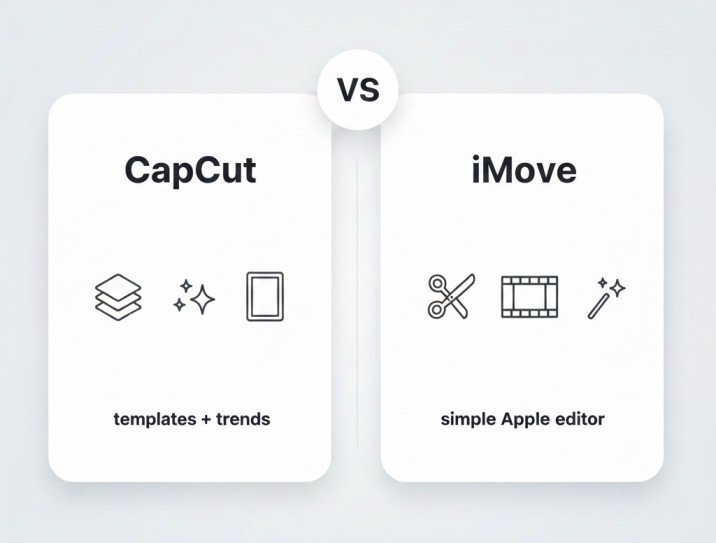
- Price vibe: both are free to use; CapCut has optional Pro upgrades
- Platforms: CapCut is strongest on mobile (with desktop options depending on region); iMovie is Apple-only (iPhone/iPad/Mac)
- Learning curve: both are beginner-friendly; iMovie is simpler and more minimal
- Templates: CapCut is template-heavy for short-form; iMovie has fewer templates and a more basic editing approach
- Captions: CapCut is quicker for auto captions and styling; iMovie captions are more manual
- Export and quality: both can export clean videos; iMovie is solid for simple YouTube exports, CapCut is fast for social formats
- Best use case: CapCut for TikTok/Reels/Shorts speed; iMovie for clean, basic editing inside the Apple workflow
Ease of Use (Beginner Friendliness)
CapCut learning curve
CapCut is easy to start with, especially for short-form. You import clips, trim, add effects, generate captions, and export quickly. The app is built to push you toward fast results with templates and social-ready tools.
iMovie learning curve
iMovie is even simpler. It has fewer tools, fewer choices, and a very clean interface, which is great if you just want to edit without getting distracted.
It’s easy to cut clips, add music, add basic titles, and export. The tradeoff is that you don’t get many of the modern creator features CapCut focuses on.
Best for beginners
If you want the simplest editor with the least clutter, iMovie is usually the easiest. If you want beginner-friendly editing plus templates, effects, and captions for TikTok and Reels, CapCut is still easy and gives you more options.
Templates and Speed for Short-Form
CapCut is built for short-form speed. Templates, trending effects, and quick styling make it easy to create TikTok, Reels, and Shorts fast. If you want your videos to look current without spending a lot of time, CapCut is usually quicker.
iMovie can do short-form, but it’s more basic and more manual. You’re trimming clips, adding simple titles, and maybe music, but you’re not getting the same template ecosystem or trend-style effects.
That can be good if you want a clean look, but it’s slower if you’re trying to match the style of social content you see every day.
For template-driven short-form, CapCut wins. For clean, simple edits without trendy effects, iMovie is fine.
Best for short-form: CapCut
Captions and Subtitles
CapCut is usually much faster for captions. Auto captions are easy to generate, quick to fix, and simple to style for TikTok and Reels. If subtitles are part of your regular workflow, CapCut saves a lot of time.
iMovie can add text and titles, but captions are more manual. You’ll usually be placing text on screen yourself and timing it, which works for short sections but gets slow if you caption full videos.
If you need captions often, CapCut is the better tool. If you only need occasional text on screen, iMovie is fine.
Best for captions: CapCut
Export Quality and Formats
CapCut makes social exports easy. Switching between 9:16, 1:1, and 16:9 is quick, and the final video usually looks clean after upload. It’s built for fast exporting without messing with settings.
iMovie exports are also clean, especially for simple edits. It’s a solid choice for basic YouTube videos and everyday projects inside the Apple workflow.
You don’t get the same level of export control as pro editors, but the default quality is usually good and consistent.
Both can export good-looking videos. CapCut is faster for social formats. iMovie is steady for simple Apple-based projects.
Best for export quality: Tie (CapCut for social formats; iMovie for simple Apple exports)
Export Quality and Formats
CapCut makes social exports easy. Switching between 9:16, 1:1, and 16:9 is quick, and the final video usually looks clean after upload. It’s built for fast exporting without messing with settings.
iMovie exports are also clean, especially for simple edits. It’s a solid choice for basic YouTube videos and everyday projects inside the Apple workflow.
You don’t get the same level of export control as pro editors, but the default quality is usually good and consistent.
Both can export good-looking videos. CapCut is faster for social formats. iMovie is steady for simple Apple-based projects.
Best for export quality: Tie (CapCut for social formats; iMovie for simple Apple exports)
Watermark (What to Expect)
CapCut is often clean for basic exports, but you can run into restrictions when you use locked templates or premium assets.
The safest habit is to check the export screen and avoid locked items if you want a watermark-free result.
iMovie does not add a watermark. Exports are clean, and there’s no “free version watermark” problem to worry about.
If watermark stress is a big concern, iMovie is simpler because it’s never part of the export.
Least watermark hassle: iMovie
Features That Actually Matter (Real Editing Depth)
CapCut gives you modern creator features: templates, effects, quick styling, speed tools, and fast captions. It’s built to help you make social-friendly videos that look polished quickly.
iMovie is more limited, but it’s clean and reliable for basic editing. You get trimming, simple transitions, basic titles, and a straightforward timeline. If you want deeper editing tools, more effects control, or advanced features, iMovie can feel restrictive compared to CapCut.
If you want more tools and creator features, CapCut wins. If you want a simple editor that stays out of your way, iMovie wins.
Best for advanced editing: CapCut (more tools); iMovie (simpler basics)
Performance and Stability
CapCut is usually smooth for short projects on modern phones. It’s built for quick edits and social exports, so it often feels fast.
It can slow down when projects get heavy, like lots of effects stacked, long timelines, or large files, especially if your phone storage is tight.
iMovie is generally stable, especially on Apple devices it supports well. Because it’s simpler and has fewer heavy features, it often runs predictably, even on older iPhones or iPads. On Mac, it’s usually smooth for basic projects.
If you want an editor that feels lightweight and reliable, iMovie often wins. If you want more features and don’t mind a heavier app, CapCut runs well for most short-form work.
Runs smoother for most people: iMovie
Where Each One Fits in Your Workflow
Best for TikTok/Reels/Shorts
CapCut is usually better because it’s built for short-form trends, effects, and fast captions.
Best for YouTube (longer videos)
iMovie is often better for simple long-form editing, especially if you’re on a Mac or iPad and want a clean, basic workflow.
Best for client/pro work
Neither is a true pro standard. CapCut is creator-first, and iMovie is basic. For professional workflows, most people move to Premiere Pro or DaVinci Resolve.
Best if you edit only on your phone
Both work well on mobile, but CapCut is better for social-first editing. iMovie is great if you want a clean, simple editor and you’re on iPhone.
Best if you want desktop control
iMovie wins if you’re on a Mac and want a simple desktop workflow. If you want serious desktop control, you’ll usually want a pro editor instead.
Common Scenarios (Quick Picks)
Pick the line that sounds like you. The winner is on the right.
Final Verdict
Pick CapCut if you want templates, effects, and fast captions for TikTok, Reels, and Shorts. It’s built for short-form creators who want speed and modern social tools.
Pick iMovie if you want a simple, free editor that runs smoothly on Apple devices and covers the basics without distractions. It’s great for clean edits and simple YouTube videos.
If you’re mainly making short-form social content: CapCut wins. If you want simple Apple editing with zero cost and no watermark stress: iMovie wins.
Related CapCut Comparisons
-
CapCut vs Premiere Pro
Short-form speed vs pro timeline control -
CapCut vs After Effects
Quick edits vs motion graphics and VFX -
CapCut vs DaVinci Resolve
Templates vs pro color grading + finishing -
CapCut vs Filmora
Easy desktop editing vs CapCut’s template workflow -
CapCut vs InShot
Two fast mobile editors for Reels/TikTok -
CapCut vs Canva (Video)
Video editing vs design-first templates -
CapCut vs KineMaster
Templates vs timeline-style mobile editing -
CapCut vs VN Editor
Trendy effects vs cleaner manual control -
CapCut vs Premiere Rush
CapCut speed vs simple Adobe workflow -
CapCut vs InShot vs VN
Which mobile editor fits your style? -
CapCut vs Canva vs InShot
Templates vs design vs quick mobile edits
Frequently Asked Questions
CapCut vs iMovie FAQs
Is CapCut better than iMovie?
CapCut is usually better for TikTok, Instagram Reels, and YouTube Shorts because it has templates, trending effects, auto captions, and faster social editing tools. iMovie is usually better if you want a simple, clean editor for Apple devices with fewer distractions.
Is iMovie or CapCut better for YouTube videos?
For simple YouTube videos, talking-head edits, school projects, and basic cuts, iMovie is often easier and more stable on Mac or iPad. If your YouTube content needs bold captions, trend-style pacing, or short-form edits, CapCut may be a better fit.
Do YouTubers use iMovie?
Yes, some beginner YouTubers use iMovie because it is free, simple, and good enough for clean basic edits. As channels grow and projects become more complex, many creators move to more advanced editors for better audio, color, effects, and workflow control.
Can iMovie be used professionally?
iMovie can work for simple professional tasks like basic cuts, quick social edits, and clean exports. However, for heavy timelines, advanced audio, color grading, motion graphics, and client-level workflows, most professionals use more advanced desktop editors.
Can I edit 4K video in iMovie?
Yes, iMovie can handle 4K editing on supported Apple devices. Performance depends on your device, storage, clip length, file size, and how complex the project is.
Is CapCut free without watermark?
Basic CapCut exports are often watermark-free, but restrictions can appear if you use locked templates, Pro effects, or premium assets. The safest habit is to check the export screen and remove locked items before exporting.
Which is easier for beginners, CapCut or iMovie?
iMovie is usually easier if you want the simplest editor with the least clutter. CapCut is still beginner-friendly, but it gives you more social editing tools, templates, captions, and effects, which can feel more useful for short-form content.
Which is better for TikTok and Reels, CapCut or iMovie?
CapCut is better for TikTok and Reels because it is built around social-first editing, templates, fast captions, effects, and vertical video workflows. iMovie can make vertical videos, but it is more basic and less trend-focused.
