

CapCut templates for video can save you hours—especially if you post on TikTok, Instagram Reels, or YouTube Shorts.
Instead of building every edit from scratch, a good template gives you the timing, transitions, and pacing already done. Your job becomes simple: drop in the right clips, change the text, and make it feel like your style.
But here’s the key: templates work best when you customize them. If you leave the default text, effects, and music untouched, your video can look copy-paste—and people scroll.
This guide shows you how to find CapCut templates for social media, use them step by step, and tweak them so your content looks original and consistent across platforms.
CapCut Templates for Social Media (Quick Answer)
Use CapCut templates when you want to:
- Edit faster without sacrificing quality
- Jump on trends (especially on TikTok)
- Keep consistent pacing for Reels and Shorts
- Build repeatable content formats (tutorials, before/after, product demos)
The best workflow is: pick a template → swap clips in the right order → replace text → adjust timing → export 9:16 at 1080×1920.
Table of Contents
- Quick Chooser: Pick the Right Capcut Template in 10 Seconds
- What CapCut Templates Actually Do (And Why They Perform)
- How to Find CapCut Templates for TikTok, Reels, and Shorts
- Trending Capcut Templates: How to Spot Them Early (So You’re Not Late)
- Capcut Template Names: How to Find the Right One Fast
- How to Use a CapCut Template Step-by-Step
- How to Customize CapCut Templates So You Don’t Look Copy-Paste
- Best CapCut Template Types by Goal
- Best CapCut templates that perform (use these proven formats)
- Best CapCut Templates by Platform
- Best CapCut templates by style (pick the vibe first)
- Templates for Businesses (Fast Marketing Content)
- Common Mistakes With CapCut Templates (And How to Fix Them)
- Frequently Asked Questions
- CapCut Templates FAQs
Quick Chooser: Pick the Right Capcut Template in 10 Seconds
| If you’re making… | Use this template type | Photo dumps/recaps |
|---|---|---|
| Gym / transformation | Beat-sync or beat-drop | High energy + replay-friendly pacing |
| Photo dumps / recaps | Photo recap | Turns photos into a mini-movie |
| Travel/storytelling | Minimal tutorial | Keeps focus on your message |
| Travel / storytelling | Clean cinematic | Polished look without clutter |
| Products / UGC | Product demo template | Clear benefit + simple pacing |
What CapCut Templates Actually Do (And Why They Perform)
CapCut templates aren’t just “cool effects.” They’re pre-built editing sequences that handle the hard parts for you—so your video feels fast, smooth, and native to short-form.
Here’s what a strong template usually includes:
- Auto timing: clips snap into a rhythm that feels satisfying (no dead air)
- Transitions + motion: smooth cuts, zooms, and movement already placed
- Beat sync: key moments often land on the music timing
- Text placeholders: ready-made spots for hook text and labels
- Pacing rules: forces shorter clips, which helps retention
Why that matters for social media:
- Templates help you avoid slow pacing (one of the biggest reasons people scroll)
- They make your video feel “on-trend” without advanced editing skills
- They’re perfect when you post often and need speed + consistency
The key is using templates as a starting point, not the final product. The more you tailor the text, clip order, and style to your niche, the more original it feels.
How to Find CapCut Templates for TikTok, Reels, and Shorts
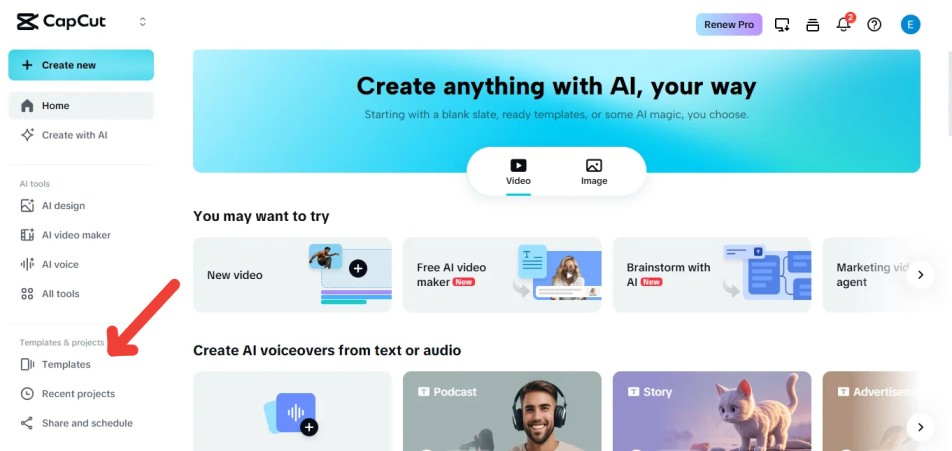
Open CapCut and go to the Templates tab. Then use search terms that match what you’re making, like:
- tutorial
- before after
- product
- vlog
- photo montage
- story
- reveal
As you browse, prioritize templates with clear pacing and readable text areas (not cluttered).
Find trending CapCut templates from TikTok
A lot of viral templates spread through TikTok first. If you see a trend you like, check if it links to a CapCut template and open it directly.
This is one of the fastest ways to use templates that already match what’s performing.
Pick templates that fit your niche (what to look for)
Before you use any template, do this quick check:
- Clip count: Does it match your content (5 clips vs 20 clips)?
- Speed: Does it feel too fast or too slow for your niche?
- Text space: Is there room for a hook and key labels?
- Style: Clean templates usually age better than over-effect templates.
- Repeatability: Can you reuse it for a weekly series without it feeling stale?
Trending Capcut Templates: How to Spot Them Early (So You’re Not Late)
Trends change fast, but most trending templates share the same pattern: a strong hook in the first 2 seconds, clear beat timing, and a structure that’s easy to copy.
How to spot a trending template early
- You keep seeing the same edit structure repeated with different clips.
- The same sound is being used again and again.
- The template looks simple to recreate (no complicated steps).
How long trends usually last
Some templates last weeks. Some fade in days. The safest strategy is to keep a few “always works” templates (beat-sync, cinematic, photo recap), then rotate in one trending template when you want a quick boost.
The smartest way to use trends
Use the trending format for structure, but make it yours with niche-specific hook text, cleaner effects, and better clip order.
Capcut Template Names: How to Find the Right One Fast
CapCut template names can be confusing because many are named after a song, an effect, or the creator who made them. If you can’t find a template by name, search by style instead.
Search inside CapCut using style keywords
Try searches like: beat sync, cinematic, photo recap, before after, tutorial, glow, speed ramp.
Find templates from TikTok (fastest method)
If you see an edit you like on TikTok, look for a “Use Template in CapCut” button. That takes you directly to the template without guessing the name.
Tip: If the template disappears later, search the sound name or the style keyword in CapCut’s Templates tab.
How to Use a CapCut Template Step-by-Step
1) Pick the right template for your goal
Choose a template that matches what you’re posting:
- Tutorial: steps + labels
- Before/after: reveal pacing
- Product/UGC: clean + branded
- Photo montage: fast cuts
- Story/reveal: retention-focused
2) Tap “Use template” and import your clips
Open the template, tap Use template, then select the photos/videos from your phone.
3) Swap clips in the right order (don’t drop random footage)
Templates only look good when the clip order makes sense. Use this simple order:
- Hook/result first
- Supporting clips next
- Payoff/reveal last
If a template has 10 slots, don’t force 10 weak clips. Use fewer, stronger clips and trim hard.
4) Replace the text (make it niche-specific)
Never keep generic template text. Replace it with:
- A clear hook (6–10 words)
- Simple labels (Step 1, Step 2, Before/After)
- One takeaway line at the end
Keep text short and readable on mobile.
5) Adjust timing (fix pacing where it feels off)
If a clip feels too long or too quick:
- Trim inside the template timeline
- Split clips if needed
- Align key moments to the beat (especially for TikTok)
Even small timing tweaks make the template feel custom.
6) Make it look like “you” (quick style tweaks)
- Use a consistent caption style (font + outline/shadow)
- Stick to 1–2 brand colors for highlights
- Remove extra effects that look messy
7) Export with short-form defaults
For TikTok, Reels, and Shorts:
- 9:16
- 1080×1920
- 30fps (or match footage)
- MP4
- High quality/bitrate
If your template edit looks sharp in CapCut but turns blurry after export or upload, use the full fix here: Enhance Video Quality in CapCut.
How to Customize CapCut Templates So You Don’t Look Copy-Paste
Lock in one “signature” style
Templates look generic when every video has a different vibe. Pick a repeatable style and stick to it:
- 1 caption font + outline/shadow
- 1–2 brand colors for highlights
- 1–2 transitions you reuse
This makes your content recognizable, even when the template changes.
Replace the template hook with your own hook
Most templates ship with generic text. Swap it for something specific to your niche, like:
- “3 mistakes killing your Reels”
- “Do this before you post”
- “Here’s why your Shorts flop”
- “Watch this before you export”
If your hook is clear, the template instantly feels more original.
Remove extra effects that make the edit look messy
A lot of templates stack effects because it looks “cool,” not because it performs. Remove anything that distracts, like: heavy glitches, too many shakes, random flashes, filters that crush detail. (Not sure how? Here’s whether you can take a filter off a CapCut template.)
- heavy glitches
- too many shakes
- random flashes
- filters that crush detail
Clean templates usually age better and work across more niches.
Customize the timing to match your content (not the template)
If a clip needs 0.6 seconds to hit, don’t leave it at 1.5 seconds because the template says so. Trim to match:
- speech beats
- action beats
- punchline beats
Short-form rewards tight timing.
Swap the music when it doesn’t fit your niche
If the template song feels off-brand, replace it. Keep the pacing, but use audio that matches your style.
For TikTok trends, you can also export first, then add a trending sound inside TikTok.
Add one “pattern interrupt”
To stop the video from feeling like a recycled template, add one quick unique moment:
- a 1-second face-to-camera line
- a quick zoom-in on the result
- a bold on-screen label (“PRO TIP”)
- a quick before/after split
One small change makes the template feel like yours.
Best CapCut Template Types by Goal
Tutorial Templates (Fast Teaching)
Best for: tips, how-tos, educational niches.
What to look for:
- Clear text slots for steps
- Simple transitions (not chaotic)
- Pacing that’s fast but readable
Use with: “Step 1 / Step 2 / Step 3” overlays, captions on, and a quick recap line at the end.
Before/After Templates (Instant Retention)
Best for: beauty, fitness, editing, cleaning, design, food.
What to look for:
- Reveal-first pacing (after appears early)
- A strong beat drop for the transformation moment
- Clean BEFORE/AFTER labels
Use with: show the after in the first second, speed up process clips, and end with the after again.
Product / UGC Templates (Clean + Branded)
Best for: small businesses, affiliates, creators selling products.
What to look for:
- Simple layout with minimal effects
- Room for product name + benefit
- Text that stays readable on mobile
Use with: 1–2 brand colors, benefit-driven text, and a clean CTA near the end (“save this”, “link in bio”, “DM ‘INFO’”).
Photo Montage Templates (Fast Recaps That Still Work)
Best for: travel, events, portfolios, recap content.
What to look for:
- Steady rhythm (not too many shakes)
- Enough time for each photo to be seen
- Clean transitions that don’t distract
Use with: fewer stronger photos, consistent color grading, and short text overlays only.
Story / Reveal Templates (Watch-Time Focused)
Best for: storytelling, personal brands, creators building community.
What to look for:
- Pacing that builds toward a payoff
- Text slots that guide the viewer
- Clean transitions that feel natural
Use with: a clear setup line (“this happened…”), one twist moment, and a strong payoff at the end.
Best CapCut templates that perform (use these proven formats)
If you want templates that tend to hold attention on TikTok, Reels, and Shorts, choose formats that match how people watch short-form: quick hook, steady motion, clean text, and a clear payoff.
1) Viral beat-sync template
Best for: glow-ups, gym edits, car clips, gaming/anime highlights.
Why it works: cuts land on the beat, which feels satisfying and increases replays.
2) Clean cinematic template
Best for: lifestyle, storytelling, personal brand videos.
Why it works: subtle motion + smooth transitions make clips feel premium without looking over-edited.
3) Fast beat-drop template
Best for: transformations, before/after, hype edits.
Why it works: sharp cuts create instant energy and keep the pace tight.
4) Photo recap template
Best for: vacations, events, year recaps, milestones.
Why it works: turns photos into a mini-movie so people don’t swipe away as fast. (For more picks like this, see our best CapCut template for photos guide.)
5) Minimal “3 tips” / tutorial template
Best for: educational creators, how-tos, product tips.
Why it works: clean layout keeps focus on your message and makes captions easy to read.
6) Product / UGC template
Best for: small businesses, affiliates, creators selling something.
Why it works: clear text slots + simple pacing makes the benefit easy to understand quickly.
7) Velocity / speed ramp template
Best for: sports, action clips, travel motion shots, cars.
Why it works: speed changes create “movement” even if your footage is basic.
Quick rule: don’t chase a template that needs 12 great clips if you only have 4 strong ones. Pick the format that fits your footage.
Best CapCut Templates by Platform
CapCut Templates for TikTok (Trend-First + Sound-First)
TikTok templates work best when they match what’s trending right now.
What to prioritize:
- Beat-synced timing (cuts land on the music)
- Fast pacing (short clips, quick transitions)
- Clear hook text in the first second
Best template styles for TikTok:
- Trend remixes
- Before/after reveals
- Quick “3 tips” tutorial templates
- Photo-to-video montages with strong rhythm
Tip: If the template audio isn’t trending anymore, export the video and add a trending sound inside TikTok.
CapCut Templates for Instagram Reels (Clean Visuals + Safe Zones)
Reels templates usually perform better when they look clean and easy to follow.
What to prioritize:
- Minimal effects (less clutter)
- Text that stays away from the bottom and right UI areas
- Smooth transitions instead of heavy shakes
Best template styles for Reels:
- Tutorial step templates
- Aesthetic montages
- Product demo / UGC templates
- Story/reveal templates with clean text
Tip: Always check text placement before export—Reels buttons can cover captions if they sit too low.
CapCut Templates for YouTube Shorts (Retention + Clarity)
Shorts templates need to be easy to understand instantly.
What to prioritize:
- Strong first 1–2 seconds (hook template)
- Clean captions and readable text
- Pacing that doesn’t feel chaotic
Best template styles for Shorts:
- 3-step tutorial templates
- Myth vs truth templates
- Before/after templates
- Story templates that build to a payoff
Tip: Shorts viewers bounce fast if they’re confused, so choose templates with simple layouts and clear text slots.
Best CapCut templates by style (pick the vibe first)
Slow aesthetic edits
Best for: lifestyle, couples, travel, calm storytelling.
Why it works: smooth motion and softer pacing keeps people watching without feeling chaotic. (This soft, aesthetic-first approach is also covered in our best CapCut templates for girls guide.)
Fast beat drops
Best for: gym, transformations, gaming, high-energy content.
Why it works: fast cuts and beat timing grabs attention early and keeps energy high. (This high-energy style is also a focus of our best CapCut template for boys guide.)
Glow + flash highlights
Best for: dramatic reveals, hero shots, “villain arc” edits.
Why it works: adds instant impact, but works best when you use it sparingly.
Cinematic storytelling
Best for: brand content, polished reels, narrative clips.
Why it works: controlled pacing + subtle transitions makes your video feel intentional and “expensive.”
When the template style matches your footage energy, the edit feels natural instead of forced.
Templates for Businesses (Fast Marketing Content)
Build a “3-template system” for weekly posting
If you’re a business, templates work best when you reuse a small set of formats instead of chasing every trend.
Pick 3 templates you can repeat:
- Product demo template (show the product + result)
- Quick tutorial template (3 steps)
- Social proof template (review, testimonial, before/after)
Rotate them weekly so your feed stays consistent but not repetitive.
Product demo template structure (simple and effective)
Use this order when swapping clips:
- Hook: show the result first (0–2 seconds)
- Show the product: quick close-up
- How it works: 2–3 fast clips
- Result: show it again
- CTA: one clean line near the end
Good CTA examples:
- “Save this for later”
- “Link in bio”
- “DM ‘INFO’”
- “Shop now”
Keep branding light (so it doesn’t feel like an ad)
Templates already add motion and style. Your branding should be subtle:
- Small logo in a corner (optional)
- Brand color for 1–2 highlighted words
- One consistent font for text overlays
Turn your best template into a reusable content machine
When a template performs well:
- Save it
- Reuse the same structure with new clips
- Keep the same caption style
That’s how you post faster without your content looking random.
Common Mistakes With CapCut Templates (And How to Fix Them)
Using a template that doesn’t match your content
If the template needs 12 fast clips and you only have 4 decent ones, it’ll feel stretched and awkward. Pick templates that match the amount of content you actually have.
Keeping the default template text
Generic text makes your video feel copy-paste. Rewrite it with:
- a clear hook
- simple labels (Step 1, Before/After)
- one takeaway line
Overusing effects because the template “looks cool”
Some templates stack shakes, flashes, and heavy filters. Clean them up. Keep what supports the message and remove the rest.
Reusing the same template too often
If you post the same template repeatedly, people notice. Rotate a small set of templates (3–5) and keep your style consistent instead.
Bad text placement (covered by UI)
Templates don’t always respect safe zones. Move captions and key text higher so TikTok/Reels/Shorts buttons don’t cover your message.
Exporting with the wrong settings
Templates can still look blurry if export settings are low. Use:
- 9:16
- 1080×1920
- MP4
- High quality/bitrate
Frequently Asked Questions
CapCut Templates FAQs
Are CapCut templates free?
Many CapCut templates are free, especially popular trend templates. Some templates, or specific effects, fonts, and assets inside them, may be marked as Pro. If a template uses locked Pro elements, you may need a subscription to export with those items.
Do you need CapCut Pro to use templates?
Not always. You can use many CapCut templates for free. If a template includes Pro assets, CapCut should label them, and you may need to replace the locked items or upgrade before exporting.
Can you edit CapCut templates after choosing one?
Yes. You can swap clips, change text, adjust timing, remove effects, replace music, and restyle captions. The easiest way to make a template feel original is to rewrite the hook, tighten the pacing, and use your own font, color, and caption style.
How do you find trending CapCut templates?
Check the Templates tab in CapCut and search by purpose, such as tutorial, before and after, product, montage, reveal, or vlog. You can also look for TikTok trends that link directly to a CapCut template and open the template from there.
Why do CapCut templates look copy-paste sometimes?
CapCut templates can look copy-paste when the default text, effects, timing, and music are left unchanged. To make the edit feel more original, rewrite the hook, remove messy effects, adjust the timing, and use a consistent caption style that fits your brand.
Can you use CapCut templates for Instagram Reels and YouTube Shorts?
Yes. Most CapCut templates can work for Instagram Reels and YouTube Shorts if you export in vertical 9:16 format at 1080×1920. Before exporting, move important text higher so platform buttons and captions do not cover key parts of the video.
Do CapCut templates reduce video quality?
Templates do not reduce video quality by themselves. Quality usually drops because of low export settings, heavy compression, or platform upload processing. Export in 9:16, 1080×1920, MP4, and use a high quality or bitrate setting. If your upload still looks blurry, read this guide on how to make CapCut video quality better.
