

One of the biggest reasons CapCut became so popular is simple: unlike most free video editing apps, it typically lets users export videos without a permanent watermark.
But currently, many users are suddenly confused.
Some creators export clean videos with no issues at all, while others get blocked by Pro prompts, ending clips, or watermarks embedded directly into their footage.
So what is actually happening?
The truth is that CapCut’s watermark system has changed over time, and most guides online still explain outdated methods or oversimplify the issue.
In reality, whether your video exports without a watermark depends on three main things:
- Whether you used free or Pro assets
- Whether the default CapCut ending clip is still in your timeline
- Which export settings or templates you selected
Once you understand those three things, exporting clean videos becomes very easy.
In this guide, you will learn exactly how to export CapCut videos without watermark, why some users still see watermarks, and how to avoid the most common mistakes before exporting.
Note: If your problem is not a watermark but CapCut blocking your export entirely and asking you to upgrade, that is a different issue, read our guide on how to export CapCut without Pro.
Table of Contents
- Can You Export CapCut Videos Without Watermark for Free?
- Why CapCut Watermarks Appear
- How to Export CapCut Videos Without Watermark
- Why Is There a Watermark in the Middle of My Video?
- How to Avoid Watermarks in Future Projects
- What to Do If CapCut Still Shows a Watermark
- Does CapCut Pro Remove All Watermarks?
- Frequently Asked Questions
- Final Thoughts
Can You Export CapCut Videos Without Watermark for Free?
Yes, you can still export CapCut videos without watermark using the free version in 2026.
CapCut officially confirms that standard projects created with free assets can be exported cleanly without a permanent watermark.
However, there is an important distinction many users miss:
- The free version itself does not automatically stamp a permanent watermark on every video
- But certain templates, effects, AI tools, and Pro assets can trigger watermarks during export
According to CapCut’s official help documentation, the most common reasons users see watermarks are:
- The default ending clip was not removed
- A Pro-only effect or template was used
- A premium asset requiring attribution was added to the project
That is why two users can follow almost identical editing steps and still get completely different export results. CapCut’s official documentation
Does CapCut Have a Watermark?
Usually, no. CapCut does not automatically place a permanent watermark across every exported video. This is one reason the app became so popular compared to many free video editors.
However, some users still see CapCut branding because of the default ending clip or because they used Pro assets that trigger export restrictions.
This often leads people to wonder whether CapCut leaves a watermark on videos, exports with a watermark by default, or always includes some form of branding in finished projects.
In most standard projects using free assets, you can export videos without a watermark simply by removing the CapCut ending clip before exporting.
Why CapCut Watermarks Appear
There are actually two completely different types of “watermarks” in CapCut.
Most beginners think they are the same thing, but they are not.
1. The CapCut Ending Clip
This is the small branded outro automatically added to the end of many projects.
It usually appears as a short clip with the CapCut logo after your final scene.
This is not a permanent watermark.
It is simply an editable timeline element that can be deleted before exporting.
For most free users, this is the only “watermark” they will ever see.
2. Embedded Pro Watermarks
This type of watermark is more serious.
If your project uses premium assets such as:
- Pro templates
- AI effects
- Premium transitions
- Licensed music
- Paid stickers
- Advanced filters
CapCut may place a watermark directly inside the video footage itself during export.
Unlike the ending clip, this watermark cannot simply be deleted afterward.
You usually need to either:
- Remove the Pro asset
- Replace it with a free alternative
- Upgrade to CapCut Pro
This is now one of the biggest frustrations among free CapCut users in 2026 because CapCut increasingly pushes AI tools and premium effects during editing.
How to Export CapCut Videos Without Watermark
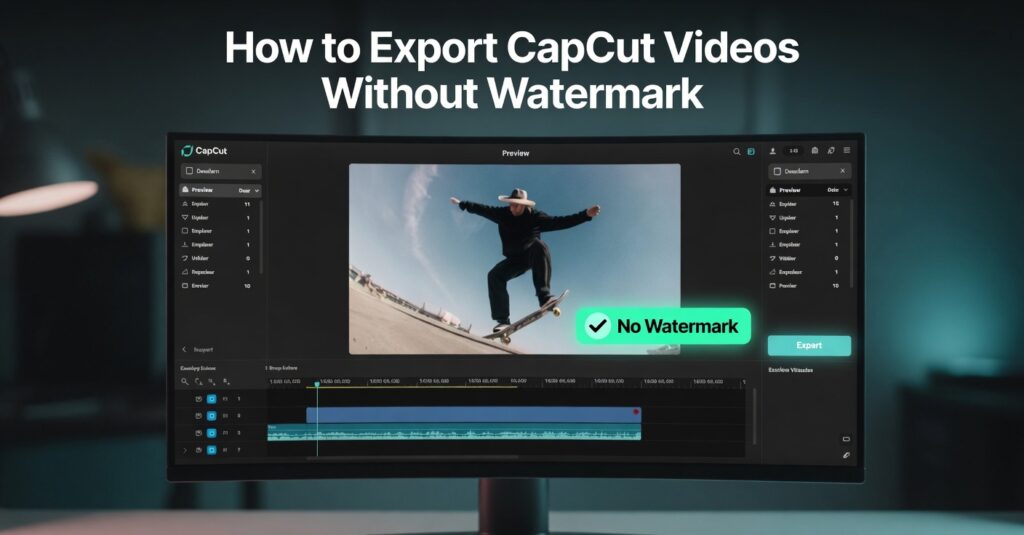
If you want a completely clean export, follow these steps carefully.
Step 1: Create Your Project Normally
Open CapCut and edit your video as usual.
You can still use most of CapCut’s core editing tools for free, including:
- Trimming
- Splitting
- Transitions
- Basic effects
- Text animations
- Keyframes
- Captions
- Speed controls
CapCut remains one of the most feature-rich free editors available for short-form content creators.
If you want more advanced editing techniques, our guide on how to use keyframes in CapCut explains how creators achieve smoother motion and professional-looking animations.
Step 2: Avoid Pro Assets

Before applying any effect or template, check whether it has:
- A diamond icon
- A Pro label
- A premium badge
If you see any of these indicators, the asset may trigger watermark restrictions during export.
Many users accidentally use a premium effect without realizing it because CapCut allows free previews during editing.
The problem only appears later during export.
This is also why some users suddenly get upgrade prompts even though they thought they were using only free tools.
If you want to understand exactly which features are locked behind the paid plan, read our full breakdown of CapCut Free vs CapCut Pro.
Step 3: Remove the CapCut Ending Clip
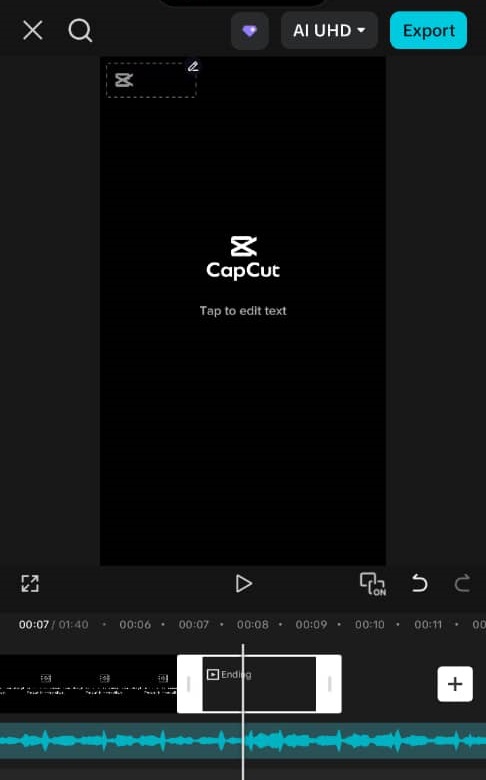
This is the step most people forget.
Scroll to the very end of your timeline.
You will usually see a short CapCut-branded outro clip automatically attached after your final scene.
To remove it:
- Tap the ending clip once
- Select Delete or the trash icon
- Confirm the clip is gone from the timeline
Once deleted, your video will export without the ending watermark.
Step 4: Export Your Video
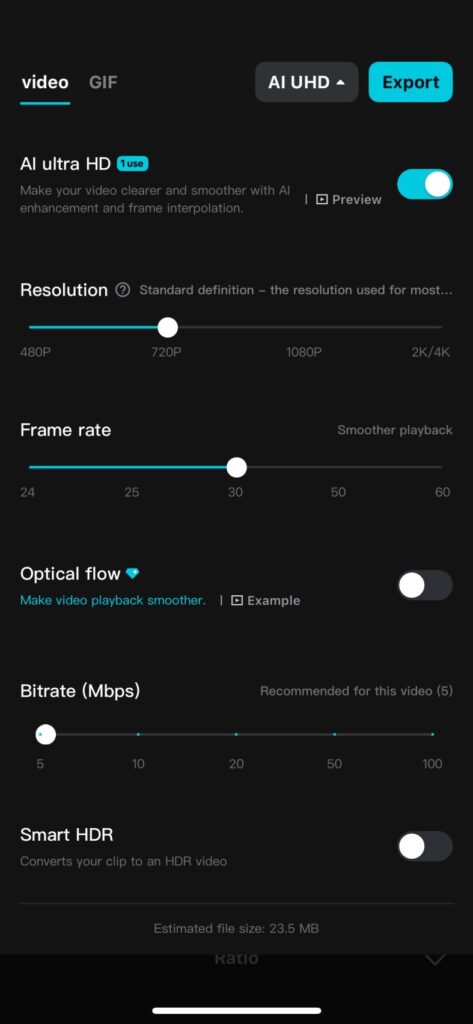
After checking your timeline, tap the Export button in the upper-right corner.
For best quality, most creators should export using:
- 1080p resolution
- 30fps or 60fps frame rate
- High bitrate settings
If your exports look blurry after saving, the issue is usually related to compression or incorrect export settings rather than the watermark itself.
Our guide on fixing blurry CapCut exports explains the most common causes.
Why Is There a Watermark in the Middle of My Video?
If you see a watermark embedded directly inside your footage instead of only at the end of the video, it usually means your project contains at least one Pro-only asset.
This is different from the removable CapCut ending clip.
An embedded watermark is automatically generated during export when CapCut detects premium elements inside the project.
In 2026, the most common causes include:
- AI-generated effects
- Premium templates
- Licensed audio tracks
- Pro transitions
- Advanced cinematic filters
- Premium stickers or overlays
Many users accidentally trigger these watermarks because CapCut allows them to preview premium features before exporting.
Everything may look normal during editing, but once the export starts, CapCut checks for premium assets and applies restrictions.
Unfortunately, there is no legitimate way to remove embedded Pro watermarks for free after export.
Your only options are:
- Delete the premium asset
- Replace it with a free alternative
- Upgrade to CapCut Pro
If CapCut completely blocks your export and asks you to upgrade before rendering the video, that is a separate issue from watermarks. Our guide on how to export CapCut without Pro explains the most common fixes.
How to Avoid Watermarks in Future Projects
The easiest way to avoid watermark problems is to build a simple editing habit before exporting.
Every time you add a new effect, transition, filter, or template, quickly check whether it includes a:
- Diamond icon
- Pro label
- Premium badge
If it does, there is a high chance it may trigger watermark restrictions later.
Instead, stick with CapCut’s free editing library whenever possible.
Even without Pro, CapCut still includes hundreds of free:
- Effects
- Transitions
- Fonts
- Text animations
- Captions
- Filters
- Music tracks
- Templates
For most TikTok, Reels, and Shorts creators, the free library is more than enough to create professional-looking videos.
What to Do If CapCut Still Shows a Watermark
In rare situations, users report seeing watermarks even after removing the ending clip and avoiding Pro assets.
If that happens, try these troubleshooting steps.
Update CapCut
Outdated versions of CapCut occasionally cause export bugs or rendering problems.
Updating the app often fixes strange watermark behavior immediately.
This is especially important after major CapCut feature updates because export systems sometimes change between versions.
Restart or Reinstall the App
Corrupted cache files can sometimes interfere with exports.
Try:
- Closing the app completely
- Restarting your device
- Reinstalling CapCut
Before reinstalling, make sure your drafts and projects are backed up properly.
If you are unsure how CapCut stores projects locally, our guide on whether CapCut autosaves drafts explains how project storage works.
Review the Entire Timeline Carefully
Sometimes a single hidden premium asset triggers the watermark.
Check every part of the timeline carefully, including:
- Transitions
- Effects
- Templates
- Music tracks
- Captions
- Stickers
- Overlays
Even one Pro element can activate export restrictions.
Check AI Features
In recent CapCut updates, several AI tools became partially restricted to Pro users.
Features like AI stylization, AI avatars, AI voice tools, and certain AI enhancement effects may now trigger watermark limitations in free projects.
So it is important to know what CapCut AI features currently require Pro access.
Does CapCut Pro Remove All Watermarks?
Yes. A CapCut Pro subscription removes all watermark restrictions tied to premium assets.
With CapCut Pro, users can:
- Use premium templates
- Access AI editing tools
- Use licensed music
- Export without embedded watermarks
- Unlock advanced filters and effects
- Export in higher resolutions including 4K
For creators producing client work, commercial content, or daily social media videos, upgrading can save time and reduce export frustrations.
However, many casual creators still use the free version successfully because most standard editing tools remain available without paying.
If you are considering upgrading, our guide on CapCut pricing plans explains the latest CapCut subscription options.
Frequently Asked Questions
Does CapCut have a watermark?
Most CapCut projects can be exported without a watermark. However, the default ending clip and certain Pro assets may add CapCut branding unless they are removed or replaced.
Does CapCut watermark videos on PC?
CapCut desktop generally follows the same rules as the mobile app. Standard projects can usually be exported without a watermark, while some premium assets may trigger watermark restrictions.
Can CapCut templates add a watermark?
Yes. Some templates, especially premium or Pro templates, can trigger watermark restrictions during export. Always check whether a template is marked as Pro before using it.
Why is there a watermark in the middle of my video?
A watermark inside the video itself usually means the project contains at least one Pro-only asset such as a premium effect, AI feature, template, sticker, or music track.
Do CapCut AI features require Pro to export without a watermark?
Some AI-powered tools are included with CapCut Pro and may trigger export restrictions for free users. Requirements can vary depending on the specific AI feature being used.
Can I remove a CapCut watermark after exporting?
If the watermark comes from the ending clip, it is best removed before exporting. If it was generated by a Pro asset, you typically need to remove the premium element and export the project again.
Can I use CapCut videos commercially without a watermark?
Many creators use watermark-free CapCut exports for business, client, and social media content. However, you should review the licensing terms for any music, templates, or assets included in your project.
Why did CapCut suddenly start showing watermarks?
This often happens when a project contains newly restricted Pro features, premium assets, or AI tools that were not previously used in older projects.
Final Thoughts
Exporting CapCut videos without a watermark is still completely possible in 2026, but the process is no longer as simple as many older tutorials suggest.
The biggest thing to understand is that CapCut now handles ending clips and premium asset restrictions separately.
For most users, the process is straightforward:
- Use free assets only
- Remove the CapCut ending clip
- Check your timeline carefully before exporting
If you follow those three steps, your videos will usually export cleanly without any watermark at all.
The majority of watermark complaints now come from users accidentally applying premium AI tools, templates, or transitions during editing without realizing those assets require Pro access.
Fortunately, CapCut still offers one of the strongest free editing libraries available for mobile creators, especially for TikTok, Reels, and YouTube Shorts workflows.
For even sharper exports, better compression, and cleaner social media uploads, pair this tutorial with our guide on the best CapCut export settings.
