


Finished editing your video, hit export, and CapCut just refuses to cooperate?
That can kill your mood fast, especially when the hard part is already done. The good news is that most CapCut export issues are fixable.
In most cases, the problem comes down to low storage, export settings that are too high, a project that is too heavy for your device, or one broken clip, effect, or audio file hiding in the timeline.
This guide breaks down what CapCut not exporting usually means, why it happens, and how to fix it without wasting time on random guesses.
Table of Contents
- What CapCut Is Not Exporting Usually Means
- The Most Common Reasons CapCut Is Not Exporting
- Why Does CapCut Export So Slowly?
- Why Does CapCut Ask Me to Pay to Export?
- How to Fix CapCut When It Is Not Exporting
- How to Tell What Kind of Export Problem You Actually Have
- Does CapCut Export Fail Differently on Phone and PC?
- What to Do If Only One Project Will Not Export
- How to Avoid CapCut Export Problems in the Future
- Frequently Asked Questions
- Conclusion
What CapCut Is Not Exporting Usually Means
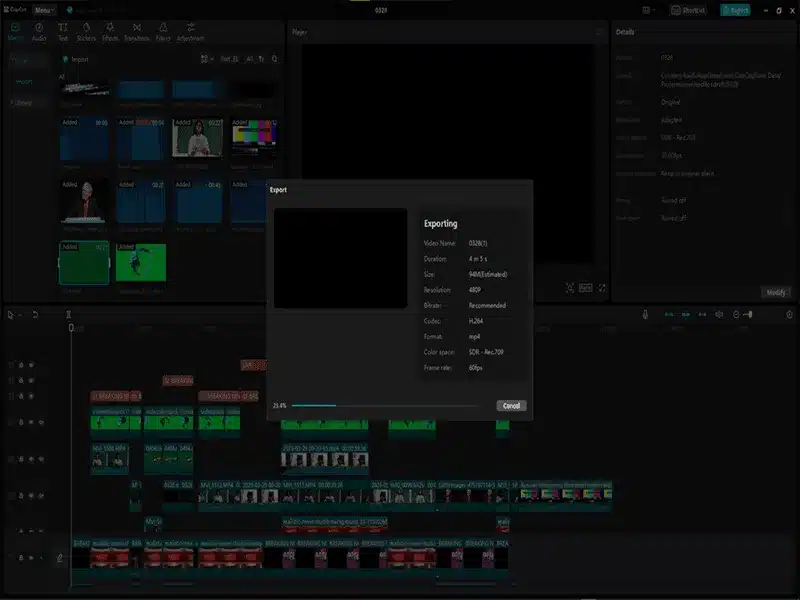
When people say CapCut is not exporting, they are often talking about a few different problems that feel the same in the moment.
Sometimes the export button does nothing. Sometimes the export starts and gets stuck. Other times, CapCut crashes, freezes, or fails before the file is saved.
That matters because the best fix depends on how the export is failing. Here are the most common ways this problem shows up:
1. The CapCut Export Button does nothing
If you tap Export and nothing happens, the issue is usually a temporary app glitch, a permissions problem, or a project that has become unstable.
On mobile, CapCut may not have the access it needs to save the file properly. On desktop, it can also happen when the app gets stuck after a long editing session.
Note: If the export button is completely unresponsive, CapCut also has a separate help page on why the export button may not be responding.
Why Does CapCut Say “Post” Instead of Export?

the save to device option is a separate icon nearby, not always obvious at first glance.
On mobile, CapCut sometimes shows a “Post” button as the main option, which is designed to share directly to social media.
The separate export/save option is usually a small icon or a secondary button nearby — look for a download arrow or “Save to device” option next to the Post button.
Tapping Post without saving first means the video goes to the platform but may not save to your camera roll.
2. The Export starts but gets stuck
This is one of the most common export problems. Usually, the project is too heavy for the device, free storage is too low, or one clip or effect is causing the render to hang.
Long videos, auto captions, layered edits, and stacked effects can make this much worse.
3. The Export fails halfway through
If CapCut makes some progress and then suddenly stops, the problem is often tied to something inside the project itself.
A damaged clip, broken audio file, unsupported media format, or buggy effect can cause the export to fail partway through.
4. CapCut Crashes during Export
If the app freezes or closes while exporting, your device is usually hitting a limit. Exporting is more demanding than normal editing, so low RAM, low storage, overheating, background apps, and high export settings can all push CapCut too far.
If crashing is the main problem, that deserves a closer look because it usually points to device strain rather than just a simple export delay.
5. The Video Exports, but something still goes wrong
Sometimes the export appears to finish, but the video is missing, does not save where expected, or will not open properly.
That can happen when storage is nearly full, permissions are restricted, or the final save process gets interrupted.
Before trying random fixes, it helps to identify exactly how CapCut is failing. Once you know whether the app is freezing, crashing, failing halfway, or not responding at all, the next step becomes much easier.
What If the Export Finishes But the Video Freezes When You Play It?
This is a different problem from the export failures covered above. If CapCut successfully exports your video but it freezes, stutters, or gets stuck the moment you try to play it back, the export process itself isn’t broken — the issue shows up during playback instead.
This usually points to a codec mismatch, a bitrate that’s too heavy for the player or device, a damaged source clip, or platform compression after upload.
It’s a separate troubleshooting path from the export problems in this guide. See our dedicated breakdown on CapCut video freezing after export for the full fix.
The Most Common Reasons CapCut Is Not Exporting
Most CapCut export problems come down to a small group of issues. Usually, the app itself is not the whole problem. It is one bottleneck inside the project, the device, or the export settings.
1. Not enough free storage
This is one of the biggest reasons CapCut fails to export. The app needs space not just for the final video, but also for temporary files while it processes the project. If your phone or computer is nearly full, the export can freeze, fail, or stop without a clear warning.
2. The project is too heavy for your device
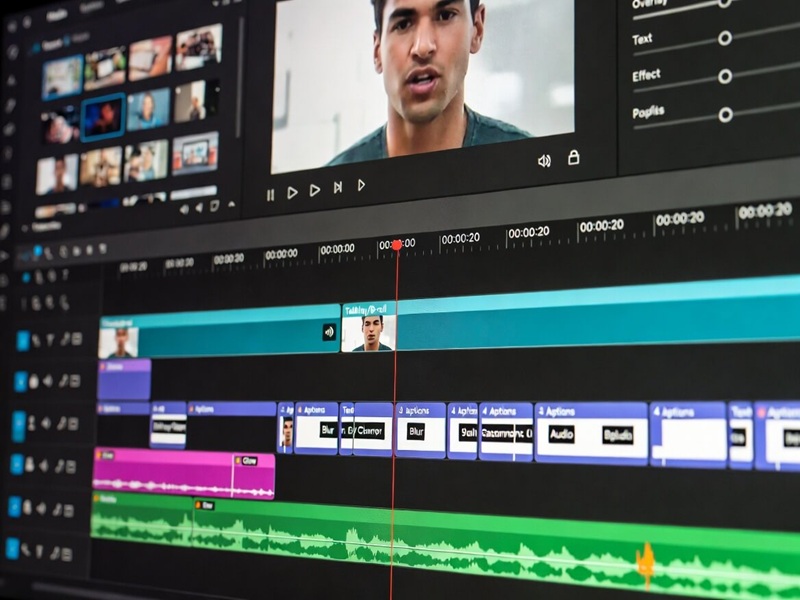
A project can look fine while you edit it, then fall apart at export because rendering puts more pressure on your device.
Long timelines, 4K footage, multiple overlays, captions, filters, and effects can all make the project too heavy to finish properly.
If CapCut has also been freezing, lagging, or acting unstable before export, that usually points to a broader performance issue rather than just the export step.
In that case, it helps to look at common CapCut crashing and performance issues, because the same device limits that affect editing can also cause export problems during rendering.
3. Your export settings are too high
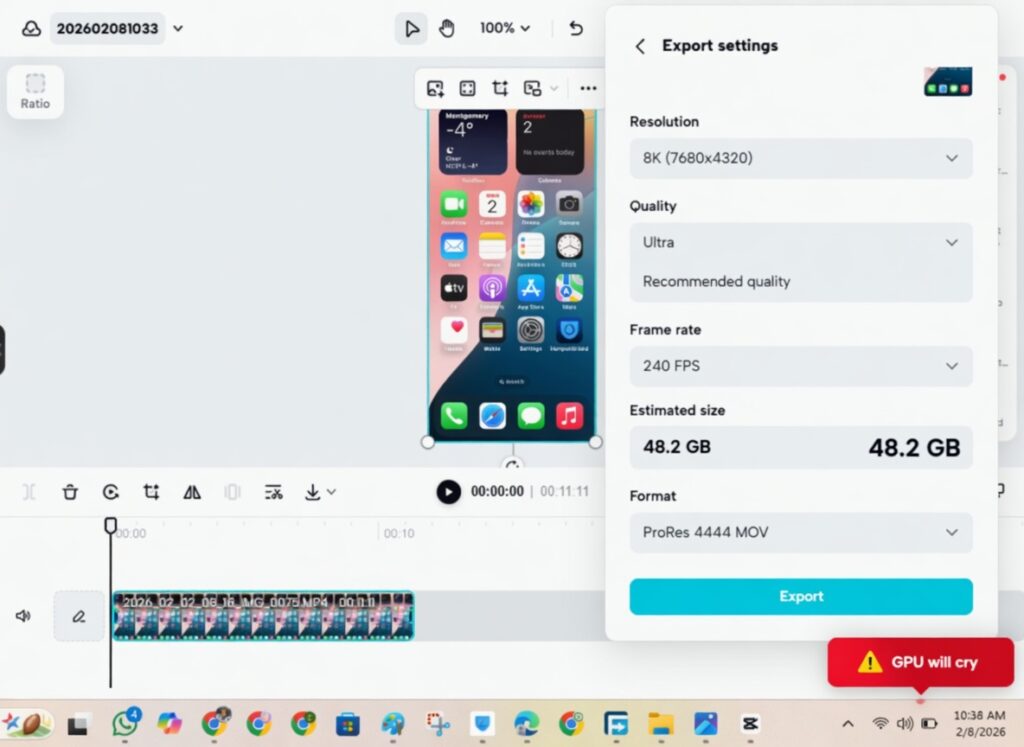
A lot of people pick the highest resolution and frame rate by default, thinking more is always better.
But exporting at 4K or 60fps can overload your phone or computer, especially if the project already includes heavy effects or longer clips.
If you are not sure what settings make sense for the kind of video you are exporting, it helps to compare your setup with these best CapCut export settings before trying again.
4. One clip, effect, or asset is causing the failure
Sometimes the problem is just one broken part of the timeline. A damaged clip, unsupported media file, buggy effect, broken font, or imported audio file can stop the whole export. That is why some projects fail at the same point every single time.
5. A temporary app glitch is blocking the export
CapCut can also fail because of a temporary app issue. Too much cache, a long editing session, or a failed render attempt can leave the app stuck.
In those cases, the export button may stop responding, or the app may freeze during the process.
6. CapCut is outdated
An older version of CapCut can leave you stuck with bugs that have already been fixed. If the app has not been updated in a while, export issues can appear even when the project itself looks normal.
7. Battery saver or background limits are interfering
On phones, battery saver and background restrictions can interrupt CapCut while it is trying to render and save the final file. This is easy to miss because the app may still seem fine while editing, then fail only when you try to export.
8. CapCut does not have the right permissions
On mobile devices, CapCut may fail to export properly if it does not have access to your photos, videos, or storage. This often happens after an update, reinstall, or earlier permission denial that was never changed back.
The good news is that most of these problems are fixable. Once you know whether the issue is storage, settings, device limits, permissions, or a broken file inside the timeline, you can stop guessing and start using the fix that actually matches the problem.
Why Does CapCut Export So Slowly?
Slow exports are normal on longer or heavier projects. CapCut processes every layer, effect, and frame before it can save the file.
The more complex the project, the longer it takes. If the export feels unusually slow rather than just gradual, the fixes in the sections above will help you find what is slowing it down.
Why Does CapCut Ask Me to Pay to Export?
CapCut does not require payment to export videos. However, certain features like 4K export, AI tools, or Pro templates are locked behind CapCut Pro.
If you used a Pro asset or template in your project, CapCut may prompt you to upgrade before exporting cleanly.
The fix is to either remove the Pro element and replace it with a free alternative, or export using the free settings (1080p or lower) which do not require a subscription.
How to Fix CapCut When It Is Not Exporting
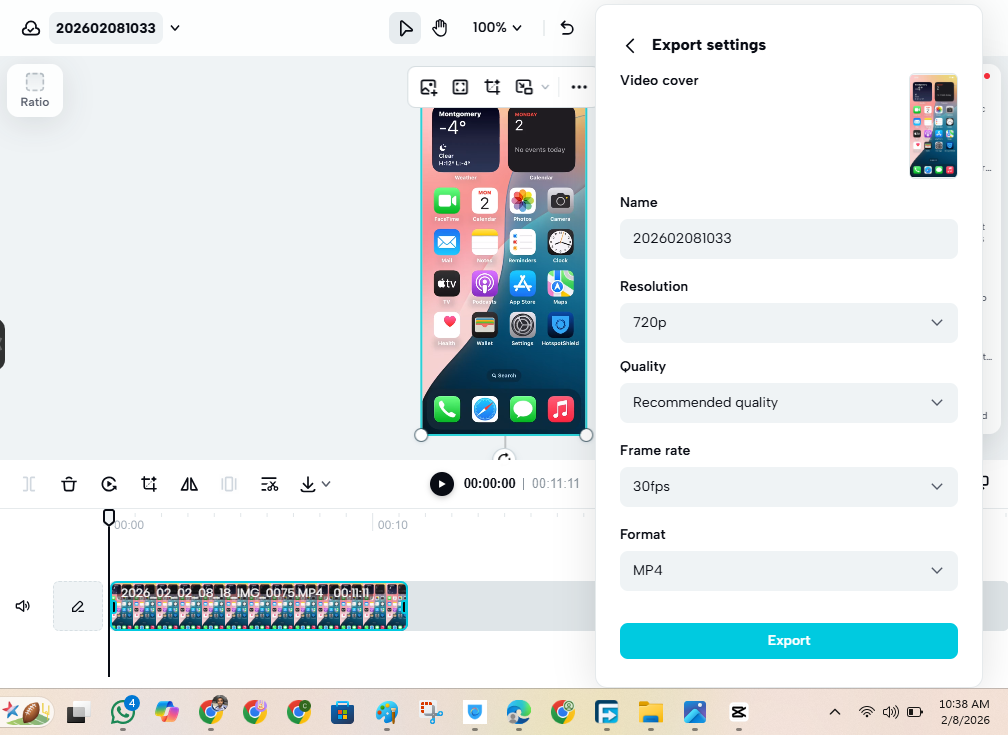
If CapCut is not exporting, do not start changing ten things at once. That usually makes it harder to figure out what actually solved the problem.
Start with the easiest fixes first, then move into the deeper ones only if the export still fails.
Free up storage first
This should be your first check. CapCut needs room to process the project before it can save the final video.
If your phone or computer is nearly full, the export can freeze, fail, or stop without much warning.
Delete old videos, screen recordings, downloads, and anything else you do not need right now. Then try exporting again.
Restart CapCut and reopen the project
Sometimes the app is just stuck. Close CapCut fully, wait a few seconds, then open it again and load the project fresh.
This can clear a temporary glitch, memory issue, or background export process that failed without telling you.
Restart your device
If reopening the app does not help, restart your phone or computer too. It sounds basic, but it often works because it clears memory, closes background processes, and gives CapCut a cleaner shot at finishing the export.
Lower the export settings
If you are trying to export at very high quality, scale it back and test again. Try 1080p instead of 4K. Try 30fps instead of 60fps.
That lowers the strain on your device and helps you rule out whether the project is simply too demanding at the current settings.
If the export finally works after lowering quality, then the issue was probably not the project itself. It was the render settings.
Close other apps and background programs
CapCut needs breathing room while exporting. If you have too many apps open, your device may run short on RAM or processing power.
Close games, browsers, editing tools, screen recorders, and anything else heavy before trying again.
This matters even more on older laptops and phones where CapCut already struggles under load. If the app feels sluggish before you even hit export, the problem may not be isolated to the render step. It may be part of broader CapCut errors and crashes that show up once the device gets pushed harder.
Update CapCut
An outdated version of CapCut can cause strange export bugs that are hard to explain. Update the app, reopen the project, and test again. If you have already updated recently, make sure the update actually finished properly.
Clear CapCut cache
Too much cached data can make CapCut behave badly, especially after a lot of editing, previewing, and failed export attempts.
Clear the cache if that option is available on your device, then reopen the project and test again.
Duplicate the project and export the copy
This is one of the smartest things to try when one project refuses to export but the app still works normally otherwise.
Duplicating the project can sometimes get around a damaged project file or timeline bug hiding in the original version.
Open the copy and see if it exports any better.
Remove heavy effects, overlays, or imported files
If the export keeps failing at the same point, something inside the timeline may be breaking the process. Start by removing the heaviest effects first.
Then test overlays, animations, imported fonts, sound effects, and downloaded clips one by one.
If the export suddenly works, you have likely found the problem item.
Export the video in smaller sections
If your project is long or packed with layers, try exporting it in smaller parts. This helps in two ways.
First, it reduces the load on your device. Second, it helps you find the exact section where CapCut starts failing.
Once you find the broken part, you can rebuild or replace only that section instead of tearing apart the whole project.
If you want to cross-check the basic troubleshooting steps, CapCut also has an official guide on what to do if the export function isn’t working.
How to Tell What Kind of Export Problem You Actually Have
CapCut export issues can look the same at first, but the cause is not always the same. That is why one fix works for one person and does nothing for someone else.
If CapCut freezes at the export screen
If you tap export and the screen just sits there, your device is usually struggling to process the project. This happens a lot with long videos, stacked effects, auto captions, and high-resolution footage.
Start by closing other apps, restarting CapCut, and lowering the export settings. If that still does not help, remove the heaviest effects and test again.
If CapCut starts exporting but never finishes
When the export bar moves and then gets stuck for a long time, the problem is often linked to low storage, a heavy project, or one broken file inside the timeline. In some cases, the project is simply too large for the device to finish in one go.
Free up storage first. Then try exporting the project in smaller parts. If one section keeps failing, that usually means something in that part of the timeline is causing the issue.
If CapCut crashes during export
If the app closes, freezes, or kicks you out while exporting, your device may be running out of memory, space, or processing power during the render.
High export settings can make this worse, especially on older phones or lower-end PCs.
If crashing is the main symptom, it helps to go deeper into CapCut crashing when exporting style troubleshooting, because crashes usually point to a device or project-load issue rather than a simple save problem.
If the export button does nothing
If you press export and nothing happens, the issue is often tied to a temporary app glitch, a permission problem, or a damaged project file.
Start by closing and reopening CapCut. If that does not work, restart your device, check whether CapCut has storage and media access, and test a duplicated version of the project.
If only one project will not export
If CapCut exports other projects normally, the problem is probably not the app itself. It is more likely something inside that one timeline.
A damaged clip, broken audio file, unsupported media format, or heavy effect can stop that specific project from exporting.
Duplicate the project, remove recent edits, and test the export again. If needed, break the project into parts to find the exact section causing the failure.
Does CapCut Export Fail Differently on Phone and PC?
Yes, sometimes it does.
The core problem is often the same. CapCut is running into a limit during rendering. But the limit is not always the same on every device.
On phone, export failures are usually caused by low storage, low memory, overheating, battery saver, or background restrictions.
Phones have less room to handle long timelines, heavy effects, auto captions, and high-resolution exports, so CapCut can freeze, stall, or crash faster.
On PC, export problems are more often tied to RAM, disk space, graphics load, or background programs eating up system resources. A project may edit fine on desktop, then fail only when CapCut has to render the final file.
So yes, the symptom can look similar on both devices, but the cause behind it can be a little different. That is why it helps to check the limits that matter most for the device you are using.
What to Do If Only One Project Will Not Export
If CapCut exports other projects without any problem, the app itself is probably not the real issue. In most cases, the problem is inside that one project.
1. A broken clip could be causing it
One damaged video file can stop the entire export. This happens a lot with clips downloaded from other apps, transferred between devices, or recorded in unusual formats. The project may still play inside CapCut, but fail the moment it tries to render the final file.
Try removing the most recently added clips first. Then test the export again.
2. One effect or overlay may be too heavy
Sometimes the issue is not the footage. It is the extra layer on top of it. Filters, transitions, animations, overlays, and effects can overload the project or trigger a failure at a specific point.
If the export always stops in the same place, go to that part of the timeline and inspect what is there. Remove one heavy element at a time and test again.
3. Imported audio can also break the export
A bad sound file can cause just as many problems as a bad video clip. If you added music, voiceovers, or sound effects from outside CapCut, one of those files may be causing the export to fail.
Mute or remove imported audio tracks and try exporting again. If the project works after that, replace the audio with a clean version.
4. Duplicate the project before testing anything
Before you start changing things, make a copy of the project. That gives you a safe version to test without risking the original edit. In some cases, the duplicated version even exports on its own because the original project file was slightly corrupted.
5. Remove recent edits first
If the project used to export fine and only started failing after a few changes, the problem is often inside that last batch of edits. That could be a clip, caption, effect, overlay, or audio file.
Undoing the most recent changes is usually faster than rebuilding the whole timeline.
How to Avoid CapCut Export Problems in the Future
Once you get the video out, the next step is making sure the same problem does not happen again.
Most export issues build up from low storage, heavy timelines, messy files, or a device that is already under pressure before rendering starts.
Keep enough free storage before you start editing
Do not wait until export time to check your space. CapCut needs room for the final file and temporary render data.
A safe rule:
- Keep at least 5 GB of free space on phone
- Keep at least 10 GB of free space on desktop
If you are editing longer videos, using lots of effects, or exporting at higher quality, keep even more free space.
Do not stack too many heavy effects
A few effects are fine. Too many at once can make the project unstable, especially on older phones or weaker laptops.
Heavy elements usually include:
- auto captions
- background removal
- motion tracking
- blur effects
- keyframed animations
- multiple overlays
- stacked transitions
If you are using several of these together, test the project as you go instead of waiting until the end.
Export a short test version before the final render
This is one of the easiest ways to catch problems early. Export a short section after adding captions, effects, overlays, or imported audio.
If something is broken, it is much easier to find it in a 20-second test than in a full project.
Keep CapCut updated
Some export issues come from the app itself, not your edit. If CapCut starts acting strange, check for an update before you start changing the whole project.
Use clean source files
Not every file exports well. Downloaded clips, heavily compressed videos, odd screen recordings, or messy transferred files can cause hidden problems.
Whenever possible, use original files. If you import something from another source, test it early.
Do not let your device overheat
Long exports can push your phone or computer hard. If the device gets too hot, CapCut may slow down, freeze, or crash.
On phone, keep CapCut open and avoid charging in a hot room.
On desktop, close heavy apps before exporting.
Keep your project organized
Messy timelines are harder to fix. If your project is full of random assets, duplicate files, and layers you are not using, it becomes much harder to spot the real problem.
Keep clips named clearly, remove unused assets, and test after major edits.
A little prevention saves a lot of stress
Most CapCut export problems can be avoided with a cleaner workflow. Keep enough free space, go easy on heavy effects, test parts of the project early, and keep your files organized.
That gives CapCut a much better chance of exporting the first time smoothly.
Frequently Asked Questions
Why is my CapCut video stuck on exporting?
This usually happens because the project is too heavy, your device is low on storage, or one part of the timeline is causing the export to hang. Long videos, high-resolution footage, auto captions, and stacked effects can all make CapCut struggle at the final step.
Why will CapCut not let me export my video?
If CapCut will not let you export at all, the problem is often tied to a temporary app glitch, missing permissions, low storage, or a damaged project file. If the export button does nothing, start by restarting the app, checking storage, and reopening the project.
How do I fix CapCut export failed?
Start with the basics. Free up storage, close background apps, restart the device, and lower the export settings. If that does not work, duplicate the project, remove heavy effects, and test the export in smaller sections until you find the part causing the failure.
Why does CapCut crash when I try to export?
CapCut usually crashes during export when your device is under too much pressure. High resolution settings, low memory, overheating, heavy projects, and broken files inside the timeline can all cause the app to freeze or close during rendering.
Can low storage stop CapCut from exporting?
Yes. CapCut needs free space to process the video before it can save the final file. If your phone or computer is nearly full, the export may fail, freeze, or never finish.
Should I reinstall CapCut if it is not exporting?
You can, but only after trying the easier fixes first. Reinstalling can help when the app itself is damaged or stuck after an update. Just make sure your projects are backed up before removing the app.
Why does my exported CapCut video look blurry?
That is usually a different issue from export failure. If your video exports but looks worse after saving, the problem is usually tied to resolution, bitrate, compression, or upload settings.
Why does CapCut export so slowly?
Slow exports are normal on longer or heavier projects — CapCut is processing every layer, effect, and frame before it can save the file. The more complex the project, the longer it takes. If the export feels unusually slow rather than just gradual, the fixes covered above will help you find what is slowing it down.
Why does CapCut say Post instead of Export?
On mobile, CapCut shows a Post button for sharing directly to social media. The save to device option is a separate button nearby, usually a download icon. Tap that to save the video to your camera roll instead of posting it directly.
Why does CapCut ask me to pay to export?
CapCut does not require payment to export videos. If you see a payment prompt, it usually means your project contains a Pro asset, template, or feature like 4K export or AI tools. Remove the Pro element and replace it with a free alternative, or export at 1080p or lower, which does not require a subscription.
Conclusion
If CapCut is not exporting, there is usually a clear reason behind it. Most of the time, it comes down to low storage, export settings that are too high, a project that is too heavy, or one broken file inside the timeline.
The good news is that most of these problems can be fixed without starting over. Start with the simple checks first. Clear space, restart the app, lower the export settings, and test the project in smaller parts if needed.
Once you figure out where the export is breaking, the fix becomes much easier. And a lot of the time, that is all it takes to finally get your video out.
