

If your CapCut video freezes after export, the export itself most likely finished successfully. The freeze happens during playback, not during the export process.
This guide covers one specific problem: your video is exported completely but freezes, stutters, or gets stuck when you try to play it.
If CapCut freezes or crashes before the export finishes, that is a different problem — see our guide on CapCut not exporting.
Table of Contents
- CapCut Video Freezing After Export: Quick Diagnosis
- Why Does CapCut Video Preview Look Fine but the Export Freezes?
- What Does CapCut Video Freezing After Export Actually Look Like?
- Why CapCut Videos Freeze After Export: 8 Common Causes
- How to Fix a CapCut Video That Freezes After Export
- Video Freezes Only After Uploading to TikTok, Instagram, YouTube Shorts, or WhatsApp
- CapCut Video Freezing After Export on iPhone, Android
- Frequently Asked Questions
- Final Takeaway
CapCut Video Freezing After Export: Quick Diagnosis
Before diving into fixes, match your exact symptom to the table below. It will point you to the right cause faster.
| What you see | Most likely cause | First thing to try |
|---|---|---|
| Video freezes but audio keeps playing | Codec, bitrate, or hardware encoding | Re-export as MP4, H.264, AAC, 30fps |
| Freezes at the exact same timestamp every time | Damaged clip, effect, transition, or audio file | Inspect that part of the timeline |
| Only freezes in Gallery or Photos app | Weak player or codec incompatibility | Test in VLC or another video player |
| Only freezes after uploading | Platform compression or re-encoding | Use platform-friendly export settings |
Quick diagnosis table: match your symptom to the most likely cause of CapCut video freezing after export.
Why Does CapCut Video Preview Look Fine but the Export Freezes?
The CapCut preview and the final exported file are not the same thing. Inside the editor, CapCut plays a lighter, optimised version of your project.
After export, your phone, desktop player, or social platform has to decode and play the full rendered file with all effects, overlays, captions, audio, bitrate, and frame rate applied.
That gap is why a video can look perfectly smooth inside CapCut and still freeze the moment you play the exported file.
The fastest test is to export only the short section where the freezing starts. If that short clip also freezes, the problem is inside that part of the timeline, not a general settings issue.
What Does CapCut Video Freezing After Export Actually Look Like?
The symptom you are seeing matters because each one points to a different root cause.
1. The video freezes, but the audio keeps playing
This is the most common version of the problem. The screen gets stuck on one frame while the audio continues normally.
It means the audio stream is still running but the video stream is struggling. The cause is usually the video codec, bitrate, frame rate, playback app, or hardware encoding on Desktop.
2. The video freezes at the exact same timestamp every time
This is a major clue. If the freeze always happens at the same moment, the problem is almost certainly inside that section of the timeline — a damaged clip, heavy effect, broken transition, overlay, caption layer, or imported audio file around that exact point.
3. The video only freezes in one app
If the video freezes in your phone’s Gallery or Photos app but plays fine in VLC or another player, the export may not actually be broken. The playback app may be struggling with the file’s codec, bitrate, or frame rate. Always test in another player before rebuilding the whole project.
4. The video plays fine locally but freezes after upload
If the exported file plays smoothly on your device but freezes after uploading to TikTok, Instagram, YouTube Shorts, or WhatsApp, the issue is platform compression.
The CapCut export may be fine, but the platform re-encoded the file in a way that broke playback.
Why CapCut Videos Freeze After Export: 8 Common Causes
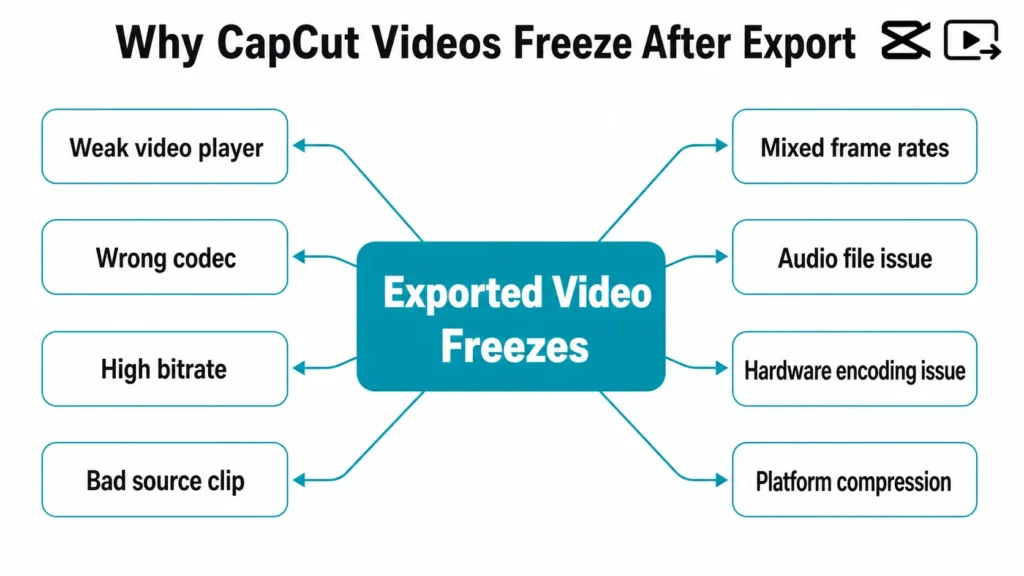
Most post-export freezing problems come from one of these eight causes. Understanding which one applies to your situation will save you from rebuilding the project unnecessarily.
1. Codec compatibility issues
A video can export successfully but still freeze if the codec is not well-supported by your device, app, or platform.
For the full compatible export setup, see our guide on the best CapCut export settings.
2. Bitrate too high for smooth playback
A file can look great on paper but still play badly if the bitrate is heavier than the device, player, or platform can comfortably decode.
This usually shows up as random stutters, freezing during fast-moving or detailed scenes, or noticeably worse playback on older phones.
3. One source clip is damaged or unstable
If the exported video always freezes at the same timestamp, the most likely cause is one damaged or unstable source file in the timeline. Common troublemakers include:
- Videos downloaded from social media
- Screen recordings (especially variable frame rate ones)
- Clips sent through messaging apps
- Badly converted files
- Old or previously damaged source footage
CapCut may still finish rendering the video, but the damaged clip carries the playback problem into the final file.
4. Frame rate conflicts
Mixed frame rates can make the final video feel rough even when the export finishes successfully. This happens when one clip is 30fps and another is 60fps, when a screen recording uses a variable frame rate, or when the export frame rate does not match the project well.
The result is stutter, jitter, or motion that feels broken after export.
5. An audio file is causing playback problems
Not every freezing issue is visual. An imported music track, voiceover, or sound effect can cause the exported video to behave strangely — including repeating audio, sync drift, or a frozen-looking video that is actually breaking around an audio playback issue.
To isolate this, duplicate the project, mute or remove all audio, and export a silent test version. If the silent export plays cleanly, one audio file is the culprit.
6. Hardware encoding issues on CapCut Desktop
On CapCut Desktop, hardware encoding can speed up exports but sometimes creates files that do not play smoothly. If your exported video freezes while the audio keeps playing, this is one of the first settings to test.
Go to CapCut Desktop > Settings and look for Performance, Hardware Acceleration, or Hardware Encoding. Toggle it off if it is on (or on if it is off), export again, and test the new file in VLC. If you are on Windows, also check whether your graphics driver is up to date.
7. The platform reprocessed the file after upload
If the CapCut export plays fine on your device but freezes after uploading to TikTok, Instagram Reels, YouTube Shorts, or WhatsApp, the platform likely compressed or re-encoded the file in a way that caused playback issues. The export itself may not need fixing — the platform changed it after you uploaded.
How to Fix a CapCut Video That Freezes After Export
Work through these fixes in order. Start with the fastest checks before touching the timeline or rebuilding anything.
1. Test the file in another player and on another device
Before changing anything in CapCut, do two quick tests:
- Play the file in VLC or another strong video player. If it plays fine there but freezes in your Gallery or Photos app, the export is likely not broken — your default player is struggling with the codec or bitrate.
- Send it to another device. If it only freezes on one device, the issue is the device or app, not the export. If it freezes everywhere, the exported file itself is the problem.
These two tests alone can save you from unnecessarily rebuilding the project.
2. Re-export with safer playback settings
Re-export using safer playback settings — MP4, H.264, AAC, 30fps, and a moderate bitrate. For the exact settings per platform, see our best CapCut export settings guide.
3. Lower the bitrate if the file is too heavy
If re-exporting with H.264 helps but the video still stutters — especially on older phones or during fast-moving scenes — lower the bitrate slightly. Do not reduce it so much that the video becomes visibly blurry. Just enough to make the file easier for the player to decode smoothly.
4. Export only the problem section to isolate the cause
If the video always freezes at the same timestamp, do not rebuild the whole project. Instead:
- Export a short clip covering just that section.
- If that short export also freezes, the issue is inside that part of the timeline.
- Remove or replace the clip, effect, transition, overlay, caption, or audio file around that point one at a time.
- Re-export after each removal until the freeze disappears.
This is the fastest way to find a damaged clip or broken element without touching the rest of the project.
5. Remove imported audio and test a silent export
If you are not sure whether audio is causing the freeze:
- Duplicate the project.
- Mute or remove all imported audio tracks.
- Export the silent version and test it in another player.
If the silent export plays cleanly, one of your audio files — a music track, voiceover, or sound effect — is the culprit. Re-import it, replace it with a cleaner file, or convert the audio to a compatible format before adding it back.
6. Lock the frame rate instead of mixing sources
If your project mixes footage from different devices, screen recordings, or downloaded clips, inconsistent frame rates may be making the final export rough. Keep the project locked to one frame rate where possible.
For most social media videos, 30fps is the safest choice. Use 60fps only when the original footage genuinely needs it and the target platform supports it well.
7. Toggle hardware encoding on CapCut Desktop
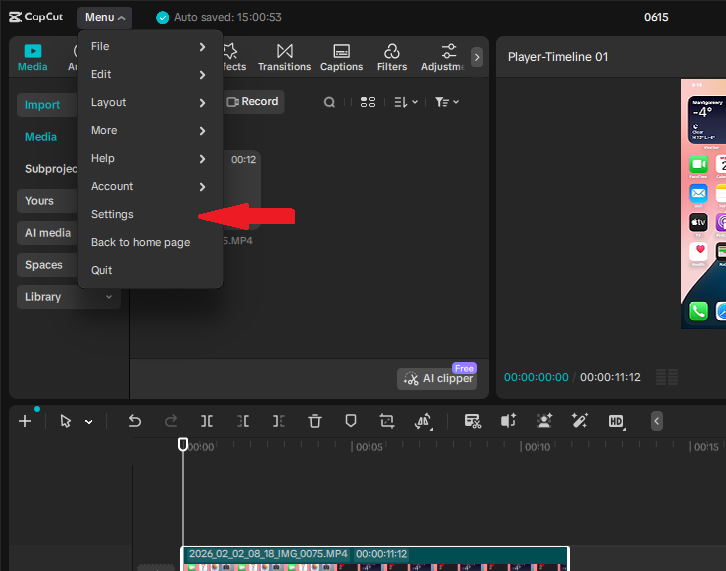
If you exported from CapCut Desktop and the video freezes during playback, hardware encoding may be the cause.
On CapCut Desktop, open the Menu button in the top-left corner, then click Settings. Look for Performance, Hardware Acceleration, or Hardware Encoding.
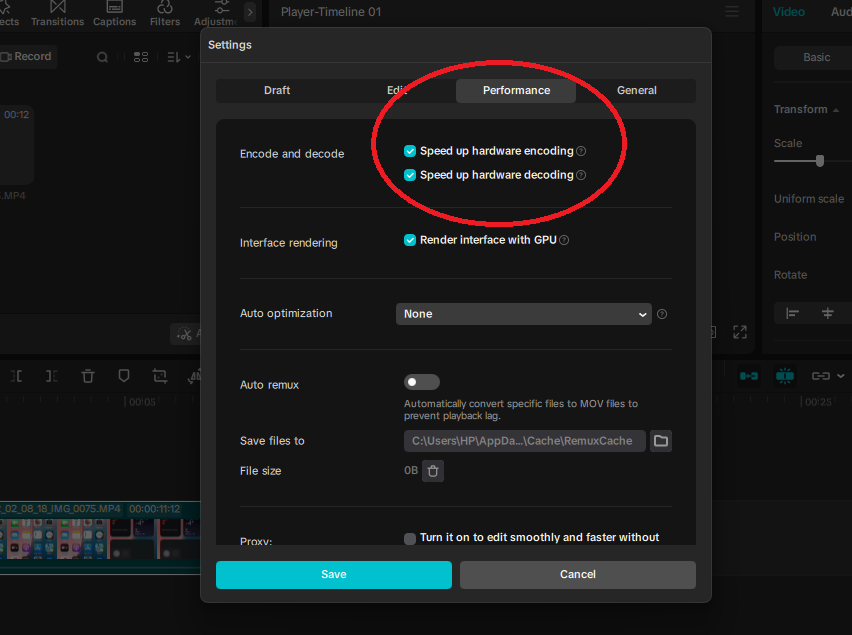
Toggle it off if it is currently on, then export again. If it was already off, try turning it on and testing another export. Play the new file in VLC to confirm whether the freeze is gone.
If it was already off, try turning it on and testing another export. Play the new file in VLC to confirm whether the freeze is gone.
8. Clear CapCut cache and re-import problem clips
If none of the above fixes work, clear CapCut’s cache, remove the clips that appear around the freeze point from the timeline, re-import them fresh from your device storage, and export again.
Some files develop playback issues after being processed multiple times inside CapCut — a fresh import often resolves it.
Video Freezes Only After Uploading to TikTok, Instagram, YouTube Shorts, or WhatsApp
If the exported file plays fine locally but freezes after uploading to TikTok, Instagram, or YouTube Shorts, the platform compressed the file after upload — not a CapCut problem.
Use platform-friendly export settings before uploading.
CapCut Video Freezing After Export on iPhone, Android
On iPhone
If the video only freezes in the iPhone Photos app, test it in VLC or another player first. The file may be fine — the default player may just be struggling with the codec or file size.
On Android
Android playback varies between phone models and gallery apps. If the video freezes only in the default Gallery app, test it in another player and on another device.
If it plays fine elsewhere, the issue is the app, not the export. If it freezes everywhere, re-export using MP4, H.264, AAC, 30fps, and a moderate bitrate.
Frequently Asked Questions
Why does my CapCut video freeze after export but the export finishes fine?
The export finished successfully, but the final file is struggling during playback. The cause is usually the codec, bitrate, frame rate, hardware encoding, a damaged source clip, an audio file, or the player itself — not the export process.
Why does my CapCut exported video freeze but the audio keeps playing?
This means the audio stream is still running but the video stream is struggling. Re-export as MP4, H.264, AAC, and 30fps. Also test the file in another player, lower the bitrate slightly, and check hardware encoding settings on CapCut Desktop.
Why does my CapCut video freeze at the same timestamp after export?
A freeze that repeats at the exact same point usually means one clip, effect, transition, overlay, caption, or audio file at that timestamp is damaged or unstable. Export that short section separately to isolate and replace the problem element.
Why does my CapCut preview look fine but the exported video freezes?
The CapCut preview is a lighter version of your project. After export, your device or player has to decode the full rendered file with all effects, overlays, audio, bitrate, and frame rate applied — which can expose issues that the preview hid.
Is H.264 better than H.265 for avoiding playback freezing?
For compatibility, yes. H.265 is more efficient but H.264 is supported across more phones, computers, browsers, apps, and social platforms — making it the safer choice for avoiding playback issues.
Can a bad audio file make my CapCut export freeze?
Yes. A damaged or incompatible audio file can cause playback glitches, sync problems, repeated audio, or freezing behaviour in the final export. Duplicate the project, remove the audio, and export a silent test version to confirm.
Final Takeaway
If your CapCut video freezes after export, do not assume the project is ruined. In most cases, the export finished correctly — the freeze is a playback issue caused by the codec, bitrate, player, frame rate, hardware encoding, a damaged clip, audio file, or platform compression.
Start with the fastest checks: play the file in another player, test it on another device, and check whether the freeze always happens at the same timestamp.
If it does, isolate that section of the timeline. If the freeze only appears after upload, use platform-friendly export settings. If you exported from CapCut Desktop, toggle hardware encoding and test in VLC.
Once you know whether the problem is the player, the exported file, one timeline element, or the upload platform — the fix becomes straightforward.
