

Ever tried to import a video into CapCut and got a “file format not supported” message?
Annoying, right?
The confusing part is that the file type is not always the real problem. A video can look normal on your phone or computer, but still lag, show a black screen, import with no audio, or fail inside CapCut.
That usually comes down to what is inside the file: the codec, audio track, frame rate, resolution, file size, or how the video was created.
So before you delete the file or blame CapCut, it helps to know which formats work best — and why some “supported” files still cause problems.
While knowing supported file formats helps avoid import issues, file size and storage often cause lag or problems too. See our CapCut Storage Guide for tips on managing cache, drafts, and large files.
Table of Contents
- Quick Format Cheat Sheet for CapCut
- What File Formats Does CapCut Support?
- Best Video Format for CapCut
- Does CapCut Support MP4?
- Does CapCut Support MOV?
- Can CapCut Extract Audio From Video Files?
- Why a Supported File Format May Still Not Work in CapCut
- Best Export Format in CapCut
- What to Do If CapCut Says File Format Not Supported
- Can CapCut Convert Unsupported Files?
- Frequently Asked Questions
- Final Thoughts
- Official Sources
Quick Format Cheat Sheet for CapCut
Use this quick guide if you just want the safest choice without getting buried in tech terms.
| File Type | Does CapCut Support It? | Best Use |
|---|---|---|
| MP4 | Yes | Best all-around video format for most edits |
| MOV | Usually yes | iPhone, iPad, Mac, and QuickTime videos |
| MKV | Sometimes | Use only if it imports cleanly |
| WebM | Sometimes | Web videos, downloads, and screen recordings |
| WAV | Yes | High-quality voiceovers, music, and audio |
| MP3 | Yes | Smaller music, sound effects, and audio files |
What File Formats Does CapCut Support?
CapCut supports many common video, audio, and image formats, but support can vary depending on whether you use CapCut mobile, desktop, or online.
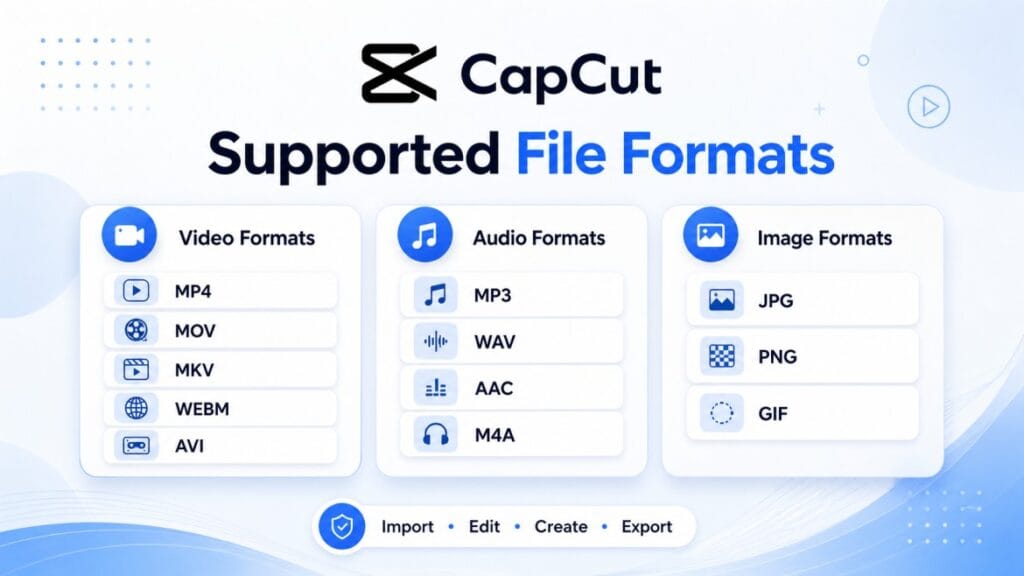
For video, CapCut commonly supports formats such as MP4, MOV, M4V, AVI, MKV, WebM, WMV, FLV, and 3GP.
Some CapCut web tools also mention broader input support for formats like RM, RMVB, M2TS, MPEG, TS, ASF, MTS, and more.
For audio, CapCut commonly supports formats such as MP3, WAV, AAC, M4A, FLAC, and WMA, depending on the tool or platform you are using.
For images, JPG and PNG are the safest choices for most CapCut edits. GIF may also work in some workflows, but support can depend on how you are using the file and which version of CapCut you are editing with.
The safest format to use
If you want the fewest problems, use:
- Video format: MP4
- Video codec: H.264
- Audio codec: AAC
- Image format: JPG or PNG
- Audio format: MP3, AAC, or WAV
MP4 with H.264 video and AAC audio is the best safe default for CapCut because it works well across phones, computers, editing apps, and social platforms.
If CapCut keeps rejecting your file, importing with no audio, showing a black screen, or lagging badly, converting the file to MP4 with H.264 video and AAC audio is usually the first fix to try.
Best Video Format for CapCut
The best video format for CapCut is usually MP4 with H.264 video and AAC audio.
That setup gives you the safest balance of compatibility, quality, and file size. It works well across phones, computers, editing apps, and social platforms like TikTok, Instagram, YouTube, and Facebook.
For fewer import problems, use these settings:
- Video format: MP4
- Video codec: H.264
- Audio codec: AAC
- Resolution: 1080p for most social videos
- Frame rate: 30fps or 60fps
You do not need to use the largest file your device can record. Bigger files, 4K footage, unusual frame rates, or heavy codecs can make CapCut slower, especially on phones with limited storage or processing power.
For most TikToks, Reels, YouTube Shorts, school videos, client previews, and simple social clips, MP4 is the safest pick.
Does CapCut Support MP4?
Yes, CapCut supports MP4, and it is usually the best video format to use.
MP4 is widely supported across phones, computers, social media platforms, and editing apps. For the smoothest CapCut workflow, use MP4 with H.264 video and AAC audio.
If you are not sure what format to choose, MP4 is the safest default.
Does CapCut Support MOV?
Yes, CapCut can often support MOV files, especially videos from iPhone, iPad, Mac, or QuickTime.
But MOV is a container, so the codec inside the file matters. Some MOV files may lag, import with no audio, show a black screen, or fail if they use a codec your device or CapCut version struggles with.
If a MOV file causes problems, converting it to MP4 is usually the cleanest fix.
This is especially helpful if you recorded on iPhone, iPad, Mac, or QuickTime and want the video to work more smoothly across CapCut, social platforms, and non-Apple devices.
Can CapCut Extract Audio From Video Files?
Yes, CapCut can separate or extract audio from video files in many workflows.
This is useful if you want to reuse a voiceover, music clip, podcast section, sound effect, or background audio in another project.
After separating the audio, you can usually trim it, adjust volume, add fades, reduce noise, or enhance the voice before exporting or using it in your edit.
For audio exports, formats like MP3, WAV, AAC, and FLAC are commonly mentioned across CapCut’s audio tools.
Why a Supported File Format May Still Not Work in CapCut
This is the part that trips up a lot of people.
CapCut may support the file format, but still struggle with the file itself.
That sounds annoying, but it makes sense once you understand the difference between a container and a codec.
Format is the box, codec is what is inside
Think of MP4, MOV, MKV, and WebM like boxes.
The codec is what is packed inside the box. Two files can both say “MP4,” but one may use a codec CapCut handles easily, while the other may use one that causes lag, no audio, black screen, or import errors.
That is why “CapCut supports MP4” does not always mean every MP4 file will work perfectly.
Common reasons files fail in CapCut
- The file uses an unsupported or difficult codec.
- The video is too large for your device to handle smoothly.
- The file has a very high resolution, like 4K or higher.
- The frame rate is unusual or variable.
- The file was downloaded from a website and has strange metadata.
- The audio track uses a codec CapCut does not read properly.
- The file is damaged or incomplete.
If CapCut accepts the file but lags badly, your device may also be part of the problem. Large files and long videos need more storage, memory, and processing power.
This guide on whether CapCut can handle long videos and large files may help if your edits keep freezing or slowing down.
Best Export Format in CapCut
For most users, the best export format in CapCut is also MP4.
MP4 is easy to upload, easy to share, and works well on TikTok, Instagram, YouTube, Facebook, and most websites.
If your goal is to post online, send the video to someone, or save it without creating a huge file, MP4 is the practical choice.
Keep quality without making the file huge
Format is only one part of export quality. Resolution, bitrate, and frame rate also affect how big the final video becomes.
If your exported videos are too large, do not just blame the format. You may need to adjust your export settings. This guide on the best CapCut export settings can help you keep videos clear without wasting storage.
What to Do If CapCut Says File Format Not Supported
If CapCut says your file format is not supported, the fastest fix is usually to convert the file to MP4.
But before converting, check the simple stuff first. Sometimes the problem is not the file type. It may be storage, permissions, corruption, or where the file is saved.
Try these fixes first
- Move the file to your device storage instead of editing from cloud storage.
- Rename the file with a simple name, using letters and numbers only.
- Make sure the file plays normally outside CapCut.
- Check that your device has enough free storage.
- Update CapCut to the latest version available to you.
- Try importing the file again after restarting the app.
If it still fails, convert the file
Convert the video to MP4 with H.264 video and AAC audio.
If the issue is audio, convert the audio track to MP3, AAC, or WAV and try again.
If the issue happens during export instead of import, the problem may be device storage, app glitches, or project complexity. This guide on CapCut not exporting fixes can help with that.
Can CapCut Convert Unsupported Files?
Yes, CapCut also offers online converter tools that can change video files into more compatible formats like MP4 or MOV.
This matters because sometimes the fastest fix is not to keep forcing the same file into your project. If CapCut rejects a file, imports it with no audio, or plays it badly, converting it first can make editing smoother.
CapCut’s own converter tools are built around a simple workflow: upload the file, make any edits you need, choose an output format like MP4 or MOV, then export the new file.
For most users, the safest conversion target is still MP4 with H.264 video and AAC audio.
Frequently Asked Questions
What file formats does CapCut support?
CapCut supports many common video, audio, and image formats. Common video formats include MP4, MOV, M4V, AVI, MKV, WebM, WMV, FLV, and 3GP. Common audio formats include MP3, WAV, AAC, M4A, and FLAC. Support can vary by device, CapCut version, and whether you use mobile, desktop, or online.
What is the best file format for CapCut?
The best file format for CapCut is usually MP4 with H.264 video and AAC audio. This setup works well across phones, computers, editing apps, and social media platforms, so it is the safest choice for most creators.
Why does CapCut say file format not supported?
CapCut may say a file format is not supported because the codec, audio track, file size, resolution, frame rate, or file metadata is not compatible. Even common files like MP4 or JPG can fail if the actual encoding inside the file is not supported.
Does CapCut support MP4 files?
Yes, CapCut supports MP4 files. MP4 is usually the safest video format to use, especially when the video uses H.264 and the audio uses AAC.
Does CapCut support MOV files?
Yes, CapCut can often support MOV files, especially videos from iPhone, iPad, Mac, and QuickTime. If a MOV file lags, imports with no audio, or shows a black screen, convert it to MP4 with H.264 video and AAC audio.
Does CapCut support MKV files?
CapCut may support MKV files, but MKV can be less reliable than MP4 because it can contain different video, audio, subtitle, and metadata tracks. If an MKV file imports badly, lags, or has missing audio, convert it to MP4 before editing.
Does CapCut support WebM files?
CapCut may support WebM files depending on your device and CapCut version. WebM files often use codecs like VP8, VP9, or AV1, which may not always edit smoothly. If WebM gives you trouble, convert it to MP4 first.
Does CapCut support WAV audio?
Yes, CapCut can usually work with WAV audio files. WAV is good for high-quality voiceovers, music, and sound effects, but it is larger than MP3. Use WAV when quality matters, and use MP3 or AAC when you want a smaller file.
What should I do if a video will not import into CapCut?
First, make sure the file plays normally outside CapCut. Then move it to local device storage, rename it with a simple file name, check your free storage, update CapCut, and restart the app. If it still fails, convert the video to MP4 with H.264 video and AAC audio.
Final Thoughts
CapCut supports many popular file formats, including MP4, MOV, MKV, WebM, MP3, and WAV. But format support does not guarantee every file will import, play, or export smoothly.
The file extension is only part of the story. Codec, file size, resolution, frame rate, audio track, and device performance can all affect how well CapCut handles your file.
That is why an MP4 or MOV file can still lag, show a black screen, import with no audio, or trigger a “file format not supported” error.
If you want the safest choice, use MP4 with H.264 video and AAC audio. It is the easiest format for most CapCut edits, especially if you are making TikToks, Reels, YouTube Shorts, school videos, or simple client edits.
And if a file keeps causing problems, do not overthink it. Convert it to MP4, keep the resolution reasonable, make sure you have enough storage, and try importing it again. That one step fixes a lot of CapCut format headaches.
