

Trying to edit a long video in CapCut can feel fine at first… until the timeline starts freezing, the preview gets choppy, or the export suddenly fails.
The frustrating part is that video length is not always the real problem.
A simple 30-minute 1080p clip may edit smoothly, while a short 4K project with captions, overlays, effects, and transitions can make CapCut lag badly on a low-storage phone.
So before you blame CapCut, it helps to understand what actually makes a project heavy: your device, storage, file format, resolution, frame rate, and how complex the edit is.
Below, I’ll show you what affects CapCut performance and how to make long videos or large files easier to edit without crashing your project.
Understanding what affects CapCut performance with long videos and large files is key, especially when storage becomes a limiting factor.
For a complete breakdown of how CapCut handles cache, drafts, temporary files, and overall storage management, check out our CapCut Storage Guide.
Table of Contents
- Can CapCut Handle Long Videos?
- Can CapCut Handle Large Files?
- Why Long Videos Lag in CapCut
- Is CapCut Mobile Good for Long Videos?
- Is CapCut Desktop Better for Large Files?
- Which CapCut Version Is Best for Big Projects?
- How to Make Long Videos Easier to Edit in CapCut
- Best Settings for Long Videos in CapCut
- Why CapCut May Fail to Export Long Videos
- How to Stop CapCut From Crashing With Large Files
- Can CapCut Handle 4K Videos?
- Quick Workflow for Editing Large Videos in CapCut
- Frequently Asked Questions
- Final Thoughts
- Official Sources
Can CapCut Handle Long Videos?
Yes, CapCut can handle long videos, but performance depends on your device, storage, video quality, and project complexity.
A simple long video with basic cuts, light text, and normal 1080p footage may edit smoothly, especially on desktop. But a long 4K project with effects, captions, overlays, transitions, and low device storage can quickly become slow or unstable.
Long videos are harder because CapCut has to manage more footage, timeline data, previews, cache, and temporary files while you edit.
The main thing to remember
Length alone is not always the problem.
A 40-minute 720p video with simple cuts may be easier for CapCut than a 3-minute 4K video packed with effects, auto captions, filters, overlays, and motion tracking.
The heavier the project, the more power CapCut needs from your device.
Can CapCut Handle Large Files?
Yes, CapCut can handle large files, but big files can make editing slower and less stable.
Large files need more storage, memory, and processing power. If your device is low on space, overheating, older, or running too many apps, CapCut may lag, freeze, crash, or fail during export.
That is why one person may edit a huge video smoothly while another person struggles with a smaller file. The file matters, but the device matters too.
What makes a file heavy for CapCut?
A file can be hard for CapCut to handle because of:
- Long duration
- 4K or higher resolution
- High bitrate
- 60fps or higher frame rate
- Hard-to-edit codecs
- Multiple audio tracks
- Large camera or screen-recording files
- Heavy effects, overlays, captions, or AI tools added later
So do not judge a project by file size alone. A smaller file can still be difficult if it uses heavy settings, while a larger file may edit fine if it is simple and optimized.
If your large file is also in a difficult format, CapCut may struggle even more. This guide on CapCut supported file formats can help you choose a cleaner format before importing.
Why Long Videos Lag in CapCut
Long videos can lag in CapCut because the app has to process more media, timeline data, previews, cache, and temporary files at once.
Every cut, caption, effect, overlay, transition, and audio layer adds more work. The longer the project gets, the more CapCut has to load, preview, and prepare while you edit.
CapCut’s own help pages also mention that large video projects, too many effects, overlays, transitions, browser memory limits, and overloaded system resources can cause lag or export problems.
Common reasons CapCut lags with long videos
- Your device does not have enough free storage
- The project uses 4K or high-bitrate footage
- You added many effects, filters, overlays, or transitions
- Auto captions, AI tools, or background removal are making the project heavier
- You are editing from cloud storage instead of local storage
- Your phone or laptop is overheating
- Too many apps or browser tabs are open
- The file format or codec is hard for CapCut to process
If CapCut starts lagging, do not assume the video is “too long” right away. The real issue is usually the full project load: length, format, effects, storage, and device performance working together.
If CapCut starts using more storage during a long edit, check why CapCut takes so much storage before deleting drafts or clearing data.
Is CapCut Mobile Good for Long Videos?
CapCut mobile can work for long videos, but it is best for lighter edits.
If you are trimming a long clip, adding simple text, or making a basic social video, the mobile app may be enough. But once you add 4K footage, lots of captions, overlays, effects, transitions, or AI tools, a phone can hit its limits quickly.
That does not mean CapCut mobile is bad. It just means long projects need to stay simple, especially if your phone has low storage or starts overheating.
CapCut mobile works best for:
- Short-form videos
- Simple long clips
- Basic trimming and splitting
- Light captions and text
- Social media edits
- 1080p projects
CapCut mobile may struggle with:
- Long 4K videos
- Huge camera or screen-recording files
- Many overlays and layers
- Heavy effects and transitions
- AI tools on large footage
- Low-storage or overheating phones
If your phone starts lagging on bigger edits, the issue may not be CapCut alone. It may be the device.
Before committing to a long project, compare whether CapCut is better on phone or laptop for the type of video you are editing.
Is CapCut Desktop Better for Large Files?
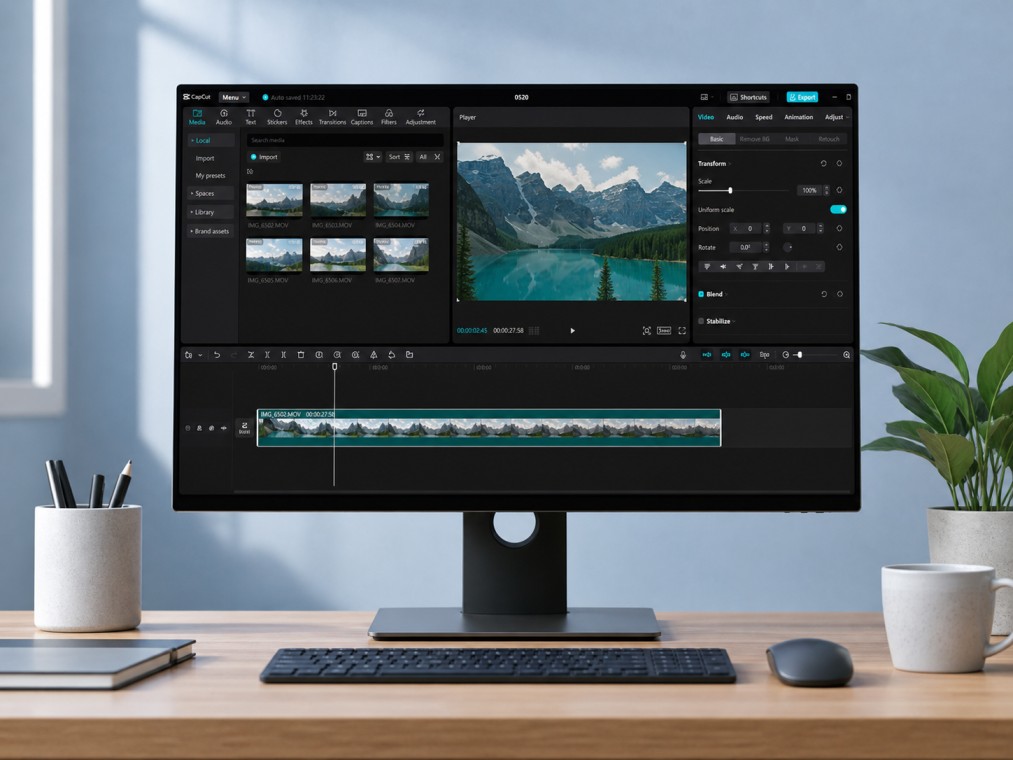
Yes. CapCut desktop is usually better for large files, long videos, 4K footage, and heavier projects.
A decent computer usually gives you more storage, better cooling, more screen space, and stronger performance than a phone.
That makes desktop easier to use when your project has multiple layers, effects, captions, audio tracks, or large source files.
Desktop is also better for file management. You can organize folders, use external drives, find source clips more easily, and manage exports without filling up your phone storage.
Use CapCut desktop if:
- You edit longer videos often
- You work with 4K footage
- You use many layers, effects, captions, or audio tracks
- Your phone storage fills up too quickly
- You edit YouTube videos, client work, courses, or tutorials
- You need easier folder, drive, and export management
If your project feels too heavy on mobile, moving to desktop is usually the next best step.
Which CapCut Version Is Best for Big Projects?
For big projects, CapCut desktop is usually the safest choice.
CapCut mobile works well for quick edits and lighter videos, but long 4K projects, heavy effects, and low phone storage can make it lag. CapCut online can be useful in a browser, but large uploads may depend on your internet speed, browser memory, and cloud processing.
So if your project is long, layered, or storage-heavy, desktop is usually the better starting point. For a deeper breakdown, compare CapCut online vs desktop vs mobile before choosing where to edit.
How to Make Long Videos Easier to Edit in CapCut
If CapCut is struggling with a long video, do not force the project to stay heavy. Make the edit easier for the app to handle.
The goal is simple: reduce the pressure on your device before it starts freezing, crashing, or failing exports.
1. Edit from local storage
Try to keep your source clips on your device or computer drive while editing.
Editing directly from cloud storage, external apps, or unstable folders can make CapCut slower. If the file disappears, moves, or fails to load, your project may show missing media.
2. Split long videos into smaller sections
If one huge project keeps lagging, split it into parts.
For example, edit a 40-minute video in four 10-minute sections, export each part, then combine them later if needed. This can make editing smoother and reduce the chance of losing progress.
3. Use fewer heavy effects
Effects, filters, transitions, overlays, background removal, and AI tools can make a project much heavier.
Use them where they actually improve the video. If every clip has effects stacked on top of effects, CapCut has to work much harder.
4. Keep enough free storage
Long videos create big temporary files while you edit and export.
If your phone or computer is almost full, CapCut may lag or fail. Keep extra free space before starting a large project, especially if you are working with 4K footage.
5. Convert difficult files before importing
If a video imports badly, lags, has no audio, or shows a black screen, the format or codec may be the issue.
For smoother editing, convert the file to MP4 with H.264 video and AAC audio before bringing it into CapCut.
Best Settings for Long Videos in CapCut
The best settings for long videos depend on where the final video will be posted and how powerful your device is.
You do not always need the highest resolution, frame rate, or bitrate. Bigger settings create larger files, heavier projects, longer exports, and more pressure on your phone or computer.
For most long videos, start with these settings:
- Resolution: 1080p
- Frame rate: 30fps
- Format: MP4
- Codec: H.264, when available
- Bitrate: Recommended or medium
These settings are usually enough for tutorials, talking videos, school projects, YouTube-style videos, client previews, and most social media content.
Use 60fps only when the footage actually needs smoother motion, like sports, gaming, action clips, screen recordings, or fast camera movement. For talking videos, tutorials, podcasts, lectures, and simple edits, 30fps is usually easier to edit and export.
Use 4K only when you truly need extra detail, plan to crop or zoom, or your final platform benefits from 4K quality. If your device is older, low on storage, or already lagging, 1080p is usually the safer choice.
Bitrate matters too. A higher bitrate can improve detail, but it also creates a larger file and longer export. CapCut’s export settings let you adjust resolution, frame rate, format, and bitrate, and CapCut notes that a higher bitrate means better quality but a larger file.
For most long CapCut projects, the goal is balance: clear enough to look good, light enough to edit without lagging, and not so large that export fails.
Why CapCut May Fail to Export Long Videos
CapCut may fail to export long videos when the project is too heavy for your device, browser, or available storage.
Exporting is one of the most demanding parts of editing. CapCut has to process the full timeline, including video clips, effects, captions, overlays, transitions, audio layers, and the final output file.
If your device runs out of storage, overheats, struggles with 4K footage, or gets overloaded by too many effects, the export may freeze, get stuck, or fail.
CapCut’s own help pages recommend freeing up storage, lowering export quality from 4K to 1080p, keeping the app open during export, closing background apps or browser tabs, and restarting your device if exports keep stalling.
Here are the common reasons Long Videos Exports may Fail in CapCut:
- Not enough free storage
- Too many effects, overlays, captions, or layers
- Export settings are too high for your device
- 4K footage on a weaker phone or computer
- Browser memory limits if you are using CapCut online
- Corrupted source clips
- Missing media files
- Outdated CapCut version
- Device overheating during export
- Battery saver or background restrictions interrupting the process
What to try first
- Free up storage before exporting
- Export at 1080p instead of 4K
- Close other apps or browser tabs
- Keep CapCut open while exporting
- Turn off battery saver during export
- Restart your phone or computer
- Export a short test section first
- Remove unnecessary effects or overlays if the export still fails
If export is the main problem, compare the most common CapCut not exporting fixes before rebuilding the whole project.
How to Stop CapCut From Crashing With Large Files
If CapCut crashes when you import, edit, or export a large file, the project is probably putting too much pressure on your device.
That does not mean you need to delete the whole project. Start by making the edit lighter and giving CapCut more room to work.
Try these fixes first
- Close other apps before editing
- Restart your phone or computer
- Free up storage before opening the project
- Move the source file to local storage
- Clear CapCut cache, not app data
- Reduce effects, overlays, captions, and transitions
- Split the video into smaller projects
- Use 1080p instead of 4K if 4K is not needed
- Convert difficult files to MP4 with H.264 video and AAC audio
- Update CapCut to the latest version available to you
Be careful with cleanup buttons while fixing crashes. Clearing cache is usually safer, but clearing app data can remove local drafts and project files.
If the crash happens only with one clip, that file may be the problem. Try converting it, renaming it, or replacing it before rebuilding the whole project.
Be careful with cleanup buttons while fixing crashes. Clearing cache is usually safer than clearing app data. If you are unsure, read this guide on whether clearing CapCut cache deletes projects first.
Can CapCut Handle 4K Videos?
Yes, CapCut can handle 4K videos, but 4K is much heavier than 1080p.
4K footage needs more storage, memory, processing power, and export time. If your device is strong, CapCut may edit 4K smoothly.
If your device is older or low on storage, 4K can quickly become painful — and if you’re regularly working with 4K, it’s worth checking our CapCut Pro FAQs to see whether the extra storage and export limits are worth upgrading for.
Use 4K when:
- You need high detail for a serious project.
- You plan to crop or zoom without losing much quality.
- Your device has enough power and storage.
- The final platform benefits from 4K quality.
Use 1080p when:
- You are posting to TikTok, Reels, or Shorts.
- You want faster editing and exporting.
- Your device is low on storage.
- The video will mostly be watched on phones.
For most creators, 1080p is the better everyday choice. It looks clean, exports faster, and is much easier for CapCut to handle.
Quick Workflow for Editing Large Videos in CapCut
Use this workflow before you start a big CapCut project. It helps reduce lag, missing media, export failures, and crashes.
- Move your source files to local storage.
- Convert difficult files to MP4 with H.264 video and AAC audio.
- Start with a clean project instead of adding everything to an old timeline.
- Edit very long videos in smaller sections.
- Add heavy effects, filters, captions, and overlays near the end.
- Keep enough storage free before exporting.
- Export a short test section before exporting the full video.
- Save backup copies of important source files.
This keeps the project lighter and easier to manage. It also lowers the chance of CapCut crashing right when you are almost done.
Frequently Asked Questions
Can CapCut handle long videos?
Yes, CapCut can handle long videos, but performance depends on your device, storage, file format, resolution, and how complex the edit is. A simple long 1080p video may work fine, while a shorter 4K project with effects, captions, and overlays may lag on a weaker device.
Can CapCut handle large files?
Yes, CapCut can handle large files, but big files may lag, freeze, or fail if your device is low on storage, has weak performance, overheats, or the file uses a difficult codec.
Why does CapCut lag with long videos?
CapCut may lag with long videos because it has to process more footage, previews, cache, effects, captions, overlays, transitions, and audio tracks. Low storage, 4K footage, high bitrate files, and weak device performance can make the lag worse.
Is CapCut desktop better for large files?
Yes, CapCut desktop is usually better for large files because computers often have more storage, stronger performance, better cooling, larger screens, and easier file management than phones.
Can CapCut handle 4K videos?
Yes, CapCut can handle 4K videos, but 4K footage is much heavier than 1080p. Use 4K when you need extra detail or plan to crop and zoom. Use 1080p if you want faster editing, smaller files, and smoother exports on weaker devices.
Why does CapCut fail to export long videos?
CapCut may fail to export long videos because of low storage, too many effects or layers, high export settings, missing media files, corrupted clips, app bugs, browser memory limits, or device overheating.
How do I stop CapCut from crashing with large files?
Close other apps, free up storage, move files to local storage, clear CapCut cache instead of app data, reduce effects and overlays, split the video into smaller projects, use 1080p instead of 4K when possible, and update CapCut before trying again.
Final Thoughts
CapCut can handle long videos and large files, but the experience depends on how heavy the project is and what device you are using.
For simple long videos, CapCut may work fine. For 4K footage, big files, many layers, and heavy effects, desktop is usually the better choice.
The safest workflow is to keep your files local, use MP4 when possible, edit in smaller sections, keep storage free, and avoid stacking too many heavy effects at once.
That gives CapCut a much better chance of handling your project without lag, crashes, or failed exports.
