


Have you ever opened your phone storage, seen CapCut eating up a scary amount of space, and thought, “Can I clear this cache without losing my edits?” Yep, that fear is real.
The good news is simple: clearing CapCut cache usually does not delete your projects or drafts.
Cache is mostly temporary data, like previews, thumbnails, downloads, and files CapCut uses to make editing feel faster.
But here’s where people get burned. Clearing cache is not the same as clearing app data, deleting drafts, or uninstalling CapCut.
Those actions can affect your projects. So before you tap anything, let’s make sure you know exactly what is safe and what is risky.
Clearing cache is one of the safest ways to free up CapCut storage, but understanding the full picture of drafts, cache, and app data of CapCut is important.
Table of Contents
- Does Clearing CapCut Cache Delete Projects?
- What Is CapCut Cache?
- What Happens When You Clear Cache in CapCut?
- Clearing Cache vs Clearing Data: The Difference That Matters
- Does Clearing CapCut Cache Delete Drafts?
- Can Clearing Cache Break a CapCut Project?
- Should You Clear CapCut Cache?
- How to Clear CapCut Cache Safely
- How to Clear CapCut Cache on Desktop
- How to Clear CapCut Cache on iPhone
- Before Clearing Cache, Make Sure You Do This
- What to Do If Projects Are Missing After Clearing Cache
- Best Way to Free CapCut Storage Without Losing Projects
- Frequently Asked Questions
- Final Thoughts
- Official Sources
Does Clearing CapCut Cache Delete Projects?
No, clearing CapCut cache should not delete your projects or drafts in most cases.
Cache is temporary storage. CapCut uses it to hold things like preview files, thumbnails, downloaded effects, editing leftovers, and other temporary files that help the app load faster while you work.
Your actual project is different. A CapCut project contains your timeline, clips, edits, text, captions, layers, effects, audio, and other editing choices. Clearing cache is not supposed to remove that project file.
So if you use the clear cache option inside CapCut, your drafts should normally stay where they are.
The simple answer
Clearing CapCut cache usually removes temporary files, not your actual projects.
But do not confuse “clear cache” with “clear data.” That is the big trap. Clearing data can reset the app and may remove local drafts, saved settings, and project information stored on your device.
If you already lost a project after deleting files or clearing storage, check this guide on how to recover deleted CapCut projects before assuming it is gone forever.
What Is CapCut Cache?
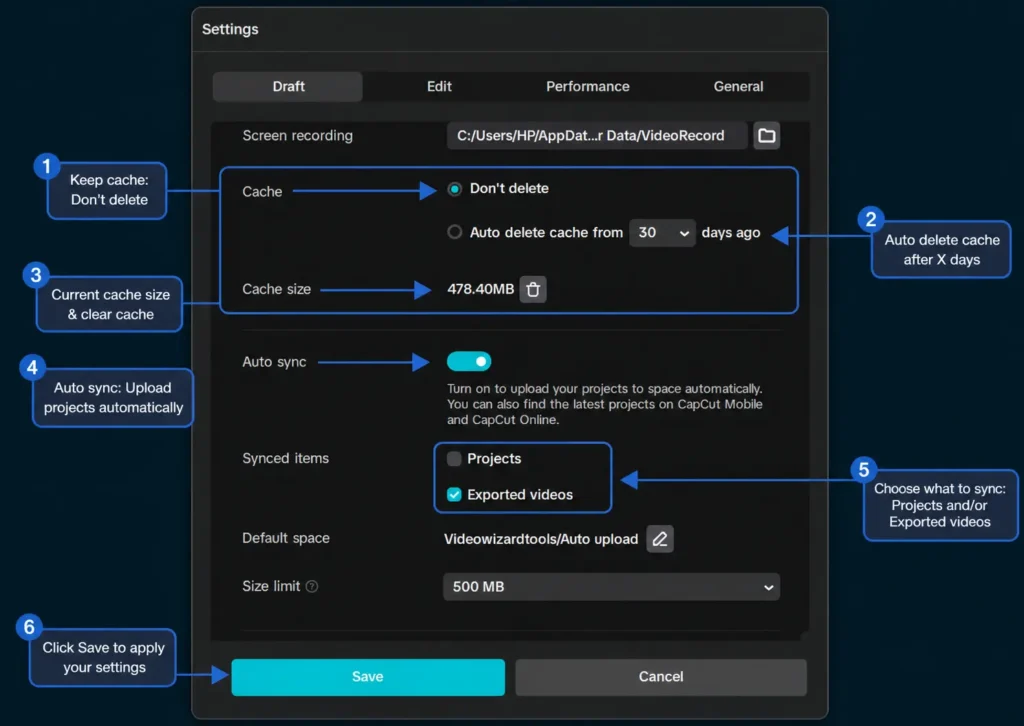
CapCut cache is a collection of temporary files the app creates while you edit videos.
Think of it like a messy editing desk. While you work, CapCut keeps little scraps nearby so it can move faster.
These scraps may include preview files, effects, thumbnails, imported media copies, audio waveforms, rendered clips, and downloaded assets.
That cache helps CapCut open projects faster, preview edits more smoothly, and avoid rebuilding everything from zero each time you tap play.
But over time, the pile gets big. Really big.
If you edit often, use long videos, import 4K clips, try templates, add effects, or export several versions, CapCut cache can grow fast and take up a huge chunk of storage.
What CapCut cache may include
- Video preview files
- Temporary render files
- Thumbnails
- Downloaded effects
- Template files
- Audio waveform files
- Editing leftovers from old projects
- Imported media copies or temporary media data
This is why clearing cache can free up space. You are removing temporary support files, not the main project itself.
What Happens When You Clear Cache in CapCut?
When you clear cache in CapCut, the app removes temporary files it no longer needs or can rebuild later.
Your projects should still appear in CapCut after clearing cache. You should still be able to open your drafts and continue editing.
But you may notice a few small changes after clearing it.
CapCut may need to rebuild previews
Some previews may take longer to load the next time you open a project. This is normal.
Since you removed temporary preview files, CapCut may need to recreate them. It is like cleaning your desk, then pulling the same papers back out when you need them again.
Some downloaded assets may need to reload
Effects, filters, fonts, stickers, templates, or other assets may need to be downloaded again if CapCut removed their temporary files.
This does not mean your project is deleted. It just means CapCut may need to fetch or rebuild some items.
The app may run more smoothly
If CapCut was lagging, freezing, or taking up too much storage, clearing cache can help the app feel lighter.
It will not fix every problem, but it is one of the safer first steps to try before deleting the app. If CapCut keeps crashing even after cleanup, this guide on CapCut errors and crashes may help you troubleshoot the deeper issue.
Clearing Cache vs Clearing Data: The Difference That Matters
This is the part you really need to understand.
Clearing cache and clearing data are not the same thing.
Clearing cache usually removes temporary files. Clearing data can wipe app information stored on your device.
That means clearing data is much riskier for CapCut drafts and projects.
Clear cache means temporary cleanup
Clear cache is like throwing away old wrappers, scraps, and duplicate notes from your desk.
The main project should still be there. CapCut may just need to rebuild some previews or reload certain assets later.
Clear data means app reset
Clear data is more like emptying the desk drawer.
Depending on your device and CapCut setup, clearing data may remove local drafts, login information, settings, downloaded assets, and app files stored locally.
This is where many users accidentally lose work. They think they are only clearing junk files, but they tap the option that resets the app.
What to avoid if you want to keep projects safe
If you care about your CapCut drafts, avoid tapping anything that says:
- Clear data
- Delete app data
- Reset app
- Delete documents and data
- Uninstall app without backup
Those options are not the same as clearing cache. They can affect local files and app content.
Does Clearing CapCut Cache Delete Drafts?
No, clearing CapCut cache should not delete your drafts in normal cases.
Your drafts should still show inside CapCut after the cache is cleared. What may change is how fast the draft loads the next time you open it. Since CapCut may need to rebuild previews, thumbnails, and temporary editing files, the project can feel a little slow at first.
That does not mean the draft is gone. It usually means CapCut is rebuilding the temporary files it removed.
Why some users think cache deleted their drafts
Some users blame cache when the real problem was something else.
They may have tapped “Clear data” instead of “Clear cache.” They may have deleted the app. They may have used a phone cleaner that removed more than temporary files.
Or they may have deleted the original videos, photos, or audio clips the project still needed.
That is why you should always check the exact button before cleaning storage. “Cache” is usually safe. “Data” is the one that can cause trouble.
Can Clearing Cache Break a CapCut Project?
Clearing cache should not break a CapCut project by itself.
But after clearing it, your project may need a little time to reload. You may see blank thumbnails, slow previews, missing-looking effects, or assets that take a few seconds to appear again.
In many cases, the project is not broken. CapCut is just rebuilding what it needs.
When a project may look broken after clearing cache
A project may look broken if CapCut cannot find the original files used in the edit.
For example, if you deleted the source video from your phone, moved a file on your computer, removed a voiceover, or cleaned out downloads, CapCut may open the draft with missing media.
That is not really a cache problem. The project is looking for files that are no longer where CapCut expects them to be.
How to know if it is only rebuilding
If the project opens but previews are slow, thumbnails are blank, or effects take time to load, give CapCut a moment.
If the project opens with missing clips, missing audio, black spaces, or media error messages, check whether the original files are still saved on your device.
Should You Clear CapCut Cache?
Yes, clearing CapCut cache is usually a good first step if the app is taking too much storage, running slowly, or acting glitchy.
It is safer than deleting CapCut or clearing app data. It can also help the app feel lighter, especially if you edit often or work with large videos.
Still, if you have drafts you care about, do not treat any cleanup button like a toy. Export your important edits first, then clear cache.
Clear CapCut cache if:
- CapCut is taking too much storage.
- The app feels slow or heavy.
- Previews keep lagging.
- You have used many effects, templates, and downloads.
- You want to free space without deleting the whole app.
Be careful if:
- You are not sure whether the option says cache or data.
- You have important drafts that are not backed up.
- You are using a third-party cleaner app.
- Your original clips are no longer on your device.
- You are trying to fix a project that already has missing media.
How to Clear CapCut Cache Safely
The safest way to clear CapCut cache is to use CapCut’s own cache cleanup option inside the CapCut App, so below are the step-by-step instructions to clear cache for any type of device:
How to Clear CapCut Cache on Desktop
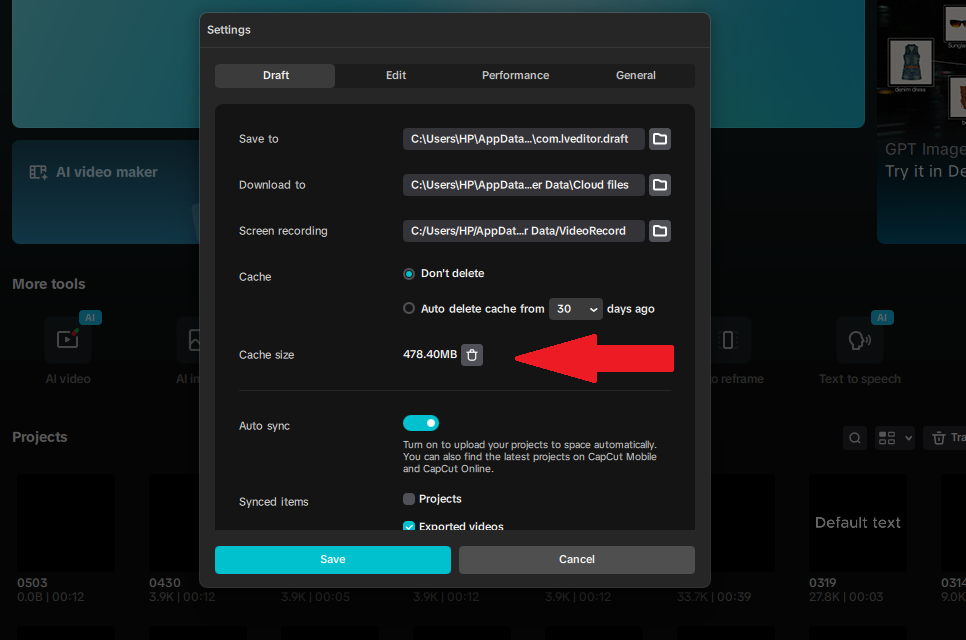
If you use CapCut on Windows or Mac, you can check the cache settings inside the desktop app.
- Open CapCut Desktop.
- Click the Settings icon.
- Go to the Draft tab.
- Find the Cache section.
- Check your current cache size.
- Use the trash/delete icon beside the cache size if you want to clear it.
- Choose whether you want CapCut to Don’t delete cache automatically or Auto delete cache after a set number of days.
- Click Save to apply your settings.
This is also where you may see options for auto sync, synced items, and default space. Be careful with these settings if you rely on CapCut cloud or want certain projects and exported videos to stay synced.
How to Clear CapCut Cache on Android
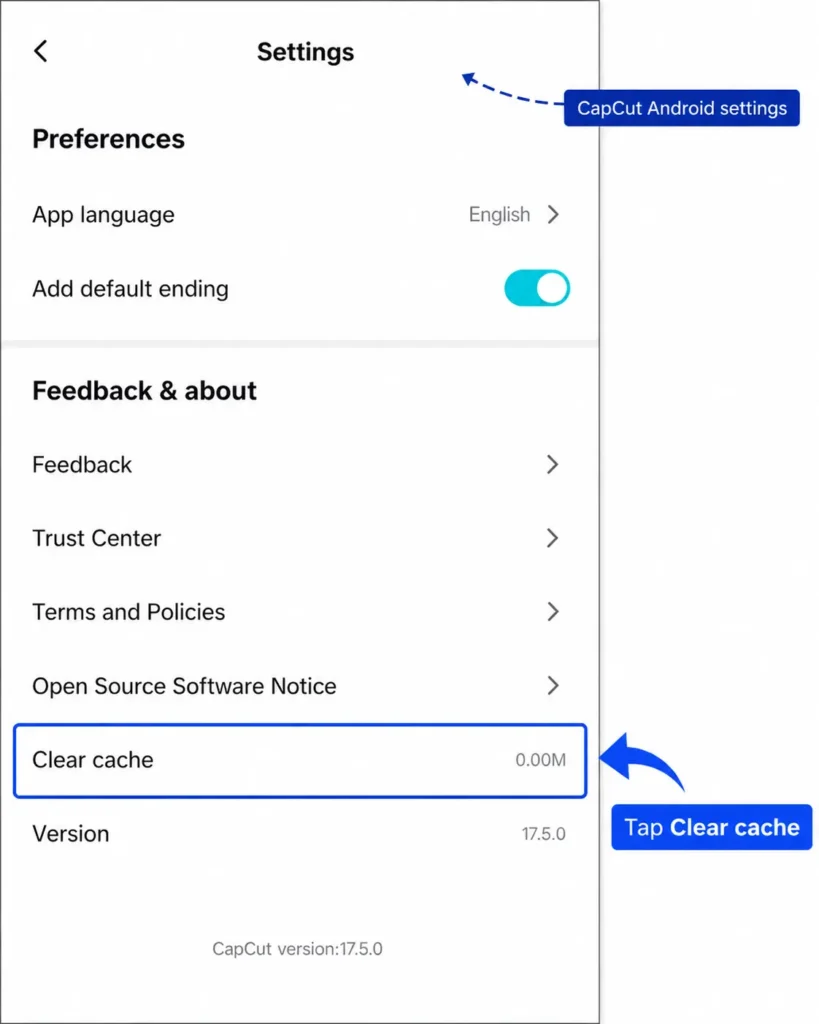
If you use CapCut on Android, you can clear the cache directly inside the app.
- Open CapCut.
- Tap the Me icon at the bottom right.
- Tap the Settings icon at the top right.
- Scroll down to the Feedback & about section.
- Find Clear cache.
- Tap Clear cache.
- Confirm the action if CapCut asks.
This is the safer option because it clears temporary files from inside CapCut, not your actual projects.
How to Clear CapCut Cache on iPhone
On iPhone, cache cleanup is usually more limited than Android. iOS does not always give you a simple “clear cache” button for every app.
Here are the safer options:
- Open CapCut.
- Check CapCut’s settings area for any built-in cache or storage cleanup option.
- Export important drafts before cleaning anything.
- Back up your original clips, photos, audio, and voiceovers.
- Avoid deleting the app unless you are sure your important drafts are backed up or exported.
Be careful with deleting and reinstalling CapCut on iPhone. That can remove app data stored on the device, which may include local drafts. If your goal is only to free space, try safer cleanup steps first before deleting the app.
Before Clearing Cache, Make Sure You Do This
Before you clear CapCut cache on any device, take a minute to protect your work.
- Open your important drafts and make sure they still load.
- Export finished videos to your gallery, Photos app, or computer folder.
- Back up your original clips, photos, voiceovers, and music.
- Check whether important projects are synced or backed up.
- Make sure the button says cache, not data.
If you only clear cache, your projects should normally stay safe. The real danger starts when you clear app data, delete CapCut, use aggressive cleaner apps, or remove the original media files your project still needs.
After clearing cache, check your drafts
Once the cleanup is done, reopen CapCut and check your important projects.
Do not panic if previews take a little longer to load. That is normal after clearing cache.
If a project has missing clips or audio, check whether the original files are still on your phone, tablet, or computer.
What to Do If Projects Are Missing After Clearing Cache
If your CapCut projects are missing after a cleanup, stop before tapping more storage buttons.
First, think about what you actually cleared. Did the option say “Clear cache,” or did it say “Clear data,” “Free up storage,” “Delete app data,” or “Clean files”? That small wording difference matters a lot — and if data (not cache) is what got cleared, cache is no longer the right explanation for what happened.
For the full list of places to check and recovery options depending on whether the project was backed up, synced, or exported, see our complete guide on recovering deleted CapCut projects.
Best Way to Free CapCut Storage Without Losing Projects
Clearing cache can help, but it should be part of a safer cleanup routine.
The goal is not just to free space. The goal is to free space without losing the edits you still care about.
Use this safer cleanup order
- Export finished videos first.
- Back up source clips, audio, images, and voiceovers.
- Delete old drafts you truly do not need.
- Clear CapCut cache.
- Remove unused templates, effects, or downloads if CapCut shows them.
- Move large exported videos to cloud storage or an external drive.
- Restart your phone or computer.
This order protects the important stuff first, then cleans the lighter files after.
If CapCut is still taking too much space after clearing cache, the problem may be large drafts, big exports, 4K footage, downloaded assets, or saved media copies. Cache is only one piece of the storage puzzle.
Frequently Asked Questions
Does clearing CapCut cache delete projects?
No, clearing CapCut cache should not delete projects in most cases. It usually removes temporary files like previews, thumbnails, downloaded assets, and editing leftovers, not your actual project timeline.
Does clearing CapCut cache delete drafts?
No, clearing cache should not delete your CapCut drafts. If drafts disappear after a cleanup, you may have cleared app data, deleted the app, used a phone cleaner, or removed files the project still needed.
What is the difference between clearing cache and clearing data in CapCut?
Clearing cache removes temporary files. Clearing data can reset the app and may remove local drafts, saved settings, login details, and project files stored on your device.
Why did my CapCut project disappear after clearing cache?
Your project may not have disappeared because of cache alone. You may have cleared app data, signed into the wrong account, deleted source clips, or used a cleanup tool that removed more than temporary files. If that happened, check this guide on recovering deleted CapCut projects.
Is it safe to clear CapCut cache?
Yes, clearing CapCut cache is usually safe and can help free storage. Still, export important videos and back up source clips before cleaning storage, especially if you have drafts you cannot afford to lose.
Final Thoughts
Clearing CapCut cache usually does not delete projects or drafts. It mainly removes temporary files that help CapCut load previews, thumbnails, effects, and editing data faster.
The risky options are different. Clearing app data, deleting CapCut, using aggressive cleaner apps, or removing original media files can cause real problems.
So yes, you can clear the cache if CapCut is taking too much storage or running slowly. Just make sure you are clearing cache, not data. And if a draft matters, export it or back it up before touching any storage cleanup button.
