

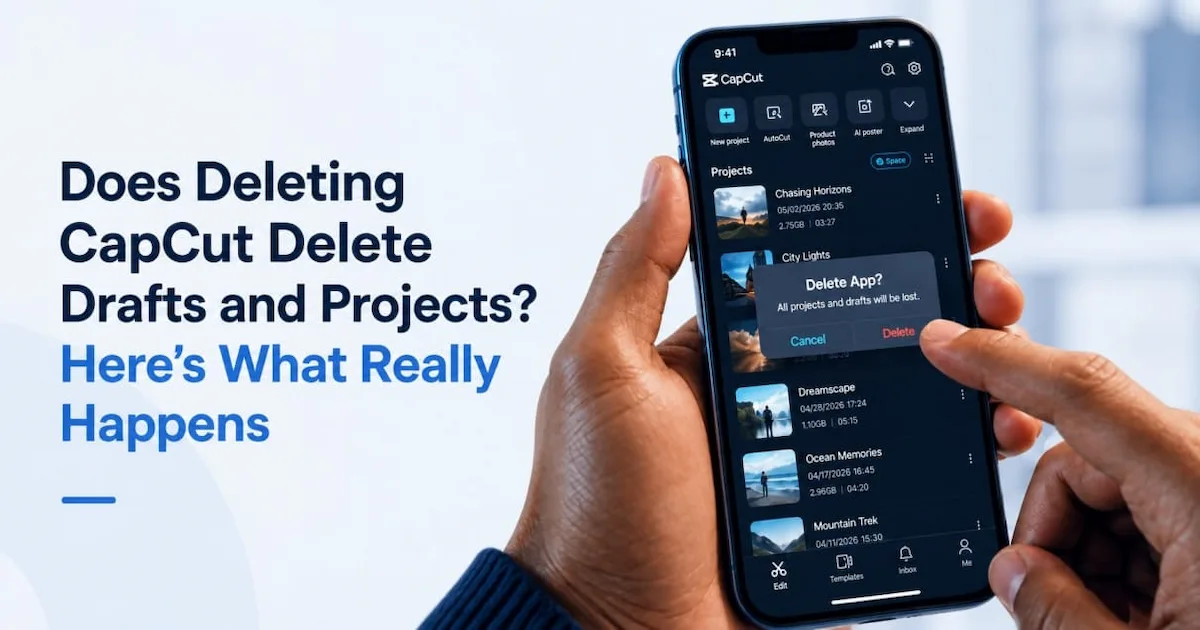
Have you ever deleted CapCut to free up space, then suddenly thought, “Wait… did I just lose all my drafts?” I’ve seen that panic a lot, and honestly, it makes sense.
CapCut projects can feel like they’re saved to your account, but many drafts may still live on your device. That means deleting the app, clearing data, or reinstalling it can affect your work if you’re not careful.
But don’t stress yet. Below, I’ll show you what actually gets deleted, what usually stays safe, and what to check before you remove CapCut from your phone or computer.
Table of Contents
- Does Deleting CapCut Delete Drafts and Projects?
- Does Updating CapCut Delete Your Drafts and Projects?
- Drafts vs Exported Videos: Why This Confuses So Many People
- What Happens If You Delete CapCut on iPhone?
- What Happens If You Delete CapCut on Android?
- What Happens If You Delete CapCut on Desktop?
- Does Deleting CapCut Delete Videos From Your Gallery?
- Does Deleting a CapCut Draft Delete the Final Exported Video?
- Can You Recover Drafts After Deleting CapCut?
- What to Do Before Deleting or Reinstalling CapCut
- Is Clearing Cache Safer Than Deleting CapCut?
- Why People Delete CapCut in the First Place
- Quick Safety Checklist Before You Delete CapCut
- Frequently Asked Questions
- Final Thoughts
- Official Resources
Does Deleting CapCut Delete Drafts and Projects?
Yes, deleting CapCut can delete your drafts and projects if they are saved only inside the app on your device.
But here’s the important part: deleting CapCut does not usually delete videos you already exported to your phone gallery, Photos app, or computer folder.
So the real answer depends on what you mean by “project.”
If you mean an editable CapCut draft, that draft may be removed when you delete the app, especially on mobile. If you mean a finished video you already exported and saved outside CapCut, that video should normally stay on your device.
The simple rule
A CapCut draft lives inside CapCut. An exported video lives outside CapCut.
That one difference matters a lot. If your edit is still only a draft, treat it like something fragile. Before you delete CapCut, reinstall it, or clear app data, export the video or back up the project first.
If your project is already gone, you can check this guide on how to recover deleted CapCut projects for the best places to look before giving up.
Does Updating CapCut Delete Your Drafts and Projects?
No, updating CapCut should not delete your drafts or projects. An update through the App Store, Google Play, or CapCut’s own updater usually replaces the app’s code, not the local storage where your drafts and project data live.
This is different from deleting the app, clearing app data, or reinstalling CapCut after uninstalling it. Those actions remove the app’s stored files. A normal update does not.
When updating CapCut could still cause problems
Updating is usually safe, but a few situations can still put your drafts at risk:
- The update is interrupted (phone restarts, app crashes, storage runs out mid-install).
- You’re actually uninstalling and reinstalling CapCut rather than tapping “Update,” which behaves more like a delete.
- A major version update changes how projects are stored or read, and an older draft doesn’t open correctly afterward.
- Your phone’s storage is critically low, and the update process clears temporary or cached files along with it.
What to do before a CapCut update
If you have active, unfinished drafts, it’s worth treating an update the same way you’d treat any app maintenance:
- Export anything important first, just in case.
- Make sure you have enough free storage so the update can complete properly.
- Avoid force-closing or restarting your phone mid-update.
- If the app behaves oddly after updating, check your drafts before assuming anything is lost; most update-related issues are display glitches, not actual data loss.
If you’re unsure whether your edits are saved as you go, our guide on whether CapCut autosaves your projects explains how autosave and drafts actually work.
Drafts vs Exported Videos: Why This Confuses So Many People
This is where a lot of CapCut users get tripped up.
When people say, “Will deleting CapCut delete my project?” they may be talking about two different things without knowing it.
A draft is the editable version of your video inside CapCut. It has your clips, cuts, text, effects, filters, music, layers, and timeline edits. You can still open it and keep working on it.
An exported video is the finished file you saved from CapCut to your phone, tablet, or computer. Once it’s exported, it becomes a normal video file, like any other video in your gallery or folder.
Think of it like cooking.
The CapCut draft is the recipe, the ingredients, and the half-cooked meal still sitting in the kitchen. The exported video is the finished meal already packed in a container. If you throw away the kitchen setup, the packed meal may still be safe, but the recipe and unfinished work may be gone.
What deleting CapCut can remove
Deleting CapCut may remove local drafts, project files, cached previews, downloaded effects, and editing data stored inside the app.
This is especially risky if you never backed up the project, never synced it to CapCut cloud, and never exported the finished video.
What deleting CapCut usually does not remove
Deleting CapCut should not normally remove videos that are already saved outside the app.
That includes videos saved to your iPhone Photos app, Android Gallery, Downloads folder, desktop folder, Google Drive, iCloud Drive, or external storage.
Still, don’t guess. Before deleting CapCut, open your gallery or file manager and make sure the finished video is really there.
What Happens If You Delete CapCut on iPhone?
On iPhone, deleting CapCut can remove the app and the data stored inside it. That may include local drafts and project files.
This is why you should be careful before uninstalling CapCut from an iPhone. Many users assume their drafts are saved to their CapCut account, but that is not always true. If the draft was only stored on your iPhone, deleting the app may also remove the editable project.
Your exported videos are different. If you already exported a video and saved it to the Photos app, deleting CapCut should not delete that saved video from Photos.
Before deleting CapCut on iPhone, check these first
- Open CapCut and check if the draft is still there.
- Export any important drafts to your Photos app.
- Check whether the project is synced to CapCut cloud.
- Make sure your original clips are still saved on your phone.
- Check the Photos app to confirm your exported videos are there.
Also, be careful with iPhone storage settings. If you see options that mention deleting app data, documents, or storage, do not tap through quickly unless you are okay with losing local CapCut drafts.
What Happens If You Delete CapCut on Android?
On Android, deleting CapCut can also remove drafts and project data stored inside the app.
Some Android phones may leave behind folders or leftover files after an app is deleted, but you should not rely on that. It depends on your phone, Android version, file manager, CapCut version, and how the app was removed.
The safest assumption is simple: if the project is only inside CapCut, deleting the app may delete the draft.
Exported videos are usually safer. If you saved the final video to your Gallery, Downloads folder, or another folder on your phone, deleting CapCut should not remove that exported file.
Be extra careful with “Clear Data” on Android
On the App Info screen, “Clear Cache” and “Clear Data” are not the same button, and only one of them puts your drafts at risk. If your Android phone is low on storage, don’t tap through both without knowing which is which — see our full breakdown of whether clearing CapCut’s cache deletes your projects before you touch either setting.
If you only want to reduce storage, start with safer steps first: export finished videos, delete drafts you no longer need, remove unused downloads, and back up anything important outside CapCut.
What Happens If You Delete CapCut on Desktop?
Deleting CapCut on desktop can be a little different because projects may be stored in local folders on your computer.
Still, the same warning applies: do not uninstall CapCut from your computer until you know where your projects are saved.
On Windows or Mac, some project files may stay behind after uninstalling the app, while others may be removed during cleanup. A normal uninstall may behave differently from a full cleanup tool, storage cleaner, or manual folder deletion.
If you use CapCut desktop for larger edits, long videos, or client work, back up your project folders before removing the app.
Before deleting CapCut desktop, do this
- Export your finished videos.
- Find where your CapCut project files are saved.
- Copy important project folders to another location.
- Back up source clips, audio files, images, and fonts.
- Make sure you know which account you used to sign in.
This is even more important if you edit large videos on your computer. Desktop projects can depend on source files saved in different folders. If those files are moved, renamed, or deleted, your project may open with missing media.
Does Deleting CapCut Delete Videos From Your Gallery?
No, deleting CapCut should not delete videos already saved to your gallery, Photos app, or computer folder.
Once you export a video from CapCut, it becomes a normal video file. It is no longer only a CapCut draft.
So if you exported your edit and saved it to your phone’s gallery, deleting the CapCut app should not remove that finished video.
But there’s one catch.
If you never exported the video, and it only exists as a draft inside CapCut, then deleting CapCut may remove the only editable version of that project.
How to check if your video is safe
Open your Photos app, Gallery app, Downloads folder, or computer folder and search for the video. Play it from outside CapCut.
If the video plays without opening CapCut, that exported file is saved outside the app.
If you can only find the edit inside CapCut as a draft, it is not fully safe yet. Export it first before deleting anything.
Does Deleting a CapCut Draft Delete the Final Exported Video?
No, deleting a CapCut draft should not delete the final video if you already exported it to your device.
A draft and an exported video are two separate things. The draft is the editable project inside CapCut. The exported video is the finished file saved outside CapCut.
So if you delete a draft after exporting the video, the finished video should still stay in your Photos app, Gallery, Downloads folder, or computer folder.
But once the draft is gone, you may not be able to edit that project again the same way. You would still have the finished video, but not the full timeline with all your cuts, layers, effects, captions, and audio tracks.
When deleting a draft becomes a problem
Deleting a draft becomes a problem when you still need to make changes later.
For example, let’s say you made a TikTok video in CapCut and exported the final version. Then you delete the draft. A week later, you notice a typo in the captions or want to change the music.
You may still have the exported video, but you no longer have the editable timeline. That means you may need to rebuild the edit from scratch.
That’s why I always suggest keeping important drafts until you are fully done with the project, especially if it is for a client, YouTube, TikTok, Instagram Reels, or a brand page.
Can You Recover Drafts After Deleting CapCut?
Sometimes, but not always.
Whether you can recover CapCut drafts after deleting the app depends on how the project was saved before the app was removed.
If the draft was saved only on your device and the app data was deleted with CapCut, recovery may be difficult or impossible. But if the project was synced, backed up, exported, or stored in a folder that still exists, you may still have options.
You may be able to recover the project if:
- The project was backed up to CapCut cloud.
- Your phone had an iCloud or Google backup before the app was deleted.
- The exported video is still in your Photos app, Gallery, or folder.
- The project files still exist on your computer or Android storage.
- You only deleted the draft from the home screen, but still have a backup copy.
You may not be able to recover the project if:
- The draft was stored only inside CapCut.
- You deleted the app and its local data.
- You cleared app data on Android.
- You removed the project folder from your computer.
- You never exported the video or backed up the draft.
If your edit is already missing, check this step-by-step guide on how to recover deleted CapCut projects. It walks through the places worth checking before you assume the project is gone for good.
What to Do Before Deleting or Reinstalling CapCut
Before you delete CapCut, slow down for one minute. Seriously. That one minute can save hours of editing pain.
Most people delete the app because CapCut is taking too much space, lagging, crashing, or refusing to export. That is understandable. But deleting the app should not be your first move if you still have important drafts inside it.
1. Export your finished videos first
Open each important draft and export the finished video to your phone, tablet, or computer.
This gives you at least one safe copy outside CapCut. You may lose the editable timeline later, but you will still have the final video.
If exporting is the reason you want to delete the app, try fixing that problem first. This guide on what to do when CapCut is not exporting may help before you risk removing the app.
2. Back up your source clips
Your CapCut project may depend on the original videos, photos, music, and voiceovers you imported.
If those source files are deleted from your phone or moved from your computer, the draft may open with missing media. That can make the project hard to fix, even if the draft itself still appears in CapCut.
Save important clips somewhere safe, like iCloud Drive, Google Drive, OneDrive, Dropbox, an external drive, or another folder on your computer.
3. Check if the project is saved to CapCut cloud
Do not assume your drafts are saved online just because you are signed into CapCut.
Being logged in and having a project backed up are not always the same thing. Open CapCut and check whether your important projects are actually uploaded, synced, or saved to cloud storage.
If you edit offline a lot, this matters even more. Some projects may stay on your device until you connect to the internet or manually sync them. You can read more about this in the guide on using CapCut offline.
4. Confirm your login method
Before deleting CapCut, check how you signed in.
Was it TikTok, Google, Apple, Facebook, email, or another method?
This sounds small, but it can become a headache later. If you reinstall CapCut and sign in with the wrong method, your account may look empty, even if you used a different login before.
5. Avoid clearing app data unless you understand the risk
On Android, “Clear data” is not the same as “Clear cache.”
Clear cache usually removes temporary files. Clear data can reset the app and remove local app content, which may include drafts and project data.
So if your goal is to free space, be careful. Deleting random storage files can feel satisfying for five seconds, then painful when your best edit disappears.
Is Clearing Cache Safer Than Deleting CapCut?
Yes. Cache is temporary storage that CapCut rebuilds automatically, while app data (and the app itself) can hold your actual drafts. Clearing cache is generally the safer first move when you’re just trying to free up space.
For the full explanation of what cache actually stores, how it’s different from clearing app data, and exactly which button does what on Android and iOS, see our dedicated guide: Does Clearing CapCut Cache Delete Projects?
Why People Delete CapCut in the First Place
Most users do not delete CapCut for fun. They delete it because something is annoying them.
The app may be taking too much storage. It may keep crashing. Exports may fail. The phone may be full. Or the app may feel slow after weeks of editing videos, using effects, downloading templates, and saving drafts.
Those are real problems. But deleting the app can create a bigger one if you have not backed up your projects.
Common reasons users delete CapCut
- CapCut is taking too much storage.
- The app keeps lagging or freezing.
- Videos are not exporting.
- The user wants to reinstall CapCut.
- The user is switching to a new phone.
- The app keeps crashing during edits.
- The user thinks drafts are saved automatically to their account.
If your only problem is lag or storage, try safer cleanup steps before deleting the whole app. Removing unused drafts, clearing cache, exporting old projects, and backing up files can help without putting your active edits at risk.
Quick Safety Checklist Before You Delete CapCut
Before you delete CapCut, run through this quick checklist.
- Export every important video.
- Play the exported videos from your gallery or folder.
- Back up your original clips, photos, audio, and voiceovers.
- Check whether important projects are synced to CapCut cloud.
- Confirm which account login method you used.
- Do not clear app data unless you are ready to lose local drafts.
- Copy desktop project folders before uninstalling CapCut.
- Save important files somewhere outside CapCut.
If you can do only one thing, export your most important drafts first. That gives you a finished copy even if the editable project does not come back later.
Frequently Asked Questions
If I delete CapCut, will I lose my drafts and projects?
Yes, you may lose your CapCut drafts and projects if they are saved only inside the app on your device. Exported videos saved to your Photos app, Gallery, Downloads folder, or computer folder should normally stay safe because they are stored outside CapCut.
If I delete CapCut, will my drafts come back when I reinstall it?
Not always. If your drafts were stored only on your device, they may not come back after reinstalling CapCut. If they were backed up or synced to CapCut cloud, you may be able to access them again after signing into the correct account.
Does deleting CapCut delete exported videos?
No, deleting CapCut should not delete videos that were already exported and saved to your Photos app, Gallery, Downloads folder, or computer folder.
Are CapCut drafts saved to my account?
Some drafts may be linked to cloud or account features, but you should not assume every draft is saved to your account. Many drafts can still be stored locally on your device.
Does CapCut save drafts to iCloud?
CapCut drafts are not always saved to iCloud in the same way photos are. iCloud backup may help in some cases, but it is not the same as checking that your CapCut project is synced or backed up inside CapCut.
Can I delete CapCut and reinstall it safely?
Yes, but only after you back up anything important. Export finished videos, save source clips, check cloud sync, and confirm your login method before deleting the app.
What is the safest way to free CapCut storage?
Start by deleting drafts you no longer need, clearing cache, removing unused downloads, and exporting old projects. Avoid clearing app data unless you understand that it may remove local drafts — see our cache vs. data guide for the full picture.
Is clearing cache the same as deleting CapCut?
No. Clearing cache removes temporary files. Deleting CapCut removes the app and may also remove local app data, including drafts stored inside the app. For a full breakdown of what cache actually holds, see our dedicated cache guide.
Why did my CapCut project disappear after reinstalling?
Your project may have been saved locally on your device, not in your account or cloud storage. You may also have signed into a different account after reinstalling CapCut.
Final Thoughts
Deleting CapCut can delete drafts and projects if they are stored only inside the app. It should not normally delete videos you already exported to your gallery, Photos app, or computer folder.
The safest move is simple: do not delete CapCut until you export important videos, back up source files, check cloud sync, and confirm your login method.
CapCut drafts can be easy to lose because they feel more permanent than they really are. Treat every important draft like a file you need to protect.
Save a copy outside the app before you clean storage, reinstall CapCut, or switch devices.
Deleting CapCut is a common storage fix, but it comes with risks if drafts aren’t properly managed. Learn how to handle storage, cache, and drafts more effectively in our full CapCut Storage Guide.
