
Edit Photos on CapCut: Step-by-Step Guide (Beginner-Friendly)

Most people open CapCut to edit videos. But here’s the part that surprises a lot of creators: you can also edit photos in CapCut, and it’s actually useful when you want fast, social-ready edits.
So, can you edit photos on CapCut? Yes. You can import photos, crop and resize them, adjust lighting and color, apply filters, add text and stickers, and even animate photos to create slideshows and Reels-style edits.
What CapCut is best at is turning photos into content: clean edits, captions, motion, transitions, and export-ready files for TikTok, Instagram, and YouTube.
Quick Tip: How to edit photos on CapCut
- Start a new project and import your photo(s)
- Crop/resize and set the right aspect ratio (1:1, 9:16, 16:9)
- Adjust brightness, contrast, saturation, and sharpness
- Add filters, text, stickers, or overlays
- Add animation (optional) for motion and transitions
- Export (CapCut saves as video if animation/transitions are used)
Can You Edit Photos on CapCut?
Yes, you can edit photos on CapCut! Although the app is known for its video editing features, CapCut supports photo editing and allows users to add photos to their projects.
You can enhance your photos with filters, transitions, stickers, and even text overlays, making it an excellent choice for creating visual content beyond videos.
In CapCut, you can:
- Apply filters to your photos
- Add text, stickers, and music to enhance your images
- Adjust photo brightness, contrast, and saturation
- Create photo montages or slideshows
- Animate photos to bring them to life with transitions
What CapCut photo editing is best for (and what it’s not)
CapCut is a great choice when you want to make photos look good for social media and you don’t want to switch apps.
CapCut is great for: quick edits, captions, stickers, overlays, slideshows, and animated photo posts.
CapCut is not ideal for: detailed retouching, advanced brush work, pro masking, or heavy background removal like Photoshop-style edits.
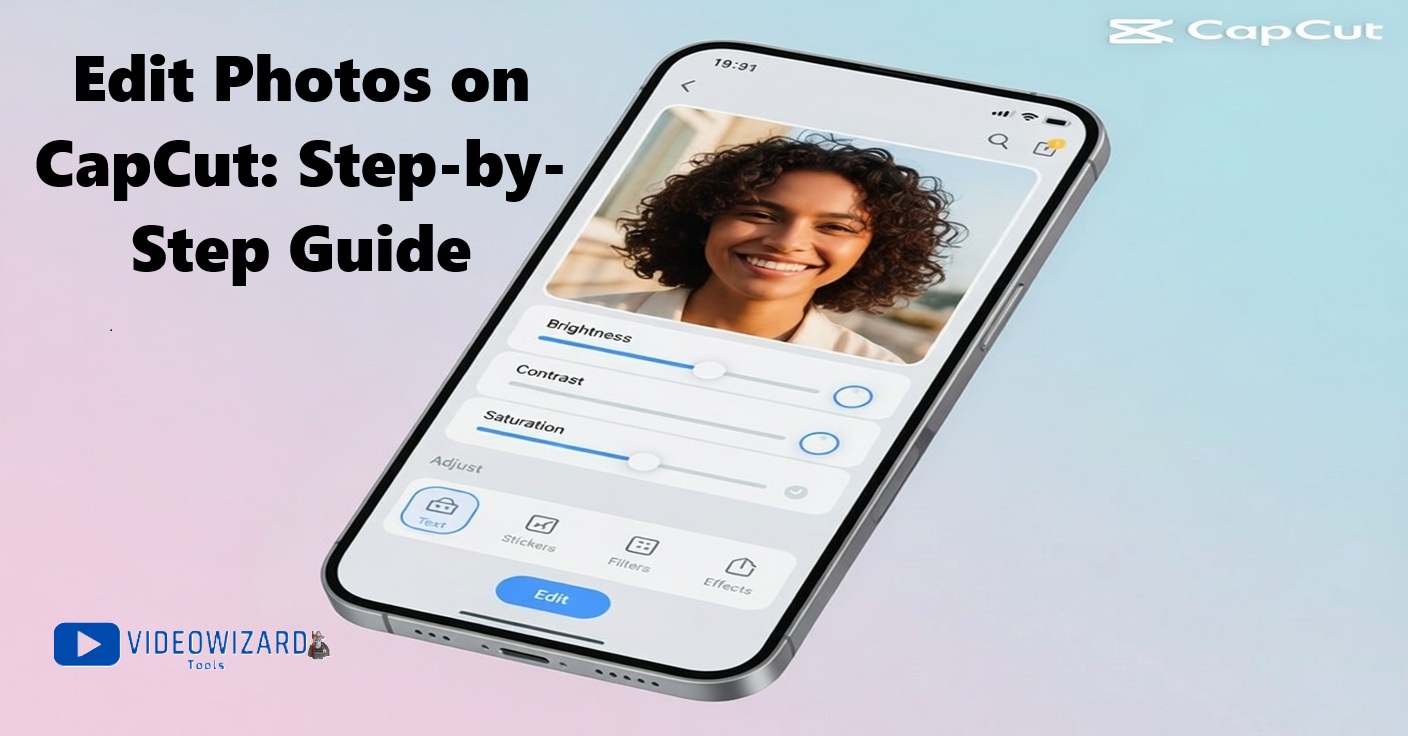
Quick note: The featured image on this post was edited in CapCut using the same steps below, so you’re not reading theory. This is exactly how I build clean, social-ready photo edits.
How to edit photos on CapCut (step-by-step)
Before you start: choose the right size (so your photo doesn’t look weird on Instagram or TikTok)
Most “bad” photo edits happen because the size is wrong. Pick the format first:
- Instagram post: 1:1 (square) or 4:5 (portrait)
- Stories / Reels / TikTok: 9:16
- YouTube thumbnail/landscape: 16:9
Once your canvas is right, your crop, text placement, and exports will look clean.
Step 1: Start a new project and import your photo
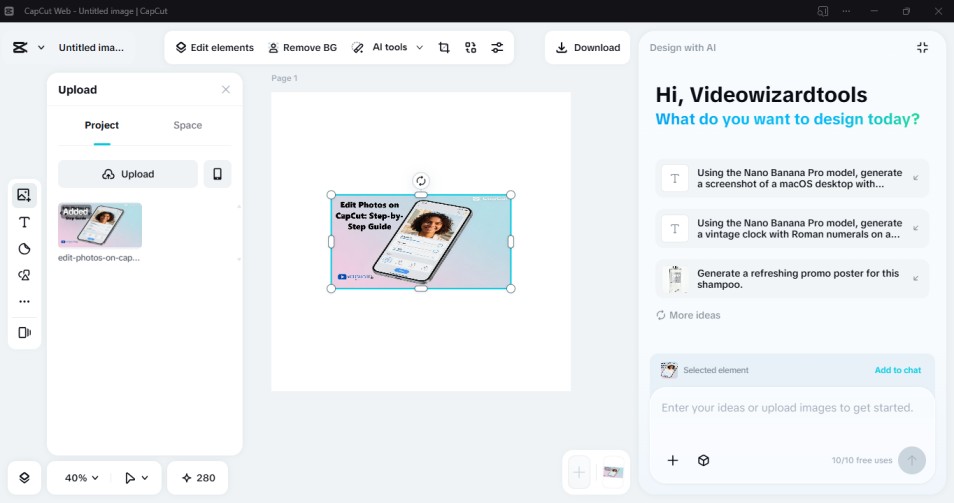
Open CapCut and tap New Project, then select your photo(s). If you’re making a slideshow, import multiple photos at once.
Step 2: Crop, resize, and set the right aspect ratio
Tap the photo on the timeline, then use Edit and Crop to frame it properly. This is where you decide if it’s for 1:1, 9:16, or 16:9.
Step 3: Fix lighting and color (the edits that make the biggest difference)
Tap Adjust and tweak the basics:
- Brightness/Exposure: lift dark photos gently
- Contrast: add depth so the image doesn’t look flat
- Saturation: keep it natural (too much looks fake fast)
- Sharpness: a small boost can help, but don’t overdo it
Step 4: Add filters (optional) and keep them subtle
Use Filters if you want a consistent look. Lower the intensity so the photo still looks real and clear.
Step 5: Add text, stickers, and overlays
Use Text for captions and titles, and Stickers for extra style. If you want a clean look, keep text readable and avoid stacking too many effects.
Step 6: Add motion (optional) with animation and transitions
If you want the photo to feel alive, use Animation (zoom, fade, pan) or add transitions between photos in a slideshow.
Step 7: Export
If your project includes animation or transitions, CapCut will export as a video. That’s normal, and it’s perfect for Reels, TikTok, and Shorts.
How to Save an Edited Photo From Capcut (When You Want an Image, Not a Video)
CapCut is video-first, so many photo edits end up exporting as MP4, especially if you used animation or transitions.
If you need a clean image file:
- Option 1: Export the project, then grab a still frame from the exported video (most phones let you save a frame or screenshot cleanly).
- Option 2: Avoid animations/transitions and keep it as a single photo edit, then save using your device’s best “save frame” method.
Tip: If your text looks soft after export, keep the text large, avoid tiny fonts, and export at the highest quality available.
Advanced Photo Editing Features in Capcut (That Actually Matter)
If you want more than basic brightness and filters, CapCut includes a few powerful tools that can make your photo edits stand out.
Keyframe Animation (Add Controlled Movement)
Keyframes let you create smooth zoom-ins, pans, or position changes over time. This is perfect for turning a static photo into a dynamic Reel or slideshow.
How to use it:
- Select your photo on the timeline
- Tap the keyframe icon at the starting point
- Move forward on the timeline and adjust size or position
- CapCut automatically creates smooth motion between points
Blending Modes (Combine Photos Creatively)
Blending modes let you layer images and control how they interact. This is useful for overlays, light effects, texture backgrounds, or double-exposure style edits.
How to use it:
- Add a photo as an overlay
- Tap “Blend”
- Test modes like Multiply or Overlay
- Adjust opacity until it looks natural
If you’re layering photos or creating composite-style edits, you might also want to learn how to remove or replace backgrounds. See our step-by-step guide on how to edit green screen in CapCut to take your photo projects further.
Multi-layer editing (build simple collages)
You can stack multiple images, resize them, and control opacity to create collages, posters, or layered social content.
While it’s not as advanced as Photoshop, it’s more than enough for creative social media designs.
Why use CapCut for photo editing?
CapCut isn’t a professional photo retouching app. But for fast, social-ready edits, it has some clear advantages:
- Free to use: Most features are available without paying.
- Beginner-friendly: Simple controls and visual timeline.
- All-in-one tool: Edit photos and videos in the same app.
- High-quality exports: Supports HD and 4K video output for slideshows and animated posts.
If your goal is quick content creation instead of heavy photo manipulation, CapCut makes the process simple.

Creative ways to use CapCut for photo editing
CapCut isn’t built for heavy photo retouching. It’s built for turning photos into content. Here’s where it really shines:
Create photo slideshows with music
Import multiple photos, add smooth transitions, and sync them to background music. This is perfect for birthday videos, travel recaps, event highlights, or simple presentation-style content.
Design social media posts and Stories
Use text, stickers, overlays, and aspect ratio presets (1:1, 4:5, 9:16) to create Instagram posts, Reels covers, TikTok visuals, or YouTube thumbnails. CapCut makes it easy to design content that fits each platform correctly.
Add motion to still photos
Use animation effects like zoom, pan, or fade to give still images movement. This works especially well for Reels, Shorts, and TikTok, where static images feel flat.
Make simple posters, quote graphics, or announcements
Add bold text, adjust colors, and layer elements to create clean promotional graphics, announcements, or quote posts without switching to another app.
CapCut works best when your goal is speed, movement, and social-ready content rather than deep, Photoshop-style editing.
Common Problems when editing photos in CapCut (quick fixes)
My photo looks blurry after export
Use the highest export quality, avoid over-sharpening, and don’t stack heavy filters. Also make sure the original image isn’t low-resolution.
My text looks pixelated
Use thicker fonts, increase font size, and export at the highest quality. Small text gets crushed first.
My colors look too strong or weird
Lower saturation and reduce filter intensity. If skin tones look orange, you pushed it too far.
CapCut cropped my photo weird
Set the aspect ratio first (1:1, 9:16, 16:9), then crop. Don’t do it the other way around.
Frequently Asked Questions
Can you edit photos on CapCut without making a video?
You can edit photos inside a project, but CapCut is video-first. If you add animations or transitions, the export will usually be a video file.
Can CapCut save an edited photo as an image file?
Often you’ll export as MP4, then save a still frame from the exported file. That’s the easiest workaround when you need an image.
Can I make a photo slideshow in CapCut?
Yes. Import multiple photos, add transitions, and optionally add music to export a slideshow video.
Does CapCut support PNG and JPEG?
Yes. You can import common image formats like PNG and JPEG and edit them in a project.
Is CapCut good for Instagram photo posts and Stories?
Yes, especially if you set the right aspect ratio first (1:1 or 4:5 for posts, 9:16 for Stories/Reels) and keep text large and readable.
Should you edit photos on CapCut or use a dedicated photo editor?
If you’re wondering whether you should edit photos on CapCut or switch to a traditional photo editing app, the answer depends on your goal.
Edit photos on CapCut if you’re creating social media content, animated posts, slideshows, or short-form videos and want everything in one place. CapCut makes it easy to adjust lighting, add text, apply filters, and animate images without switching apps.
Use a dedicated photo editor if you need detailed retouching, advanced masking, professional color grading, or precise background removal. CapCut is powerful for content creation, but it isn’t built for deep Photoshop-style editing.
In short, if your goal is fast, clean, social-ready content, it makes sense to edit photos on CapCut. If you need heavy image manipulation, a specialized photo editor will give you more control.
Conclusion
So yes, you can edit photos on CapCut, and it’s a solid choice when your goal is fast, social-ready content.
You can crop, adjust lighting and color, add text and stickers, apply filters, and even animate photos for slideshows and short-form videos.
If you need deep retouching or pro-level photo masking, a dedicated photo editor will be better. But if you want quick edits and content that’s ready for Instagram, TikTok, or YouTube, CapCut gets the job done.
