
Why Are My CapCut Captions Out of Sync? (Quick & Easy Fixes)

You spent good time perfecting your captions, spelling, font, animation timing, and everything looks perfect.
Then you export, upload to TikTok, and horror: captions lag a full second behind the audio, flash by too fast, or linger awkwardly over silence.
Caption sync issues are the most frustrating CapCut problem because the editor shows everything aligned perfectly.
The timeline looks right. Preview plays smoothly. Yet the exported video betrays your work. This disconnect between editing and final output drives more re-exports than any other issue.
In this guide, you’ll learn why the CapCut Captions Out of Sync issue occurs, how to diagnose whether the problem lies in your editing, export settings, or playback device, and the specific fixes that actually work.
Understanding the Sync Problem: Where It Actually Breaks
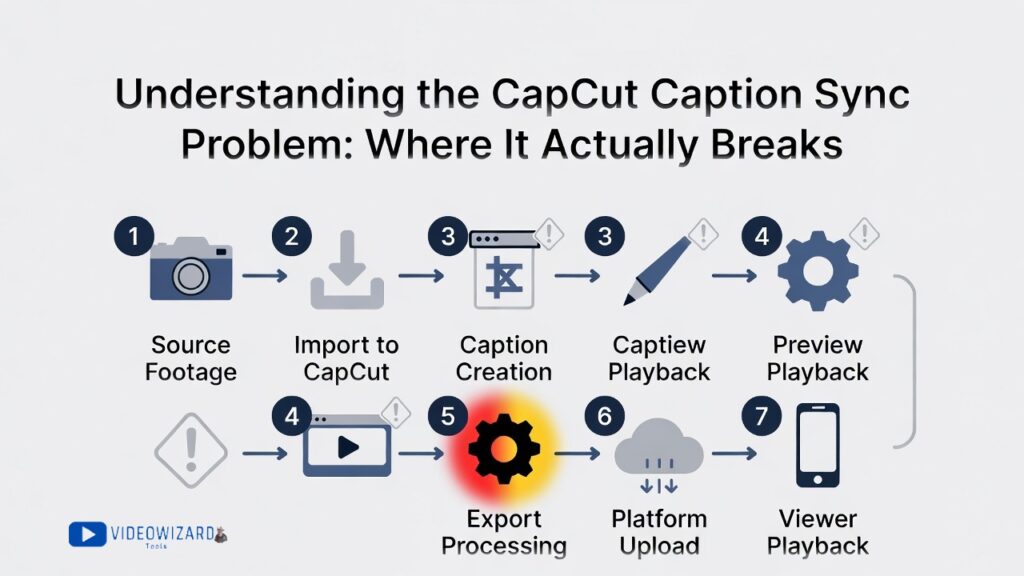
Caption sync issues don’t occur randomly—they happen at specific points in the video production chain. Identifying the failing step determines the right fix.
For a complete step-by-step guide on adding captions in CapCut before tackling sync issues, check out our comprehensive tutorial on how to add captions on CapCut.
This guide covers everything from creating captions, styling, and timing, giving you a solid foundation so that when you apply the sync fixes below, your captions are perfectly set up from the start.
The Sync Chain
- Source footage (camera recording)
- Import to CapCut (decoding and timeline placement)
- Caption creation (your editing work)
- Preview playback (CapCut’s real-time rendering)
- Export processing (encoding and file creation)
- Platform upload (TikTok, Instagram, YouTube processing)
- Viewer playback (device decoding and display)
Sync problems can occur at steps 2, 4, 5, 6, or 7. Your fix depends on identifying which step is the actual culprit.
Step 2: Import Problems
Variable frame rate footage, corrupted audio tracks, or codec incompatibility can cause CapCut to misinterpret timing before captions are added.
Step 4: Preview Issues
CapCut’s preview uses lower-quality rendering that may not match final output timing. You might think captions are synced because the preview is misleading.
Step 5: Export Problems
Export settings—especially frame rate mismatches, variable bitrate encoding, or hardware acceleration—can shift caption timing during file creation.
Step 6: Platform Processing
TikTok, Instagram, and YouTube re-encode videos. Their processing can shift audio relative to video, throwing captions out of sync even if your exported file was perfect.
Step 7: Device Playback
The viewer’s phone or computer may have decoding lag that affects audio-video sync, making captions appear off even if the file is correct.
Diagnosis: Identifying Your Specific Sync Issue
Before applying fixes, determine where the sync problem occurs.
The Export Test
- Export your video from CapCut.
- Play the exported file on your computer using VLC or another reliable media player.
- Check caption sync carefully.
If you want maximum control and faster accuracy from the start, here’s how to add captions to CapCut directly from a script.
Interpret Results
- Sync wrong in exported file: Problem is in CapCut (steps 2, 4, or 5). Apply CapCut-specific fixes.
- Sync correct in exported file but wrong on platform: Problem is platform processing (step 6). Apply platform-specific fixes.
- Sync correct for you but viewers report issues: Problem is device-specific playback (step 7). Hardest to fix, but workarounds exist.
How to fix CapCut Captions Out of Sync
Follow these proven fixes and workflow tips to get your CapCut captions perfectly timed with every video:
Fix 1: Convert Variable Frame Rate (VFR) Footage
Most phone recordings use variable frame rate (VFR) to save space, but CapCut requires constant frame rate (CFR). This mismatch is the leading cause of captions drifting.
How to Identify VFR Footage
- Video progressively drifts: captions start aligned but desynchronize over time.
- Audio and video remain in sync with each other, but captions lag or lead.
- Source: iPhone, Android, or screen recording software often uses VFR.
How to Fix VFR
- HandBrake (Free, Recommended)
- Download: handbrake.fr
- Import footage.
- Video > Framerate: choose intended output (24, 30, 60 fps).
- Check Constant Framerate (critical).
- Set Quality: RF 20 (good balance).
- Export and import CFR file into CapCut.
- FFmpeg (Command Line) ffmpeg -i input.mp4 -c:v libx264 -r 30 -c:a copy output.mp4 This forces 30fps constant frame rate without re-encoding audio.
Fix 2: Standardize Frame Rates Across All Clips
Mixed frame rates in one project can misalign captions. Always convert all clips to the same frame rate before captioning.
- Check source footage frame rate (MediaInfo or file properties).
- CapCut: Settings > Project Settings > Frame Rate. Match main footage.
- Recommended standard: 30fps for social media content.
Fix 3: Disable Hardware Acceleration on Desktop
GPU-based export can sometimes shift caption timing.
- Desktop: Settings > Performance / Export > uncheck Hardware Acceleration.
- Mobile: Hardware acceleration cannot always be disabled. Export from desktop if sync issues occur.
- Symptoms: perfect preview but wrong timing after export; unusually fast export speed.
Fix 4: Apply “Lead Time” Adjustment
CapCut preview can show captions in sync that export slightly late. Manually offset captions earlier.
- Select all captions (Batch Edit or multi-select).
- Drag layers 0.1–0.3 seconds earlier.
- Export and test, fine-tuning in 2–6 frame increments at 30fps.
- Why it works: offsets inherent rendering latency between audio and overlay.
For a deeper look at how to time captions perfectly for TikTok, Reels, and Shorts, see CapCut caption timing and pacing best practices.
Platform-Specific Upload Fixes
TikTok
- Direct mobile upload is most reliable.
- Desktop or third-party schedulers can cause drift.
- Double-export workaround: export max quality → re-import into CapCut → export TikTok-optimized settings (1080×1920, 30fps, H.264).
Instagram Reels
- Ensure audio codec is AAC ≥128kbps.
- Add 0.5 seconds silence at timeline start to prevent Reels trimming content.
YouTube Shorts
- Strict 9:16 aspect ratio (1080×1920).
- No letterboxing; crop horizontal footage to fill vertical frame.
Audio Anchor Method (Advanced)
For stubborn sync issues, align captions directly to waveform spikes.
- Zoom timeline fully; enable audio waveform.
- Position caption start at visual spike for each spoken word.
- Trade-off: time-consuming, use for short, high-precision content.
Recommended Export Settings
- Resolution: 1080×1920 (9:16).
- Frame Rate: 30fps constant.
- Codec: H.264 (AVC), avoid H.265 for social media.
- Bitrate: High or recommended, avoid low/variable bitrate.
- Audio: AAC, 48kHz or 44.1kHz, 128–192kbps.
- Container: MP4.
Following these settings ensures maximum caption sync stability across platforms.
Prevention: Workflow for Guaranteed Caption Sync
Following a systematic process from recording to export ensures your captions stay perfectly in sync.
Bulletproof Workflow
- Record: Use constant frame rate (CFR) settings. Apps like Filmic Pro or dedicated cameras allow strict CFR output.
- Convert: Run all footage through HandBrake or FFmpeg to enforce CFR before importing to CapCut.
- Project Setup: Verify CapCut project frame rate matches your converted footage (usually 30fps).
- Caption Creation: Edit captions normally within CapCut.
- Lead Time Test: Export a short 10-second clip, check sync, adjust lead time if needed.
- Full Export: Disable hardware acceleration on desktop, use stable format settings (MP4, H.264, AAC, 30fps).
- Verification: Play exported file in VLC or other media players to confirm sync before uploading.
- Platform Upload: Use native platform upload (TikTok app, Instagram app, YouTube) instead of third-party schedulers whenever possible.
This adds 5–10 minutes to your workflow but prevents 20–30 minutes of troubleshooting later.
When Sync Issues Are Device-Specific
Some problems cannot be fixed in editing because they occur on the viewer’s device:
- Old or low-end Android devices with slow decoders.
- Phones with aggressive battery-saving modes that throttle playback.
- Bluetooth audio latency causing sound to lag video.
- Browser-based playback with buffering or network delays.
Mitigation Strategy:
- Keep phrases short (3–6 words) so timing drift is less noticeable.
- Use longer display times per caption (1.5–2+ seconds) to accommodate minor delays.
- Avoid rapid-fire captions in sections where precise sync is critical.
Final Thoughts
Most CapCut caption sync issues originate from variable frame rate footage, hardware acceleration bugs, or platform re-encoding. Fixing these problems is straightforward once you identify the root cause.
Start with Fix 1 (VFR conversion)—it resolves roughly 70% of sync problems. Then systematically apply other fixes while verifying sync with short test exports instead of full-length renders.
Perfect sync isn’t just technical—it keeps viewers immersed.
When captions appear exactly as words are spoken, they support the content rather than distract from it, creating a professional, seamless experience.
