
How to Download CapCut on Chromebook


CapCut has rapidly become one of the most popular video editing apps globally, thanks to its easy-to-use interface and powerful editing tools.
As a cloud-based, streamlined device, many Chromebook users may wonder if they can access CapCut on their devices and, if so, how to go about it.
Given that Chromebooks don’t run traditional Windows or macOS apps, it raises the question: Can you get CapCut on a Chromebook?
In this comprehensive guide, we’ll answer this question in detail and offer step-by-step instructions on how to install and use CapCut on your Chromebook.
We’ll also provide troubleshooting tips for any issues you may face when using CapCut on a Chromebook.
The Quick Answer: Yes, You Can Get CapCut on Chromebook
Good news for Chromebook users: yes, you can get CapCut on your Chromebook!
However, it’s important to understand that while Chromebooks can run Android apps (including CapCut), certain limitations may affect the app’s performance.
CapCut is designed as a mobile app for Android and iOS, and while Chromebooks can run Android apps via the Google Play Store, it’s not a full-fledged laptop or desktop app like you’d find on macOS or Windows.
This means you’ll be using the Android version of CapCut on your Chromebook, and you may experience slight differences in functionality compared to using it on a tablet or mobile device.
Why Most People Use CapCut on a Chromebook
CapCut is an excellent choice for Chromebook users who want powerful video editing without needing a traditional desktop setup. Here’s why:
- Portability: Chromebooks are lightweight and easy to carry, allowing creators to edit videos anywhere, from a café to school or work.
- Cloud Integration: CapCut projects can be saved to cloud storage like Google Drive, making it easy to continue editing across devices without losing progress.
- Touchscreen and Keyboard Flexibility: If your Chromebook has a touchscreen, you can navigate CapCut like a tablet. Otherwise, keyboard and mouse shortcuts allow precise editing.
- User-Friendly Interface: Beginners and advanced editors alike will find CapCut’s clean, intuitive interface easy to learn, even on a Chromebook.
- Cross-Device Workflow: Start a project on your Android phone or tablet and continue seamlessly on your Chromebook thanks to cloud sync.
Overall, CapCut on a Chromebook provides a versatile platform for social media creators, students, and professionals alike, combining mobility, ease of use, and advanced editing tools.
How to Install CapCut on Chromebook
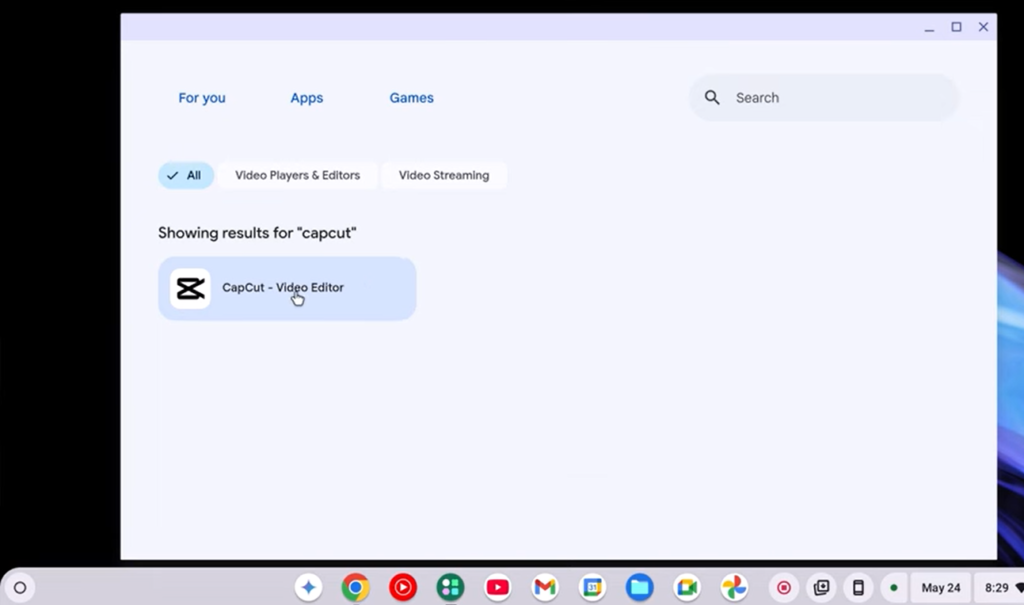
Getting CapCut on your Chromebook is straightforward if your device supports Android apps. Follow these steps to get started:
1. Check Chromebook Compatibility
Not all Chromebooks can run Android apps. To verify:
- Open your Chromebook Settings.
- Scroll down to Google Play Store.
- If you see an option to enable it, your device supports Android apps.
2. Enable the Google Play Store
If your Chromebook supports Android apps but the Play Store isn’t enabled:
- Go to Settings → Google Play Store.
- Click Turn On.
- Accept Google’s terms of service and follow the setup prompts.
3. Download and Install CapCut
Once the Play Store is active:
- Open the Google Play Store app.
- Search for CapCut in the search bar.
- Locate the official app by Bytedance.
- Click Install.
After installation, you’ll find CapCut in your app drawer. Launch it to start editing videos immediately on your Chromebook.
Want to see instructions for other devices like Android, iOS, or PC? Check out our complete CapCut download guide
Using CapCut on Chromebook
Using CapCut on a Chromebook is similar to using it on any Android tablet or phone, but there are some key differences in terms of interface and performance due to the Chromebook’s unique operating system.
Here’s what you need to know about using CapCut effectively on your Chromebook.
1. The Touchscreen Experience
If your Chromebook has a touchscreen, you’ll have a similar experience to using CapCut on an Android tablet.
The touchscreen makes it easy to navigate CapCut’s editing tools, and you’ll be able to perform tasks like trimming video clips, adding filters, and applying transitions just like you would on a mobile device.
2. Keyboard and Mouse Integration
One of the benefits of using a Chromebook is that you can also utilize a keyboard and mouse for more precise controls.
You can use your mouse to click on various editing tools and your keyboard to perform shortcuts, making the editing process faster and more efficient.
3. Performance Considerations
While CapCut works on Chromebooks, the performance can vary depending on the model of your device. Chromebooks with higher specifications, such as faster processors and more RAM will offer a smoother experience when editing videos in CapCut.
On the other hand, if your Chromebook has lower specs, you may experience lag when working with larger video files or when using advanced editing features.
Step-by-Step Tutorial: First Project on Chromebook
Here’s a beginner-friendly guide to creating your first CapCut project on a Chromebook:
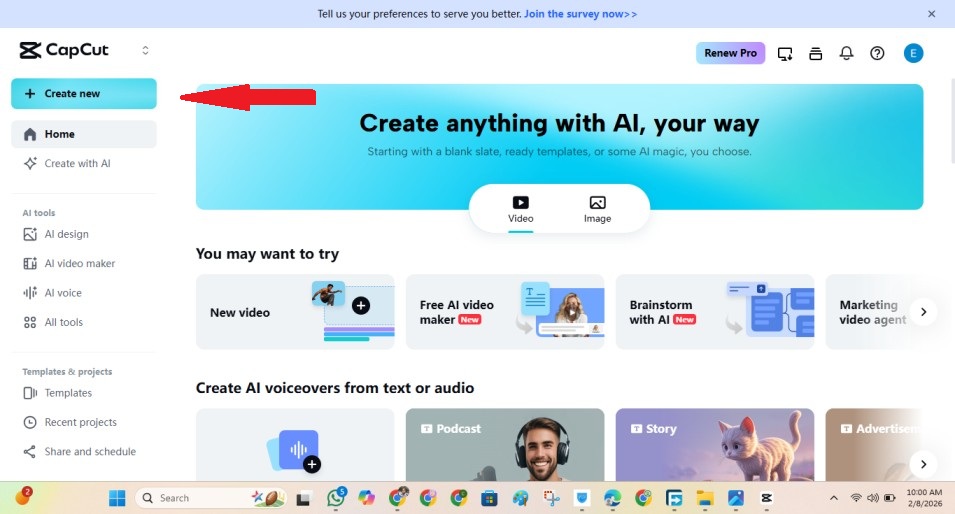
- Open CapCut: Launch the app from your Chromebook app drawer.
- Start a New Project: Click “New Project” and import videos or photos from your local storage or Google Drive.
- Trim and Split Clips: Select a clip on the timeline. Drag the edges to trim or click “Split” to divide the clip into segments.
- Add Transitions: Use the “Transition” option to apply effects like fade, zoom, or slide between clips.
- Apply Filters and Effects: Enhance your video with filters, AR effects, and overlays for professional-looking results.
- Add Text and Stickers: Insert animated or static text and stickers to make your video engaging.
- Include Music or Voiceover: Tap “Audio” to import music or record voiceover directly within CapCut.
- Export Your Video: Once editing is complete, tap “Export” and choose your desired resolution (up to 4K).
Following these steps ensures your first project is organized, polished, and ready to share on social media directly from your Chromebook.
Potential Challenges When Using CapCut on Chromebook
Although CapCut runs on Chromebooks, you may encounter a few limitations or performance issues due to the device’s hardware or the app’s mobile-focused design. Here are the most common challenges and how to handle them effectively:
1. Performance Lag
Lower-spec Chromebooks can struggle with high-resolution video files, especially 4K footage. If you notice lag, stuttering, or occasional crashes, try these steps:
- Lower video resolution: Edit 1080p or 720p clips instead of 4K to reduce the processing load.
- Close background apps: Free up system resources by shutting down unnecessary applications.
- Clear the cache: Go to your Chromebook’s settings to clear CapCut’s cache, which can help the app run more smoothly.
2. Limited Storage
Chromebooks often have limited local storage, which can become a bottleneck when working with large video projects. To manage storage efficiently:
- Use cloud storage: Upload video files to Google Drive or another cloud service. This frees up space and allows access from any device.
- Delete unused files: Regularly remove old videos, apps, and downloads to keep enough space available for CapCut projects.
3. App Compatibility Issues
Since CapCut is primarily designed for mobile devices, some features may occasionally behave differently on a Chromebook or fail to display correctly. To minimize these issues:
- Keep the app updated: Make sure you’re using the latest version of CapCut to benefit from bug fixes and performance improvements.
- Restart the app: If it freezes or becomes unresponsive, closing and reopening CapCut often resolves temporary glitches.
By following these tips, you can reduce the most common issues and enjoy smooth, efficient video editing on your Chromebook.
For a more comprehensive troubleshooting guide, be sure to check out our CapCut Troubleshooting: Solving Common Issues article, where we discuss various solutions to common problems users face on different devices.
CapCut Chromebook vs Android Tablet vs Mobile
CapCut works on multiple platforms, but the experience varies depending on your device. Here’s a comparison:
| Feature | Chromebook | Android Tablet | Android Phone |
|---|---|---|---|
| Interface | Touch + keyboard/mouse | Touch optimized | Touch optimized |
| Performance | Moderate, depends on specs | High, smooth for most edits | High for short edits |
| Export Quality | Up to 4K | Up to 4K | Up to 4K |
| Best For | Moderate editing & social media projects | Tablet workflow & mobile content creation | Quick edits & on-the-go posts |
| Cloud Sync | Yes | Yes | Yes |
Understanding these differences helps you choose the right device for your editing workflow and avoid frustration with lag or limited functionality.
Alternatives to CapCut on Chromebook
If you find that CapCut’s performance on your Chromebook is not ideal, you may want to consider alternative video editing apps that are more optimized for Chromebooks.
Below are some alternatives to CapCut that work well on Chromebooks:
1. WeVideo
WeVideo is a cloud-based video editing platform that works seamlessly on Chromebooks. Since it runs in your web browser, you don’t need to download any software, and all your projects are saved in the cloud. WeVideo offers a range of editing tools similar to CapCut and is optimized for Chromebook performance.
2. PowerDirector
PowerDirector is another popular video editing app available in the Google Play Store. It offers powerful editing tools and works well on Chromebooks. Like CapCut, it’s designed for mobile and tablet users but is also compatible with Chromebook devices.
3. KineMaster
KineMaster is a widely used video editing app available for Android and Chromebooks. It has a rich feature set, including multi-layer editing, transitions, and effects.
KineMaster performs well on Chromebooks and is a viable alternative to CapCut if you’re looking for similar functionality.
Frequently Asked Questions
Conclusion
So, can you get CapCut on a Chromebook? Absolutely! While there may be some limitations or challenges compared to using CapCut on other devices, Chromebooks are more than capable of running the Android version of CapCut through the Google Play Store.
By following the steps provided and keeping in mind some of the troubleshooting tips, you can use CapCut effectively to edit your videos on a Chromebook.
If you’re a Chromebook user who loves editing videos, CapCut is a great option that offers a wide range of editing tools and features at your fingertips.
Just make sure to keep your Chromebook updated and manage your storage carefully to ensure the best experience possible.
