
How to Download CapCut on Any Device (Android, iPhone, iPad, PC, Mac, Huawei)

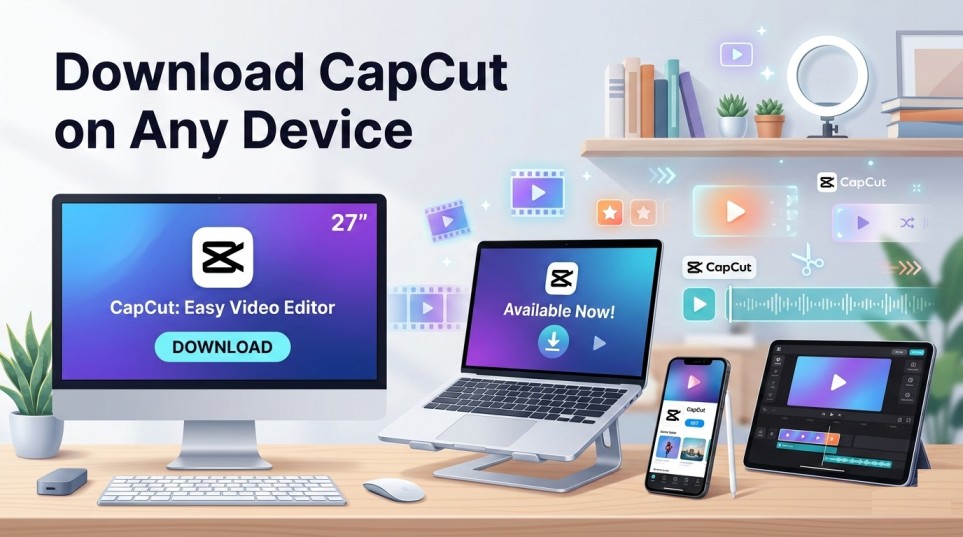
CapCut, one of the most popular video editing apps today, has become a favorite tool for creators around the world.
Whether you’re making TikToks, YouTube Shorts, Instagram Reels, or just editing videos for fun, CapCut offers powerful features that are accessible to everyone—from beginners to professional editors.
One of the best things about CapCut is its cross-platform availability.
You can download and use CapCut on Android devices, iPhones, iPads, Windows PCs, Macs, and even Huawei devices.
This flexibility means you can edit videos on the go with your phone or dive into more precise editing on a desktop.
In this guide, we’ll show you exactly how to download CapCut on any device and share practical tips to get the most out of its powerful editing tools.
By the end, you’ll know how to start creating professional-quality videos—no matter which device you have.
Can I Download CapCut on Any Device?

Yes, CapCut is available on multiple platforms, making it a versatile video editing tool for creators at all levels. You can download CapCut on:
- Android devices (phones and tablets)
- iPhones and iPads (iOS devices)
- Windows PCs and Mac computers
- Huawei devices (via AppGallery)
This cross-platform support ensures you can edit videos seamlessly, whether you’re on the go with your smartphone or working on more detailed projects from your desktop.
While the core editing features remain consistent across all platforms, some tools—like keyframes, speed ramping, or AR filters—may feel more accessible on one device than another.
How to Download CapCut on Any Device
CapCut is available across multiple platforms, making it easy to edit videos wherever you are. Here’s how to download it on different devices:
Download CapCut on Android
- Open the Google Play Store on your Android device.
- Search for CapCut and select the app developed by Bytedance.
- Tap Install and wait for the app to download.
- Open CapCut and start editing your videos.
Download CapCut on iPhone or iPad (iOS)
- Open the Apple App Store.
- Search for CapCut by Bytedance.
- Tap Get to download and install the app.
- Launch CapCut from your home screen and begin editing.
Download CapCut on PC (Windows & Mac)
- Visit the official CapCut website.
- Select the version for Windows or Mac.
- Download the setup file and install the app.
- Open CapCut and start editing with full desktop features.
Download CapCut on Huawei Devices
- Open Huawei AppGallery on your device.
- Search for CapCut.
- Tap Install and start editing videos after installation.
For tips on upgrading and subscribing to CapCut Pro across devices, check out our guide on How to Subscribe to CapCut Pro.
Using CapCut Across Devices: A Beginner’s Guide
Once you’ve installed CapCut, the editing workflow is similar on all platforms. Here’s a step-by-step guide for beginners:
1. Start a New Project
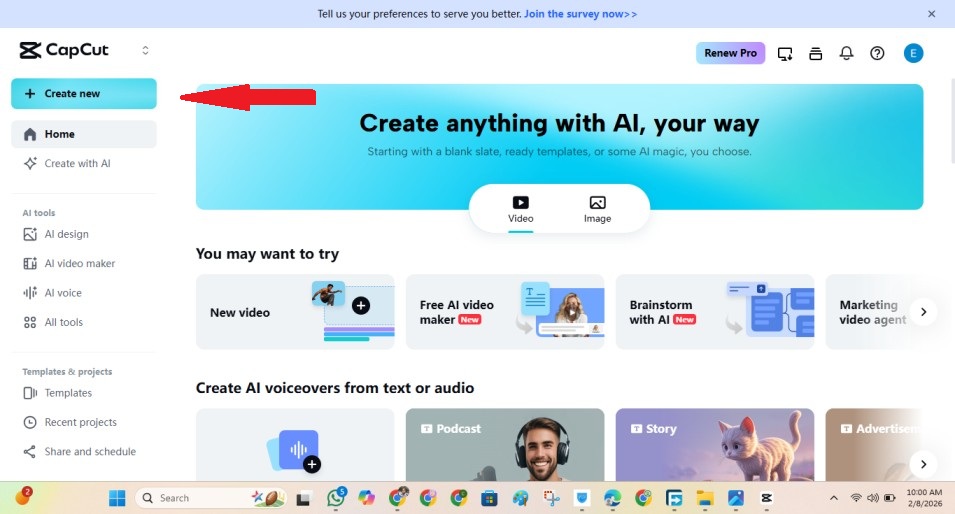
- Open CapCut and tap New Project.
- Select your video clips or photos from your device gallery.
- CapCut will automatically create a timeline for editing.
2. Trim and Cut Clips
- Select a clip on the timeline to highlight it.
- Drag the edges to trim unnecessary parts.
- To split a clip, move the playhead to the desired point and tap Split.
3. Add Transitions
- After adding multiple clips, tap Transition to choose from fade, zoom, slide, and other effects.
- Adjust transition duration as needed for smoother edits.
4. Apply Effects and Filters
- Tap Effects for special visual effects like glitch, neon, or blur.
- Use Filters to adjust color grading and create the desired mood.
5. Add Text and Stickers
- Tap Text to add static or animated overlays.
- Change font, size, color, and position.
- Add stickers and emojis to enhance visual storytelling.
6. Add Music and Sound Effects
- Tap Audio to choose from CapCut’s built-in library or import your own files.
- Add sound effects such as applause, footsteps, or ambient sounds for immersive videos.
7. Export Your Video
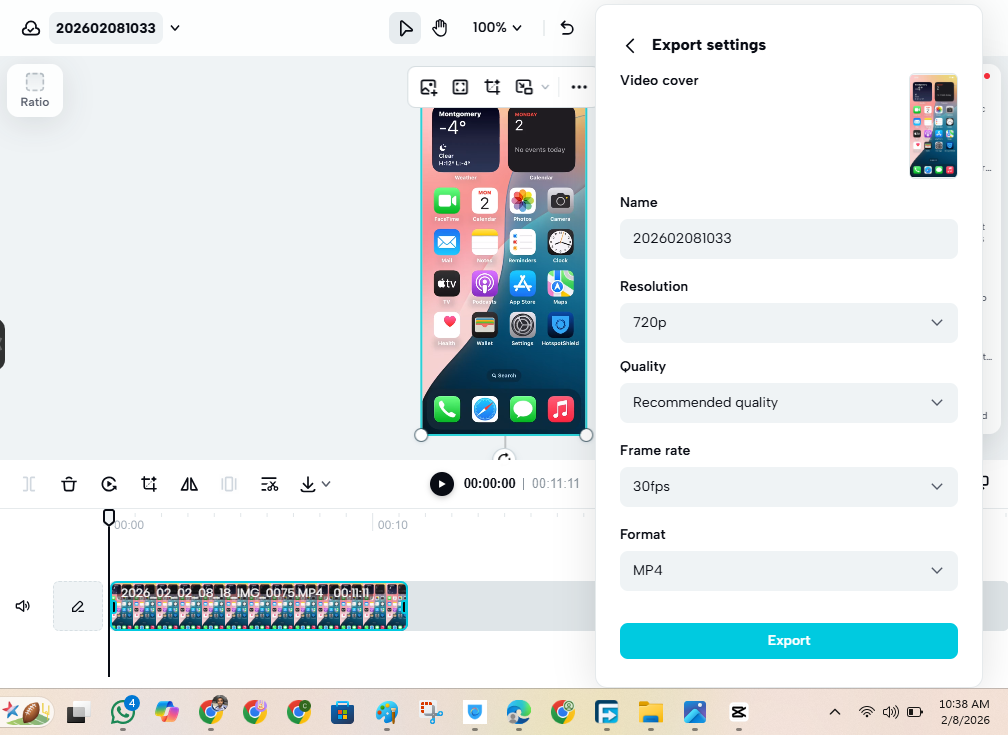
- Tap Export (top-right corner).
- Choose resolution and frame rate (default is 1080p/30fps).
- Tap Export again to save the video to your device.
CapCut’s interface is intuitive, so whether you’re on Android, iOS, or desktop, these steps will help you start creating professional-quality videos quickly.
For mobile users, check our best CapCut export settings guide to optimize your video quality before sharing online.
CapCut Features Across Devices
CapCut provides a consistent experience on all devices, but some features and usability vary depending on the platform:
Mobile (Android and iPhone)
- Optimized for touch gestures, making trimming, splitting, and adding effects fast and intuitive.
- Quick access to AR filters, speed ramps, and reverse effects.
- Great for short-form content creation on the go.
iPad
- Offers a larger screen than iPhone, making multi-clip editing and timeline adjustments easier.
- Supports Apple Pencil for more precise control over text placement and stickers.
PC (Windows and Mac)
- Larger canvas for precise edits, keyframing, and layering multiple clips.
- Better for complex projects and professional workflows.
- Keyboard and mouse editing allows faster and more accurate trimming, splitting, and effect placement.
Huawei Devices
- Available via Huawei AppGallery since Google Play is not supported.
- Most core editing features are available, though some advanced plugins may be limited.
Is CapCut Better on PC or Mobile?
Choosing between CapCut on PC or mobile depends on your workflow and the type of content you create.
- Mobile: Ideal for quick edits, social media clips, and editing on the go. Perfect if you want convenience and speed over complex control.
- PC/Desktop: Best for professional-level projects, precise editing, and longer videos. You get access to advanced tools like keyframes, layering, and color grading with more accuracy.
If you frequently create content for brands, clients, or platforms like YouTube, a PC is likely the better option. For casual editing, social media posts, or short clips, mobile works perfectly fine.
For help deciding which device to use, you can check our full comparison guide between mobile and desktop versions.
Frequently Asked Questions About CapCut on Any Device
Conclusion: Which Device Should You Use for CapCut?
CapCut offers a versatile video editing experience across Android, iPhone, iPad, and desktop platforms. For quick edits on the go, mobile devices provide convenience and ease of use.
However, if you want precision, advanced features like keyframing, and professional-level control, the PC or Mac version is superior.
Regardless of your device, CapCut makes video editing accessible and powerful for beginners and professionals alike.
Download CapCut on your preferred platform today and start creating high-quality videos effortlessly.
For tips on trying CapCut Pro for free or understanding CapCut pricing plans, check out our detailed guides.
