
How To Get CapCut on Android: Easy Guide

CapCut, the popular video editing app, has taken the mobile content creation world by storm.
Whether you’re making TikToks, Instagram Reels, YouTube Shorts, or just recording fun moments with friends, CapCut provides an intuitive platform for editing videos directly on your Android device.
From beginners to professional editors, CapCut gives everyone access to a wide range of editing tools, effects, and templates.
In this guide, we’ll walk you through how to download CapCut on Android devices, explore the app’s features, share pro tips for editing, and compare it to other platforms.
Is CapCut Available on Android?
Yes! CapCut is fully compatible with Android smartphones and tablets. You can download it for free from the Google Play Store.
It comes packed with editing features like trimming, cutting, transitions, filters, effects, text, stickers, music, and more.
While the app itself is free, there are optional in-app purchases and premium features available for users who want to unlock advanced editing tools and effects.
System Requirements for CapCut on Android
To ensure smooth performance, make sure your Android device meets the following minimum requirements:
- Android version: 5.0 (Lollipop) or higher
- Storage: At least 300–400 MB free for installation, plus extra space for projects
- RAM and processor: 2 GB RAM or more and a multi-core processor for better performance
If your device meets these requirements, CapCut will run smoothly, allowing you to create professional-quality videos without lag or crashes.
Recommended System Requirements for CapCut on Android
While CapCut runs on devices with Android 5.0 or higher, for smoother performance, we recommend:
- Android Version: 8.0 or above
- RAM: 3GB or more
- Processor: Modern multi-core CPU
- Storage: At least 500MB free for installation and projects
Older or lower-end devices may experience minor lag, especially when using advanced effects or exporting in 4K.
How to Download CapCut on Android
Getting started with CapCut on Android is simple:
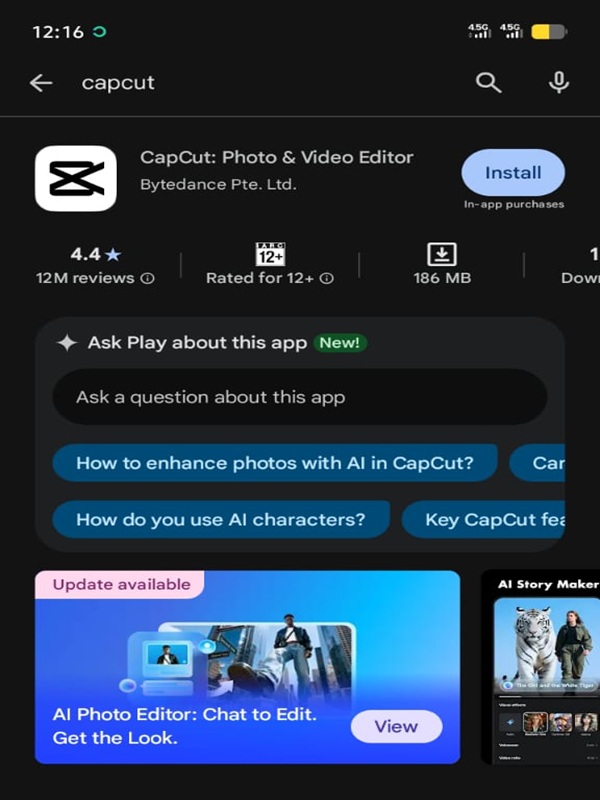
- Open Google Play Store: Launch the Play Store app on your phone or tablet.
- Search for CapCut: Type “CapCut” in the search bar. Look for the official app by Bytedance Pte. Ltd as shown in the image above.
- Install the App: Tap “Install” and wait for the download to complete.
- Launch CapCut: Once installed, open CapCut from your app drawer or home screen and start your editing journey.
If you’re curious about downloading CapCut on other devices, like iPhone, iPad, or PC, check out our full CapCut download guide.
Getting Started: First Steps in CapCut
After installation, CapCut is ready to use. Here’s a beginner-friendly workflow:
1. Start a New Project
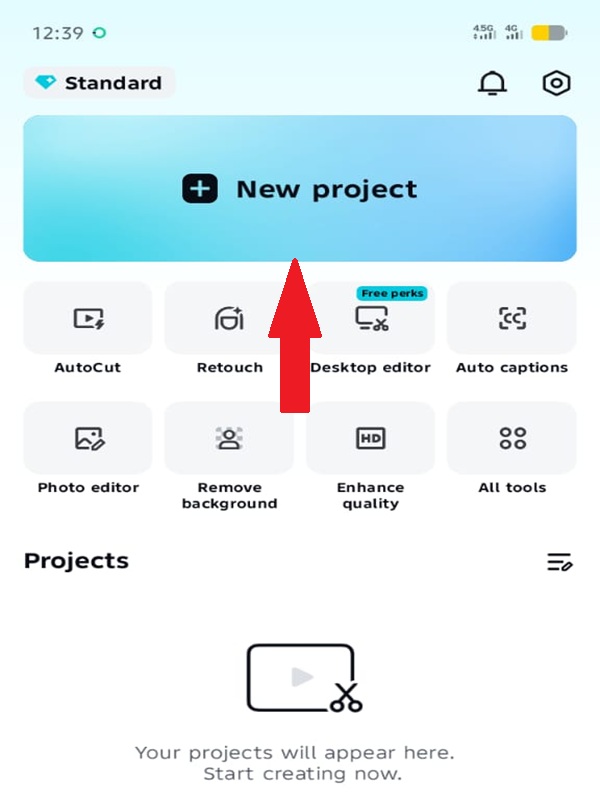
Tap “New Project” and import your video clips or photos from your gallery. CapCut will automatically create a timeline to organize your content.
2. Trim and Cut Clips
Select any clip on the timeline to highlight it. Drag the edges to trim or tap “Split” to cut it into multiple segments.
3. Add Transitions
When combining multiple clips, use the “Transition” option to apply effects like fade, zoom, or slide for smooth scene changes.
4. Apply Effects and Filters
Enhance your video by tapping “Effects” for creative visuals like glitch, neon, or blur. Use “Filters” to adjust color grading and create the mood you want.
5. Add Text and Stickers
Tap “Text” to overlay static or animated text. You can change font, color, size, and placement. Add stickers or emojis to make your videos fun and engaging.
6. Add Music and Sound Effects
Tap “Audio” to access CapCut’s music library or import your own tracks. Add sound effects, like applause or footsteps, to enhance storytelling.
7. Export Your Video
Once your edits are complete, tap “Export.” Select the resolution and frame rate (up to 4K) and save your video to your device’s gallery. For tips on exporting, see our CapCut export settings guide.
Using Templates and Pre-Made Assets in CapCut
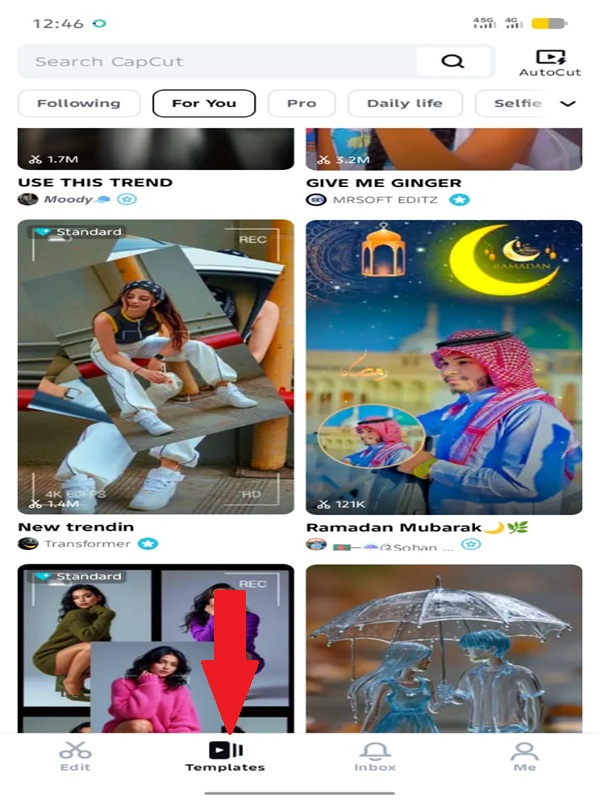
CapCut offers a variety of templates for fast video creation. To use templates:
- Open CapCut and tap “Templates”.
- Browse or search for a template that suits your video style.
- Tap the template, select your clips or photos, and customize text, stickers, and music.
- Preview and export your video once you’re satisfied.
Templates are ideal for beginners or anyone creating social media content quickly. For advanced templates, see our CapCut Pro Subscription guide.
Key Features of CapCut on Android
- User-Friendly Interface: Simple navigation for beginners with advanced options for pros.
- Editing Tools: Trim, split, merge, crop, keyframe animations, masking, and chroma keying.
- Filters & Effects: Includes trending filters like glitch, blur, and beauty effects.
- Text & Stickers: Animated text, intros, outros, and stickers for creative storytelling.
- Music & Sound: Built-in tracks, sound effects, and voiceovers.
- 4K Export: Save high-resolution videos suitable for TikTok, YouTube, and Instagram.
- Cloud Sync: Continue projects across devices seamlessly.
Pro Tips for Editing on Android
- Organize Media: Keep files in folders to save time during editing.
- Use Keyframes: Animate elements like text or stickers for dynamic videos.
- Try Templates: Start with pre-made templates for quick editing.
- Experiment with Effects: Explore filters and effects to make videos unique.
- Save Often: Prevent data loss by saving projects regularly.
- Use Cloud Storage: Free up device space and access projects on other devices.
CapCut for Android vs. Desktop
While CapCut on Android is excellent for mobile editing, desktop versions provide additional power for complex projects:
| Feature | Android | Desktop (Windows/Mac) |
|---|---|---|
| Editing Tools | Advanced, touch-based | Full suite, precise control |
| Export Quality | Up to 4K | Up to 4K |
| Effects & Filters | Extensive library | Extensive library |
| Cloud Sync | Yes | Yes |
| Best For | Quick edits, social media | Professional, long-form content |
For a detailed comparison between mobile and desktop versions, see our full CapCut device comparison guide.
Common Problems & Troubleshooting on Android
- App crashes: Clear cache, restart device, or reinstall CapCut.
- Export errors: Ensure enough storage space and use supported formats.
- Missing features: Update to the latest version or subscribe to CapCut Pro.
- Lag during editing: Close background apps and use the recommended system requirements.
Advanced Editing Examples on Android
Here are some ways creators use CapCut on Android to produce high-quality content:
- TikTok Trend Video: Apply trending effects, text animations, and royalty-free music to make videos go viral.
- Instagram Reel: Use templates, transitions, and stickers to create engaging stories under 30 seconds.
- YouTube Short: Combine multiple clips with keyframes, filters, and high-quality audio for polished results.
Experiment with these techniques to create content that stands out.
Frequently Asked Questions
Conclusion
CapCut on Android is a versatile and powerful video editing tool that caters to creators at every skill level.
So whether you’re editing short TikToks, Instagram Reels, or full-length YouTube videos, it provides all the essential tools you need: trimming, transitions, effects, filters, text overlays, music, and more, directly on your device.
With cloud syncing, high-resolution exports, and a user-friendly interface, CapCut makes mobile video editing seamless and efficient.
Download CapCut today, explore its full suite of features, and start producing professional-quality videos quickly and effortlessly.
For more advanced features, cloud syncing, and subscription options, check out our guides on CapCut Pro and free CapCut usage tips.
