

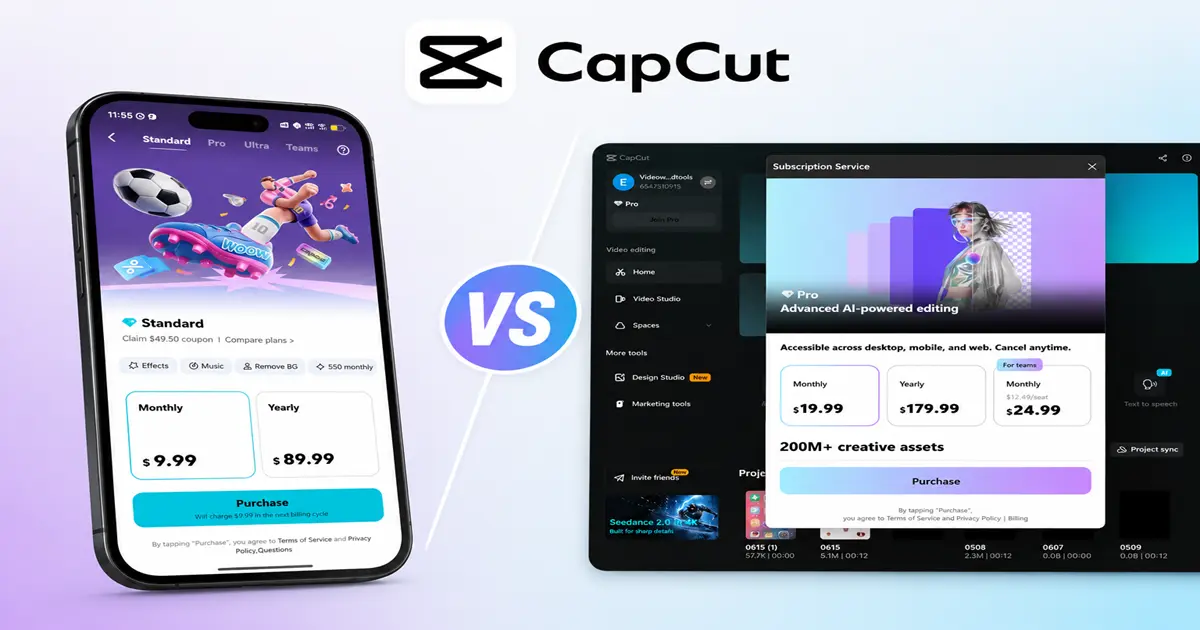
You oOpen CapCut on your phone, then open it on your laptop and the price for “the same” Pro plan doesn’t match.
It’s not a glitch. It’s not you being overcharged. But it is confusing, and CapCut’s own help docs don’t fully explain what happens to your subscription if you use both.
We created this guide to break down exactly what’s the difference between CapCut’s mobile and desktop plans, why the pricing gap exists, and more importantly what actually happens to your subscription, your projects, and your wallet when you move between platforms.
Table of Contents
- Do Mobile and Desktop Have Different CapCut Plans?
- Why Does CapCut Pro Cost More on Mobile Than Desktop?
- Does a CapCut Subscription Carry Over Between Devices?
- Standard vs Pro: The Platform Restriction Most People Miss
- How to Save Money by Subscribing on the Right Platform
- Mobile vs Desktop: Which Should You Actually Use?
- What Happens to Your Projects When You Switch Platforms
- Frequently Asked Questions
- Final Verdict: Which CapCut Plan Should You Choose?
Do Mobile and Desktop Have Different CapCut Plans?
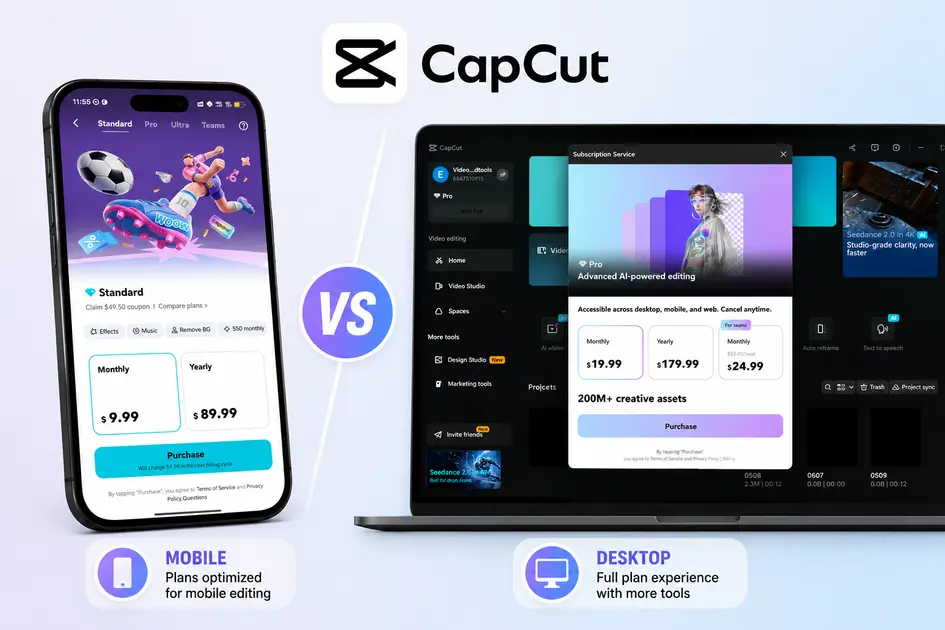
No, not different plans exactly, the same CapCut plan names (Free, Standard, Pro) exist across mobile, desktop, and web. What differs is pricing, platform availability, and which platform a plan is designed for.
Here’s our guide on CapCut pricing palns for you to understand better how much each CapCut plan costs.
So if you’re wondering why your desktop app isn’t showing the same “Pro” status as your phone, the Standard-plan restriction is very often the answer, not a bug, not a billing error, just a platform limitation CapCut doesn’t advertise clearly.
Why Does CapCut Pro Cost More on Mobile Than Desktop?
This is the part that trips up the most people. If you check CapCut Pro pricing on your phone versus subscribing through CapCut’s website, you’ll often see a real difference, mobile can run $1–3/month higher.
The reason comes down to app store economics, not CapCut charging mobile users extra for no reason:
- App Store and Google Play take a commission, typically 15–30%, on in-app purchases. CapCut adjusts mobile pricing to absorb that cut.
- Subscribing via the website (web checkout) skips that commission, which is why it’s usually the cheapest way to get Pro.
- Payment processing differs by channel, Apple/Google handle billing differently than CapCut’s own checkout, adding a small additional cost variable.
The practical takeaway: if you haven’t subscribed yet, checking the price on CapCut’s website before buying through the app can save you real money over a year — more on the exact numbers in the savings section below.

Does a CapCut Subscription Carry Over Between Devices?
This is the question CapCut’s own help page never really answers directly. Here’s how it actually works, based on how the platform is structured:
Scenario 1: You subscribe to Pro on mobile, then open desktop.
As long as you’re logged into the same CapCut account on both devices, Pro status applies on desktop too — Pro is the only tier built for cross-platform access. You don’t need to pay twice or resubscribe separately.
Scenario 2: You subscribe to Pro on desktop/web, then open mobile.
Same logic in reverse — Pro unlocks on mobile automatically once you’re signed into the same account.
Scenario 3: You subscribe to Standard on mobile, then open desktop.
This is where people get caught out. Standard does not carry over to desktop at all — it’s mobile-only by design. Opening the desktop app with a Standard subscription will show you as a Free-tier user there, even though you’re actively paying for Standard on your phone.
Scenario 4: You cancel on one platform and resubscribe on another.
Cancelling stops future renewals but usually doesn’t cut off access immediately — you keep Pro until the current billing period ends.
If you resubscribe through a different platform (say, cancel via the App Store and resubscribe via web checkout) before that period ends, you can end up with two active billing cycles overlapping briefly.
To avoid double-charging yourself, let the original subscription fully expire before starting the new one — or check your account’s active subscriptions screen to confirm only one is running.
Standard vs Pro: The Platform Restriction Most People Miss
If there’s one fact in this entire guide worth remembering, it’s this: Standard is a mobile-only plan. That single detail explains most of the “why doesn’t my subscription work on desktop” confusion people run into.
If you’re still deciding which tier fits your workflow, our Standard vs Pro guide covers the full feature-by-feature comparison.
| Plan | Mobile | Desktop | Web |
|---|---|---|---|
| Free | ✅ | ✅ | ✅ |
| Standard ($9.99/mo) | ✅ | ❌ | ❌ |
| Pro ($19.99/mo or $179.99/yr) | ✅ | ✅ | ✅ |
How to Save Money by Subscribing on the Right Platform
Since Pro is the only tier with cross-platform access, the real decision isn’t which plan — it’s which platform you subscribe through. Here’s the cost difference over a year:
| Checkout method | Monthly price | Annual cost (12 months) |
|---|---|---|
| Website (web checkout) | $19.99/mo | $239.88 |
| App Store / Google Play | ~$21.99–$22.99/mo | ~$263.88–$275.88 |
| Website, annual billing | — | $179.99 |
Subscribing to Pro annually through the website is the cheapest path overall — potentially $80–95/year less than paying monthly through a mobile app store. If you’re already locked into an in-app subscription, here’s how to move it:
- Check your renewal date first. Find your current subscription’s next billing date in the App Store or Google Play subscription settings — you don’t want to cancel and immediately get charged again before the switch.
- Cancel the app-store subscription. This stops future renewals but keeps your Pro access active until the current period ends — you won’t lose access immediately.
- Wait until the current period actually expires. Resubscribing early through a different channel risks two active subscriptions running at once.
- Subscribe again through CapCut’s website, using the same account email/login you used before, so your Pro status reapplies cleanly across mobile, desktop, and web.
- Confirm on both platforms. Open both the mobile app and desktop app afterward and check that Pro status shows correctly on each.
One caution worth flagging: CapCut uses regional pricing, so if you’re outside the US, these exact figures won’t match what you see on your own account — always compare the actual price shown on your region’s website checkout against your app-store price before switching.
Mobile vs Desktop: Which Should You Actually Use?
Plan cost aside, the platforms genuinely serve different editing styles. This isn’t about which is “better” — it’s about which matches what you’re making.
Choose mobile if:
- You’re editing short-form content — TikToks, Reels, Shorts
- You want the newest AI features first (CapCut typically ships new AI tools to mobile before desktop)
- You’re editing on the go, without access to a laptop
- Your projects are simple enough that a smaller screen and touch controls don’t slow you down
Choose desktop if:
- You’re working on longer-form content — YouTube videos, tutorials, client work
- You need more precise control over multi-track timelines
- You’re exporting in 4K regularly (desktop handles heavier renders more reliably than mobile hardware)
- You want a bigger screen for detailed color grading or keyframe work
Most active creators end up using both — starting a rough cut on mobile, then finishing detailed edits on desktop. That workflow only works smoothly on Pro, since Standard won’t follow you across devices.
What Happens to Your Projects When You Switch Platforms
Cloud sync is what makes moving between mobile and desktop possible — but it’s not flawless, and knowing its limits before you rely on it for an important project will save you a headache.
Here’s what to expect:
- Projects sync via your CapCut account, not the device itself. As long as you’re logged into the same account on both platforms, projects saved to the cloud should appear on both.
- Sync speed depends on file size. Large 4K projects can take noticeably longer to upload/download than shorter, lower-resolution clips — don’t assume an instant appearance on the other device.
- Mobile-template projects don’t always translate cleanly to desktop. If a project started from a mobile-exclusive template, opening it on desktop can sometimes break formatting or display incorrectly. This is a known limitation, not something you’re doing wrong.
- Cancelling Pro doesn’t delete your projects or exported videos. Any video you’ve already exported stays yours regardless of subscription status. What you lose access to are Pro-tagged assets (templates, effects, music) still embedded in projects you haven’t exported yet — re-exporting those later on a Free or Standard plan may show a watermark or missing elements.
If you’re planning to switch platforms mid-project, the safest approach is exporting your current version first, then continuing on the new device — rather than relying entirely on cloud sync mid-edit.
Frequently Asked Questions
Why is CapCut Pro more expensive on my phone than on the website?
Mobile app-store purchases include a commission Apple and Google charge on in-app subscriptions, typically passed on to you as a higher price. Subscribing through CapCut’s website skips that commission, which is usually the cheapest way to get Pro.
If I buy CapCut Pro on mobile, does it work on desktop too?
Yes. Pro is the only tier with full cross-platform access — as long as you’re logged into the same account, Pro status applies on mobile, desktop, and web automatically.
Can I cancel CapCut Pro on mobile and resubscribe on desktop for a lower price?
Yes, and it’s a legitimate way to save money. Cancel through the App Store or Google Play, wait until your current billing period ends so you don’t get double-charged, then subscribe again through CapCut’s website using the same account.
Does CapCut Standard work on desktop?
No. Standard is a mobile-only plan and does not unlock on desktop or web — opening those platforms with a Standard subscription will show you as a Free-tier user.
Will I lose my CapCut projects if I switch from mobile to desktop?
No, projects sync through your account rather than the device. Large 4K projects may take longer to sync, and projects built from mobile-exclusive templates can occasionally display incorrectly on desktop — exporting your current version before switching is the safest approach.
Final Verdict: Which CapCut Plan Should You Choose?
If you like editing fast, posting often, and staying on your phone, CapCut Mobile is the better fit. Start with the free version and only upgrade when you actually feel the limits.
If you care about cleaner edits, longer videos, more layers, better caption control, or more precise timing, CapCut Desktop makes more sense. It is better for creators who want more control over the editing process.
The simplest way to choose is this:
- Choose mobile if editing needs to be quick and easy.
- Choose desktop if editing needs to be clean, precise, and more controlled.
- Compare CapCut Pro first if you edit across mobile, desktop, and web.
You usually should not assume you need two separate subscriptions. In many cases, CapCut Pro works across devices when you are logged into the same account, but pricing, feature access, and plan names can still vary by region, device, platform, and account offer.
The real choice is not just mobile vs desktop. It is speed vs contr
