

Got charged by CapCut and want to stop the next payment?
You’re not alone. One of the biggest reasons people keep getting billed is that they assume deleting the app cancels the subscription. Unfortunately, it doesn’t.
To cancel CapCut subscription successfully, you need to do it through the same platform where you originally signed up.
For some users, that’s Apple. For others, it’s Google Play. And if you subscribed through the CapCut website, you’ll need to manage it directly from your account settings.
In this guide, you’ll learn how to cancel a CapCut subscription on iPhone, Android, PC, Mac, and desktop, how to cancel a CapCut free trial, what happens after cancellation, and whether you’re eligible for a refund.
Quick Answer: To cancel a CapCut subscription, open the platform where you originally subscribed. Apple subscriptions must be canceled through Apple, Google Play subscriptions through Google Play, and direct CapCut subscriptions through your CapCut account billing settings.
Table of Contents
- Before You Cancel: Check Where Your Subscription Is Managed
- How to Check If Your CapCut Subscription Is Active
- How to Manage Your CapCut Subscription
- How to Cancel CapCut Subscription on iPhone or iPad
- How to Cancel a CapCut Subscription on Android
- How to Cancel a CapCut Subscription on PC and Online
- How to Cancel a CapCut Free Trial
- What Happens After You Cancel CapCut?
- Can You Get a Refund After Cancelling CapCut?
- Having Trouble Cancelling Your CapCut Subscription?
- Frequently Asked Questions
- Final Thoughts
Before You Cancel: Check Where Your Subscription Is Managed
This is the most important step in the entire process.
Many users try to cancel inside the CapCut app and get frustrated when they can’t find a cancel button. In most cases, that’s because CapCut isn’t actually handling the billing.
Your subscription is usually managed by one of three providers:
- Apple: if you subscribed on an iPhone or iPad.
- Google Play: if you subscribed on Android.
- CapCut: if you subscribed through the website.
If you’re unsure which plan you’re paying for, you can review the current CapCut pricing plans before cancelling.
If you’re not sure whether you’re on a Standard or Pro plan, see our guide to CapCut Standard vs Pro Explained.
A quick way to identify the billing provider is to check your email receipts or bank statements.
- Apple charges often appear as APPLE.COM/BILL.
- Google charges often appear as GOOGLE *CapCut.
- Website purchases may reference CapCut, ByteDance, or a payment processor.
How to Check If Your CapCut Subscription Is Active
Before canceling, it’s worth checking whether your subscription is still active, already canceled, or simply waiting to expire.
Many people think they are still subscribed when auto-renewal has already been turned off.
The easiest way to verify your status is through the same platform that handles your billing.
Check CapCut Subscription Status on iPhone or iPad
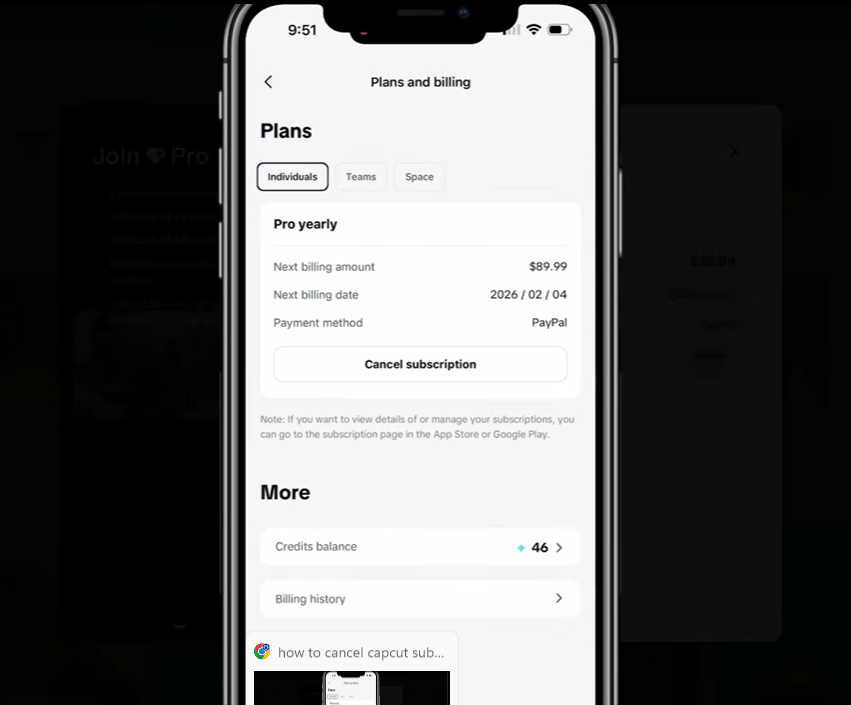
- Open Settings.
- Tap your Apple ID.
- Select Subscriptions.
- Find CapCut.
- Open the subscription details.
If you see a future renewal date, your subscription is active.
If you see an expiration date instead, the subscription has already been canceled and will end on that date.
Check CapCut Subscription Status on Android
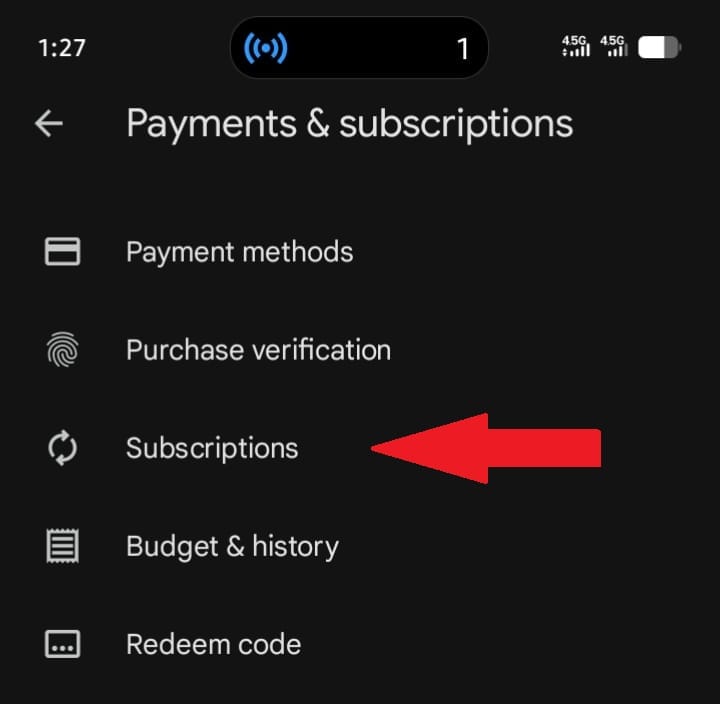
- Open Google Play Store.
- Tap your profile icon (usually at the top left corner).
- Select Payments & subscriptions.
- Tap Subscriptions.
- Open CapCut.
Google will display whether the subscription is active, cancelled, or expired.
Check CapCut Subscription Status on PC or Mac:
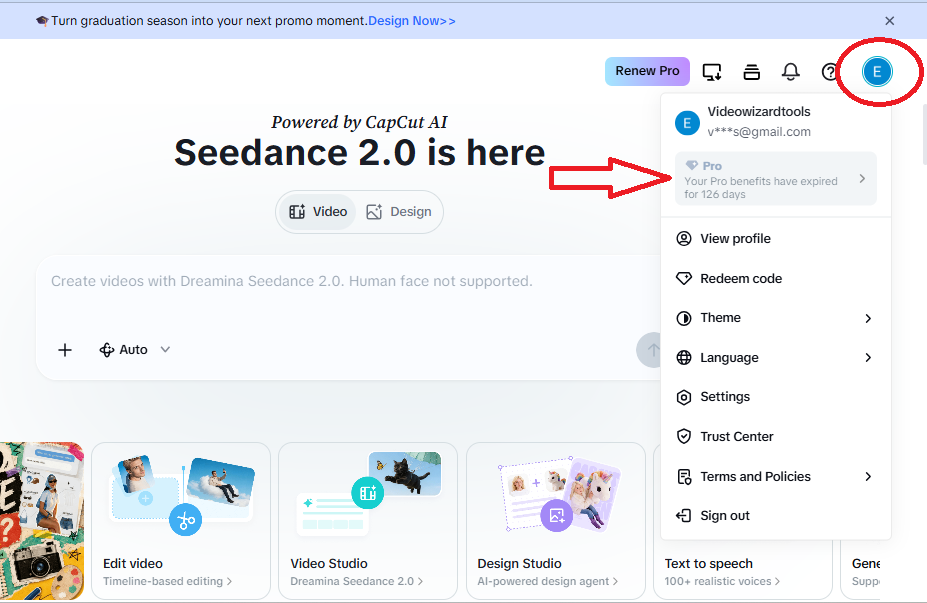
- Open your web browser and go to CapCut Online (capcut.com).
- Sign in with the same account you use on Desktop.
- Click your profile icon in the top-right corner.
- Select “Membership” or “Pro Status” from the dropdown.
- Your current plan and renewal status will be displayed there.
Alternative: In the CapCut Desktop app, try using a Pro-only feature (like 4K export). If it works without prompting you to upgrade, your subscription is active. If it prompts you to “Join CapCut Pro,” your subscription has expired or you’re logged into the wrong account.
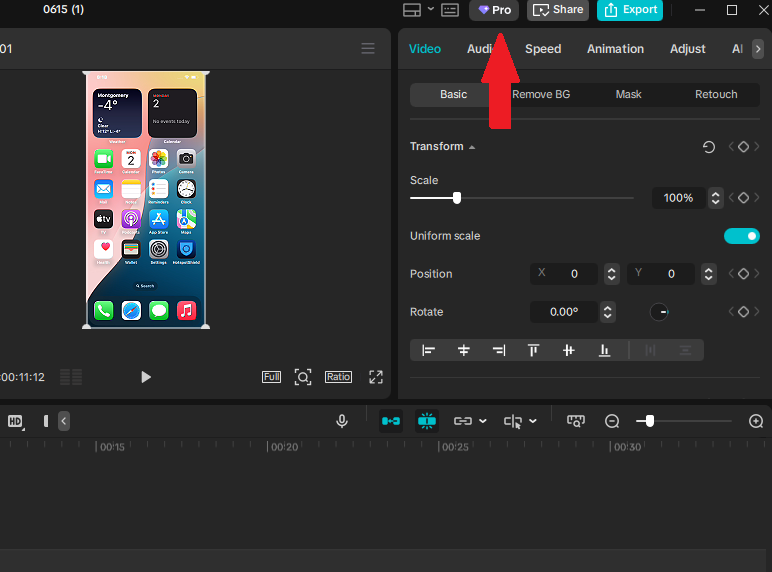
Figure: The Pro button in the top toolbar indicates your subscription status — click it to see your current plan or upgrade options.
How to Manage Your CapCut Subscription
Managing your CapCut subscription involves more than cancelling it. Depending on where you subscribed, you may be able to update payment methods, view renewal dates, switch plans, or turn off automatic renewal through your subscription settings.
If you need to update your billing information, see our guide on how to add or change your CapCut payment method.
How to Cancel CapCut Subscription on iPhone or iPad
If you subscribed through Apple’s App Store, Apple controls the billing.
- Open Settings.
- Tap your Apple ID.
- Tap Subscriptions.
- Select CapCut.
- Tap Cancel Subscription.
- Confirm your choice.
After cancellation, you’ll continue to have access to CapCut Pro until the end of your billing cycle.
If you’re planning to move back to the free version, it may help to compare CapCut Free vs CapCut Pro before your subscription expires.
How to Cancel a CapCut Subscription on Android
If Google Play processes your payments, cancellation must be completed through Google Play.
- Open the Google Play Store.
- Tap your profile icon.
- Select Payments & subscriptions.
- Tap Subscriptions.
- Select CapCut.
- Tap Cancel subscription.
- Confirm.
Once cancelled, your account remains on the Pro plan until the current billing period ends.
How to Cancel a CapCut Subscription on PC and Online
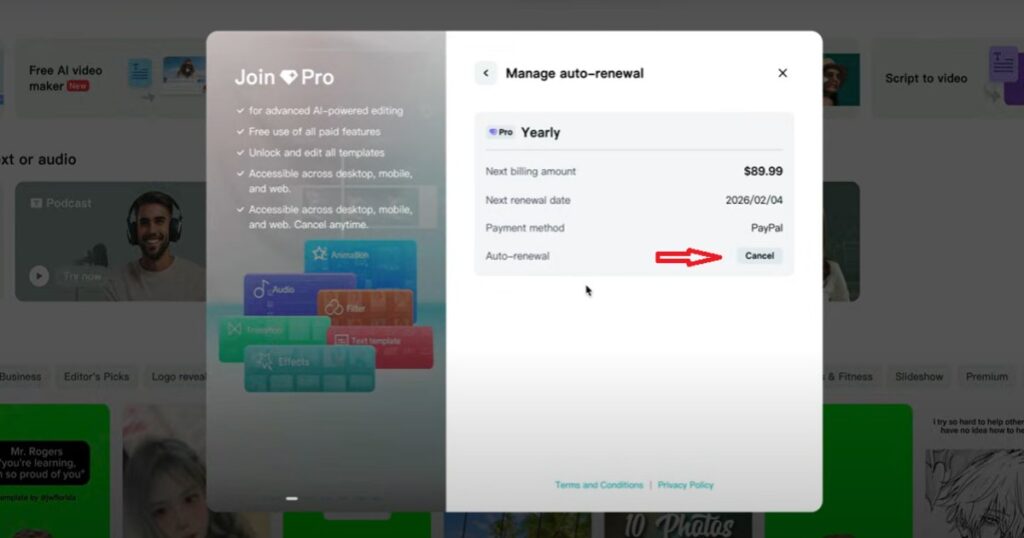
If you’re searching for how to cancel your CapCut subscription on your PC or Desktop, the first thing to know is that your computer doesn’t necessarily control the subscription.
If you subscribed through the CapCut website, you can manage and cancel your plan from your account settings. However, if you originally subscribed through Apple or Google Play, you’ll need to cancel through those platforms instead.
- Visit the CapCut website and sign in.
- Open your account settings.
- Select Subscription, Billing, or Manage Plan.
- Locate your active plan.
- Turn off auto-renewal or select Cancel Subscription.
- Confirm the cancellation.
Once cancelled, you’ll keep your Pro benefits until the current billing cycle ends.
How to Cancel a CapCut Free Trial
Cancelling a CapCut free trial works the same way as cancelling a paid subscription. The key is to cancel before the trial period ends.
You simply need to cancel before the trial period ends.
If you wait until the trial expires, your account may automatically convert into a paid subscription depending on the offer and region.
To avoid being charged:
- Check the trial expiration date.
- Cancel at least 24 hours before renewal when possible.
- Verify that auto-renewal has been turned off.
- Keep a screenshot of the cancellation confirmation.
If you’re still evaluating whether Pro is worth it, you can review our guides on CapCut Free Trial.
What Happens After You Cancel CapCut?
Many users worry they’ll immediately lose access after cancelling.
Fortunately, that’s usually not how subscriptions work.
- Your Pro features remain active until the current billing period ends.
- You won’t be charged again unless you resubscribe.
- Your account automatically switches to the free plan afterwards.
- Your projects and drafts normally remain available.
If you ever lose your projects after updating or reinstalling CapCut, don’t panic. In many cases, they’re still recoverable. See our guide on what to do if updating or reinstalling CapCut caused your projects to disappear.
Can You Get a Refund After Cancelling CapCut?
Many users also want to know whether cancelling a subscription makes them eligible for a refund.
A refund is separate from cancellation. Stopping future payments does not automatically result in money being returned for previous charges.
Refund requests depend on where you subscribed:
- Apple subscriptions must be handled through Apple.
- Google Play subscriptions must be handled through Google Play.
- Direct website purchases generally require contacting CapCut support.
You may have a better chance of receiving a refund if:
- You were charged unexpectedly.
- You forgot to cancel a free trial.
- A billing error occurred.
- You were charged multiple times.
Approval is never guaranteed because refund decisions are made by the billing provider.
Having Trouble Cancelling Your CapCut Subscription?
If you’re still having trouble, these are the most common causes.
1. You’re Logged Into the Wrong Account
Many users have multiple Apple IDs, Google accounts, or CapCut accounts.
Verify you’re using the same account that originally purchased the subscription.
2. You’re Trying to Cancel on the Wrong Platform
If Apple billed you, Google Play cannot cancel it.
If Google Play billed you, CapCut’s website cannot cancel it.
The billing provider controls the subscription.
3. You Already Canceled It
Sometimes users don’t see a Cancel button because auto-renewal has already been turned off.
Look for an expiration date instead.
4. The Charge Is Still Pending
Pending payments can occasionally delay account updates.
Wait for the charge to fully process before attempting changes.
Frequently Asked Questions
Does deleting CapCut cancel my subscription?
No. Deleting the CapCut app does not cancel your subscription. To stop future charges, you must cancel through the platform that manages your billing, such as Apple, Google Play, or CapCut’s website.
Can I cancel CapCut Pro and keep using it?
Yes. In most cases, you’ll continue to have access to CapCut Pro features until the end of your current billing period. After that, your account will switch to the free plan unless you resubscribe.
Can I cancel a CapCut free trial before being charged?
Yes. You can cancel a CapCut free trial at any time before the renewal date. Once canceled, the trial will remain active until it expires, and you should not be charged for the next billing period.
How do I know if my CapCut subscription is canceled?
Check your subscription settings through Apple, Google Play, or CapCut. If you see an expiration date instead of a future renewal date, the subscription has already been canceled and will end on that date.
Will canceling CapCut delete my projects?
No. Canceling your subscription normally does not delete your projects or drafts. You’ll still be able to access your existing work, although some Pro-only features may become unavailable after your subscription expires.
Final Thoughts
To cancel a CapCut subscription successfully, start by identifying who handles your billing.
If Apple processes the payments, cancel through Apple. If Google Play handles billing, cancel through Google Play. And if you subscribed directly through CapCut, manage everything through your account settings.
Most cancellation issues happen because users try to cancel on the wrong platform. Once you know who controls the subscription, the process usually takes only a few minutes.
Before leaving, save a screenshot of your cancellation confirmation and verify that auto-renewal has been turned off. That small step can help prevent unwanted charges in the future.
