

Trying to change your CapCut payment method? It’s not always straightforward, because billing doesn’t happen inside the CapCut app itself — it depends on where you originally subscribed.
If you signed up on iPhone, Android, or CapCut’s website/desktop app, your payment method lives in a different place for each. Get that wrong and you’ll spend ten minutes hunting through settings that don’t exist.
This guide covers exactly where to update your billing on every platform, which payment methods CapCut actually accepts, and how to fix the most common errors — payment declined, verification failed, or CapCut Pro not unlocking after you’ve already paid.
Table of Contents
- How to Change Your CapCut Payment Method
- How to Add or Change a Payment Method on CapCut
- How to Restore Your CapCut Pro Purchase
- How CapCut Payment Methods Work
- How to Pay for CapCut Pro for the First Time
- Every Accepted Payment Method on CapCut (Plus Limitations)
- Why Is My CapCut Payment Failing? Common Causes & Fast Fixes (2026)
- Safety + Privacy: Is It Safe to Save Payment Info on CapCut?
- Want to Stop CapCut Charges Instead?
- Frequently Asked Questions
- Final Takeaway
- Official Sources
How to Change Your CapCut Payment Method
You change your CapCut payment method in the same place where you originally subscribed — not always inside the CapCut app itself.
- Subscribed on iPhone or iPad? Apple manages your billing.
- Subscribed on Android? Google Play manages your billing.
- Subscribed on CapCut web or desktop? CapCut’s own billing settings manage it.
This is the one thing to confirm before doing anything else: if you subscribed through Apple or Google Play, CapCut won’t show full payment controls inside the app — you’ll need to update billing through that platform instead.
Once you know where you subscribed, jump to the matching steps below.
How to Add or Change a Payment Method on CapCut
Here’s exactly how to do it on each platform, step by step.
iPhone (iOS): Add or Change CapCut Payment Method (Apple Billing)
If you subscribed on an iPhone, CapCut charges through your Apple Account. You won’t usually change billing inside CapCut.
Add or update your Apple payment method
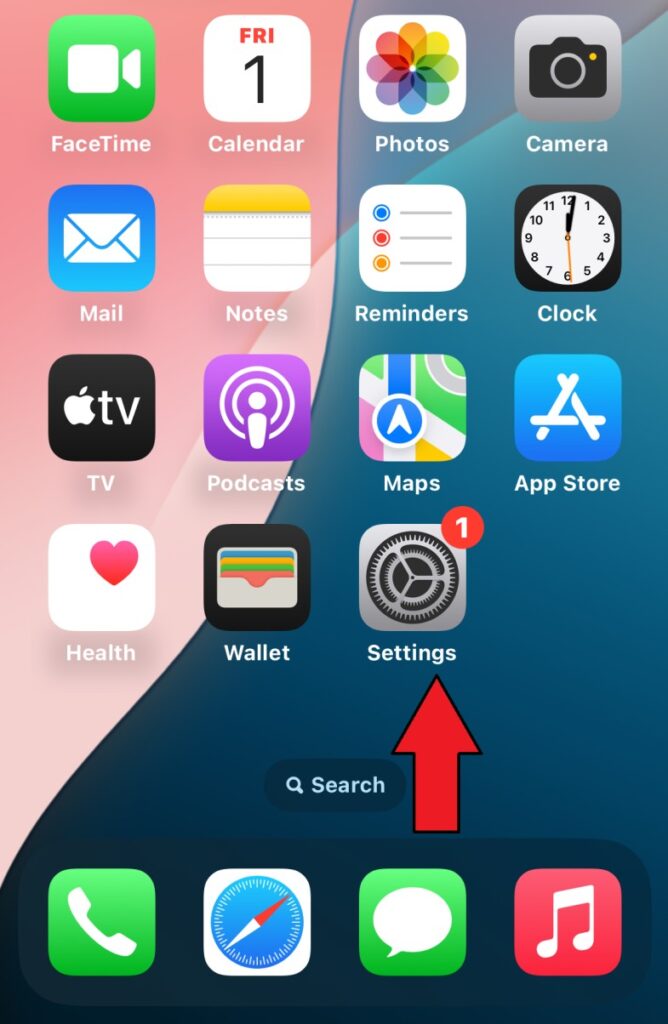
1. Open Settings on your iPhone
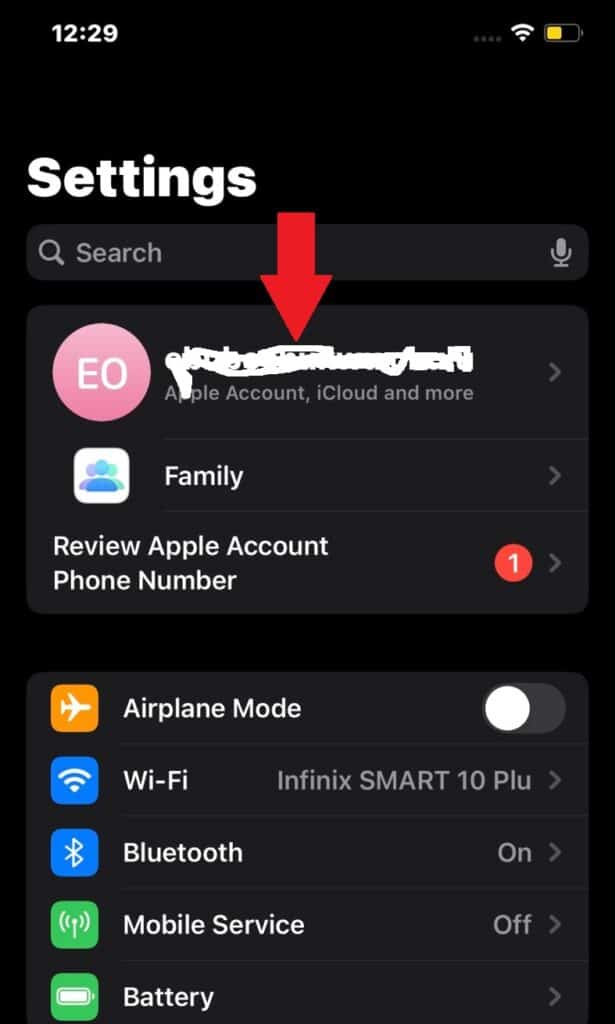
2. Tap your name (Apple ID)
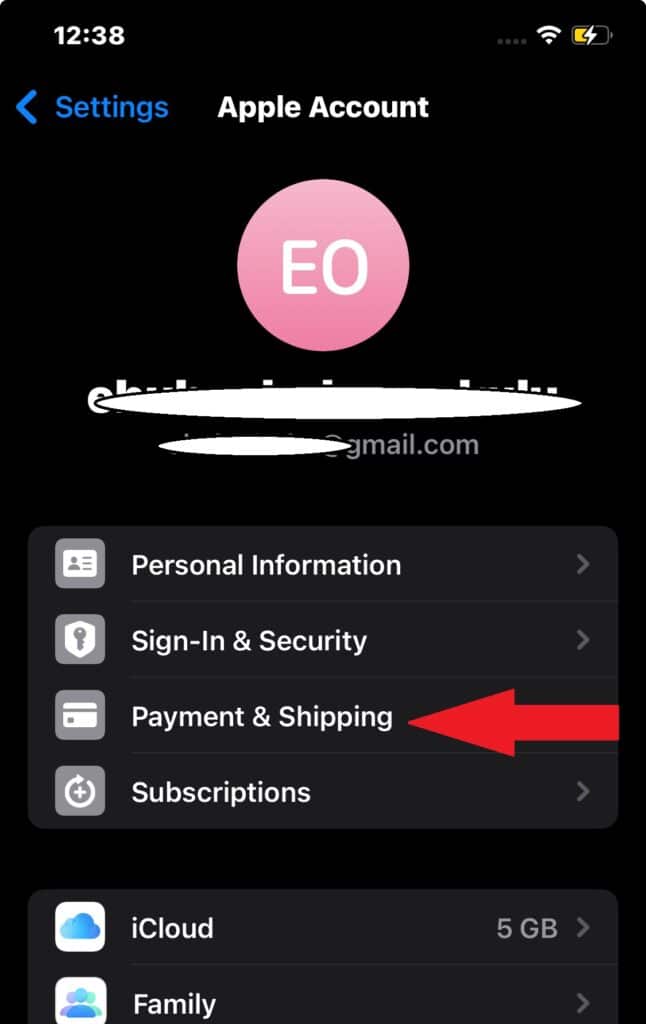
3. Tap Payment & Shipping
4. Tap Add Payment Method (or edit the current one)
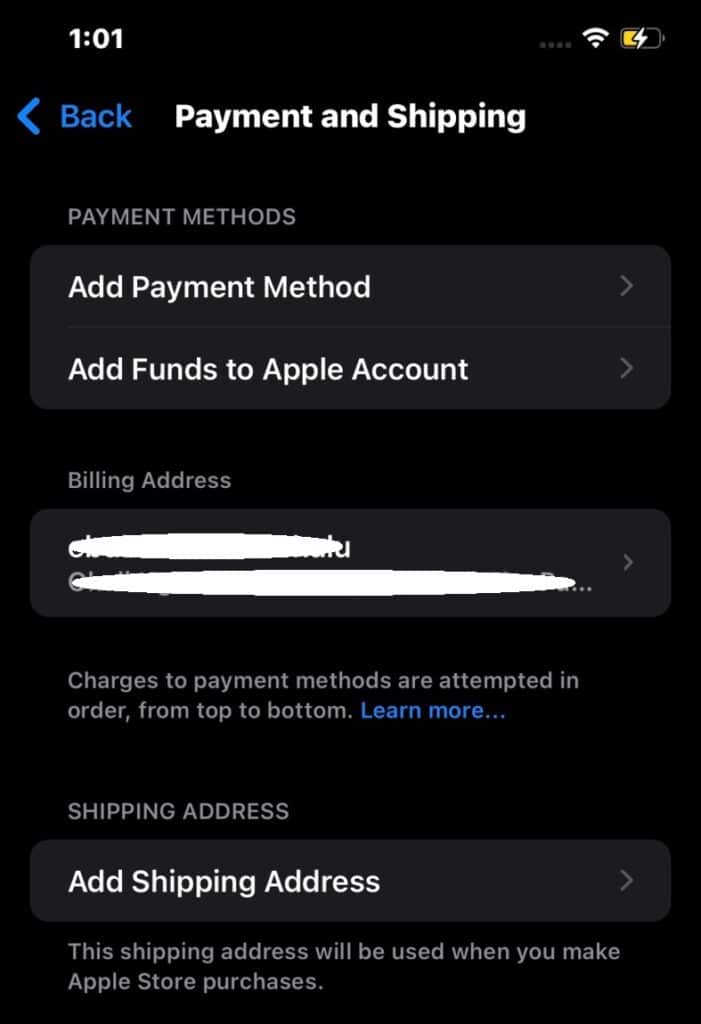
5. Save your changes
Change the payment method used for your CapCut subscription
- Open Settings
- Tap your name
- Tap Subscriptions
- Select CapCut
- Tap Update Payment Method (if shown) and choose your updated option
If CapCut still shows “payment failed”:
- Restart your iPhone
- Make sure your card supports online + recurring payments
- Update iOS and try again
Android: Add or Change CapCut Payment Method (Google Play Billing)
If you subscribed on Android, your billing is handled by Google Play.
Add or update your Google Play payment method
1. Open the Google Play Store
2. Tap your profile icon
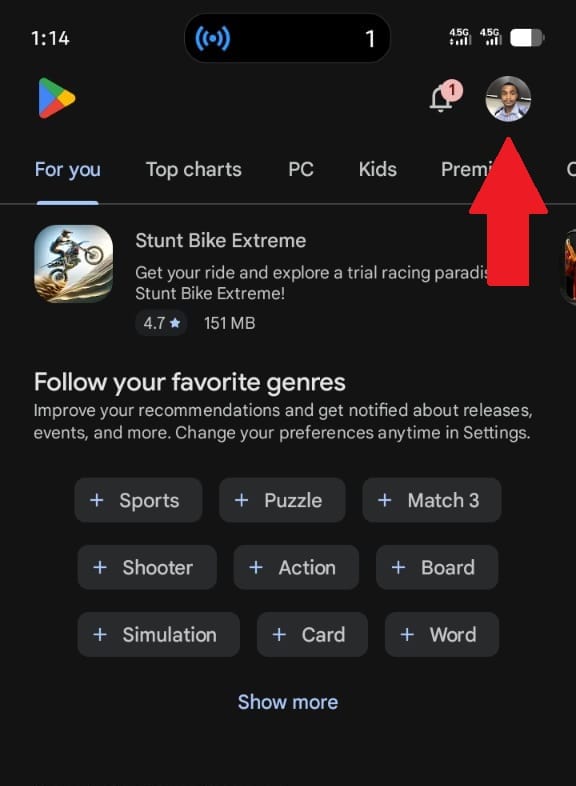
3. Go to Payments & subscriptions → Payment methods
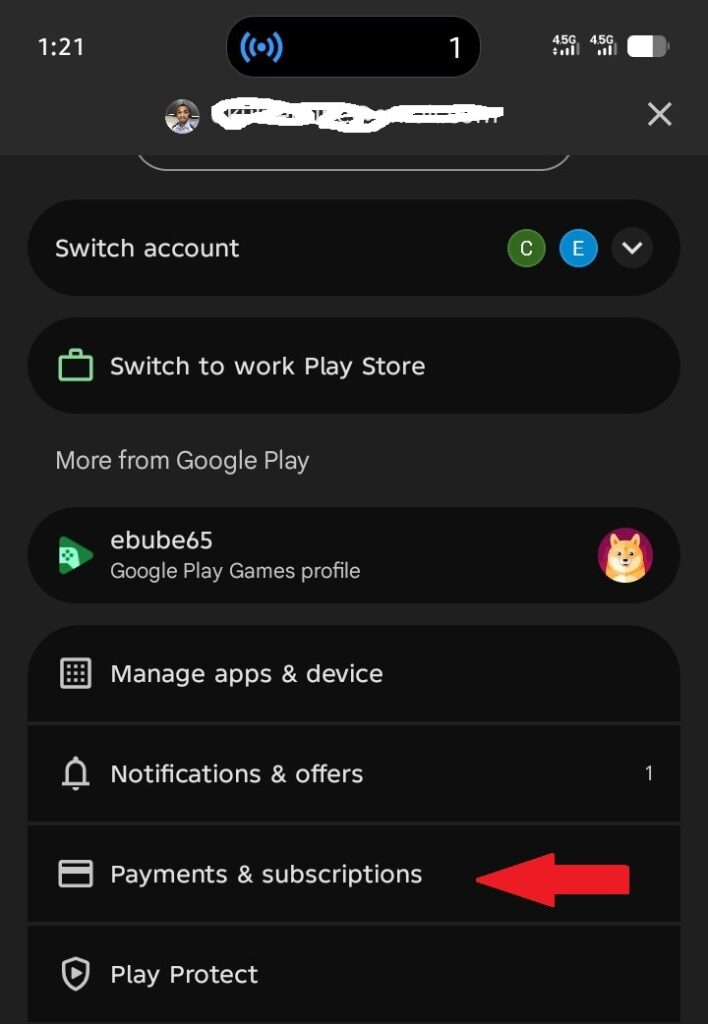
4. Tap Add a payment method (or edit/remove an existing one)
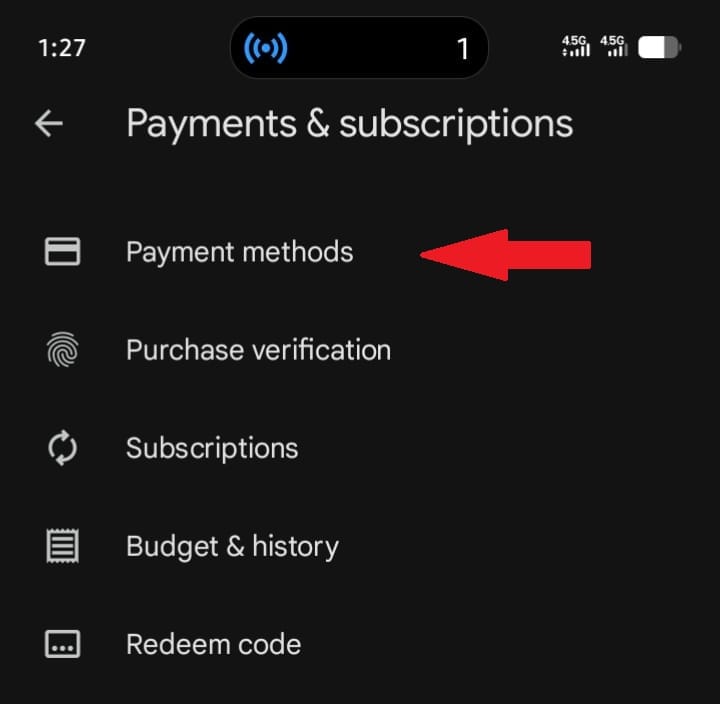
5. Save your changes
Update the payment method for your CapCut subscription
- In Google Play, go to Payments & subscriptions → Subscriptions
- Select CapCut
- Tap Manage → Update payment method (if available)
If it’s stuck:
- Turn off VPN
- Clear Google Play cache (Settings → Apps → Google Play Store → Storage → Clear cache)
- Try again after updating Google Play
Web/Desktop (Windows/Mac): Add or Change Payment Method (CapCut Billing)
If you subscribed on web/desktop, you manage payment inside CapCut’s billing settings.
- Log in on CapCut web or open the CapCut desktop app
- Go to Profile/Account → Settings → Billing/Subscription
- Under Payment Methods, click Add New or Edit
- Add a card (and PayPal if it appears in your region)
- Save changes
If you can’t edit a payment method mid-subscription:
Cancel auto-renew and re-subscribe using the new method when the current period ends.
How to Restore Your CapCut Pro Purchase
If you already paid for CapCut Pro but the app is still showing the upgrade screen, use the Restore Purchase option — this re-syncs your subscription to your account without charging you again.
iPhone / iPad
- Open CapCut and go to the Pro upgrade screen
- Tap Restore Purchase (usually at the bottom of the screen)
- Sign in with your Apple ID if prompted
- Wait a few seconds — Pro features should unlock automatically
Android
- Open CapCut and go to the Pro upgrade screen
- Tap Restore Purchase if the option appears
- Make sure you are signed into the same Google account used to subscribe
Web / Desktop
There is no Restore Purchase button on web or desktop. Instead, log out of CapCut completely, restart the app, then log back in using the exact account you subscribed with. Pro should reactivate automatically.
If restore still does not work: confirm you are logged into the same CapCut account you paid with, then check your subscription status in Apple Settings, Google Play, or CapCut billing depending on your platform.
How CapCut Payment Methods Work
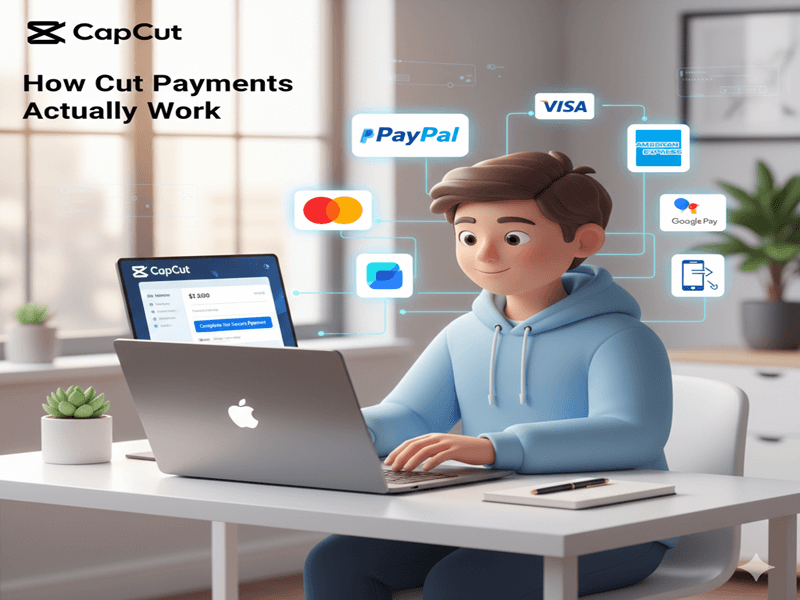
CapCut itself doesn’t process most payments — it just checks whether your account has an active subscription. The actual charge runs through whichever platform you signed up on.
That’s why CapCut Pro can work across your phone, tablet, and computer once you’re logged in, even though only one of those platforms is actually billing you.
Before you try to change a card, cancel a plan, or troubleshoot a failed payment, confirm which platform is doing your billing — not just which device you happen to be using right now.
Not Sure Which Platform Is Billing You?
Your receipt tells you instantly:
- App Store receipt → Apple is billing you
- Google Play receipt → Google is billing you
- CapCut invoice or email receipt → CapCut web/desktop billing handled it
No receipt handy? Check subscription status directly instead:
- iPhone/iPad: Settings → [your name] → Subscriptions → CapCut
- Android: Google Play → profile icon → Payments & subscriptions → Subscriptions → CapCut
- Web/desktop: CapCut → profile/account → Billing or Subscription
Whichever one shows your active CapCut plan is the one you’ll need to manage — and that’s covered step by step in the section above.
How to Pay for CapCut Pro for the First Time
If you are subscribing to CapCut Pro for the first time, the payment process usually starts when you choose a Pro feature, open the upgrade page, or select a CapCut plan.
The important thing to remember is that the billing method depends on where you subscribe.
Before confirming payment, check the plan name, billing cycle, price, renewal date, and account you are using.
For the full step-by-step process, read my complete guide on how to subscribe to CapCut Pro.
Every Accepted Payment Method on CapCut (Plus Limitations)
CapCut payment options depend on where you subscribe (App Store, Google Play, or CapCut web/desktop). So the “right” payment method is really the one supported by your platform.
Payment methods you’ll commonly see
1) Credit / Debit Cards (Visa, Mastercard, AmEx)
- Where it works: most commonly on CapCut web/desktop, and sometimes inside platform checkout flows
- Best for: straightforward subscriptions with recurring billing
2) PayPal
- Where it works: usually on web/desktop, and in some regions, it may appear as an option through platform checkouts
- Best for: people who don’t want to enter card details directly
3) Apple billing (iPhone / iPad)
- Where it works: iOS subscriptions are typically billed through your Apple Account (App Store)
- What this means: you update payment methods in Apple settings, not inside CapCut
4) Google Play billing (Android)
- Where it works: Android subscriptions are typically billed through Google Play
- What this means: you update payment methods in Google Play, not inside CapCut
5) Wallet options inside Apple/Google (when available)
Depending on your country, Apple/Google may allow things like:
- saved cards
- PayPal (where supported)
- local payment options (vary a lot)
- carrier billing (Android, where supported)
CapCut doesn’t control these options — Apple/Google does.
Important limitations (read this before troubleshooting)
- You can’t always “change your payment method” inside CapCut. If your subscription is through Apple or Google, you must change billing there.
- Availability varies by country and offers. Some payment methods show up in one region and not another.
- Web/desktop billing is usually the most “direct.” It commonly supports card + PayPal, depending on what CapCut offers in your region.
Why Is My CapCut Payment Failing? Common Causes & Fast Fixes (2026)
If your CapCut Pro payment is declining, failing, or showing errors like “Payment Declined”, “Verification Failed”, or “Something Went Wrong”, you’re not alone.
Here are the most common reasons and step-by-step solutions that fix the issue quickly.
Most Common Reasons for CapCut Payment Failure
- Insufficient funds or low account balance
- Expired, invalid, or declined card details
- Bank or card issuer blocking online/recurring payments
- Region or country restrictions (some payment methods don’t work everywhere)
- VPN interference or network issues
- Apple App Store, Google Play, or CapCut billing glitches
- Incorrect billing address or mismatched details
Fast Fixes for CapCut Payment Errors
“Payment Declined” / “Couldn’t Pay”
- Ensure your card has sufficient funds and is not expired.
- Contact your bank to allow online and recurring payments.
- Turn off any VPN and switch to a stable Wi-Fi or mobile data connection.
- Update your payment method in the correct place:
- iPhone/iPad → Settings → [Your Name] → Payment & Shipping
- Android → Google Play → Profile → Payments & subscriptions → Payment methods
- Web/Desktop → CapCut account settings → Billing
- Restart your device and try the payment again.
“Verification Failed”
- Double-check that your name, billing address, and card details exactly match your bank records.
- Update billing information directly in Apple ID or Google Play first (not inside CapCut).
- Disable VPN and retry.
- Try a different payment method (card, PayPal, Apple Pay, or Google Pay).
“Something Went Wrong” / “Try Again Later”
- Force close CapCut completely and reopen it.
- Update CapCut to the latest version.
- Restart your phone or computer.
- Wait 10–15 minutes and try again (temporary server-side issue).
Subscription Paid but CapCut Pro Still Locked?
- Make sure you’re logged into the exact same CapCut account you used to pay.
- Tap Restore Purchases (usually on the Pro upgrade screen or in Settings).
- Log out of CapCut, restart the app/device, then log back in.
- Reinstall CapCut as a last resort.
App Store & Google Play Billing Issues
For iPhone/iPad (Apple):
- Update to the latest iOS version.
- Go to Settings → [Your Name] → Payment & Shipping and verify your method.
- Check Settings → [Your Name] → Subscriptions → CapCut.
For Android (Google Play):
- Update the Google Play Store app.
- Clear cache: Settings → Apps → Google Play Store → Storage → Clear Cache.
- Check Google Play → Payments & subscriptions → Subscriptions → CapCut.
Nothing Works? Next Steps
Check your email or receipt to confirm who processed the payment (Apple, Google Play, or CapCut directly). Then contact the right support:
- Apple or Google Play support (fastest for mobile subscriptions)
- CapCut Support (for web/desktop purchases)
Most CapCut payment issues are resolved within minutes by updating the payment method in the correct platform and turning off VPN.
Safety + Privacy: Is It Safe to Save Payment Info on CapCut?
In most cases, yes — but it depends on how you’re paying.
If you pay through Apple or Google (most mobile users)
When you subscribe on iPhone/iPad or Android, your payment details are handled by Apple or Google Play. CapCut usually doesn’t store your full card details — it just receives confirmation that your subscription is active.
If you pay on web/desktop
If you subscribe on CapCut web/desktop, you’re entering payment details into CapCut’s checkout/billing flow. In that case, you’ll typically see masked card details in your billing area (like **** 1234), and the payment is processed through their payment system.
Simple tips to stay safe
- Use a card/payment method you trust for subscriptions (recurring billing).
- Turn on two-factor authentication on your Apple/Google account.
- Don’t save payment info on shared devices.
- If you’re testing Pro, set a reminder to cancel before renewal.
If you’re ever unsure where your payment info lives, check your receipt.
Apple receipt = Apple manages it. Google Play receipt = Google manages it. CapCut invoice/receipt = CapCut web billing.
Want to Stop CapCut Charges Instead?
If your goal is to stop future billing rather than fix a payment issue, you’ll need to cancel your subscription instead of changing your payment method.
Changing or removing your payment method alone does not stop CapCut from attempting to charge you, especially if you subscribed through the App Store or Google Play.
Follow this step-by-step guide to cancel your CapCut subscription properly.
This ensures your billing is fully stopped and you won’t be charged again.
Frequently Asked Questions
What payment methods does CapCut accept?
CapCut payment methods depend on where you subscribe. On iPhone and iPad, payments usually go through your Apple Account. On Android, payments usually go through Google Play. On web or desktop, CapCut may support card payments, PayPal, Apple Pay, Google Pay, or other options depending on your region.
How do I change my CapCut payment method on iPhone?
Open the Settings app on your iPhone, tap your name at the top, then tap Payment & Shipping to update your payment method. To check the CapCut subscription itself, go back to your Apple ID page, tap Subscriptions, then select CapCut.
How do I change my CapCut payment method on Android?
Open the Google Play Store app, tap your profile picture in the top-right corner, then tap Payments & subscriptions. Tap Payment methods to add or update your billing option. To check the CapCut subscription, go to Payments & subscriptions, tap Subscriptions, then select CapCut.
How do I change my CapCut payment method on web or desktop?
Log in to CapCut on web or desktop with the account you used to subscribe. Open your profile, account, or settings area, then look for Billing, Subscription, Plan, or Payment settings. If payment editing is available for your account, you can add, replace, or update your payment method there.
Can I remove my payment method without canceling my subscription?
No. Removing your payment method does not cancel your subscription. You must cancel it separately.
Why was I charged after changing my payment method?
If your subscription is still active, CapCut will continue charging using the updated payment method. To stop charges completely, you must cancel your subscription.
Why is my CapCut payment declined?
A CapCut payment may be declined because of insufficient funds, an expired card, incorrect billing details, bank restrictions, VPN issues, or because you are trying to update billing in the wrong place. If you subscribed through Apple or Google Play, update the payment method there instead of inside CapCut.
Why is CapCut payment not working?
If your CapCut payment isn’t going through, it’s usually one of a few things: your card details are outdated, your bank is blocking recurring online charges, a VPN is interfering, or you’re trying to update billing inside CapCut when your subscription is actually managed by Apple or Google Play. Check which platform is billing you first, then troubleshoot from there.
Why can’t I see my payment method inside CapCut?
If you subscribed through Apple or Google Play, CapCut may not show full payment controls inside the app. Your payment method is managed by the platform that handled the subscription. Check Apple Settings for iPhone or iPad subscriptions, and Google Play for Android subscriptions.
How do I know where my CapCut subscription is billed?
Check your receipt. An App Store receipt means Apple handles the billing. A Google Play receipt means Google handles the billing. A CapCut invoice, email receipt, or billing history usually means the subscription was made through CapCut web or desktop.
What should I do if I paid but CapCut Pro is still locked?
See the full steps above in How to Restore Your CapCut Pro Purchase.
How do I contact CapCut support for a payment issue?
If your subscription went through Apple or Google Play, contact Apple Support or Google Play Support directly, since they handle that billing. If you subscribed through CapCut web or desktop, use CapCut’s in-app Help Center or support chat for billing-specific issues.
Final Takeaway
You’re not stuck anymore.
Whether you’re adding a new card, switching payment methods, fixing a “declined” error, or canceling before the next charge, you now know exactly what to do — and where to do it.
Here’s the simple rule to remember:
- Paid on iPhone/iPad → manage billing in Apple Settings
- Paid on Android → manage billing in Google Play
- Paid on web/desktop → manage billing in CapCut Billing
Now you can upgrade (or cancel) without guesswork, keep your Pro access working across devices, and get back to editing without payment drama.
