

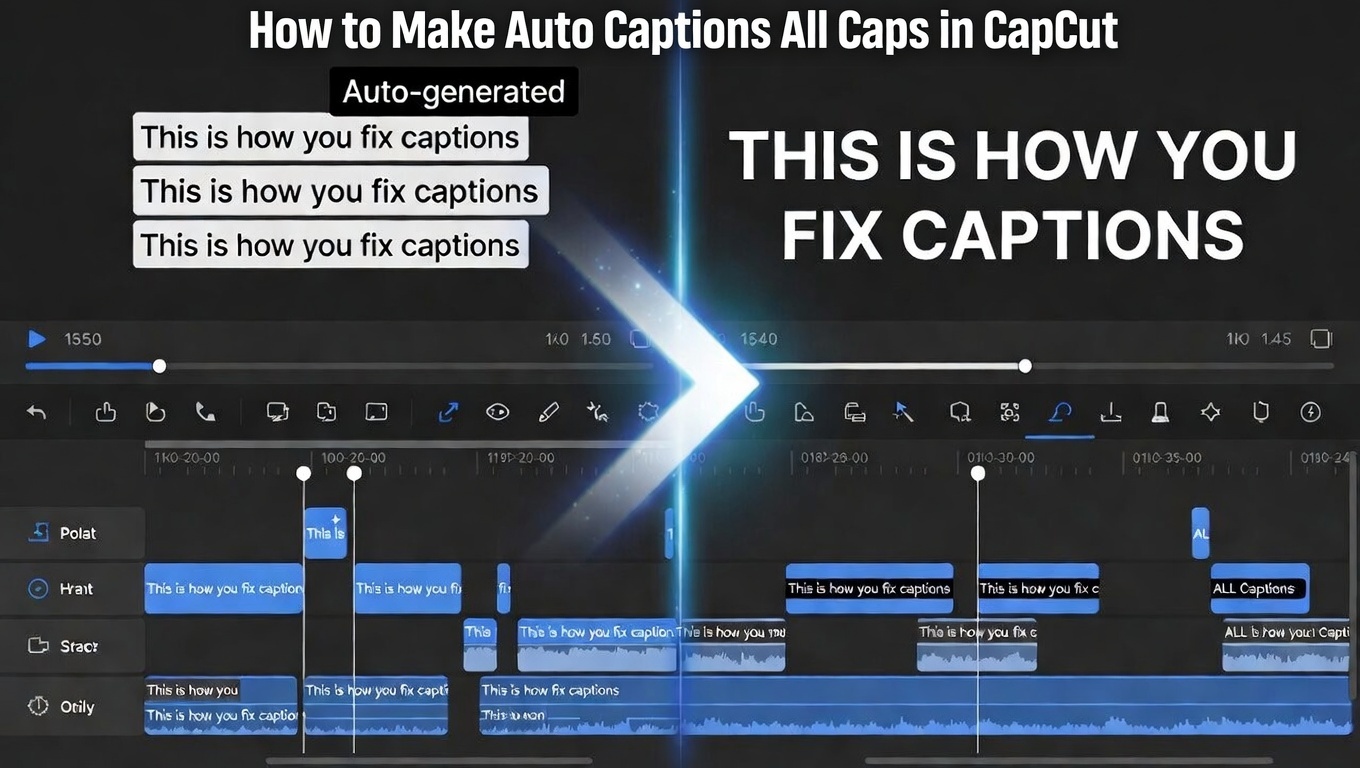
Your auto captions are done, but the text looks messy. Some words are capitalized, others aren’t. Brand names look off. The whole thing feels inconsistent.
You want that clean, bold, all-caps style you see on TikTok and Instagram. It looks sharper, more intentional, and easier to read.
The problem? CapCut doesn’t give you a simple “ALL CAPS” button, and manually fixing every caption defeats the point of using auto captions.
That’s where most people get stuck.
In this guide, you’ll learn the fastest ways to turn CapCut auto captions into all caps—from built-in batch editing to simple workarounds for larger projects. You’ll know exactly which method to use based on your video length and workflow.
Table of Contents
How to Make Auto Captions All Caps in CapCut
Method 1: The Copy–Convert–Paste Method (Most Reliable)
This is the most consistent way to turn auto captions into ALL CAPS. It works on every version of CapCut.
Step-by-step:
- Generate auto captions:
Go to Captions > Auto Captions and let CapCut create your captions.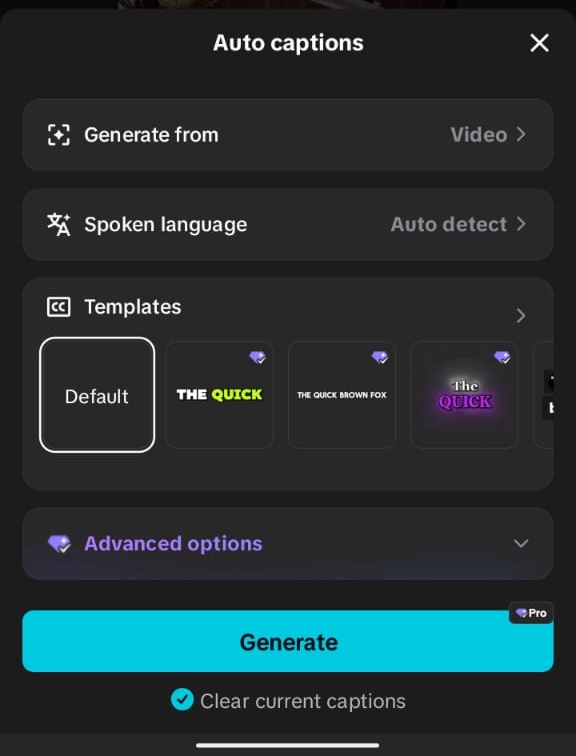
Use this to auto generate your captions on CapCut - Copy the caption text:
Tap each caption block and copy the text.
(For longer videos, work in sections to stay organized.) - Convert text to ALL CAPS:
Paste the text into any tool:- Notes app
- Google Docs
- Online tools like ConvertCase
- Paste back into CapCut:
Return to each caption block, delete the original text, and paste the ALL CAPS version.
This method is simple because you keep CapCut’s auto timing, but fix the text manually, so you get both speed and accuracy.
It is best for Short to medium videos (under 3 minutes).
Method 2: Convert Auto Captions into Manual Captions (Cleaner Workflow)
If you want more control and a cleaner process, this method is better.
The workflow:
- Generate auto captions normally
- Use them as a timing reference
- Create new text layers manually in ALL CAPS
- Match timing using the auto captions as a guide
- Delete or hide the auto captions
Why this works better:
- Full control over styling and formatting
- No repeated editing inside caption blocks
- Cleaner final result
This method is best TikTok, Reels, or content where visual quality matters.
Method 3: Use an External Transcript (Best for Long Videos)
For longer content, editing captions one by one becomes slow. This method saves time.
The workflow:
- Generate a transcript externally:
- YouTube auto captions
- Descript
- Otter.ai
- Convert transcript to ALL CAPS:
Open the text file and convert everything to uppercase. - Bring it into CapCut:
Break the text into short phrases (3–6 words), then create manual captions. - Sync using waveform or playback:
Match captions to your audio manually.
Why this works:
You avoid editing inside CapCut entirely and work faster with large amounts of text.
Best for: 3+ minute videos, tutorials, interviews.
Method 4: Start with an ALL CAPS Script (Prevent the Problem)
The easiest fix is to avoid the issue completely.
If you’re scripting your content, write it in ALL CAPS from the beginning.
Example:
“THIS IS HOW YOU FIX YOUR CAPCUT CAPTIONS FAST”
Then either:
- Use it for manual captions
- Or follow Method 2 for cleaner control
Which Method Should You Use?
- Short videos: Use Method 1 (fastest). Here is a guide on creating single-word captions that pop in CapCut.
- High-quality content: Use Method 2 (cleanest result)
- Long videos: Use Method 3 (most scalable)
- Scripted content: Use Method 4 (smartest approach)
If your goal is clean, bold, professional captions, ALL CAPS works—but only when paired with good timing, spacing, and positioning.
For detailed guide on CapCut caption techniques see our guide on Captions on CapCut (Auto & Manual).
Why Most People Use ALL CAPS Captions
The Psychology Behind ALL CAPS
ALL CAPS isn’t just a style choice. It changes how your captions feel and how quickly people read them.
Uniform shape = faster scanning
Lowercase text has uneven heights. Letters like “b” and “d” go up, while “g” and “y” drop down.
ALL CAPS removes that variation. Every letter sits in a cleaner, more uniform block.
This makes captions easier to scan in a split second, which is exactly how people consume TikTok and Reels. If you want those captions to stay clear on short-form platforms, it helps to use the right CapCut captions for TikTok settings.
Stronger visual authority
ALL CAPS feels like a headline. It signals importance.
That’s why it works so well for:
- Hooks
- Key points
- Calls to action
Mixed case feels more conversational. ALL CAPS feels more decisive.
Better visibility after compression
Platforms like TikTok compress video heavily.
Thin details in lowercase letters like “e,” “a,” and “s” can blur or disappear after upload. ALL CAPS keeps letter thickness more consistent, which can make captions easier to read. Font choice matters here too, so it’s worth starting with the best CapCut caption fonts if readability is your main goal.
When i dont advice the use of ALL CAPS Caption
ALL CAPS works best in short bursts. Overusing it can make captions harder to read.
- Long sentences: harder to read and more tiring on the eyes
- Soft or emotional content: can feel too aggressive
- Dialogue or storytelling: can flatten tone and remove nuance
If your content is calm, educational, or personal, mixing styles often works better. You can also improve readability by adjusting contrast and emphasis instead of forcing everything into caps.
For that, see how to change caption colors in CapCut and how to create smooth captions in CapCut.
How to Style ALL CAPS Captions in CapCut
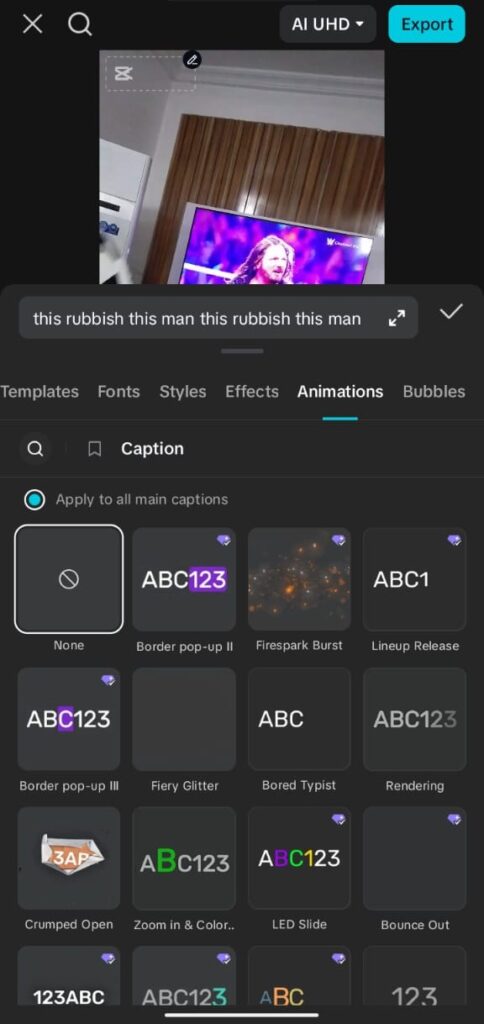
Best Fonts for ALL CAPS Capption in CapCut
Not every font works well in ALL CAPS. Some break visually when everything is uppercase.
Best choices:
- Bebas Neue: built for all caps, bold and modern
- Montserrat Black: clean, highly readable
- Impact: heavy and attention-grabbing
- Oswald Bold: condensed and space-efficient
Avoid:
- Script or cursive fonts
- Thin or light-weight fonts
- Poorly spaced fonts (bad kerning becomes obvious in ALL CAPS)
Letter Spacing (Tracking)
ALL CAPS often looks awkward with default spacing.
You need to adjust it slightly:
- Tighter (-5% to -10%): stronger, more compact look
- Wider (+10% to +15%): clean, premium feel
In CapCut, look for Letter Spacing or Tracking in the text panel.
The goal: letters should feel connected, not crowded.
Shadow, Stroke, and Background
ALL CAPS needs stronger contrast to stand out.
Recommended setup:
- Shadow: black, medium blur, slightly offset
- Stroke: 4–6px for strong visibility
- Background box (optional): dark, 20–40% opacity
This makes your captions readable on both bright and dark scenes.
Mobile Readability Test (Important)
Your captions are viewed on phones, not desktops.
Test this:
Hold your phone at arm’s length.
If you can’t read your captions instantly, they’re too small or too thin.
Fix size before you publish.
Platform-Specific ALL CAPS CapCut in CapCut Tips
TikTok
- ALL CAPS is the dominant style
- Best for hooks in the first 3 seconds
- Use strong shadow or background (compression is aggressive)
Instagram Reels
- ALL CAPS works, but mix with normal text for balance
- More flexibility in styling and aesthetics
YouTube Shorts
- Optional, not required
- Use for emphasis rather than full video
- Mixed case improves readability for longer clips
Common Mistakes to Avoid
1. Too Many Words
Long captions in ALL CAPS are hard to read.
Fix: Keep each caption under 6 words.
2. Wrong Font Choice
Thin or decorative fonts break readability.
Fix: Stick to bold, clean fonts.
3. Aggressive Tone
ALL CAPS can feel like shouting.
Fix: Match style to content tone.
4. Poor Contrast
Text blends into the background.
Fix: Always use shadow, stroke, or background.
5. Ignoring Mobile Viewing
Looks fine on desktop, unreadable on phone.
Fix: Always test at arm’s length.
Frequently Asked Questions
Can you make auto captions all caps in CapCut?
CapCut does not currently have a reliable one-click ALL CAPS button for auto captions across every version. The safest method is to copy the caption text, convert it to uppercase in another tool, then paste it back into CapCut while keeping the original timing.
Why are my CapCut auto captions not capitalized correctly?
CapCut auto captions rely on speech recognition, so the formatting is not always perfect. This can create inconsistent capitalization, missing punctuation, incorrect brand names, or messy sentence casing that you may need to clean manually.
What is the fastest way to make captions all caps in CapCut?
The fastest method is to copy your caption text, paste it into Notes, Google Docs, or an online case converter, change it to uppercase, then paste it back into the same CapCut caption blocks. This keeps the auto-caption timing while fixing the text style.
Can I batch edit captions to uppercase in CapCut?
CapCut does not consistently support batch uppercase conversion across all devices and versions. Batch editing can help with style changes, but for reliable uppercase text, external conversion or manual caption rebuilding is usually safer.
Do all-caps captions perform better on TikTok?
All-caps captions can work well on TikTok because they are bold, easy to scan, and strong for hooks or key moments. However, they work best in short phrases. Long all-caps sentences can feel aggressive or tiring to read.
Should I use all caps for every caption?
No. Use all caps for short phrases, hooks, punchlines, key points, and calls to action. For longer explanations, tutorials, emotional storytelling, or calm content, mixed case is often easier to read and feels more natural.
How many words should be in all-caps captions?
Keep all-caps captions short, usually around 3–6 words per caption block. Short blocks are easier to read quickly and help the bold style feel intentional instead of overwhelming.
What font works best for all-caps captions in CapCut?
Bold, clean fonts work best for all-caps captions. Good options include Montserrat Black, Bebas Neue, Impact, Oswald Bold, and other heavy sans-serif fonts. Avoid thin, cursive, or decorative fonts because they become harder to read in uppercase.
Can I use all-caps captions for YouTube Shorts and Instagram Reels?
Yes. All-caps captions can work on YouTube Shorts and Instagram Reels, especially for hooks, emphasis, and short-form pacing. For longer or more detailed content, mix all caps with normal text so the captions stay readable.
Final Thoughts
ALL CAPS captions in CapCut aren’t built-in as a one-click feature, but that doesn’t mean you can’t get the result.
With the right workflow, you can still create clean, bold, consistent captions that look exactly how you want.
The real advantage of ALL CAPS comes down to three things: clarity, impact, and visibility.
It’s easier to read at a glance, stands out instantly, and holds up better after platform compression.
That’s why so many high-performing TikTok and Reels creators rely on it.
But here’s the key: don’t overuse it.
ALL CAPS works best when it highlights what matters most—your hook, your key message, your call-to-action.
Use it with intention, and your captions won’t just look better—they’ll help your content perform better.
