

You generated auto captions in CapCut… and now your CapCut captions are too long?
Text is spilling off the screen. Some captions are crammed into one block. And sometimes words get split in half — like “congra” on one line and “tulations” on the next.
Not a good look.
Here’s the thing: CapCut’s auto captions aren’t built for readability. They prioritize speech detection, not how humans actually read on screen. That’s why longer videos get messy fast.
The problem is worse because CapCut doesn’t clearly show its limits. There are hidden character thresholds, automatic line breaks that ignore word boundaries, and fixed timing that doesn’t adjust for longer text — so you only notice the issue after export, when it’s too late.
In this guide, you’ll learn exactly what those limits are and how to work around them. We’ll fix:
- Captions that run off-screen
- Weird line breaks and split words
- Text that disappears too quickly
Whether you’re editing a 30-second clip or a full tutorial, this will help you keep captions clean, readable, and professional.
Table of Contents
- Why CapCut Captions End Up Too Long
- How to Fix CapCut Captions That Are Too Long: 5 Methods
- Method 1: Fix CapCut Auto Captions That Are Too Long (Post-Generation Repair)
- Method 2: How to Stop CapCut Captions From Being Too Long in the First Place
- Method 3: The Manual Override — When Auto Captions Are Not Worth Fixing
- Method 4: How to Handle Long Captions Without Ruining Readability
- Method 5: Duration Scaling — Fix CapCut Captions That Disappear Too Fast
- Platform-Specific Caption Length Guidelines
- Common Caption Mistakes and How to Fix Them
- Caption Styling Tips That Improve Readability
- Quick Workflow Cheat Sheet
- Frequently Asked Questions
- Final Thoughts
- Official Resources
Why CapCut Captions End Up Too Long
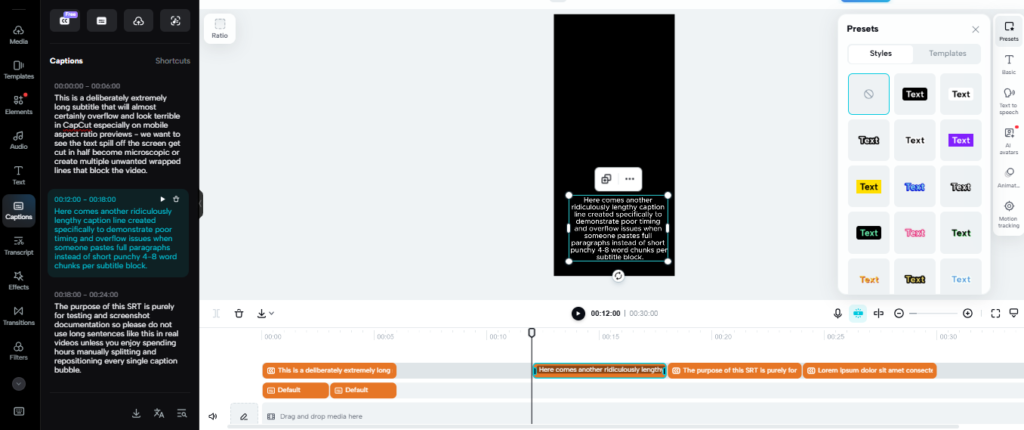
CapCut doesn’t clearly tell you its caption limits. But once you start testing, patterns show up fast. There are hidden breakpoints where captions start behaving badly, like splitting, overflowing, or becoming completely unreadable.
CapCut Auto Captions Too Long: What’s Actually Causing the Mess
CapCut’s auto captions are the main culprit. They’re built to follow speech, not readability. Here’s where things break down:
- ~80–100 characters per caption block — CapCut starts splitting text automatically, often mid-word
- ~35–40 characters per line — it forces a new line even if it cuts a word in half
- Fixed 3–5 second display time — longer captions don’t stay longer on screen, so viewers don’t have enough time to read
- No hard limit on total captions — but performance can degrade noticeably above 100+ blocks
So what happens? A single 10-second sentence turns into one overloaded caption block — or gets split randomly in all the wrong places. Either way, it’s hard to read.
Manual Text Limits (Not Much Better)
You might think switching to manual text fixes everything. It gives you more control, but it has its own constraints:
- ~500 characters per text layer — the text box keeps expanding and can go off-screen
- Visible text depends on font size — bigger text means fewer words fit per line
- Long text slows down animations — especially noticeable on mobile
More control doesn’t mean automatic readability. You can still easily overload the screen.
The Real Reason This Keeps Happening
CapCut breaks captions based on pauses in audio, not on logical phrase boundaries.
That means sentences don’t split where they should, lines ignore natural reading flow, and timing doesn’t account for text length. That’s why even “perfect” auto captions can still look unprofessional.
How to Fix CapCut Captions That Are Too Long: 5 Methods
Now that you know why CapCut captions end up too long, here’s how to fix it. The five methods below are arranged in order, from quick post-generation repairs all the way to a full manual override for when auto captions just aren’t cooperating.
Work through them based on how broken your captions are and how much time you have.
Method 1: Fix CapCut Auto Captions That Are Too Long (Post-Generation Repair)
Auto captions will almost always need some cleanup. The goal here isn’t perfection — it’s fast, efficient repair.
Step 1 — Identify Broken Captions
Play through your video and look for:
- Words split across lines (abrupt cuts mid-word)
- Lines with only 1–2 words followed by a crammed next line
- Captions with 3+ lines that block video content
Step 2 — Enter Batch Edit Mode
Tap the caption track, then select Batch Edit. This lets you move through multiple captions efficiently instead of fixing them one by one.
Step 3 — Insert Manual Line Breaks
CapCut doesn’t have an explicit “line break” button in auto captions, but you can force cleaner splits by editing the text directly:
- Tap the problematic caption block
- Delete text after your desired break point
- CapCut will split the block into two separate captions
- Adjust timing so the second caption appears immediately after the first
Example:
❌ Original (bad):
“Congratulations on your graduation from medical school today”
✅ Fixed (two clean captions):
“Congratulations on your graduation” [0:05.0 – 0:06.5]
“from medical school today” [0:06.5 – 0:08.0]
Step 4 — Fix Split Words
If CapCut auto-split a word like “congra-tulations,” don’t try to patch the broken fragments. Instead:
- Delete both broken caption fragments
- Add a clean manual caption with the full word intact
- Match the timing to the original audio
It takes slightly longer than patching, but the result is far cleaner.
Method 2: How to Stop CapCut Captions From Being Too Long in the First Place
Fixing broken captions is one thing. Preventing them entirely saves you hours of editing.
Here’s what most creators don’t know: CapCut splits captions based on pauses in your speech. If you control the pauses, you control the captions.
The Pause-Insertion Technique (Record Smarter)
Instead of letting CapCut guess where to break your text, guide it by speaking in short, natural chunks:
- 3–6 words per phrase
- Small pauses between phrases
- Slightly longer pauses (0.5–1 second) at sentence breaks
Example:
❌ One long stream (bad):
“Today I’m going to show you how to fix your captions in CapCut quickly.”
✅ Chunked with pauses (good):
“Today I’m going to show you…” (pause)
“…how to fix your captions…” (pause)
“…in CapCut quickly.”
CapCut will split these cleanly every time.
Already Recorded? Here’s How to Create Artificial Pauses
If your audio is one long stream with no natural breaks, you can still fix it before generating captions:
- Import your video into CapCut
- Find long, unbroken speech sections
- Use Split on the audio track at natural phrase break points
- Remove 0.2–0.3 seconds of audio at each break
- Generate auto captions — they’ll come out significantly cleaner
You can restore the original audio after generating captions if the small gaps affect the feel of the video. The trade-off is real: audio editing takes extra time upfront, but it dramatically reduces caption cleanup work afterward.
Method 3: The Manual Override — When Auto Captions Are Not Worth Fixing
Sometimes auto captions just aren’t worth repairing. You keep editing. They keep breaking. At that point, the smarter move is to stop fixing and start fresh.
When to Abandon Auto Captions Entirely
Switch to manual captions if you’re dealing with:
- Words constantly splitting across caption blocks
- Long captions that won’t break cleanly no matter what you do
- So many edits that you’re spending more time fixing than creating
- Strict formatting requirements — branding, accessibility, or client work
If you’re fixing more than you’re progressing, you’ve already lost time.
The Smarter Workflow: Use Auto Captions for Timing Only
You don’t have to choose between auto or manual. Use both — but in the right order.
Step 1 — Generate auto captions as a timing reference
Create auto captions like normal. Don’t edit them at all. Think of them as a rough draft that shows you exactly when speech starts and ends.
Step 2 — Build clean manual captions on top
Add your own text layers where captions should appear. Break text into 3–6 word chunks. Follow natural speech flow — not CapCut’s automatic splits. Use the auto captions as a timing guide, adjusting slightly where needed.
Step 3 — Delete the auto caption track
Once your manual captions are done, remove the auto caption track completely. What you’re left with is clean text, perfect line breaks, and full control.
Why This Is Actually Faster Than Endless Fixing
It sounds like more work, but the numbers tell a different story:
- Fixing 20 broken auto captions → 25–30 minutes
- Building clean manual captions using auto timing → 20–25 minutes
And the quality difference is immediately visible. Use this method when you want perfect readability, when you’re working on important content — clients, brand videos, YouTube — or when auto captions keep failing regardless of what you try.
For a complete walkthrough, see our CapCut manual captions tutorial.
Method 4: How to Handle Long Captions Without Ruining Readability
Sometimes longer captions are genuinely necessary — for quotes, storytelling, tutorials, or detailed explanations. The mistake most creators make is trying to fit everything into one block. That’s how you end up with a wall of text nobody reads.
The Simple Rule: 4–6 Words Per Line Maximum
Instead of letting CapCut decide how your text wraps, structure it yourself. Break lines at natural points:
- After punctuation
- Before connectors like and, but, because
- At natural spoken pauses
Example:
❌ Unreadable (one block):
“The quick brown fox jumps over the lazy dog and then runs into the forest”
✅ Readable (structured lines):
“The quick brown fox
jumps over the lazy dog
and then runs into
the forest”
Control Line Length With the Text Box
One of the most underused tools in CapCut is simply resizing the text box:
- Drag the text box edges narrower
- This forces shorter, cleaner line breaks automatically
- Aim for roughly 30–35 characters per line as your maximum
Fix Caption Positioning (Most Creators Miss This)
Long captions should never sit at the very bottom of the screen. Bottom-heavy captions block your video content and clash with platform UI elements on TikTok, Reels, and Shorts.
For captions with 3 or more lines, move them to the vertical center or upper-middle of the screen. On mobile, use the Enter key to force manual line breaks where needed, since the text box controls are less precise than on desktop.
Method 5: Duration Scaling — Fix CapCut Captions That Disappear Too Fast
One of the most common caption mistakes has nothing to do with text length — it’s timing. Every caption stays on screen for the same amount of time, whether it has 3 words or 10. That’s why viewers constantly feel like they can’t keep up.
Why CapCut Captions Feel Too Slow or Too Fast
CapCut applies a default duration to each caption block regardless of how much text it contains. A 3-word caption gets the same screen time as an 8-word caption. The result? Short captions linger awkwardly, and long captions vanish before viewers finish reading.
The fix is simple: more words = more time on screen.
Caption Duration Guide by Word Count
- 3–4 words → approximately 1.5 seconds
- 5–6 words → approximately 2–2.5 seconds
- 7–10 words → approximately 3–4 seconds
If a caption feels rushed when you watch it back — it is. Trust that instinct.
How to Adjust Caption Duration in CapCut
For auto captions: tap the caption block and drag the right edge to extend or shorten the duration along the timeline.
For manual captions: select the text layer and stretch or compress it directly on the timeline.
The One-Question Test for Caption Timing
After adjusting, play the video and ask yourself: Can I comfortably read this caption twice before it disappears?
- Yes → the timing is right
- No → extend it
This single check fixes the majority of readability issues without any guesswork.
Add a Small Buffer — and Smooth the Transitions
Don’t cut caption timing too tight. Add an extra 0.3–0.5 seconds to each block so viewers have time to process the text naturally before the next caption appears.
If a caption stays on screen long enough to feel “stuck,” add a subtle fade transition — the first caption fades out as the next fades in. This keeps the flow smooth without that stacked, static wall-of-text feeling.
For entrance and exit animation options in CapCut, see our guide on how to add captions on CapCut.
Platform-Specific Caption Length Guidelines
Different platforms need different caption strategies. Matching your caption length, timing, and line breaks to each platform makes sure viewers can read comfortably without feeling rushed or lost.
TikTok — Short, Fast, Punchy
- Words per caption: 3–4
- Lines per caption: 1–2
- Display duration: 1–1.5 seconds
TikTok viewers scroll fast. More than 2 lines on screen at once and most won’t finish reading. Break longer quotes into a rapid sequence of short captions instead of one long block.
For platform-specific TikTok settings, export options, and pacing tips, see our dedicated guide on CapCut captions for TikTok settings.
Instagram Reels — Moderate Pace, Visual Balance
- Words per caption: 5–6
- Lines per caption: 2–3 if needed
- Display duration: 1.5–2.5 seconds
Slightly longer captions work on Reels, but keep them visually balanced. Leave space at the bottom for Instagram’s UI elements and avoid positioning text too low on the frame.
YouTube Shorts — Variable Attention, Test on Mobile
- Words per caption: 6–8
- Lines per caption: 2–3
- Display duration: 2–3 seconds
Educational Shorts can handle slightly longer captions. Entertainment content works better shorter and snappier. Always test your captions on a mobile screen first — Shorts are predominantly watched on phones, not desktops.
YouTube Long-Form — Accessibility Matters Most
- Words per caption: 8–10
- Lines per caption: 2–3 typical, up to 4 for accessibility
- Display duration: 3–4 seconds
Longer multi-line captions are expected and accepted on long-form YouTube. Don’t stack more than 3–4 lines at once though — screen clutter reduces viewer retention regardless of how good the content is.
Quick Character Count Reference
| Platform | Max Characters | Max Words | Max Lines | Duration |
|---|---|---|---|---|
| TikTok | 25–30 | 3–4 | 1–2 | 1–1.5s |
| Instagram Reels | 35–40 | 5–6 | 2–3 | 1.5–2.5s |
| YouTube Shorts | 40–50 | 6–8 | 2–3 | 2–3s |
| YouTube Long-Form | 50–60 | 8–10 | 3–4 | 3–4s |
These are practical guidelines, not hard rules. Always test captions on the actual device your audience uses most before finalising.
Common Caption Mistakes and How to Fix Them
Trusting Auto Caption Breaks
Problem: CapCut splits captions mid-word or at unnatural phrase boundaries.
Fix: Review every caption block manually and adjust broken words or awkward line breaks before export. (If you’re also seeing captions looping or repeating, that’s a separate but related glitch worth checking.)
Using the Same Duration for Every Caption
Problem: A 2-second duration on a 3-word caption and an 8-word caption creates uneven, uncomfortable reading.
Fix: Scale duration to word count: 3–4 words → ~1.5s, 5–6 words → ~2s, 7–10 words → 3–4s.
Ignoring Manual Line Breaks
Problem: Text auto-wraps without logical phrasing, creating long unreadable lines.
Fix: Insert manual line breaks at natural phrase boundaries rather than letting CapCut decide.
Bottom-Heavy Caption Placement
Problem: Captions with 3–4 lines at the bottom block video content and clash with platform UI.
Fix: Move multi-line captions to vertical center or upper-middle of the screen.
Shrinking Font Size to Fit More Words
Problem: Tiny text reduces readability, especially on mobile screens.
Fix: Split content into multiple shorter caption blocks rather than cramming everything into one. Readability always beats text density.
Caption Styling Tips That Improve Readability
Captions aren’t just about words — how they look determines whether people actually read them. These styling principles make an immediate difference:
- Font choice: Use clean, sans-serif fonts like Roboto, Arial, or Montserrat. Avoid decorative script fonts.
- Font size: Minimum 16–18px equivalent for mobile videos. Scale up for larger screens.
- Colour contrast: High contrast between text and background is non-negotiable for readability.
- Background box or shadow: A semi-transparent box or subtle drop shadow keeps captions legible over busy, fast-moving footage. (For a more advanced look, you can also learn how to place captions behind objects in your scene.)
- Consistency: Keep font, size, colour, and placement uniform throughout the entire video.
To boost contrast and make multi-line captions stand out over busy footage, see our guide on how to change caption colours, add shadows, and apply background styles in CapCut.
Quick Workflow Cheat Sheet
Here’s a concise, repeatable process for creating clean captions on any platform without losing hours to editing:
- Record with natural pauses — 3–6 words per spoken chunk
- Generate auto captions for timing reference only
- Build manual captions following platform word counts and line limits
- Scale duration by word count — 3–4 words → ~1.5s, 5–6 → ~2s, 7–10 → 3–4s
- Style for readability — font, size, contrast, shadow or background
- Test on the actual device your audience uses before publishing
Frequently Asked Questions
Why are my CapCut captions too long?
CapCut auto captions follow speech detection, not readability. If you speak in long sentences without natural pauses, CapCut creates crowded caption blocks that run long, overflow the screen, or split at awkward points.
How do I fix long captions in CapCut?
Split long captions into shorter chunks of 3–6 words, adjust the timing for each block, and insert manual line breaks at natural phrase pauses. If auto captions keep breaking badly, use them only as a timing reference and rebuild the text manually on top.
Why does CapCut split words in captions?
CapCut splits words when a caption block exceeds its character threshold or when the text box is too narrow for the line to wrap cleanly. The fix is to edit the caption manually, keep full words intact, and break the sentence into smaller separate blocks.
Why do CapCut captions disappear too fast?
CapCut applies a default display duration to every caption regardless of word count. Longer captions need more screen time. Adjust each block manually — roughly 1.5 seconds for 3–4 words, up to 3–4 seconds for 7–10 words — and add a small 0.3–0.5 second buffer so text doesn’t cut off before viewers finish reading.
How many words should a CapCut caption have?
For most short-form platforms, aim for 3–4 words per caption on TikTok, 5–6 words on Instagram Reels, and 6–8 words on YouTube Shorts. Longer YouTube videos can handle up to 8–10 words per caption block when pacing is slower.
How do I stop captions from running off-screen in CapCut?
Use shorter caption blocks, drag the text box narrower to force cleaner line wrapping, insert manual line breaks, and avoid shrinking the font size to compensate. If a caption needs more than two lines, move it higher on screen to avoid clashing with platform UI elements.
Should I use auto captions or manual captions for long text?
Auto captions are useful for speed, while manual captions are better when readability matters. If CapCut keeps generating long blocks, split words, or awkward breaks, use the auto captions as a timing guide and rebuild the text manually.
Where should long captions be placed in CapCut?
Long captions—anything with three or more lines—should sit around the vertical center or upper-middle of the screen. Bottom-heavy captions clash with TikTok, Reels, and Shorts interface elements and can block important parts of the video.
How do I make long captions easier to read?
Use a bold sans-serif font, strong colour contrast, a shadow or background box, and clean manual line breaks. Avoid tiny text and decorative fonts. When possible, split long ideas into multiple shorter caption blocks rather than one dense block of text.
Final Thoughts
Getting CapCut captions right comes down to one core shift: stop relying on auto captions to make readability decisions for you. CapCut prioritises speech detection speed — readability is your job.
When captions are too long, here’s the order to work through it:
- Prevent — Record in short spoken chunks with natural pauses
- Repair — Manually fix broken lines and word splits after generation
- Replace — Build clean manual captions using auto timing as a guide
Shorter isn’t always better. Match your caption length to the platform, content type, and your audience’s reading pace. Test everything on the actual device before publishing.
Accessibility Considerations
Readable captions aren’t just good for engagement — they make your content accessible to a wider audience:
- Speaker labels: Use “Speaker 1,” “Narrator,” or character names in dialogue-heavy videos
- Sound descriptions: Include key audio cues like [music], [applause], or [door closes] where relevant
- Plain language: Avoid heavy slang, abbreviations, and non-standard terms that screen readers struggle to process
- Adequate timing: Keep captions on screen long enough for slower readers without cutting off context
Tools and Workflow Shortcuts for Faster Captioning
- Pre-format in a text editor: Break your script into 3–6 word chunks in Google Docs or Notepad before importing
- Batch import with SRT files: Use SRT or VTT files (available on CapCut Pro) to add multiple captions at once instead of manual entry one by one
- Learn CapCut keyboard shortcuts: Splitting, deleting, and moving caption blocks is significantly faster once you know the shortcuts
- Build platform timing templates: Save preset duration guides for TikTok, Reels, Shorts, and YouTube so you’re not guessing each time
