

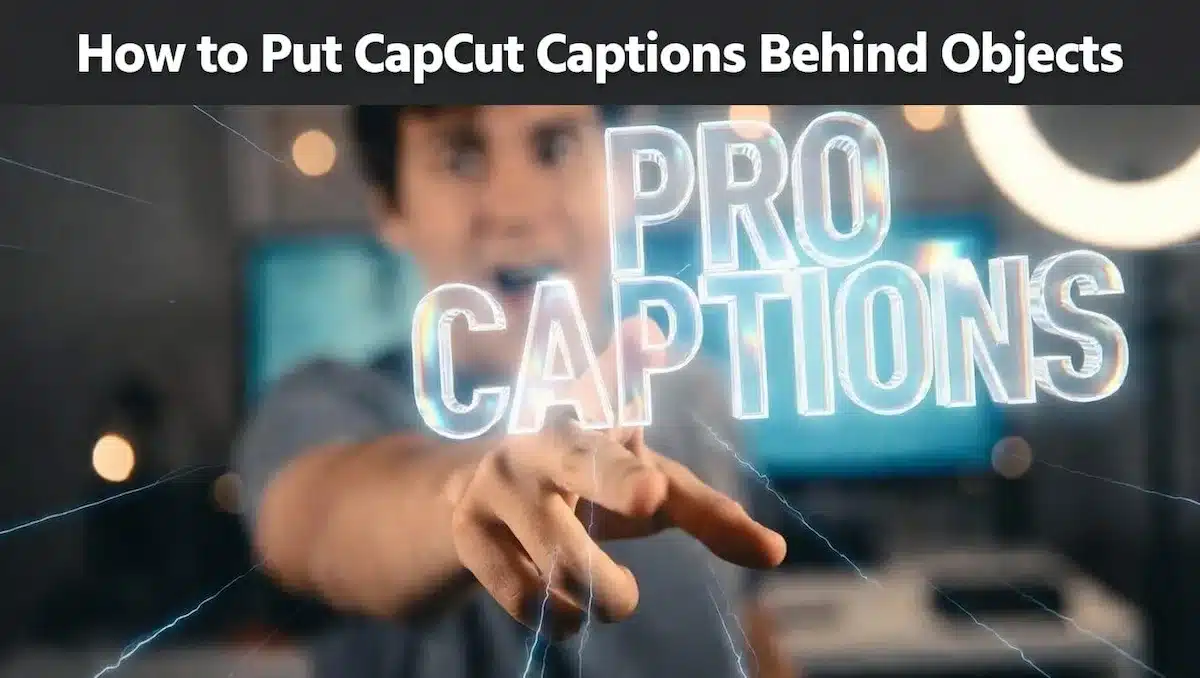
Most CapCut captions sit flat on top of your video.
But if you want your captions to look more cinematic, you can make them appear behind a person, product, shoulder, wall, or foreground object.
CapCut does not have a simple “send captions behind object” button, so the effect has to be created with a workaround: duplicate your video, place the caption between the layers, then use Mask, Remove Background, or Auto Cutout on the top layer.
In this guide, you’ll learn how to put captions behind objects in CapCut using duplicate layers, masking, Remove Background, Auto Cutout, and simple tracking workarounds for moving scenes.
Table of Contents
- Quick Answer: Can You Put Captions Behind Objects in CapCut?
- Why CapCut Captions Do Not Go Behind Objects by Default
- CapCut Caption Behind Object Methods: Which One Should You Use?
- Mobile vs. Desktop: Capability Differences
- Best Places to Use Captions Behind Objects in CapCut
- Technical Quality Checklist
- When This CapCut Caption Effect Is Not Worth Using
- CapCut Captions Behind Objects: Frequently Asked Questions
- Final Thoughts
- Official Sources
Quick Answer: Can You Put Captions Behind Objects in CapCut?
Yes, you can make captions appear behind objects in CapCut, but not with a normal text-layer setting.
The easiest method is to duplicate your video, place the caption between the original video and the duplicated video, then use Mask, Remove Background, or Auto Cutout on the top layer.
The top video layer covers part of the caption, which creates the illusion that the caption is behind the object or person.
Why CapCut Captions Do Not Go Behind Objects by Default
Before you try to put captions behind objects in CapCut, you need to understand one key limitation.
Here’s the thing: CapCut doesn’t let text sit behind video layers natively.
No matter what you do, your captions will always appear on top by default.
How CapCut Layers Work for Captions and Text
CapCut uses a simple layer stack (from bottom to top):
- Base video (main footage)
- Overlay clips (B-roll, effects, assets)
- Text and captions (always on top)
There’s no “send backward” option for text like you’d find in advanced editors.
That’s why your captions always look flat. They’re literally sitting above everything.
The Real Problem
If you want captions to appear behind a person, product, or object…
CapCut won’t do it automatically.
There’s no built-in depth system or true layering between text and video subjects.
The Best Workaround: Duplicate, Caption, Mask
Instead, you fake depth using layers and masking.
Here’s the exact structure:
- Bottom layer: Original video (full background)
- Middle layer: Your caption text
- Top layer: Duplicated video with a mask (foreground only)
The top masked layer covers parts of the caption, making it look like the text is sitting behind objects in your scene.
Why This Works
You’re not really placing text behind anything.
You’re hiding parts of the text with a masked video layer.
That’s what creates the illusion of depth — and when done right, it looks completely natural.
CapCut Caption Behind Object Methods: Which One Should You Use?
There is no single perfect way to put captions behind objects in CapCut. The best method depends on the type of clip you are editing.
If the object is mostly still, use a simple duplicated layer and mask. If the person or object moves, use tracking or keyframes. If you only want the caption to feel more blended into the scene, use opacity, blur, color matching, or reflection effects.
Below are the main methods you can use, starting with the easiest option for a still object.
Method 1: Put Captions Behind a Static Object in CapCut
This is the best method when the object in front of the caption does not move much. It works well for products on a table, wall signs, seated speakers, still objects, and simple foreground elements.
The idea is simple: you duplicate your video, place the caption between the two video layers, then mask the top video layer so the object appears in front of the caption.
Step 1: Duplicate Your Video
Add your main video to the timeline, then duplicate the clip.
Your timeline should have two copies of the same video:
- Original video layer: This stays at the bottom.
- Duplicated video layer: This will sit above the caption later.
The original video keeps the full background visible, while the duplicated top layer will be used to hide part of the caption.
Step 2: Add Your Caption Between the Two Video Layers
Add your caption, auto caption, or custom text, then place it between the original video and the duplicated video layer.
If you still need the basics first, start with my guide on how to add animated captions in CapCut.
Your layer order should look like this from bottom to top:
- Original video layer: Full video background.
- Caption layer: The caption you want to appear behind the object.
- Duplicated video layer: The top layer that will cover part of the caption.
Step 3: Mask the Duplicated Top Layer
Select the duplicated video layer above the caption, then use the Mask tool to keep the foreground object visible.
- Use a simple shape mask if the object has a clean edge.
- Use a more detailed mask if you need to follow a product, shoulder, hand, or body shape.
- Feather the mask slightly so the edge does not look too sharp.
- Adjust the mask until the object covers the correct part of the caption.
Once the top layer covers part of the caption, the caption will look like it is sitting behind the object.
Step 4: Check the Edges
Play the clip and pause around the masked area. If the cutout looks harsh, increase the feather slightly. If the caption is too hidden, move the caption or adjust the mask.
This method works best for simple scenes. If the object starts moving, use the moving-object method below.
Method 2: Put Captions Behind a Person’s Shoulder in CapCut
This method is best when you want a caption to appear behind a speaker’s shoulder, body, or upper torso. It works well for talking-head videos, creator intros, interviews, product explainers, and short-form hooks.
The goal is to place the caption in the empty space near the speaker, then use a duplicated top video layer to cover part of the caption. This creates the illusion that the caption is sitting behind the person.
Step 1: Choose the Right Shot
Before editing, check if the clip is suitable for this effect.
- The speaker should be positioned slightly to one side of the frame.
- The camera should be static or only moving slightly.
- The background should have some texture, color, or contrast.
- The speaker’s shoulder or body should create a clear foreground shape.
- Avoid clips where the person moves their hands across the caption area too much.
If the speaker moves quickly, turns around, or covers too much of the frame, this method becomes harder to control. In that case, use the moving-object method instead.
Step 2: Place the Caption Beside the Speaker
Add your caption and position it in the empty space beside the person.
- Keep the caption away from the face.
- Avoid placing the caption over moving hands.
- Use the shoulder, arm, or torso area to create the behind-object effect.
- Make sure the caption is still readable after part of it is covered.
The best placement is usually beside the speaker’s shoulder, not directly across the face, mouth, or hair.
Step 3: Duplicate the Video Layer
Duplicate your main video clip and place the duplicate above the caption layer.
Your timeline should look like this from bottom to top:
- Original video layer: Your full video stays at the bottom.
- Caption layer: Your caption sits above the original video.
- Duplicated video layer: The duplicate sits above the caption.
The duplicated video layer is what will sit in front of the caption and hide part of it.
Step 4: Create the Shoulder Mask
Select the duplicated top video layer and use a mask or background removal tool to keep only the speaker visible in front of the caption.
- Use Mask if you want more control over the shoulder shape.
- Use Remove Background or Auto Removal if you want a faster method.
- Use Auto Cutout if it is available in your version of CapCut.
- Follow the outline of the speaker’s head, shoulder, arm, and torso.
- Feather the edge slightly so the cutout does not look harsh.
Once the top layer covers part of the caption, the caption will look like it is behind the speaker’s shoulder.
Step 5: Handle Small Movements
If the speaker moves slightly, make the mask a little loose so it still covers the caption naturally.
- For small shoulder movement, a wider mask can work.
- For slow body movement, add a few keyframes to adjust the mask position.
- For major movement, use Method 3 below.
If the caption timing feels off after editing or adding movement, use this guide on how to fix CapCut captions out of sync.
On CapCut mobile, you can use a simple angled Linear Mask across the shoulder area if you do not need a perfect cutout. It is less precise, but it is faster for simple edits.
Method 3: Put Captions Behind Moving Objects in CapCut
This method is for clips where the person, product, hand, or object moves across the caption. A normal static mask may not work because the object will move away from the masked area.
To fix this, you need to make the foreground layer follow the movement. You can use CapCut’s tracking tools where available, or manually keyframe the mask so it follows the moving object.
Step 1: Watch the Movement First
Before adding keyframes, play the clip and study the movement.
- Check where the object starts.
- Check where the object ends.
- Notice if the movement is slow, fast, smooth, or shaky.
- Decide how long the caption needs to stay behind the object.
If the movement only lasts one or two seconds, manual keyframing is manageable. If the movement is long, fast, or shaky, the effect may not be worth the editing time.
Step 2: Create the First Mask
Duplicate the video layer, place it above the caption, then create your first mask around the moving object.
Your layer order should still be:
- Original video layer: The full clip at the bottom.
- Caption layer: The caption in the middle.
- Duplicated masked video layer: The moving foreground layer on top.
Set the first keyframe at the start of the movement. This tells CapCut where the mask should begin.
Step 3: Move Forward and Adjust the Mask
Move the playhead forward slightly, then adjust the mask so it lines up with the object’s new position.
- For smoother movement, adjust the mask every 0.5 seconds.
- For simpler movement, adjusting every 1 second may be enough.
- For fast movement, you may need more frequent keyframes.
Repeat this until the object finishes moving across the caption.
Step 4: Smooth the Motion
After adding the keyframes, play the clip again and check if the mask follows the object naturally.
- If the mask jumps, add more keyframes between the rough points.
- If CapCut gives you a tracking option, use it to help the mask or foreground layer follow the subject.
- If the caption looks too clean compared to the moving footage, add a very slight blur or reduce the caption opacity a little.
The goal is not perfection frame by frame. The goal is to make the caption look naturally hidden behind the moving object during normal playback.
When to Use This Method
- When a person walks in front of the caption.
- When a hand passes over the caption.
- When a product moves across the screen.
- When the camera slightly pans and the foreground object shifts position.
If the movement is too fast or too complex, keep the caption in a clear area instead. Not every clip is worth heavy manual tracking.
Method 4: Make Captions Blend Into the Background
Not every behind-object caption needs a hard mask. Sometimes, you only need the caption to feel like it belongs inside the scene instead of sitting flat on top of the video.
You can do this by blending the caption into the background with opacity, blur, color matching, and soft edges.
This method works best when the caption is meant to look like it is sitting on a wall, floor, table, screen, or background surface.
How to Do It
- Place the caption where it would naturally appear in the scene.
- Lower the opacity slightly so it does not look pasted on top.
- Add a small blur if the background is not perfectly sharp.
- Use a soft mask or feathered edge if part of the caption should fade into the scene.
- Adjust the caption color so it matches the lighting and tone of the background.
If the caption color does not match your scene, see my guide on how to change caption colors in CapCut.
This does not create a true behind-object effect, but it can make captions look more natural and less flat.
Best Use Cases
- Captions placed on a wall behind a speaker.
- Text that should look like it belongs on a table or floor.
- Soft cinematic caption effects.
- Slow camera movement where detailed masking would take too long.
If your captions start flickering or glitching after adding effects, read my guide on CapCut captions flickering or glitching fixes.
Method 5: Add a Caption Reflection Effect
If your caption appears near a shiny table, floor, phone screen, mirror, or glass surface, you can add a reflection effect to make it feel more realistic.
This is not required for putting captions behind objects, but it can make product shots and cinematic edits look more polished.
How to Create the Reflection
- Create your main caption first.
- Duplicate the caption layer.
- Flip the duplicated caption vertically.
- Move it below the original caption to create the reflection position.
- Lower the reflection opacity to around 30% to 50%.
- Add a blur so the reflection looks softer than the main caption.
- Adjust the angle or perspective so it matches the surface.
If an object on the table or floor should cover part of the reflection, place a masked duplicate video layer above the reflection.
Best Use Cases
- Product videos.
- Desk setup videos.
- Phone or laptop screen edits.
- Floor reflection effects.
- Cinematic caption reveals.
This method is optional. Use it only when the surface in the video actually looks reflective. If the table, floor, or screen is not shiny, the reflection may look fake.
Method 6: Use Multiple Layers for More Advanced Depth
For more advanced edits, you can build a layered scene where the caption sits between the background and foreground.
This is useful when you want a person, product, or object to pass in front of the caption while the caption still feels like it belongs inside the scene.
Use This Layer Order
- Background video: The full original clip.
- Caption layer: The caption placed where you want it to appear in the scene.
- Foreground layer: A duplicated video layer with the subject, person, product, or object cut out.
- Optional effects layer: Color grading, blur, or lighting adjustments to blend everything together.
Example
Imagine a person walking through a hallway while the caption appears on the wall behind them.
- The original hallway video stays at the bottom.
- The caption is placed on the wall area.
- A duplicated top layer keeps only the walking person visible.
- As the person walks past, they cover the caption, making it look like the caption is behind them.
How to Create the Foreground Layer
- Use Remove Background or Auto Removal when the subject is clear.
- Use Auto Cutout if it is available in your version of CapCut.
- Use Mask when you need more control around the object — the same masking approach used in our guide on blurring faces in CapCut.
- Use Chroma Key if the footage was shot on a green screen.
- Use manual keyframes if the subject moves and the automatic tools do not track well.
This method gives the most realistic depth, but it also takes the most time. Use it for important scenes, hooks, product reveals, and short high-impact moments.
Which Method Should You Use?
For most CapCut users, start with Method 1 or Method 2. They are easier, faster, and good enough for most caption-behind-object edits.
- Use Method 1 for still products, objects, walls, and simple foreground elements.
- Use Method 2 for talking-head videos where the caption sits behind the speaker’s shoulder.
- Use Method 3 only when the object or person moves across the caption.
- Use Method 4 when you want the caption to blend into the background instead of being fully hidden.
- Use Method 5 only when the scene has a reflective surface.
- Use Method 6 for advanced edits where you need realistic foreground and background depth.
The easiest reliable workflow is still the same: use your original video as the base layer, place the caption in the middle, then add a duplicated video layer on top and mask or cut out the foreground object.
Mobile vs. Desktop: Capability Differences
Yes, you can put captions behind objects on CapCut mobile, but the workflow is usually simpler than desktop.
On mobile, the easiest method is:
- Duplicate your video.
- Add your caption or text layer.
- Place the duplicated video above the caption.
- Use Remove Background, Auto Cutout, or a simple mask on the duplicated layer.
- Adjust the caption position so it looks hidden behind the person or object.
CapCut desktop is better for precise masking because it gives you more control over mask points, feathering, and keyframes.
CapCut mobile is faster for simple person cutouts, especially when Remove Background works well.
Best Places to Use Captions Behind Objects in CapCut
Scenario 1: Product on Table
- Caption appears on the table surface, behind the product
- Mask: Linear across the table edge, product sits on the top layer
- Reflection: Optional on the table surface
Scenario 2: Text on Wall Behind Speaker
- Caption positioned on the wall
- Mask: Speaker silhouette on top layer
- Depth: Slight blur on caption, sharp speaker
Scenario 3: Moving Camera, Static Caption
- Camera pans across the room, caption fixed to the wall
- Requires tracking (Method 3) or
- Simplified: Caption appears only during stable camera moments
Scenario 4: Caption Behind Translucent Object
- Glass, water, fabric that should partially show the caption
- Mask with Feather at 50-100px
- Reduced opacity on caption (60-80%)
- Blur on caption (3-5px)
Technical Quality Checklist
Edge quality:
- Mask edge should be invisible to a casual viewer
- Test: Pause on frame with mask edge, zoom to 200%
- Feather amount correct for edge type (hard/soft)
Color matching:
- The top and bottom video layers should match perfectly
- Any color shift reveals the technique
- Use the same color correction on both layers
To further sell the depth illusion and avoid flat-looking text, adjust caption colors and contrast so they match the lighting/tone of the background layer they’re “sitting behind.”
Motion consistency:
- If background moves (camera shake, zoom), both layers must move identically
- Lock layers together when possible
- Or accept that tracking is required
When This CapCut Caption Effect Is Not Worth Using
Some scenarios are impossible or impractical in CapCut:
Rapid movement:
- Object moves too fast for manual tracking
- The mask would need keyframes every 2-3 frames
- Solution: Use static placement or a different creative approach
Complex hair/fur:
- Masking hair against the background requires rotoscoping
- Beyond CapCut’s capabilities
- Solution: Place caption in a clear area, avoid hair overlap
360° rotation:
- Object rotates, revealing caption should be visible from all angles
- Requires 3D environment, not 2D layering
- Solution: Different software (After Effects, Blender)
CapCut Captions Behind Objects: Frequently Asked Questions
Can you put text behind a person in CapCut?
Yes. Duplicate your video clip, place your caption or text layer between the two copies, then use Remove Background, Auto Cutout, or Mask on the top layer so the person covers part of the text. This creates the illusion that the caption is sitting behind them.
How do I put text behind an object that isn’t a person?
Auto Removal in CapCut is built mainly for human subjects, so for objects like a car, product, or animal, use the Mask tool or Custom Removal (a Pro feature in some versions) instead. You manually outline the object so it covers the caption the same way a person would.
Can I create the captions-behind-object effect on CapCut mobile for free?
Yes. On mobile, duplicate your clip, move the duplicate to an overlay track, then apply Remove Background or a simple Mask to the top layer. The core duplicate-and-mask workflow works on the free version, though some advanced removal tools may be Pro-only depending on your region and app version.
Why does my captions-behind-object effect look fake or flat?
This usually happens when the mask edge is too sharp, the caption color doesn’t match the scene’s lighting, or the two video layers have different color settings. Feather the mask slightly, color-match both layers, and adjust the caption tone so it blends with the background it’s sitting behind.
Does the captions-behind-object effect work if the person or object is moving?
Yes, but it takes more work. Use keyframes to adjust the mask position every half-second or so as the object moves, or use CapCut’s tracking tools if available in your version. For fast or shaky movement, it’s often easier to keep the caption in a clear area instead.
Final Thoughts
Putting captions behind objects in CapCut is not a one-click setting, but the workaround is simple once you understand the layer order.
Use your original video as the base layer, place your caption above it, then add a duplicated video layer on top and mask or cut out the foreground object.
That top layer is what hides part of the caption and makes it look like the caption is sitting behind the person, product, shoulder, wall, or object.
Use this effect only when it adds something to the edit. It works best for hooks, product reveals, key phrases, and short cinematic moments. For normal subtitles, simple readable captions are usually better.
The goal is not to make every caption complicated. The goal is to make important captions feel like they belong inside the video.
