

You sit down to edit a video in CapCut and within 20 minutes your phone is warm, your battery has dropped noticeably, and the app is starting to lag. If this sounds familiar, you’re not imagining it, and your phone isn’t broken.
CapCut is one of the most processor-intensive apps you can run on a phone. Video editing rendering effects, processing audio, encoding footage puts more sustained demand on a phone’s CPU and GPU than almost anything else outside of gaming.
That demand has two natural side effects: it burns battery fast and it generates heat.
But there’s a difference between expected power use and excessive drain that goes beyond what CapCut should need. We have mad this guide to cover both what’s normal, what’s a problem, and what you can actually do about it.
Table of Contents
Why Does CapCut Drain Your Battery So Fast?
Before getting into fixes, it helps to understand the specific things inside CapCut that consume the most power. Not all editing activity is equal — some features drain battery at several times the rate of others.
High CPU and GPU Usage During Editing and Export
Every time CapCut renders a preview frame, which happens continuously as you scrub through your timeline, it sends work to your phone’s CPU and GPU.
Effects, transitions, filters, and overlays all add to this load. The more complex your project, the harder your processor works, and the more power it draws.
Export is the most intensive phase of all. During export, CapCut pushes your CPU and GPU to maximum sustained load — essentially asking them to sprint rather than jog. This is the point where battery drain is fastest and heat buildup is most noticeable. It’s not a malfunction; it’s the nature of video encoding.
AI Features Are Especially Heavy
CapCut’s AI tools like auto captions, noise reduction, video enhancement, stabilization, super resolution, background removal processes your footage frame by frame using on-device machine learning models.
These are among the most power-hungry operations a phone can perform. Running multiple AI features on a long clip can drain battery at a rate comparable to playing a demanding mobile game at full brightness.
If you’ve noticed that recent CapCut sessions drain your battery more than they used to, the increased use of AI features in the app is a likely reason. CapCut has added significantly more AI-powered tools over the past two years, and each one adds to the processing load.
High Export Resolution
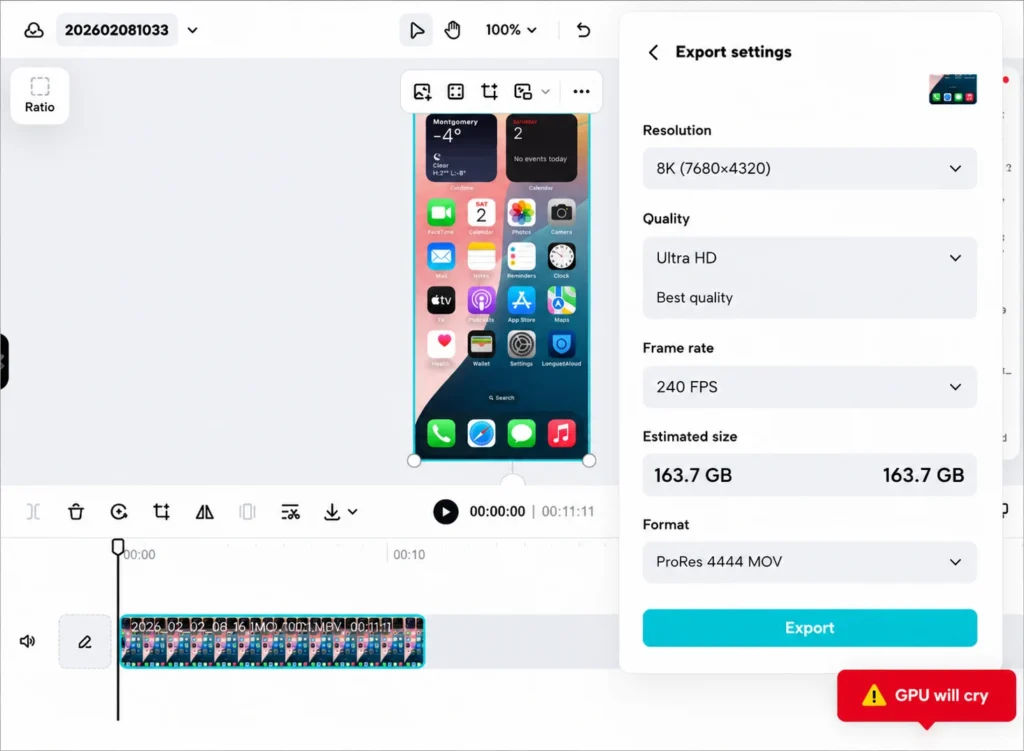
Exporting at 4K resolution or 60fps requires encoding roughly four times the data of a 1080p/30fps export.
That’s four times the processing work, and proportionally more battery consumed. On a mid-range phone, a 4K export can drain 15–25% of battery on its own for a short video.
For most social media content — TikTok, Instagram Reels, YouTube Shorts — 1080p at 30fps is compressed by the platform anyway, making the extra battery cost of 4K largely pointless for these use cases.
Screen Brightness
The display is one of the biggest battery consumers on any phone, and CapCut keeps it on continuously during editing.
Running CapCut at full brightness for an extended session can account for a significant portion of the battery drain you’re seeing — separate from anything the app itself is doing with your processor.
Background Apps Competing for Resources
WhatsApp, Instagram, Chrome, cloud backup syncing — all of these run in the background and consume battery while you edit.
This matters because it forces your phone to divide processing resources, making CapCut work harder (and draw more power) to accomplish the same tasks. Background apps don’t just compete with CapCut; they amplify its battery impact.
CapCut Running in the Background When You’re Not Using It
Some users notice battery drain from CapCut even when they’re not actively editing — the app shows up in their battery usage stats overnight or during idle periods.
This is caused by CapCut’s background activity: auto-saving drafts, syncing projects to the cloud, checking for updates, and maintaining its connection to ByteDance’s servers.
On Android especially, apps can continue running background processes unless explicitly restricted.
Our Recommended Fix: On Android, go to Settings → Apps → CapCut → Battery → select “Restricted” or enable Background usage limits. On iPhone, go to Settings → General → Background App Refresh and turn it off for CapCut. This stops CapCut from running in the background when you’re not using it.
Why Does CapCut Make Your Phone Overheat?
Heat is a direct byproduct of processor activity. When your CPU and GPU are working hard, they generate heat as a physical consequence of the electrical work they’re doing. The more sustained and intensive the workload, the more heat accumulates.
CapCut creates the conditions for heat buildup in a specific way: it runs sustained, high-intensity processing over long periods.
Gaming causes similar heat spikes, but they tend to be shorter. Editing a 10-minute video in CapCut with multiple effects applied can run your processor at high load for 30, 40, 60 minutes continuously — longer than most other activities on the phone.
Editing While Charging Makes It Worse
Charging a phone also generates heat. Combined with processor-intensive apps like CapCut, this can significantly increase device temperature, which is why Apple recommends avoiding prolonged use of demanding apps while a device is becoming excessively warm.
When you edit in CapCut while simultaneously charging, you’re combining two heat sources: the processor working hard and the battery warming during charging. This is one of the fastest ways to overheat a phone, and also one of the most common habits people don’t realize is a problem.
Beyond the discomfort, sustained high temperatures accelerate lithium-ion battery degradation. Heat is one of the leading causes of permanent battery capacity loss over time.
Thick Phone Cases Trap Heat
Phone cases, especially thick rubber or silicone ones are designed to protect against drops, not to dissipate heat. During intensive CapCut sessions, a case traps the heat the phone is trying to radiate outward, causing temperatures to rise faster and stay higher than they would on a bare device.
Thermal Throttling: Why Your Phone Gets Slow When It Gets Hot
When a phone’s internal temperature rises past a threshold, the processor automatically slows itself down to reduce heat generation.
This is called thermal throttling, and it’s a built-in safety mechanism — not a malfunction. But it’s why you’ll often notice CapCut getting noticeably slower and laggier during long editing sessions: the phone is intentionally limiting its own performance to cool down.
A cooler CPU operates 20–40% faster than a throttled one. Keeping your phone cool during editing isn’t just a comfort issue — it directly affects how fast CapCut runs.
How to Stop CapCut From Draining Your Battery and Overheating
Most of these fixes work for both problems simultaneously, since heat and battery drain share the same root causes.
Lower Your Export Resolution
Drop from 4K to 1080p and from 60fps to 30fps before exporting, unless your content genuinely requires higher quality.
For TikTok, Reels, and Shorts, platforms compress uploads to the point where this distinction is invisible to viewers. The battery and heat savings are significant — this single change has more impact than almost anything else on this list.
Close All Background Apps Before Editing
Before starting a long CapCut session, close every app you’re not actively using. On mobile, clear your recent apps entirely.
This frees up RAM and CPU resources so CapCut doesn’t have to compete, reducing the total processing load — and therefore the battery drain and heat — for the same editing work.
Reduce or Simplify AI Features and Effects
Review your timeline for AI features applied broadly — stabilization on multiple long clips, AI enhancement, super resolution, noise reduction. Apply these selectively rather than across your entire project.
Where possible, use lighter manual effects instead of AI-powered equivalents. The difference in battery consumption between a simple color grade and an AI video enhancement on the same clip is substantial.
Lower Screen Brightness While Editing
Reduce brightness to 50–60% during editing sessions. The CapCut interface is detailed enough that you can still see everything you need to at lower brightness — you don’t need full brightness to make accurate edits. This has a meaningful impact on total session battery use.
Don’t Edit While Charging
If you need to charge during a long editing session, take a break from editing while the phone charges, then continue once charging is complete. Separating these two heat-generating activities keeps temperatures lower and also protects your battery’s long-term health.
Remove Your Case During Long Sessions
Take the case off during intensive editing or export. This lets your phone’s chassis radiate heat outward naturally. It’s a simple step that noticeably reduces how hot the device gets during a long session.
Edit in Shorter Sessions
Taking 5–10 minute breaks between editing sessions gives your device time to cool down and reset its thermal state.
A device that never gets hot in the first place doesn’t throttle, doesn’t drain battery as fast, and performs better throughout — editing in shorter bursts consistently produces a faster, smoother experience than one uninterrupted marathon session.
Restrict CapCut’s Background Activity
As covered above, disable background app refresh for CapCut on iPhone, and restrict background activity on Android. This prevents CapCut from consuming battery when you’re not actively using it.
Clear CapCut’s Cache Regularly
Accumulated cache can cause CapCut to work harder than necessary during editing — processing and referencing stale temporary data that adds unnecessary overhead.
Clearing it regularly keeps the app running lean. And if you’re worried about losing your work — clearing CapCut’s cache does not delete your projects.
On Android: Settings → Apps → CapCut → Storage → Clear Cache. On iPhone, offload and reinstall the app. For a full guide on managing CapCut’s storage footprint, see our post on why CapCut takes so much storage.
Quick Reference: Battery Drain and Overheating Fixes
| Problem | Cause | Fix |
|---|---|---|
| Battery draining fast during editing | High CPU/GPU load from effects and resolution | Lower export resolution, reduce AI effects |
| Battery draining fast during editing | Screen brightness too high | Reduce brightness to 50–60% |
| Battery draining fast during editing | Background apps competing for resources | Close all other apps before editing |
| CapCut draining battery when not in use | Background sync and auto-save activity | Restrict background activity in phone settings |
| Phone getting hot while editing | Sustained processor load | Edit in shorter sessions, take cooling breaks |
| Phone getting hot while editing | Editing while charging | Don’t charge and edit simultaneously |
| Phone getting hot while editing | Case trapping heat | Remove case during intensive sessions |
| CapCut lagging when phone gets hot | Thermal throttling | Let device cool, then resume editing |
Frequently Asked Questions
Is it normal for CapCut to drain battery fast?
Yes — to a degree. Video editing is one of the most processor-intensive things a phone can do, so some battery drain is expected. What’s not normal is CapCut draining your battery when you’re not actively using it, or draining unusually fast even on simple projects. If either of those applies, restricting background activity and reducing export resolution are the most effective first steps.
Can CapCut damage my phone battery from overheating?
Occasional heat from editing won’t cause permanent damage. But consistently running CapCut at high intensity for long sessions — especially while charging — generates sustained high temperatures that accelerate lithium-ion battery degradation over time. This gradually reduces your battery’s maximum capacity. Editing in shorter sessions and avoiding simultaneous charging are the most important habits to protect long-term battery health.
Why does my phone get hot during export specifically?
Export is the most CPU and GPU-intensive phase of the entire editing process. CapCut is encoding every frame of your video — processing effects, audio, and video tracks simultaneously — at maximum processing speed. This sustained full-load activity generates more heat than regular editing. It’s expected behaviour and the heat should subside once the export completes.
Why does CapCut show up in my battery usage when I wasn’t using it?
CapCut runs background processes even when closed — auto-saving drafts, syncing to the cloud, and maintaining server connections. On Android, restrict this under Settings → Apps → CapCut → Battery → Restricted. On iPhone, disable Background App Refresh for CapCut under Settings → General → Background App Refresh.
Does CapCut use more battery on Android or iPhone?
This varies more by device hardware than by operating system. Flagship phones on both platforms handle CapCut efficiently due to powerful, well-optimised chips. Mid-range and older devices on both Android and iOS show more battery drain because their processors work harder to complete the same tasks. Generally, newer flagship phones — regardless of OS — run CapCut more efficiently and generate less heat.
Will using CapCut Pro drain more battery than the free version?
Not inherently — the Pro subscription unlocks features but doesn’t change how the app uses your processor. However, Pro users often use more AI-powered and high-resolution features, which are heavier on the battery than simpler edits. The battery drain difference comes from what you do with the app, not the subscription tier itself.
Should I edit in CapCut while my phone is charging?
It’s best to avoid it. Charging generates heat from the battery chemistry, and editing generates heat from the processor. Doing both simultaneously combines two heat sources, which accelerates temperature buildup and can cause thermal throttling — making CapCut run slower. It also puts extra stress on your battery’s long-term health. If you need to charge during a session, pause editing while charging and resume once done.
Does removing my phone case help with CapCut overheating?
Yes, noticeably. Thick rubber or silicone cases trap the heat your phone is trying to radiate outward during intensive processing. Removing the case during long CapCut editing sessions or exports lets the device cool itself naturally and prevents temperatures from climbing as high. It’s a simple step that makes a measurable difference on phones that run hot during editing.
