


Have you ever opened a video and noticed unwanted text sitting right where you don’t want it?
Maybe it’s an old caption, a username, subtitles, a date stamp, a sticker, or text someone added before sending you the clip.
The good news is that CapCut can remove text from a video in some situations. The catch is that the method depends on how that text was added in the first place.
Here’s the short answer: If the text is still an editable layer inside your CapCut project, you can simply delete it. If the text is already baked into the video, CapCut can’t directly remove it, but it can help you hide, cover, crop, blur, or clean it up using other tools.
Knowing which type of text you’re dealing with can save you a lot of frustration.
Table of Contents
- Can CapCut Remove Text From a Video?
- First Check: Is the Text Editable or Burned Into the Video?
- How to Delete Editable Text in CapCut
- Can You Remove Auto Captions From a CapCut Project?
- How to Remove Burned-In Text From a Video in CapCut
- What If the Text Moves Around the Screen?
- Can CapCut Remove Subtitles From a Downloaded Video?
- Can CapCut Remove Text Without Blurring the Video?
- Best Method Based on the Type of Text
- Frequently Asked Questions
- Final Thoughts
Can CapCut Remove Text From a Video?
Yes, CapCut can remove text from a video, but the process ranges from incredibly easy to surprisingly difficult depending on the source of the text.
If you added the text yourself inside the current CapCut project, removing it usually takes a few seconds. You simply select the text layer and delete it.
However, if the text is already part of the video file you imported, CapCut treats it as part of the footage rather than a separate text element. In that situation, there is no delete button because the text is embedded into the video itself.
Think of it this way:
- Editable text is like a sticker placed on top of a video.
- Burned-in text is like ink printed directly onto a photograph.
You can peel off the sticker. You can’t peel ink off a photo without affecting what’s underneath.
That’s why some people can remove text in seconds while others need to use cropping, overlays, blur effects, masking, or AI tools to get acceptable results.
First Check: Is the Text Editable or Burned Into the Video?
Before trying any removal method, spend a few seconds figuring out which type of text you’re dealing with.
This determines everything that comes next.
Editable Text
The text is editable if it exists as its own layer inside your CapCut project.
You can usually tap it, move it around, change the font, edit the wording, adjust the color, or delete it completely.
This is the easiest type of text to remove because CapCut still recognizes it as a separate element.
Burned-In Text
Burned-in text is text that has already been exported with the video.
This often happens when you download a video from social media, receive a clip from someone else, or re-import a video that already contains captions.
In these cases, the text becomes part of the video’s pixels. CapCut no longer sees it as text. It simply sees a video frame.
That doesn’t mean you’re stuck with it, but it does mean you’ll need a different approach.
How to Delete Editable Text in CapCut
If the text is still an editable layer, removing it is straightforward.
- Open your project in CapCut.
- Locate the text layer on the timeline.
- Tap the text element you want to remove.
- Select Delete.
- Preview the video to confirm the text is gone.
If your project contains multiple captions, titles, or text boxes, you may need to remove them individually.
Zooming out on the timeline can make it easier to spot text layers spread across different sections of the video.
Be careful when working with projects that use auto captions, stickers, and text elements together. It’s easy to delete the wrong layer if several items are stacked closely on the timeline.
If your goal is to replace the text rather than remove it completely, you may be better off editing the existing text layer or rebuilding the captions from scratch.
For a complete walkthrough, see our guide on how to add captions on CapCut.
Can You Remove Auto Captions From a CapCut Project?
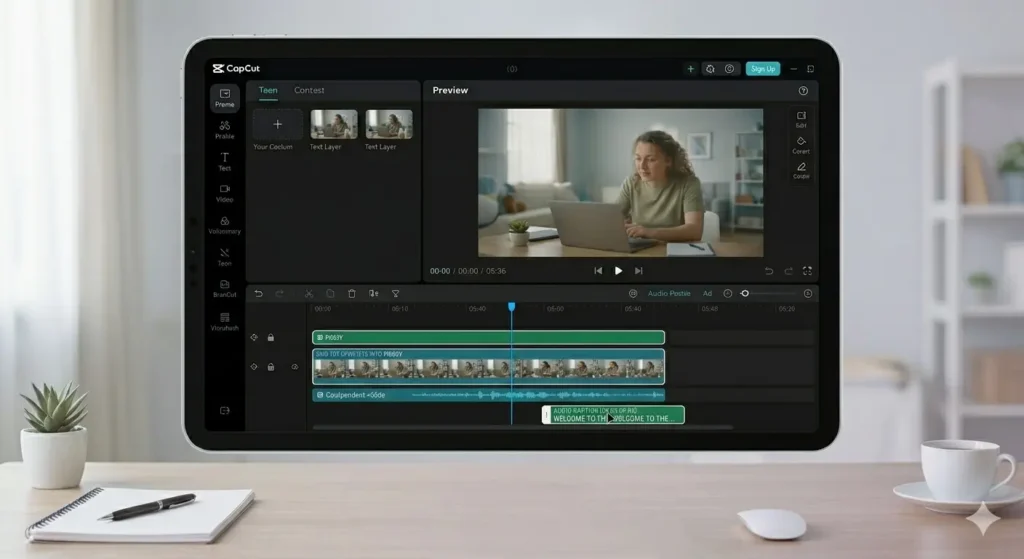
Yes. Auto captions generated inside the same CapCut project can usually be removed just like any other text layer.
Simply select the caption clips on the timeline and delete them.
On Mobile: Tap the auto-generated caption clip on the timeline to select it. The clip will highlight, and a menu will appear at the bottom of the screen. Tap Delete to remove the caption.
On Desktop or Web: Right-click the caption clip on the timeline. A context menu will appear — select Delete to remove it.
However, this only works if the captions are still part of the original project.
If you exported the video with captions and later imported that finished video back into CapCut, those captions become burned into the footage. At that point, they can no longer be deleted with a single tap.
This is one of the biggest reasons to keep your original CapCut project whenever possible. It gives you the flexibility to edit, redesign, or remove captions later without having to rebuild the entire video.
If your issue is inaccurate captions rather than unwanted captions, check out our guide on CapCut auto captions not working before deleting everything and starting over.
How to Remove Burned-In Text From a Video in CapCut
If the text is already part of the video itself, you can’t simply delete it.
Instead, you’ll need to use one of several workaround methods depending on where the text appears, whether it moves, and how important the surrounding video content is.
Some methods take only a few seconds. Others require more editing work but produce cleaner results.
Let’s look at the options.
Method 1: Crop the Text Out of the Frame
Cropping is often the fastest way to remove text from a video, especially when the text sits near the top, bottom, or edge of the screen.
Instead of removing the text itself, you’re simply resizing the frame so the text falls outside the visible area.
- Open CapCut and create a new project.
- Import the video.
- Tap the video clip on the timeline.
- Use the resize or crop controls.
- Zoom in until the text is no longer visible.
- Preview the entire clip before exporting.
This method works surprisingly well for small watermarks, usernames, timestamps, and corner captions.
The downside is that excessive cropping can make the video feel cramped or cut off important parts of the scene. If faces, products, or key action start disappearing from the frame, you’ll probably need another solution.
Method 2: Cover the Text With a New Element
If cropping damages the composition, covering the text often produces a cleaner result.
CapCut allows you to place text, stickers, logos, shapes, images, or graphic elements over the unwanted text.
The goal isn’t to hide a mistake. The goal is to make the replacement look intentional.
For example, you could:
- Replace an old username with your own handle.
- Cover outdated captions with a modern caption box.
- Add a branded lower-third graphic.
- Use a logo overlay in the corner.
When done properly, viewers won’t even realize something was covered.
This approach usually looks better than a large blur effect, especially for content intended for clients, businesses, or professional social media accounts.
If you’re rebuilding captions from scratch, our guide on manual captions in CapCut can help you create cleaner replacements.
Method 3: Blur the Text Area
Blurring is one of the most common ways to hide unwanted text.
It’s particularly useful when you’re trying to conceal usernames, private information, license plates, timestamps, or sensitive details.
- Import the video into CapCut.
- Add a blur effect or blur overlay.
- Resize the blur area to cover only the text.
- Position it over the unwanted words.
- Use keyframes if the text moves.
- Preview the full video before exporting.
Smaller blur areas generally look more natural than large ones.
The larger the blur patch becomes, the more obvious it is that something was hidden.
For quick social media edits, blur is usually good enough. For polished videos, branding overlays or recreation often produce better-looking results.
Method 4: Use CapCut’s AI Object Remover
Recent versions of CapCut include AI-powered removal tools on certain devices and plans.
Depending on your version, you may see tools such as Remove Objects, AI Remove, or similar cleanup features.
These tools attempt to remove unwanted elements and rebuild the background automatically.
When conditions are right, the results can be impressive.
AI removal tends to work best when:
- The text is small.
- The background is simple.
- The camera remains relatively stable.
- The text does not overlap important subjects.
It tends to struggle when:
- The text covers faces.
- The background is highly detailed.
- The text moves constantly.
- The video quality is poor.
Always watch the entire clip after using AI removal. Some problems only appear during playback, such as flickering, smearing, ghosting, or warped backgrounds.
If the repair looks more distracting than the original text, try another method.
Method 5: Rebuild the Video From the Original Source
If the text covers important parts of the video, rebuilding the edit may be the cleanest solution.
This isn’t always the fastest option, but it usually produces the best-looking result.
- Locate the original footage or photos.
- Open the original CapCut project if available.
- Remove or edit the text layer.
- If the project is unavailable, create a new project.
- Rebuild the cuts, captions, effects, and timing.
- Export a clean version.
This approach is especially worthwhile for business content, client projects, advertisements, tutorials, and portfolio work where quality matters.
Sometimes spending a few extra minutes rebuilding an edit saves you from publishing a video that looks obviously patched together.
What If the Text Moves Around the Screen?
Moving text creates an extra challenge because your fix has to move with it.
If you place a blur, sticker, or overlay in one position, the text may simply move outside the covered area a few seconds later.
To solve this, CapCut allows you to use keyframes.
Keyframes let you animate a blur effect, shape, logo, or graphic so it follows the text throughout the video.
The process looks like this:
- Add a blur, overlay, sticker, or shape.
- Position it over the text.
- Create a keyframe.
- Move forward in the timeline.
- Reposition the cover element.
- Add another keyframe.
- Repeat until the movement is tracked correctly.
It takes a little patience, but it can be very effective for short clips.
If you’re new to animation, check out our guide on how to animate text with keyframes in CapCut.
Can CapCut Remove Subtitles From a Downloaded Video?
Sometimes.
If the subtitles are still separate caption layers, you can remove them easily.
However, most downloaded videos from social media platforms contain burned-in subtitles. In those cases, CapCut cannot simply turn them off.
Your options are the same ones covered above:
- Crop them out.
- Cover them.
- Blur them.
- Use AI cleanup tools.
- Find the original version without subtitles.
- Rebuild the edit from source files.
If the original video is available, starting with a clean source is almost always the best option.
Can CapCut Remove Text Without Blurring the Video?
Yes.
If the text is editable, you can delete it completely without affecting video quality.
For burned-in text, cropping, covering, masking, AI cleanup, or rebuilding the video may allow you to avoid blur entirely.
In many cases, a well-designed overlay looks far more natural than a blurry patch sitting in the middle of the screen.
Best Method Based on the Type of Text
- Editable text: Delete the text layer.
- Auto captions in the original project: Remove the caption clips.
- Text near the edge: Crop or zoom slightly.
- Text on a simple background: Try AI removal or blur.
- Text on a busy background: Cover it with a design element.
- Moving text: Use keyframes.
- Professional content: Rebuild the edit from the original project.
The best solution isn’t necessarily the one that removes the text. It’s the one that leaves the video looking natural afterward.
Frequently Asked Questions
Can CapCut remove text that is already on a video?
Yes. CapCut can help remove or hide text that is already on a video, but the method depends on whether the text is an editable layer or burned into the footage. Editable text can be deleted directly, while burned-in text usually requires cropping, covering, blurring, AI cleanup, or recreating the edit.
How do I delete text I added in CapCut?
Open your project, locate the text layer on the timeline, tap it, and select Delete. This works only if the text still exists as a separate editable element inside the CapCut project.
Can CapCut remove subtitles from a downloaded video?
Sometimes. If the subtitles are editable caption layers, you can remove them easily. If the subtitles are burned into the video itself, you’ll need to crop them out, cover them, blur them, use AI cleanup tools, or find the original version without subtitles.
Can I remove text from a video without blurring it?
Yes. Depending on the situation, you may be able to delete editable text, crop it out, cover it with graphics, use masking techniques, or use AI removal tools. Blur is only one of several available methods.
Why can’t I select the text in CapCut?
If the text cannot be selected, it is likely embedded directly into the video rather than existing as a separate text layer. In that case, CapCut sees it as part of the footage and you will need to use removal workarounds instead of simply deleting it.
Does CapCut have an AI text remover?
Some versions of CapCut include AI-powered object removal tools that can help remove text, watermarks, and other unwanted elements. Availability varies depending on your device, region, CapCut version, and subscription plan.
What is the easiest way to remove text from a video in CapCut?
The easiest method is deleting the text layer if the text is still editable. If the text is burned into the video, cropping is usually the quickest workaround, although it may not be the best-looking solution.
Can CapCut remove text from someone else’s video?
CapCut may help hide or remove visible text from a video, but you should only edit and reuse videos that you own or have permission to use. Removing creator information or reposting someone else’s content without permission can lead to copyright or platform policy issues.
Can AI completely remove text from a video?
AI tools can sometimes remove text very effectively, especially when the background is simple. However, results vary. Text covering faces, products, or detailed backgrounds can leave behind visible artifacts, smears, or distortions.
What’s the best way to remove burned-in text from a video?
The best method depends on the video. Cropping works well for text near the edge, overlays can hide text cleanly, AI tools may help on simple backgrounds, and rebuilding the edit from the original source files usually produces the highest-quality result.
Final Thoughts
CapCut can remove text from a video, but the right approach depends entirely on how that text was added.
If the text is still editable, removing it is usually a one-click job. If it’s already baked into the footage, you’ll need to rely on techniques like cropping, overlays, blur effects, AI cleanup tools, or, in some cases, rebuilding the edit from the original files.
The good news is that most unwanted text can be hidden or removed well enough that viewers will never notice it was there.
The key is choosing the method that fits the video rather than forcing a quick fix that leaves obvious artifacts behind.
When quality matters, always start with the original project or source footage whenever possible. It gives you the most flexibility and almost always produces the cleanest final result.
