

You open CapCut, try to use a template or a feature, and get hit with the “CapCut not available in your region” error message Or you install the app and the whole interface is in Chinese.
Neither of these is a ban. Both are region detection problems and they have different causes with different fixes.
This guide covers both issues clearly so you can stop guessing and get back to editing.
Before jumping into fixes, it helps to know that CapCut determines what you can access based on three separate signals: your IP address, your App Store or Google Play account region, and (for templates) the region tied to your linked TikTok account.
A mismatch between any of these can trigger a region error, even if CapCut is fully available where you live.
Table of Contents
What Does “Not Available in Your Region” Actually Mean?
This error shows up in three different situations, and users often confuse them because the message looks the same each time.
Situation 1: A specific template is blocked. CapCut templates are hosted on TikTok’s servers and tied to the creator’s TikTok account region. Some templates are only uploaded for certain countries, and others are blocked in specific markets due to music copyright rules.
Situation 2: A Pro feature isn’t available in your country. Even with an active CapCut Pro subscription, certain Pro features have regional restrictions. This is separate from your subscription status, the feature simply isn’t offered in your market yet.
Situation 3: The full app won’t download from your app store. Your App Store or Google Play account is set to a country where CapCut isn’t distributed. This is the most drastic version of the error, you can’t even install the CaCut app at all.
Knowing which situation you’re in changes everything about how you fix it. The sections below address each one separately.
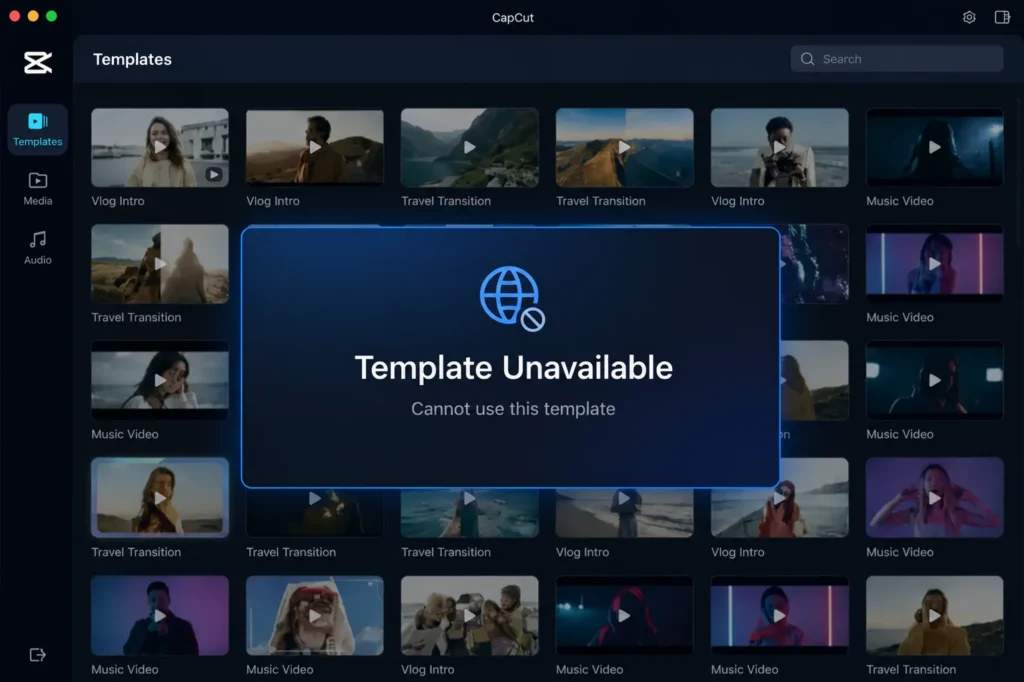
Fix 1: A Template Says “Not Available in Your Region”
Why This Happens
Template region errors are the most common version of this problem, and they have a few possible causes that often get lumped together.
First, CapCut checks your TikTok account region when loading templates, not your phone’s location settings.
If your TikTok account was created in India, the UAE, or Saudi Arabia, many templates won’t appear or will throw a region error, regardless of where you physically are.
Second, outdated or modded APKs are a major cause. Unofficial versions of CapCut don’t communicate correctly with CapCut’s servers, which causes false region errors. If you’re running a cloned or modded version, this is almost certainly the problem.
Third, the template may have simply been deleted by the creator. CapCut shows a region error message even in this case, rather than a “deleted” notice — which misleads a lot of users into thinking it’s a geo-block when the content is just gone.
How to Fix It
Step 1: Update CapCut to the latest official version. If you’re running a modded or old APK, uninstall it completely and download the official version from the App Store or Google Play. This alone resolves the majority of template region errors.
Step 2: Open the template directly from TikTok. When you tap a template link inside the TikTok app and it opens in CapCut, it bypasses the app-level region check. This works consistently for templates that are genuinely available in your region but incorrectly blocked at the app layer.
Step 3: Try the CapCut web editor. Head to capcut.com and try the template there. The web version enforces far fewer regional restrictions than the mobile app, and templates that are blocked in the app often load without issue on web.
Step 4: Switch your device DNS to Google’s servers (8.8.8.8). CapCut checks your location once when loading the template list. Switching DNS is faster and more stable than a VPN for this specific issue, and it doesn’t slow down your export.
On Android, go to Settings → Network → Private DNS and enter dns.google. On iPhone, use a DNS app or change it in your Wi-Fi advanced settings.
Step 5: Change your App Store or Play Store region. If nothing else works, change your app store country to the US or UK, reinstall CapCut fresh, and check if the template loads. This is the most involved option but also the most reliable for persistent blocks.
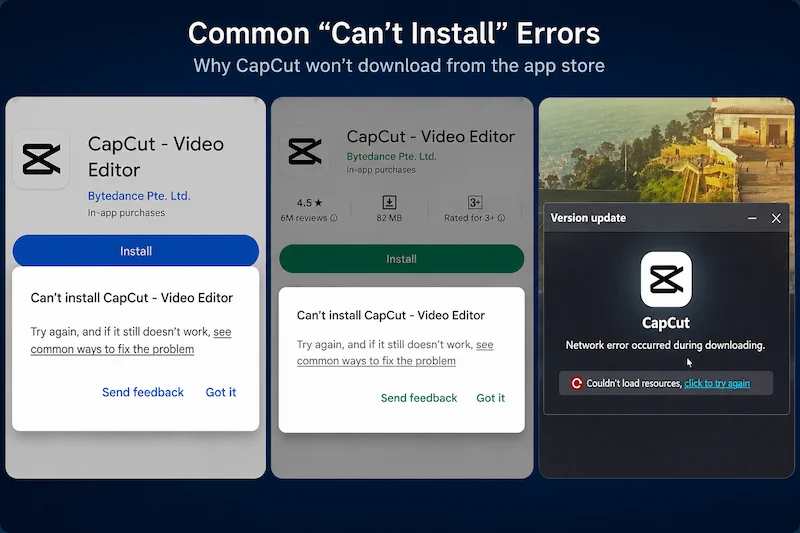
Fix 2: The Full App Won’t Download
Why This Happens
If CapCut won’t appear in your app store at all, or gives you a “not available in your country” message on the download page, the issue is your app store account region — not a ban.
As of 2026, CapCut is only fully banned in India, where it was blocked in 2020 along with other ByteDance apps following border tensions with China.
If you’re outside India, there is no country-level ban on CapCut. The brief US removal in January 2025 lasted less than 48 hours and has since been fully resolved, CapCut now operates as a separate US entity under a partnership involving Oracle and Silver Lake, completed in September 2025.
The most common cause of app store unavailability for users outside India is a misconfigured account region.
A well-known example: iPad users whose device defaults to “United States” as their region — even if they live in Georgia the country, not Georgia the state, find themselves locked out because their Apple ID is set to the wrong location.
How to Fix It on iPhone or iPad
- Go to Settings → [Your Name] → Media & Purchases → View Account
- Tap Country/Region → Change Country or Region
- Select the correct country where you actually live
- Agree to the terms and enter a valid billing address if prompted
- Search for CapCut in the App Store again
If your device region is the issue (not your Apple ID), go to Settings → General → Language & Region → Region and set it to your actual country.
How to Fix It on Android
- Open Google Play → Profile icon → Settings → General → Account and Device Preferences
- Under Country and profiles, select your actual country
- If the option isn’t available, connect to a VPN in a supported country, clear the Play Store cache, and search again
- Once CapCut appears, you can disconnect the VPN — the app will continue to work normally
For more help getting CapCut onto your device, see our full guide on downloading CapCut on any device.
Why Is My CapCut Showing in Chinese?
This is a completely separate issue from the region error above, but it gets lumped in with it because both feel like the same problem: CapCut isn’t working the way it should.
Some background that’s useful here: CapCut was originally built in China under the name JianYing (剪映).
The Chinese domestic version and the international CapCut are technically different apps made by the same company (ByteDance).
If your interface is entirely in Chinese with no obvious way to switch languages, one of three things has happened.
Cause 1: You Downloaded the Wrong App
JianYing (the Chinese domestic version) is available in Asian app stores and has its own separate listing.
Someone searching for a video editing app in certain markets may end up downloading JianYing instead of CapCut without realizing they’re different products.
JianYing has no English language option — it’s built exclusively for the Chinese domestic market.
Fix: Uninstall the app you have. Search specifically for “CapCut” in your app store — not “剪映” — and download the correct international version.
Cause 2: CapCut Inherited Your Device Language
On first install, CapCut reads your device’s system language and defaults to it. If your phone or computer is set to Chinese (Simplified or Traditional), CapCut opens in Chinese.
This is the most common cause for users who installed the right app but still see a Chinese interface.
Fix on Mobile (iOS and Android):
- Open CapCut and look for the gear/settings icon
- Tap App Language
- Select English
- Restart the app
Fix on Desktop (Windows):
- Open CapCut and click the settings icon
- Go to the Language tab
- Select English from the list
- Click Save and restart CapCut
Fix on Mac:
- Open CapCut and look for Settings in the top menu bar
- Select Language → English → restart the app
- If the setting isn’t visible: go to Apple menu → System Settings → General → Language & Region and drag English to the top of the language list, then relaunch CapCut
Fix on Web: The web version of CapCut follows your browser’s language settings. Go to your browser settings, set the language to English, and reload capcut.com.
Cause 3: You’re Logged into an Account With a Chinese Region
If you signed in with an account that was created using a Chinese phone number or registered to a Chinese region, CapCut may serve a partially localized interface even on the international app. This can also affect which features and templates are available to you.
Fix: Sign out of your current account, then sign in with it or create an account using a non-Chinese email address. If you need help with sign-in issues, see our guide on what to do when you can’t sign into CapCut.
Quick Reference: Which Fix Do You Need?
| What You’re Seeing | Most Likely Cause | Fastest Fix |
|---|---|---|
| Specific template blocked | TikTok region / outdated APK | Open via TikTok app or try CapCut web |
| Pro feature unavailable | Feature not in your region yet | Try CapCut web version |
| Can’t download the app | App store account region wrong | Change App Store / Play Store country |
| Interface in Chinese | Device language or wrong app | Settings → App Language → English |
| Full app completely unavailable | Country ban | Only applies to India — no fix within CapCut |
Frequently Asked Questions
Is CapCut banned in my country?
As of 2026, CapCut is only banned in India. It is available in the US, UK, Australia, Europe, most of Asia, and the rest of the world. If you’re seeing a region error outside of India, the issue is with your app store account settings or device region — not a ban.
Why does CapCut work for my friend but not for me?
The most likely reason is a difference in app store account regions, TikTok account regions, or app versions. If your friend has a US-region App Store account and you have a different region set, you may see different template availability. Updating to the latest official version and matching your app store region to your actual location usually resolves this.
Can I use a VPN to fix CapCut region errors?
A VPN can help in some cases — particularly for downloading the app if your app store shows a restriction, or for bypassing template locks. However, for template issues specifically, changing your device DNS to Google (8.8.8.8) is more reliable and doesn’t affect your connection speed. For Pro feature restrictions, a VPN alone usually isn’t enough — the restriction is tied to your account region, not just your IP.
Is the Chinese version of CapCut (JianYing) different from the international version?
Yes — they are separate apps, both made by ByteDance. JianYing is the domestic Chinese version with a fully Chinese interface, different music libraries, and features designed for the Chinese market. CapCut is the international version with English and multilingual support. If you accidentally downloaded JianYing, uninstall it and download CapCut from your app store instead.
Why did CapCut suddenly switch to Chinese after an update?
App updates occasionally reset language preferences, especially if the update includes changes to the localization system. Go to Settings → App Language in CapCut and re-select English. If the option isn’t visible, check your device’s system language settings — CapCut will default to the system language if the in-app setting is missing or reset.
Why can’t I use CapCut without an account?
Some features — including template access and cloud sync — require you to be signed in. If you’re trying to use templates without an account and seeing region errors, signing in (even with a guest or email account) can resolve it. See our guide on using CapCut without an account for what’s possible without logging in.
