

Have you ever opened CapCut just to make a quick edit, then got hit with a login screen and thought, “Wait, do I really need an account for this?” Fair question.
The short answer is yes, you can usually use CapCut without an account for basic editing, especially on the mobile app.
You can import clips, cut videos, add text, use some effects, and export simple edits without signing in.
But there’s a catch. Some features work better, or only work, when you log in. That includes cloud storage, syncing, Pro features, account-based templates, and anything tied to your CapCut profile.
Table of Contents
- Can You Use CapCut Without an Account?
- What Can You Do in CapCut Without Signing In?
- What Features Need a CapCut Account?
- CapCut Mobile vs Desktop vs Online: Which One Needs Login Most?
- What Happens to Drafts If You Use CapCut Without an Account?
- Can You Use CapCut Templates Without an Account?
- Can You Use CapCut Pro Without an Account?
- Can You Use CapCut Online Without an Account?
- Can You Export From CapCut Without an Account?
- Should You Create a CapCut Account?
- Frequently Asked Questions
- Final Thoughts
- Official Sources
Can You Use CapCut Without an Account?
Yes, you can usually use CapCut without an account for basic video editing.
If you only want to make a simple edit on your phone, you may be able to open CapCut, import a video, trim clips, add text, use basic tools, and export the finished video without signing in.
That makes CapCut easy for quick edits. You do not always need to create an account just to cut a clip, make a short video, or test the app.
But using CapCut without an account also has limits. Your drafts may stay local on your device, some online features may not work, and anything tied to cloud storage or account syncing may need you to log in.
The simple rule
You can use CapCut without an account for basic editing, but you should sign in if you care about cloud storage, syncing, Pro access, templates, or keeping projects easier to manage across devices.
Think of using CapCut without an account like editing on a borrowed notebook. You can write in it, but if you lose the notebook, there is no account to help you find the pages later.
What Can You Do in CapCut Without Signing In?
Without signing in, CapCut can still be useful for simple editing tasks.
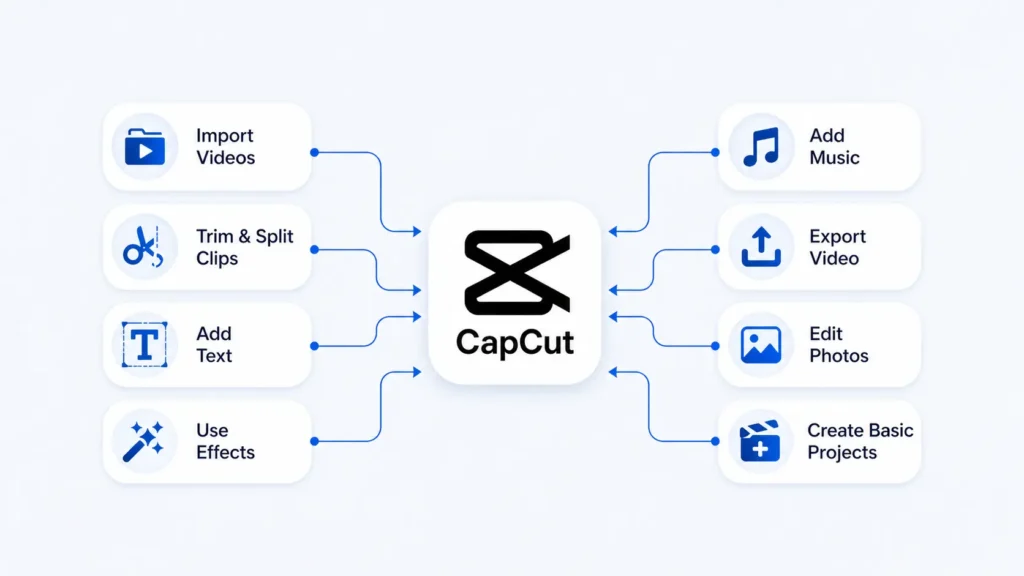
You will be able to create a new project, import clips from your device, trim footage, split clips, add text, adjust speed, add basic effects, and export the final video to your phone or computer.
This is enough for many casual edits, especially if you are making quick social videos, school clips, memes, short edits, or simple personal videos.
Common things you can usually do without an account
- Create a basic video project
- Import videos and photos from your device
- Trim, split, and rearrange clips
- Add simple text and captions manually
- Use some free effects, filters, and transitions
- Add music or audio from your device
- Export videos locally
Still, CapCut features can vary by device, region, app version, and whether you are using mobile, desktop, or web. If something asks you to sign in, it usually means that feature is account-based, online, or connected to a service that needs your profile.
When editing without an account makes sense
- You only need a quick one-time edit
- You do not care about cloud backup
- You are editing personal videos
- You are testing CapCut for the first time
- You plan to export the video immediately
For simple edits, that is fine. Just do not leave important work sitting only inside a local draft if you are not signed in.
What Features Need a CapCut Account?
You may need a CapCut account for features that depend on cloud storage, syncing, Pro access, online assets, collaboration, account history, or connected platforms.
CapCut’s own help pages explain that users can create an account with TikTok, Google, or email. CapCut also uses accounts for login, QR sign-in, cross-device access, cloud storage, and account-based features.
CapCut usually requires sign-in for:
- CapCut cloud storage
- Syncing drafts across devices
- CapCut Pro features
- Premium effects, templates, or assets
- Team or collaboration features
- Direct sharing to connected platforms (this is also relevant if you’re wondering whether CapCut boosts TikTok views when you post directly through the app)
- Managing subscriptions
- Using CapCut online in a browser
- Recovering account-linked projects
If you plan to edit regularly, logging in is safer than staying anonymous. It gives you a clearer way to manage your work, especially if you move between phone, desktop, and web.
If you want to understand how CapCut works across devices, this guide on using one CapCut account on two devices is a useful next read.
CapCut Mobile vs Desktop vs Online: Which One Needs Login Most?
CapCut does not handle login the same way everywhere, and that’s just one of several differences if you compare CapCut online vs desktop vs mobile.
On the mobile app, you can usually do simple local edits without signing in. That makes mobile the easiest option if you only want to trim a clip, add text, or export a quick video.
CapCut Online is different. The browser editor is built around sign-in, personal workspaces, uploads, cloud storage, and online projects. CapCut’s online editor tells users to sign up or sign in before launching a personal workspace and uploading media.
CapCut Desktop sits somewhere in the middle. You may be able to do some local editing, but features like cloud projects, account syncing, Pro access, and online assets are tied more closely to your account.
Here’s the simple way to think about it:
- Mobile app: best for quick local edits without login
- Desktop app: better for bigger edits, but account features matter more
- CapCut Online: expect to sign in before real editing
So if you want the least account friction, use the mobile app for basic edits. If you want cloud storage, online editing, Pro access, or cross-device work, signing in is the safer choice.
What Happens to Drafts If You Use CapCut Without an Account?
If you use CapCut without an account, your drafts may be saved locally on your device.
That means the draft may still appear when you close and reopen CapCut on the same phone or computer. But it may not be tied to an online account, and it may not follow you to another device.
This is where people get surprised. They assume every draft is saved online, but that is not always how it works.
Local drafts can be risky
A local draft can disappear if you delete CapCut, clear app data, reset your device, lose your phone, or use a cleaner app that removes app files.
That does not mean every draft will vanish instantly. It means you should not treat local drafts like safe backups.
If you are editing without an account, export important videos as soon as you finish them. If you think you may need to edit the project later, consider signing in and checking your backup or cloud options.
If you are worried about losing local drafts, read this guide on whether deleting CapCut deletes drafts before removing the app or clearing storage.
Can You Use CapCut Templates Without an Account?
You can browse many CapCut templates without signing in, including templates shown on CapCut’s public template pages.
But to actually use, customize, save, or manage templates properly, CapCut usually pushes you toward signing in. Template editing often depends on online access, your CapCut profile, saved activity, creator pages, or connected platforms like TikTok.
So the practical answer is simple: you may be able to look at templates without an account, but you should sign in if templates are part of your normal editing workflow.
That way, it is easier to save templates, access your template history, manage projects, and use account-based or premium template features.
When templates usually asks for login
- You want to save a template.
- You open a template from a shared link.
- You use a template connected to TikTok.
- You want to access your template history.
- You are using account-based or premium template features.
If templates are a big part of your editing workflow, this guide on the best CapCut templates for edits may help you find stronger options faster.
Can You Use CapCut Pro Without an Account?
No. You usually need to sign in to use CapCut Pro.
CapCut Pro is tied to your subscription, payment status, and account access. Without an account, CapCut cannot reliably confirm that Pro is active or unlock the premium features connected to your plan.
So if you only use free basic tools, you may not need an account. But if you want Pro effects, premium assets, advanced tools, or Pro access across devices, you should sign in.
Why CapCut Pro needs login
You usually need an account because:
- Your Pro subscription is linked to your account
- CapCut needs to check whether your Pro plan is active
- You may want to use Pro features on another device
- Billing and subscription management require account access
- Some premium effects, templates, and assets are tied to logged-in users
If you are comparing free editing with paid features, read this guide on CapCut Free vs CapCut Pro before subscribing.
Can You Use CapCut Online Without an Account?
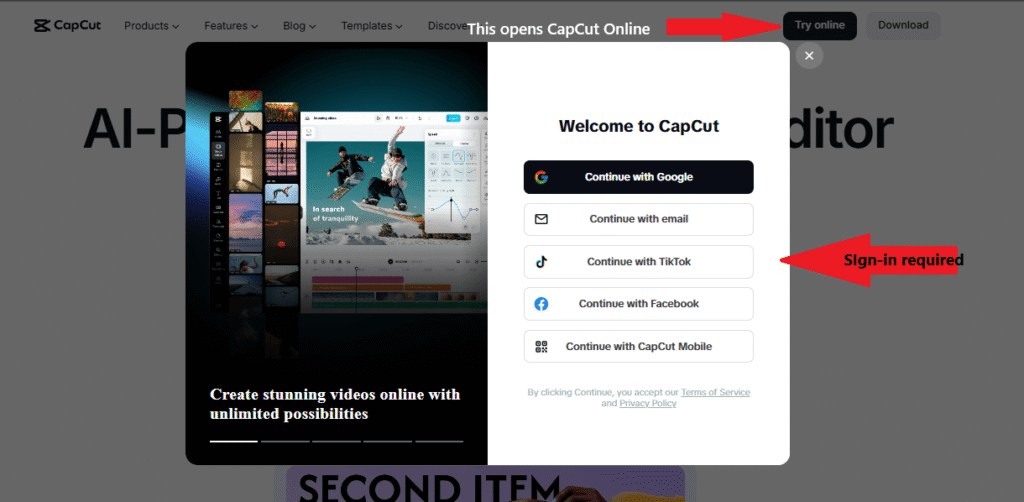
No. You cannot use CapCut Online for actual editing without signing in.
CapCut Online may let you view some public pages, browse parts of the website, or click around the homepage.
But once you try to open the online editor, create a workspace, upload media, or start editing, CapCut prompts you to sign in.
That makes CapCut Online different from the mobile app. On mobile, basic local editing may work without an account in some cases.
But the browser version is built around account access, online workspaces, uploads, cloud-based projects, and saved editing sessions.
So the straight answer is simple: if you want to use CapCut Online as an editor, you need to sign in first.
Why CapCut Online Requires Sign-In
CapCut Online runs through your browser, so it needs an account to manage your workspace, uploaded files, saved projects, cloud features, and editing session.
Without signing in, CapCut has no clear place to save your online project or connect your uploaded media to a workspace.
Can You Export From CapCut Without an Account?
Yes, you can usually export basic videos from CapCut without an account, especially on mobile.
If your edit uses free tools and local media, you may be able to save the finished video directly to your phone or computer without logging in.
But if the project uses Pro assets, premium templates, certain online tools, cloud media, or account-based features, CapCut may ask you to sign in before exporting or using those assets properly.
The Export will require login if:
- The project uses Pro features.
- The edit depends on cloud files.
- You are using CapCut Online.
- You need to restore a subscription.
- You are trying to share directly to a connected platform.
If your export fails even after signing in, the issue may not be your account. Check this guide on CapCut not exporting fixes for the most common causes.
Should You Create a CapCut Account?
Yes, you should create or sign into a CapCut account if you use the app often or care about keeping projects safer.
You do not need an account for every tiny edit. But if you make content for TikTok, YouTube, Instagram, clients, school, or your business, signing in is the smarter move.
An account can help with cloud features, Pro access, cross-device use, subscriptions, and project management. It also reduces confusion if you later switch phones or move between mobile and desktop.
You should sign in if:
- You edit regularly.
- You use CapCut Pro.
- You want cloud storage or syncing.
- You work across more than one device.
- You use templates often.
- You create videos for clients or a brand.
- You do not want all drafts tied only to one device.
If you use CapCut on more than one device, it is worth understanding how your account and Pro access work across multiple devices before you rely on the same login everywhere.
Frequently Asked Questions
Can you use CapCut without an account?
Yes, you can usually use CapCut without an account for basic editing. You may be able to trim clips, add text, use simple tools, and export videos locally without signing in.
Do you need an account to edit on CapCut?
No, not always. Basic editing may work without an account, especially on mobile. But features like cloud storage, Pro tools, syncing, subscriptions, and some templates may require login.
Can you export from CapCut without signing in?
Yes, basic exports may work without signing in. But if your project uses Pro assets, cloud files, online tools, or account-based features, CapCut may ask you to log in.
What happens to drafts if I use CapCut without an account?
Your drafts may be saved locally on your device. That means they may not sync to another device and may be harder to recover if you delete CapCut, clear app data, or reset your device.
Should I make a CapCut account?
Yes, if you edit often, use Pro features, want cloud storage, work across devices, or care about keeping projects easier to manage. For quick one-time edits, you may not need one.
Final Thoughts
You can usually use CapCut without an account for basic editing, especially if you only need a quick video and plan to export it right away.
But an account becomes more important when you want cloud storage, Pro access, templates, syncing, subscriptions, or safer project management across devices.
So the best answer is simple: use CapCut without login for quick edits, but sign in for anything important. Your future self will thank you when your drafts, account, and projects are easier to find.
