
Can Two People Work on CapCut at the Same Time? (Updated)


If you’ve ever tried to collaborate on a video in CapCut, you’ve probably hit the same annoying problem:
One person edits… then the other person opens the project, and something doesn’t match — clips move, changes don’t appear, or it feels like someone’s work got overwritten.
So the real question people are searching for is: can two people edit on CapCut at the same time?
And related: can two people work on a CapCut project at the same time, or two people edit the same video on CapCut without messing things up?
For a long time, the honest answer was basically “not really.” CapCut wasn’t set up like Google Docs, where both people can edit simultaneously.
But things have changed. CapCut now supports team collaboration (often called Teamspace/Teams) that lets multiple people be inside the same project — with controlled editing so you can collaborate without losing work.
In this guide, I’ll show you exactly what CapCut allows today, what “at the same time” actually means in CapCut, and the safest way for two people to edit the same video without overwriting each other.
If you want the full breakdown of every tier (Free, Standard, Pro, and Teams) with typical price ranges and who each plan is best for, read our guide: CapCut pricing plans.
Can Two People Work on CapCut at the Same Time?
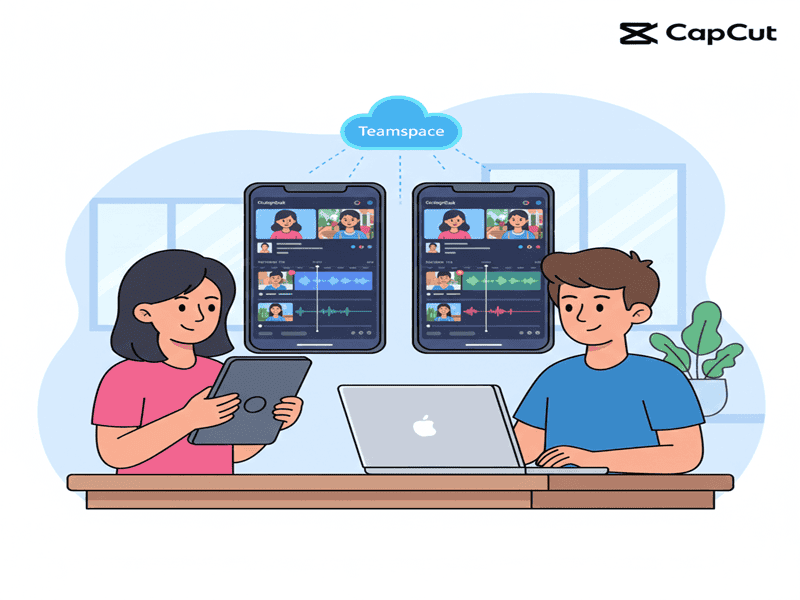
Yes, two people can work on the same CapCut project now.
But here’s the key detail most people mean when they search this: CapCut collaboration is usually “one editor at a time,” not two people editing the same timeline simultaneously.
The other person can join the same project and then take over editing when control is handed to them.
That’s still a huge upgrade because it removes the old back-and-forth chaos and keeps everything organized inside one shared workspace.
What it was like BEFORE CapCut Teams (2023–2024)
If you tried to have two people edit the same video on CapCut back then, it was messy:
- You exported the project file and sent it to the other person (Drive/AirDrop/WeChat).
- They imported it, edited it, exported again, and sent it back.
- You ended up with version chaos (“final_v2_FINAL_reallyfinal.capcut”).
- There was no shared media library, no clean handoff, and no reliable collaboration flow.
So when people asked, “Can two people edit on CapCut at the same time?”, the practical answer was: not in a smooth way.
What Changed: CapCut Teams / Teamspace Collaboration
CapCut introduced a Teams/Teamspace-style collaboration workflow that lets multiple people access the same shared workspace and project without constantly sending files back and forth.
With this setup, two or more people can:
- Work inside the same shared Teamspace (cloud workspace)
- Upload footage once, so everyone uses the same assets
- Open the same cloud project across devices
- Avoid overwriting changes by using an editing handoff (one person edits, then the other takes over)
So if your question is “can two people work on a CapCut project at the same time?”, the most accurate answer is:
- Yes, two people can collaborate on the same project.
- No, two people usually can’t edit the same timeline at the same moment. It’s typically controlled editing with a handoff.
Does CapCut Allow Real-Time Editing Like Google Docs?
Almost — but with one important rule.
CapCut does not work like Google Docs, where two people can type and edit the same timeline at the exact same moment. Instead, CapCut uses a “single editor” system:
Only one person can actively edit the timeline at a time.
If someone is already editing, the second person can still open the project, but they’ll typically be limited to preview (and sometimes comment-style) access. In many cases, CapCut will show a message like:
“This project is being edited by [Name]. Request editing permission?”
When the editor approves, editing control transfers instantly. If the second person clicks “Take over,” CapCut switches the first person into preview mode to prevent conflicts and overwritten changes.
In real use, this still feels close to real-time collaboration because the handoff is fast, and both people are working inside the same shared project without sending files back and forth.
Try CapCut (Free Download)What Is CapCut Teams Plan — And How It Changes Things
CapCut Teams (often called Teamspace) gives creators a shared workspace where multiple people can collaborate on the same projects.
When you create a Team Space, you can invite other members, and everyone inside that space can access shared drafts, video files, folders, and assets.
This is what makes “two people edit the same video on CapCut” finally practical — because you’re not sending project files back and forth anymore.
This isn’t just view-only sharing. Team members can upload media, open projects stored in the shared space, and edit them using a controlled handoff system (one person edits at a time, then the next person takes over).
Seats (User Licenses): How Teams Plans Work
CapCut Teams is sold in “seats,” which basically means how many people can use the Teams features under the same subscription.
For example:
- A 2-seat plan allows two people to collaborate with Teams features under one plan.
- This is perfect if your main goal is “Can two people work on a CapCut project at the same time?”
How Many People Can Join a Team Space?
A Team Space is designed for small teams and creator groups. In many cases, it supports up to four members (including the owner), which is ideal for duos and small workflows.
CapCut Teams Pricing (What Most People Pay)
CapCut Teams is typically around $24.99/month or $214.99/year.
If you want the full breakdown of the Teams plan, read this guide CapCut Plan for Teams
The Real Advantage of CapCut Teams
The big benefit isn’t just sharing a project. It’s running everything in one place:
- Shared assets (everyone uses the same uploaded media)
- Shared drafts and folders (organized in one hub)
- A clean collaboration workflow (no overwriting edits)
- Pro-level editing tools are available across the team seats
So instead of buying separate individual subscriptions and still struggling to collaborate, CapCut Teams is built for creators who want shared projects, shared assets, and shared control — without the file-transfer mess.
How to Set Up CapCut Teams for Two (or More) Editors
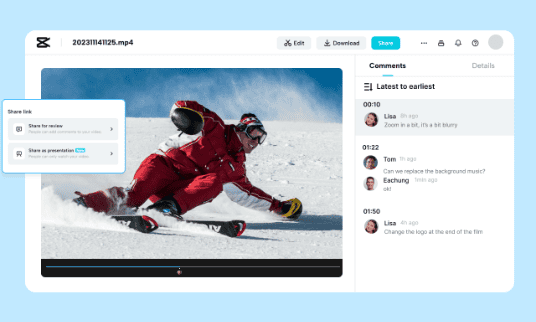
Setting up CapCut Teams is simple, but doing it the right way matters if your goal is to have two people edit the same video on CapCut without overwriting changes.
Here’s the exact setup to help two people work on CapCut at the same time (in the same project, with editing handoff).
Step 1: Subscribe to CapCut Teams
Choose the number of seats you need.
2 seats = 2 editors (each seat is one user license).
Step 2: Create your Team Space
After subscribing, create your Team Space (Teamspace).
This is the shared cloud workspace where your drafts, folders, and projects live.
Step 3: Invite your second editor
Invite your teammate using their email, CapCut ID, or an invite link (depending on what your CapCut version shows).
Once they accept, they’ll appear as a member in your Team Space.
Step 4: Assign a paid seat
This is the step many people miss.
Go to your member management area and assign a paid seat to the teammate.
Without a seat, they may join the Team Space but only have limited access (often view-only).
Step 5: Create (or move) the project into the Team Space
To allow two people to edit on CapCut simultaneously, the project must reside within the Team Space.
- Create a new project inside the Team Space, or
- Move an existing project into the Team Space (if your version supports moving it)
Personal drafts outside the Team Space are usually not set up for collaboration.
Step 6: Use the correct editing workflow (single editor + fast handoff)
This is how CapCut avoids conflicts:
- One person edits the timeline
- The second person opens the same project in preview mode
- When it’s their turn, they request control or take over, and editing rights switch instantly
This is what people mean when they search “can two people edit on CapCut at the same time?”
You’re both in the same project, and control swaps fast — but it’s typically one active editor at once.
Step 7: Stay organized with shared folders
If you want collaboration to feel smooth, create shared folders like:
- Footage
- Audio / Music
- Voiceovers
- Exports
- Thumbnails
- Brand assets (logos, fonts, presets)
That’s it — now two people can work on a CapCut project at the same time without sending files back and forth.
What CapCut Teams Doesn’t Guarantee
CapCut Teams is a big upgrade for collaboration, but it’s important to know the realistic limitations so you don’t expect Google Docs–style editing.
1) No true simultaneous co-editing
If you’re asking, “Can two people edit on CapCut at the same time?” the answer is: not in the literal sense.
Two people can’t drag clips, trim footage, or adjust effects at the same moment on the same timeline. CapCut is designed so that one person edits while the other previews, then you switch control.
2) Project locking still happens
When one person is actively editing a project, CapCut may lock the timeline for everyone else. The second person can open the project, but they won’t be able to edit until control is handed over.
3) Small sync delays can happen
Because the project is cloud-based, some changes may take a few seconds to show up for the other editor. This is more noticeable with large files or slower internet connections.
4) Seats and storage can limit you
Your collaboration limits depend on:
- How many seats do you pay for (how many editors can use Teams features)
- How many members does CapCut allow in a Team Space
- The storage included in your plan
If you outgrow any of these, you’ll need to upgrade or simplify the workflow.
5) Not every device behaves exactly the same
CapCut mobile, desktop, and web don’t always behave identically. If one editor is on mobile and the other is on desktop/web, you may notice small differences in how certain edits appear or how quickly they sync.
6) It doesn’t replace high-end multi-editor software
CapCut Teams is built for creator workflows and small teams. If you need advanced multi-editor collaboration where multiple people can edit the same timeline simultaneously, CapCut isn’t designed for that level of production.
When It Makes Sense (or Not) to Use CapCut Teams
CapCut Teams isn’t for everyone, but it’s a strong fit for the right workflow. Here’s how to decide.
When CapCut Teams Makes Sense
- You’re a duo or small team making short-form content
If you’re creating TikToks, Reels, Shorts, or quick edits, Teams gives you shared access, shared assets, and a smoother workflow than exporting and sending files back and forth. - You want both editors to have Pro features
If your plan includes multiple seats, it’s easier than buying separate Pro subscriptions for each person. - You want one shared place for all media and assets
A shared workspace keeps footage, audio, overlays, and brand files in one hub so everyone stays consistent. - You take turns editing (sequential workflow)
If your workflow is “I edit first, you polish after,” Teams works extremely well. This is the best way to handle two people editing the same video on CapCut without conflicts.
When CapCut Teams May Not Be the Best Fit
- You require true real-time simultaneous editing
If your team needs two or more people actively changing the same timeline at the same moment, CapCut isn’t built for that yet. - You edit long, complex projects
Long YouTube videos, documentaries, or heavy motion graphics can push CapCut’s limits compared to traditional desktop editors. - You have a larger team
Teams is best for small groups. If you’re managing a full production team, you may hit seat/member limitations quickly. - You need a detailed version control
If you need advanced revision tracking (multiple branches, deep history, restore points), CapCut Teams may feel limited.
Frequently Asked Questions
Can two people edit the same CapCut project at the same time?
Yes — two people can work in the same CapCut project in Teamspace/Teams, but typically only one person can actively edit the timeline at a time. The other person previews the project and can request or take over editing control when it’s their turn.
Can two people edit on CapCut at the same time like Google Docs?
Not exactly. CapCut collaboration usually uses a single-editor system to prevent overwriting and timeline conflicts. It still feels fast because both people can stay in the same project and hand off editing control quickly.
Can two people edit the same video on CapCut without overwriting each other?
Yes — the safest approach is to keep the project inside Teamspace/Teams and take turns editing. One person edits, the other previews and reviews, then you switch control. This avoids file-passing and reduces lost changes.
Is CapCut collaboration free?
CapCut offers basic free sharing (like exporting and sending files, and sometimes link sharing depending on the feature). But if you want true collaboration—editing from the same shared Teamspace, managing members/seats, shared storage, and smooth handoffs inside one project—you’ll typically need the Teams collaboration features, which are usually part of a paid Teams plan.
How do I invite someone to edit with me on CapCut?
Create a Teamspace/Team Space, then use the Invite option to send a link or invite by email/CapCut ID. If your plan uses seats, assign your teammate a seat so they can edit (not just view).
What happens if both people try to edit at the same time?
The project may lock editing for the current editor. The second person can usually open the project, but won’t be able to edit until they request control or take over — which helps prevent conflicting changes.
How do I move an existing project so my friend can edit it?
Open the project menu and look for an option like “Move to Teamspace”. If you don’t see it, create a new project inside Teamspace and import the same media there instead.
Why don’t I see my teammate’s changes instantly?
Small sync delays can happen (especially with large files or slower connections). Saving the project and refreshing the project view usually helps the latest changes appear.
Final Thoughts
If you’ve ever wasted time exporting project files, renaming “Final_v3_with-music_really-final-this-time.capcut,” or watching a collaborator accidentally mess up the timeline, you’re not alone.
The big question is simple: can two people edit on CapCut at the same time?
Yes — two people can work on the same CapCut project in Teamspace/Teams, and the workflow is finally smooth as long as you use the handoff system (one active editor at a time).
With CapCut Teams (and Teamspace for testing), you can keep one shared project in the cloud, use the same footage and assets, and switch editing control in seconds instead of passing files back and forth. That’s the easiest way for two people to edit the same video on CapCut without overwriting changes.
Just keep expectations realistic: it’s not Google Docs–style simultaneous editing on one timeline. It’s better for most creators — a clean, conflict-free collaboration workflow that stays organized and reliable.
Create a Teamspace, move the project into it, invite your editing partner, and take turns editing with quick permission transfers. Once you do that, collaboration in CapCut finally works the way people expect.
More CapCut Guides
Helpful next reads for CapCut Teams, workflow, exporting, and fixes.
- CapCut Free vs Pro vs Teams (2026)
- CapCut Mobile vs Desktop
- CapCut AI Features (2026)
- How to Edit CapCut Templates
- Export CapCut Videos Without Watermark
- Export CapCut Without Pro
- Common CapCut Errors & Fixes
- Does CapCut Have Lip Sync?
- Can Other People See Your CapCut Projects?
- How to Cancel CapCut Subscription
