
CapCut Captions Looping or Repeating? Easy Fixes

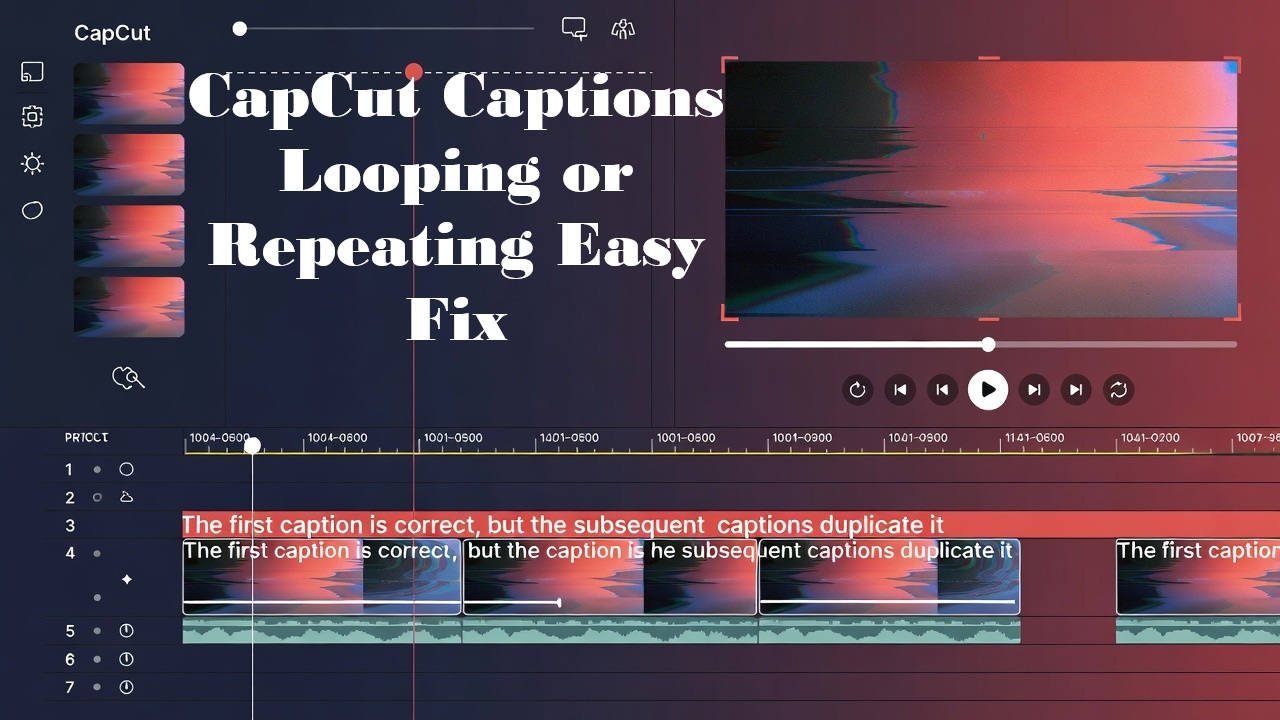
You exported your video, and the captions play twice. Or they loop continuously throughout the video, repeating the same phrase while the audio has moved on.
Or worse: the first caption appears correctly, then every subsequent caption is a duplicate of the first one, creating surreal nonsense that doesn’t match your audio at all.
This is what i call the CapCut captions looping bug. It is a specific CapCut error where the caption layers get stuck in repetition patterns.
It’s distinct from sync issues (timing wrong) or flicker issues (visual glitches). The captions are present and timed correctly, but their content repeats rather than progressing.
The bug appears randomly, survives exports, and isn’t visible in the preview, making it particularly frustrating to diagnose and fix.
Don’t fret, this article will guide you on why CapCut captions loop, how to identify whether you have a true looping bug or a different problem, and the specific fixes that break repetition patterns.
Understanding the CapCut Captions Looping Bug Types
Not all repetition is the same bug. Identify your specific pattern.
Type 1: The Stuck First Caption
- First caption generates correctly
- All subsequent captions are duplicates of the first
- Timeline shows different text, export shows same text
- Usually caused by: layer ID corruption, cache error
Type 2: The Infinite Loop
- Single caption repeats continuously
- Doesn’t progress to next caption
- Audio continues normally, caption stuck
- Usually caused by: duration misinterpretation, keyframe error
Type 3: The Export-Only Loop
- Preview shows correct progression
- Export shows looping/repetition
- Re-import shows looping
- Usually caused by: render cache corruption, export settings
Type 4: The Partial Loop
- First half of video captions correct
- Second half loops back to earlier captions
- Usually caused by: project file corruption at a specific timestamp
Type 5: The Platform Loop
- The export file plays correctly in VLC
- Loops on TikTok/Instagram upload
- Usually caused by: platform re-encoding error (not a CapCut bug)
Fix 1: The Layer Purge (Fastest Solution)
Most looping bugs are cache-related. Force CapCut to regenerate caption data. Here is a step-by-step guide on how to fix them:
1. Identify the looping layer
- Play the timeline, note which caption repeats
2. Delete and recreate
- Delete the looping caption layer entirely
- Do not undo complete deletion
- Add a new caption layer at the same position
- Re-type or re-generate content
3. Verify immediately
- Play 10 seconds after the fix
- Check that subsequent captions progress correctly
Why this works most times: Looping often stems from corrupted layer metadata. New layer gets a fresh ID, breaking the repetition pattern.
Fix 2: The Cache Clear (System-Level Fix)
CapCut caches render data. A corrupted cache can cause your Captions to loop.
Step-by-step For Mobile:
1. Force-close CapCut
- Swipe away from recent apps
- Ensure CapCut is not running in background
2. Clear app cache
- Settings > Apps > CapCut > Storage
- Clear Cache (⚠️not Clear Data)
- Or: Offload app and reinstall (iOS)
3. Restart your device
- Full power cycle clears RAM-resident cache
4. Reopen project
- Export fresh without preview caching
Step-by-step for Desktop:
1. Close CapCut
2. Clear cache folder:
- Windows: Press Windows + R, type %APPDATA%CapCutCache (or paste it into File Explorer address bar), hit Enter. → This opens the roaming app data folder for CapCut.
Select all files/folders inside Cache (Ctrl+A), then delete (or Shift+Delete for permanent removal). - Mac: Open Finder, press Cmd+Shift+G (Go to Folder), paste ~/Library/Application Support/CapCut/Cache, then press Enter.
Select all contents and move to Trash (then empty Trash if you want). Delete all contents
3. Restart CapCut
4. Re-export project
Fix 3: The Project Rebuild (Thorough Fix)
When specific project files are corrupted, rebuilding transfers content to clean environment. Below is the rebuild workflow i use:
1. Create a new project
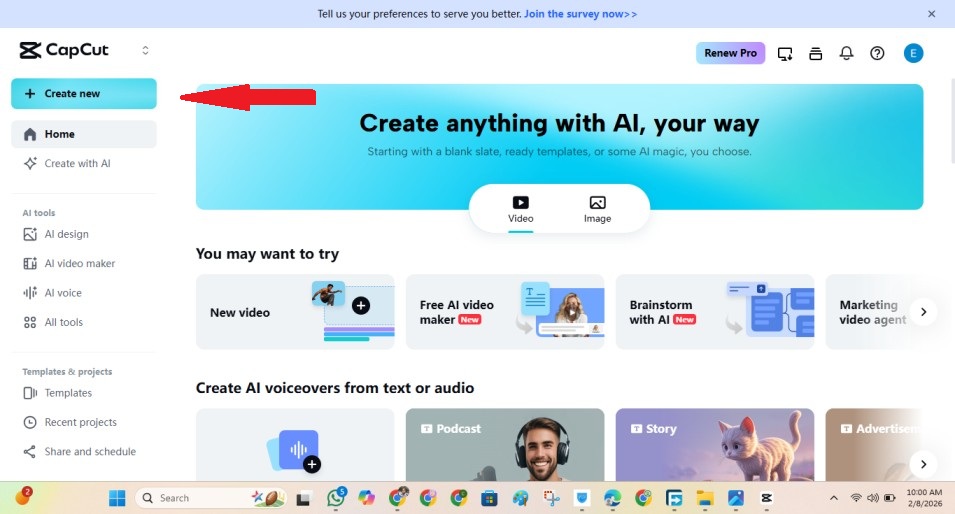
- Blank timeline, same settings (resolution, frame rate)
2. Import media fresh
- Don’t copy from old project
- Import source files directly from storage
3. Recreate captions
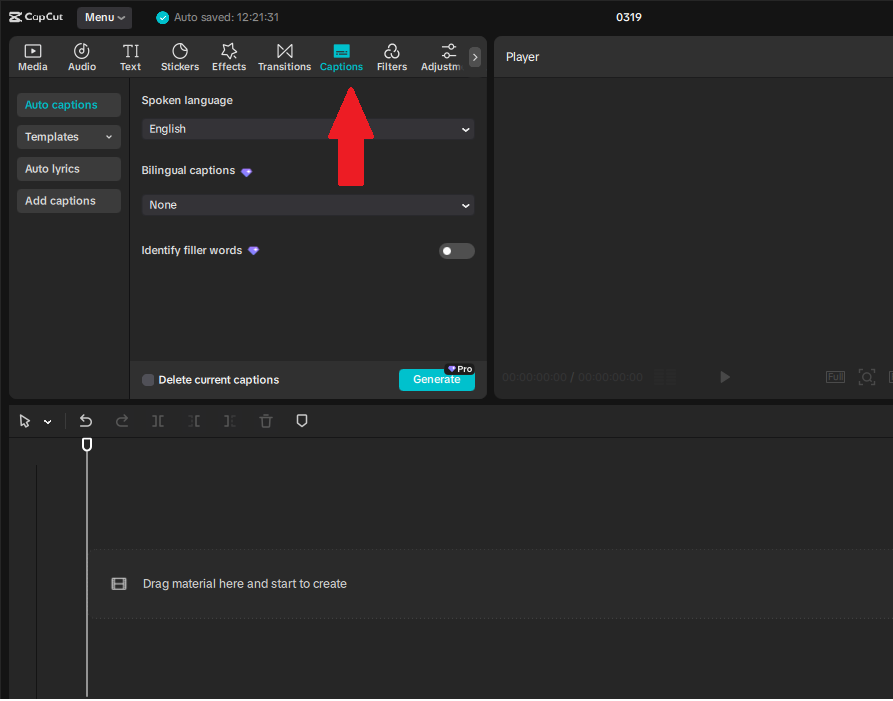
- Generate auto captions fresh, or
- Add manual captions new
4. Do not copy-paste from the old project
- Type or generate anew
- Copy-paste can transfer corruption
5. Export and verify
When to use rebuild:
- Multiple captions looping throughout the project
- Cache clear didn’t resolve
- The project has a complex history (many edits, imports, exports)
Fix 4: The Export Settings Fix (Render-Related Looping)

Sometimes on CapCut, certain export configurations trigger looping in the output file. Below is the best settings adjustment i recommend:
1. Change export format
- If MP4: try MOV (or vice versa)
- Different container resets render pipeline
2. Adjust codec
- H.264 instead of H.265
- Or “Compatible” instead of “High Efficiency”
3. Disable hardware acceleration
- Export > Settings > Performance
- Uncheck GPU acceleration
- Software encoding is slower but more stable
4. Reduce complexity
- Lower bitrate temporarily (4 Mbps)
- Reduce resolution (720p test)
- Simpler render = fewer corruption opportunities
5. Export and test
- If simplified export works: gradually increase quality until looping returns
- Identifies the threshold of corruption
Fix 5: The Timeline Surgery (Partial Loop Fix)
When only a specific section loops, isolate and repair that segment. Here is a step-by-step to do that:
1. Identify the loop point
- Note the exact timestamp where captions start repeating
2. Split at that point
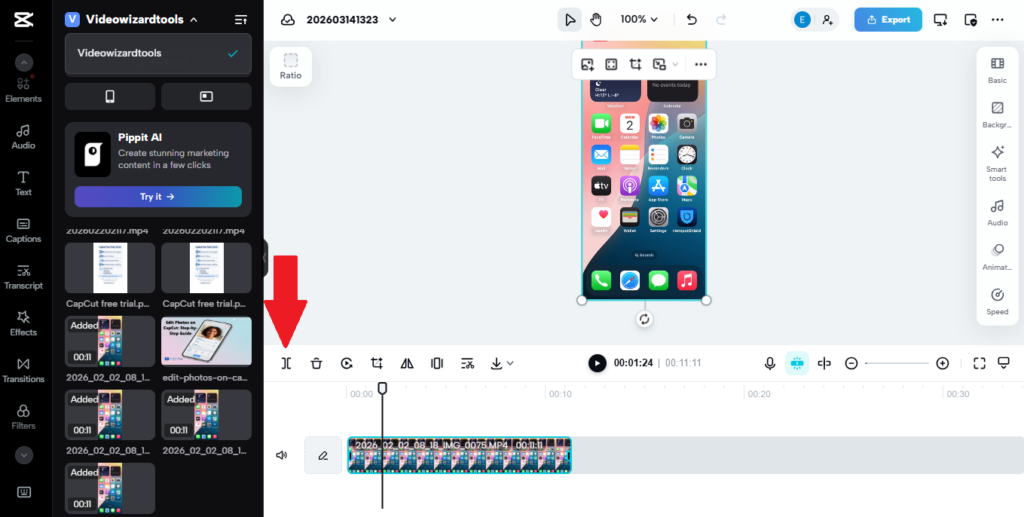
- Split tool at loop start
- Split tool 5 seconds after (create isolated segment)
3. Delete isolated segment
- Remove the looping section entirely
4. Rebuild that section
- Re-import source footage for that segment
- Re-generate or re-add captions
- Reconnect to the main timeline
5. Smooth the join
- Check the transition at the split point
- Ensure audio continuity
Why this works most of the time: Project corruption is often localised. Removing the affected segment and rebuilding breaks the loop pattern.
Fix 6: The Auto Caption Regeneration (For Auto Caption Loops)
Auto captions have specific looping patterns related to generation errors.
The regeneration workflow:
1. Delete all auto captions
- Select caption track
- Delete entirely
2. Clear the generation cache
- Settings > Clear Auto Caption Cache (if available)
- Or: Log out of the CapCut account, log back in
3. Re-generate in segments
- Don’t generate the full video at once
- Split the video into 30-second segments
- Generate captions per segment
- Reduces generation load, prevents corruption
4. Verify each segment
- Check before proceeding to the next
- Isolate problems immediately
Alternatively: Use Manual Captions instead.
Fix 7: The Version Rollback (App Bug Fix)
Sometimes, caption looping/repeating bugs are introduced (or persist) in specific CapCut app versions due to changes in animation rendering or subtitle handling. If earlier fixes fail, try this rollback test:
1. Check current version
- Go to Settings (gear icon) > About (or “App Info”). Note the exact version number (e.g., v12.0.1 or similar)
2. Search community forums
- Search on Reddit (r/CapCut), CapCut’s official community/forums, YouTube comments, or X/Twitter.
- Use queries like: “CapCut [your version number] captions looping” “CapCut [your version] animated captions repeat after delete” “CapCut captions stuck repeating bug fixed in update”
- If multiple users report the same issue starting after an update (or fixed in a newer/older version), proceed.
3. Rollback or test an older version (with caution):
- Android: Download the previous APK from a reputable source, check Where to Download Old CapCut version guide.
- iOS: No official rollback, but TestFlight beta versions are sometimes available
- Desktop: Uninstall, download the previous installer from the archive
Important warnings:
- Projects from newer versions may not open in older ones (error: “Project created by newer version”).
- Back up your project first (export .capcut file or duplicate).
- Downgrades can miss security fixes or new features, so revert to the latest version once tested.
If the bug disappears, note the “good” version and report it to CapCut support (helps them patch it).
If you keep running into caption bugs like looping, it’s usually a sign of a deeper workflow issue. For a complete step-by-step system that helps you avoid these problems entirely, read our full guide on how to add captions in CapCut (Auto & Manual Method).
Steps to Take to Avoid Loop Creation on your CapCut Projects
My 5 workflow habits that prevent looping:
1. Regular project saves
- Save incremental versions: Project_v1, Project_v2
- If corruption occurs, revert to earlier save
2. Don’t over-edit captions
- Each edit increases corruption risk
- Batch your edits: complete all text changes, then all timing, then all styling
3. Limit undo history
- CapCut’s undo can be corrupted with 50+ actions
- Save and reopen periodically to clear the undo stack
4. Export tests early
- Export 10-second test after caption completion
- Verify before adding effects, transitions, music
5. Avoid rapid generation
- Don’t spam the auto caption generate button
- Wait for each generation to complete fully
Is It Really Looping? How to Tell (And What Else It Could Be
Confirm you have a looping bug, not a different issue.
| Symptom | Likely Problem |
|---|---|
| Caption timing wrong (early/late) | Sync issue (See CapCut Captions is Out of Sync? Quick Fix ) |
| Caption missing entirely | Generation failure (Read CapCut Auto Captions Not Working? 7 Fixes) |
| Same caption text repeats endlessly | Looping bug |
| Caption flashes/blinks | Flicker issue (Learn about CapCut Caption Flickering) |
| After deleting or editing part of an animated caption, the text replays from the start over and over for the rest of the duration | Looping bug (common with animations) |
| Caption garbled/misspelled | Recognition error |
| Caption garbled/misspelt | Looping bug |
| Caption appears on wrong part of video | Positioning error |
| Captions repeat the same phrase or entire sequence endlessly (stuck in a loop while audio continues) | Looping bug |
Platform-Specific Looping Issues
TikTok upload looping:
- Export plays fine, TikTok plays looped
- TikTok’s re-encoding sometimes creates loops
- Fix: Re-export with different settings (Fix 4), re-upload
Instagram Reels looping:
- Similar to TikTok but less common
- Usually affects videos with 100+ caption blocks
- Fix: Reduce caption density, simplify project
YouTube Shorts looping:
- Rare, YouTube’s processing is more stable
- If it occurs, usually source file corruption
- Fix: Rebuild project (Fix 3)
When Looping Is Unfixable
Project file corruption:
- Too extensive for surgical repair
- Solution: Rebuild from scratch (Fix 3), or accept loss and recreate
Source footage corruption:
- The video file itself has an embedded loop pattern
- CapCut passes it through
- Solution: Fix the source footage in other software first
Hardware limitation:
- Device RAM is insufficient for complex projects
- Causes render errors, including loops
- Solution: Simplify the project or upgrade the device
Final Thoughts
Caption looping is a specific, solvable bug, not a mysterious curse. The fixes range from trivial (clear cache) to thorough (project rebuild), but one will resolve your issue.
The pattern matters: single caption looping suggests layer corruption; multiple captions looping suggests project corruption; export-only looping suggests render settings.
Match fix to pattern for efficiency.
Prevention through workflow discipline—regular saves, batch editing, early testing—reduces loop frequency. But when looping strikes, systematic application of these fixes restores your project.
