

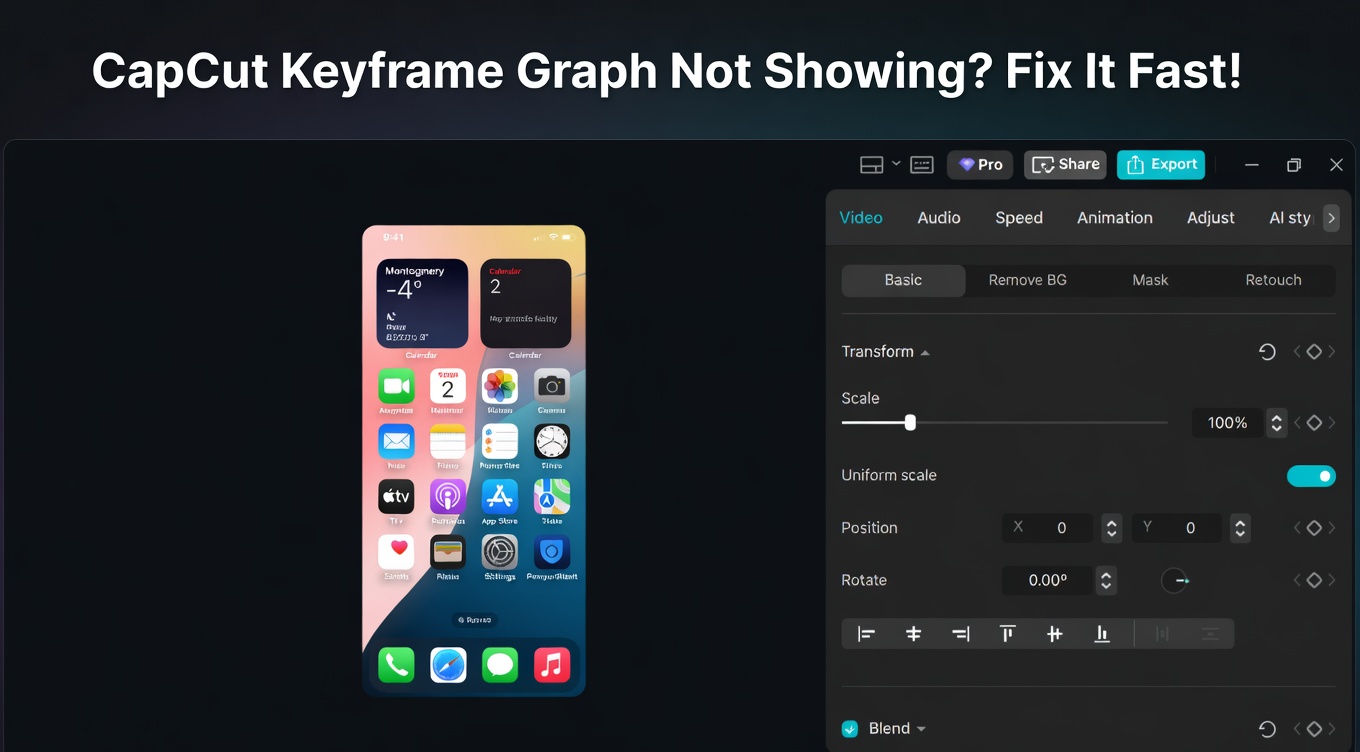
You open your project, ready to smooth out your animation… then boom, the CapCut keyframe graph is not showing. No curves. No control. Just stiff, robotic motion that ruins the whole edit.
Frustrating, right?
Without the keyframe graph editor, you’re stuck with linear, robotic motion. No easing. No curves. No professional polish.
I’ve been there, clicking around, thinking something broke, wasting time on what should be a simple fix.
But here’s the good news: this isn’t a serious problem. In most cases, it’s just a small setting, a wrong selection, or a glitch you can fix in minutes.
Let me show you exactly what’s going on and how to get your graph back fast.
If you haven’t mastered basic keyframing yet, start with our complete CapCut keyframe guide for the basics about Keyframes in CapCut (Desktop & Mobile).
Table of Contents
- What You're Missing When the CapCut Keyframe Graph is Not Showing
- How to Open/View the CapCut Keyframe Graph
- Quick Checklist Before You Panic
- 7 Reasons Your CapCut Keyframe Graph Is Not Showing (With Fixes)
- When You Actually Need the Graph (And When You Don't)
- Why CapCut Mobile Doesn't Show the Keyframe Graph
- Pro Tips to Avoid This Issue in the Future
- Frequently Asked Questions
- Conclusion
- Official Sources
What You’re Missing When the CapCut Keyframe Graph is Not Showing
The graph editor transforms robotic motion into human movement.
Linear keyframes (default): Constant speed from start to finish. Like a machine. Fine for basic cuts, boring for everything else.
Curved keyframes (graph editor): Acceleration, deceleration, anticipation. Like a real camera operator. Essential for professional work.
The difference: A zoom that starts slow, speeds through the middle, and settles gently at the end. Without curves, it hits like a hammer. With curves, it breathes.
The graph editor is where you draw that motion. When it won’t show, you’re locked out of professional animation.
How to Open/View the CapCut Keyframe Graph
Seeing your keyframe graph is the first step to smoothing animations in CapCut. Here’s exactly how to access it on CapCut Desktop:
Method 1: Keyboard Shortcut
- Select the clip on your timeline.
- Press Alt + K (Windows) or Option + K (Mac).
- The keyframe graph panel will appear for the selected property.
Method 2: Right-Click Menu

- Select your clip on the timeline.
- Right-click → choose “Show variable speed animation” (previously “Show keyframe animation”).
- The graph editor opens for that clip.
Important Notes:
- The graph editor is only available on desktop (Windows or Mac). Mobile doesn’t support bezier curves or full graph editing.
- Make sure your clip has at least two keyframes; otherwise, the panel will appear empty.
- Always select the correct property in the dropdown (Position, Scale, Rotation, Opacity) to see the graph for that animation.
CapCut Graph Editor Shortcuts (Windows & Mac)
| Action | Windows | Mac |
|---|---|---|
| Open keyframe animation | Right-click → Show | Right-click → Show |
| Close panel | Escape | Escape |
| Select multiple keyframes | Ctrl + Click | Cmd + Click |
| Range select | Shift + Click | Shift + Click |
| Delete keyframe | Delete | Delete |
| Reset handle (linear) | Double-click | Double-click |
| Break tangent | Alt + Drag | Option + Drag |
| Zoom graph | Ctrl + Scroll | Cmd + Scroll |
| Pan graph | Space + Drag | Space + Drag |
Pro workflow: Option/Alt + K to add keyframes without mouse movement. Keep one hand on modifier keys, one on trackpad/mouse for scrubbing.
Quick Checklist Before You Panic
Run through these in 30 seconds before diving into fixes:
| Check | What to Do | Why It Matters |
|---|---|---|
| Do you have keyframes? | Look for the diamond icon on your clip in the timeline or inspector panel. | The graph won’t appear if no keyframes exist. Ensure at least two keyframes are set. |
| Is the correct clip selected? | Click the clip so it’s highlighted on the timeline. | If nothing is selected, the graph option won’t show. |
| Did you open the graph panel correctly? | Right-click the clip → “Show variable speed animation”. | If this option is missing or greyed out, keyframes haven’t been set yet. |
| Are you viewing the right property? | Check the dropdown in the graph panel (Position, Scale, Rotation, Opacity). | The graph only shows the selected property. Wrong selection = empty graph. |
| Is CapCut running normally? | Close and reopen the app. | Temporary UI glitches can prevent the graph from loading properly. |
If all checks pass and the graph is still broken, proceed to the specific fixes below.
7 Reasons Your CapCut Keyframe Graph Is Not Showing (With Fixes)
If your CapCut keyframe graph is not showing, the issue, as mentioned earlier, is usually not as serious as it looks. In most cases, it comes down to missing keyframes, wrong settings, or a simple UI glitch.
If your graph issue is part of a wider animation problem, these CapCut keyframes not working fixes can help.
Below are the exact reasons this happens and how to fix each one step by step.
1. No Keyframes on the Clip
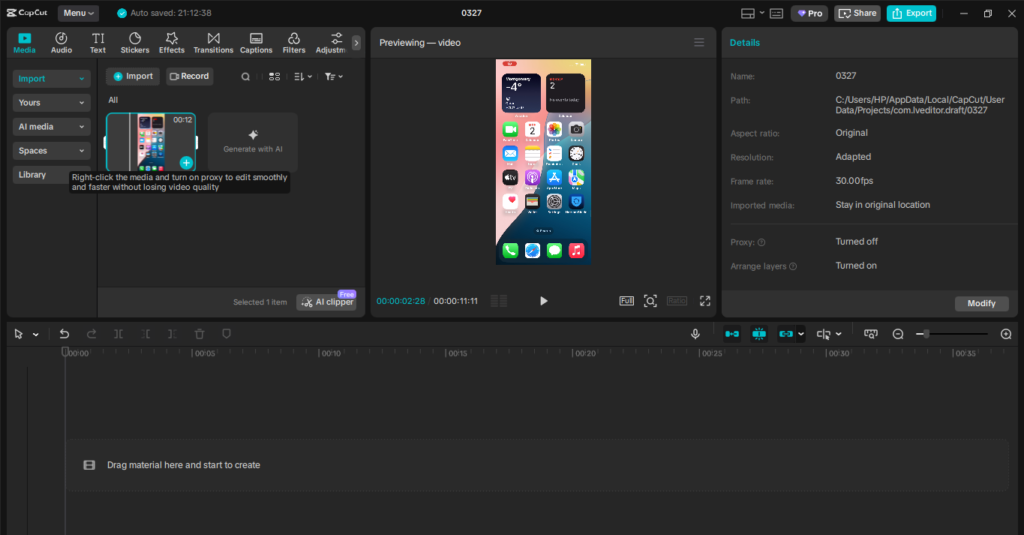
Symptom: You open the graph panel, but it’s empty or says no keyframes.
Why it happens: The graph editor only works when keyframes exist. Without keyframes, CapCut has no data to display.
Fix: Select your clip, go to the editing panel (Position, Scale, Opacity, etc.), and click the diamond icon to add at least two keyframes. Then open the graph using either method above.
Edge case: Sometimes users add only one keyframe. The graph may still appear flat because there’s no motion between points. Always use at least two keyframes.
2. You’re Viewing the Wrong Property in the Graph Panel
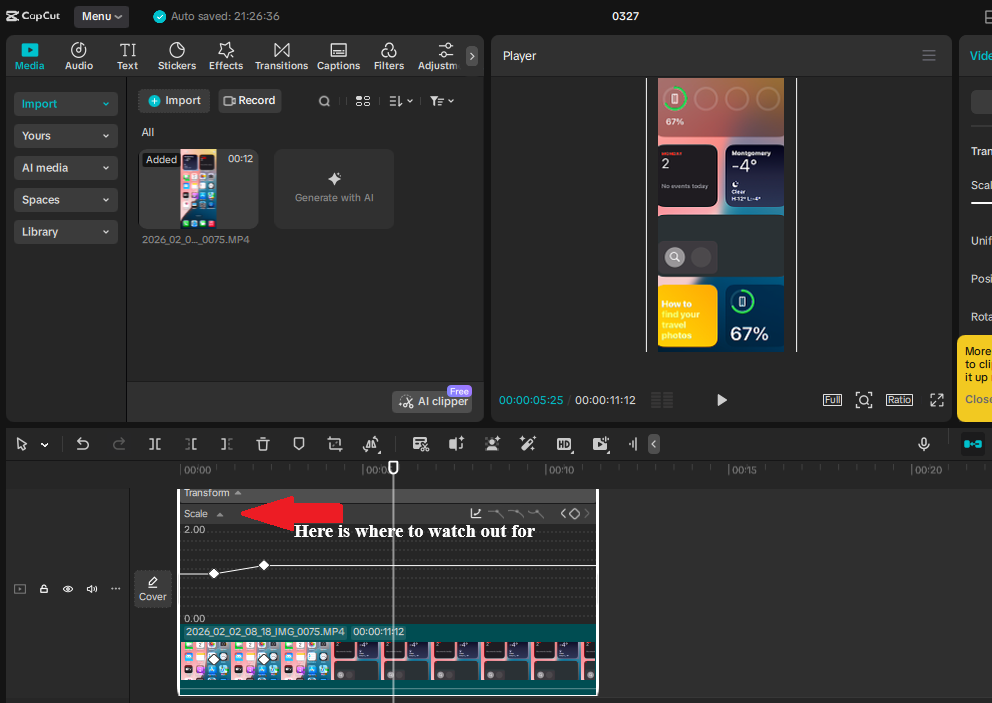
Symptom: The graph panel opens, but it looks empty even though you added keyframes.
Why it happens: CapCut displays one property at a time. If you animated Scale but the graph is set to Position, it will appear as if nothing is present.
Fix: Use the dropdown at the top of the graph panel and switch between Position, Scale, Rotation, and Opacity until you find your keyframes.
Authority insight: This is one of the most common causes of the CapCut keyframe graph not showing, especially for beginners.
3. Keyframes Are Set to Linear (No Curve Handles)
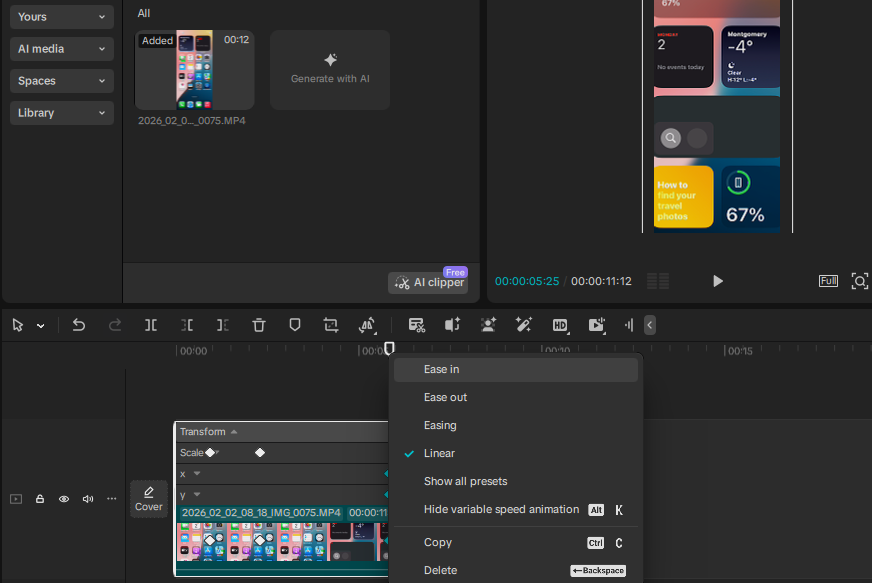
Symptom: You can see keyframe points, but there are no curve handles to adjust motion.
Why it happens: By default, CapCut uses linear interpolation, which creates straight motion without easing.
Fix: Right-click a keyframe and change it to Ease In, Ease Out, Ease In-Out, or Bezier. These options unlock curve controls.
Why this matters: If your CapCut keyframe graph is not showing curves, it doesn’t always mean it’s broken—it may just be set to linear.
4. Graph Panel Is Blank Due to a UI Glitch
Symptom: The graph panel opens but appears blank, frozen, or unresponsive.
Why it happens: Temporary interface glitches can prevent the graph from rendering properly, especially after long editing sessions.
Fix: Close the graph panel, select another clip, then reselect your original clip and reopen the panel. If that fails, save your project, restart CapCut completely, and try again.
Edge case: If the issue persists after restarting, updating CapCut or resetting preferences can resolve deeper UI bugs.
5. Curve Edits Are Not Reflecting in Playback
Symptom: You adjust the curve, but the animation still plays as if nothing changed.
Why it happens: The preview cache hasn’t refreshed or you’re editing a different property than expected.
Fix: Move the playhead slightly, press play and pause, and confirm you are editing the correct property in the dropdown.
Authority insight: CapCut sometimes delays visual updates, which can make it seem like the graph editor is not working.
6. Keyframes Are Misaligned After Trimming or Editing
Symptom: The graph shows keyframes, but the animation timing feels off or happens at the wrong moment.
Why it happens: CapCut keyframes are tied to timeline positions. If you trim or split a clip after adding keyframes, their timing does not automatically adjust.
Fix: Delete the affected keyframes, finalize your clip edits first, then re-add keyframes at the correct points.
Best practice: Always complete your rough cut before adding keyframe animation to avoid this issue entirely.
7. Too Many Keyframes Causing Lag or Freezing
Symptom: The graph panel takes time to open, lags, or freezes CapCut.
Why it happens: Excessive keyframes or complex projects can overload the preview system.
Fix: Reduce unnecessary keyframes and keep only essential points. Lower preview quality in settings and close background apps to improve performance.
Edge case: Older systems or very large projects may struggle with dense animations, making the graph feel unresponsive.
When You Actually Need the Graph (And When You Don’t)
| Scenario | Simple Keyframes | Graph Curves |
|---|---|---|
| Quick zoom | ✅ 2 keyframes, linear | ❌ Overkill |
| Smooth camera move | ⚠️ Okay | ✅ Ease In-Out essential |
| Text slide | ⚠️ Acceptable | ✅ Ease Out for settle |
| Bouncing ball | ❌ Can’t do | ✅ Bezier required |
| Audio ducking | ✅ Linear fine | ❌ Unnecessary |
| Color temperature | ⚠️ Linear works | ✅ Ease for subtlety |
Efficiency rule: If motion feels fine in linear preview, don’t open the graph. If it feels mechanical, robotic, or “computer-generated,” add easing curves.
If you want a practical example of easing in action, see how to animate text with keyframes in CapCut.
Why CapCut Mobile Doesn’t Show the Keyframe Graph
Clear answer: This is not a bug. CapCut mobile does not include a full keyframe graph editor.
The reason is that CapCut mobile is designed for speed and simplicity. Advanced controls like bezier curves and graph editing are reserved for the desktop version, where you have more precise control using a mouse or trackpad.
What this means: On mobile, you can still add keyframes for Position, Scale, Opacity, and more—but you won’t get curve controls or easing graphs.
Workaround (manual easing): You can fake smoother motion by spacing your keyframes unevenly. Place keyframes closer together at the start and farther apart toward the end (or vice versa). This creates a basic sense of acceleration and deceleration.
Important limitation: This method is less precise than using curves, but it works well for simple animations.
Best workflow: Use CapCut mobile for quick edits and basic keyframing. For smooth, professional motion with full control over speed curves, switch to CapCut on desktop.
Pro Tips to Avoid This Issue in the Future
Most cases of the CapCut keyframe graph not showing come down to small mistakes. These simple habits will save you time and prevent the issue completely.
| Tip | Why It Matters |
|---|---|
| Finish editing before adding keyframes | Trimming or splitting clips after adding keyframes can throw off timing and make the graph confusing or unusable. |
| Keep keyframes simple | Using too many keyframes can cause lag and make the graph harder to manage. Most animations only need a few key points. |
| Always check the property dropdown | If you’re viewing the wrong property (like Position instead of Scale), the graph may appear empty even when keyframes exist. |
| Make sure keyframes are actually added | No keyframes means no graph. Always confirm you’ve placed at least two points before opening the editor. |
| Restart CapCut when something feels off | Temporary glitches can prevent the graph from loading. A quick restart often fixes it instantly. |
| Keep your app updated | Newer versions fix bugs and improve stability, which helps avoid graph-related issues. |
| Avoid overloading your project | Heavy timelines with effects and too many keyframes can slow down the graph editor or cause it to freeze. |
Most graph issues aren’t bugs—they’re workflow problems. Fix your process, and the problem usually disappears.
Frequently Asked Questions
Why is my CapCut keyframe graph not showing?
Your CapCut keyframe graph may not show because no keyframes exist on the selected clip, the wrong clip is selected, the graph panel is set to the wrong property, or CapCut is having a temporary UI glitch. Make sure you have at least two keyframes on the clip, then reopen the graph for the correct property.
How do I open the keyframe graph in CapCut Desktop?
Select a clip that already has keyframes, then right-click the clip and choose Show keyframe animation or Show variable speed animation, depending on your CapCut version. You can also try Alt + K on Windows or Option + K on Mac if the shortcut works in your version.
Does CapCut mobile have a keyframe graph editor?
No. CapCut mobile supports basic keyframes for properties like position, scale, opacity, and rotation, but it does not include the full graph editor with bezier curves and detailed easing controls. For full graph editing, use CapCut Desktop on Windows or Mac.
Why is the graph panel empty even though I added keyframes?
The most common reason is that you are viewing the wrong property. For example, if you animated Scale but the graph panel is set to Position, the graph may look empty. Use the property dropdown and check Position, Scale, Rotation, and Opacity until you find the keyframes.
Why can’t I see curve handles on my CapCut keyframes?
Curve handles may not appear because the keyframes are still set to linear motion. Right-click the keyframe and change the interpolation to an easing option such as Ease In, Ease Out, Ease In-Out, or Bezier if your CapCut version supports it.
Why is the keyframe graph option grayed out?
The graph option is usually grayed out when the selected clip has no usable keyframes or only one keyframe. Add at least two keyframes to the property you want to animate, such as Position, Scale, Rotation, or Opacity, then try opening the graph again.
Why does my animation timing change after trimming or splitting a clip?
CapCut keyframes are tied to timeline positions. If you trim, split, or move a clip after adding keyframes, the animation can feel misaligned. The cleanest fix is to finish your rough cut first, then add or rebuild the keyframes afterward.
How do I fix a blank, frozen, or lagging keyframe graph panel?
Save your project, close the graph panel, select another clip, then reselect the original clip and reopen the graph. If it still freezes or stays blank, restart CapCut, reduce unnecessary keyframes, lower preview quality, and close background apps.
Do I need the graph editor for every CapCut animation?
No. Simple zooms, fades, and basic movements can work fine with normal keyframes. Use the graph editor when the motion feels robotic, stiff, or too linear and you need smoother easing, acceleration, deceleration, or bounce-style movement.
Conclusion
The CapCut keyframe graph editor transforms basic animation into professional motion design. When it won’t show, the fix is usually property selection, UI refresh, or version update—rarely a fundamental system failure.
Master the graph, and you control speed curves, anticipation, follow-through—the principles that make animation feel alive rather than robotic. Ignore the graph, and your keyframes remain functional but flat.
