
CapCut Mobile vs Desktop Plans: The Differences Explained

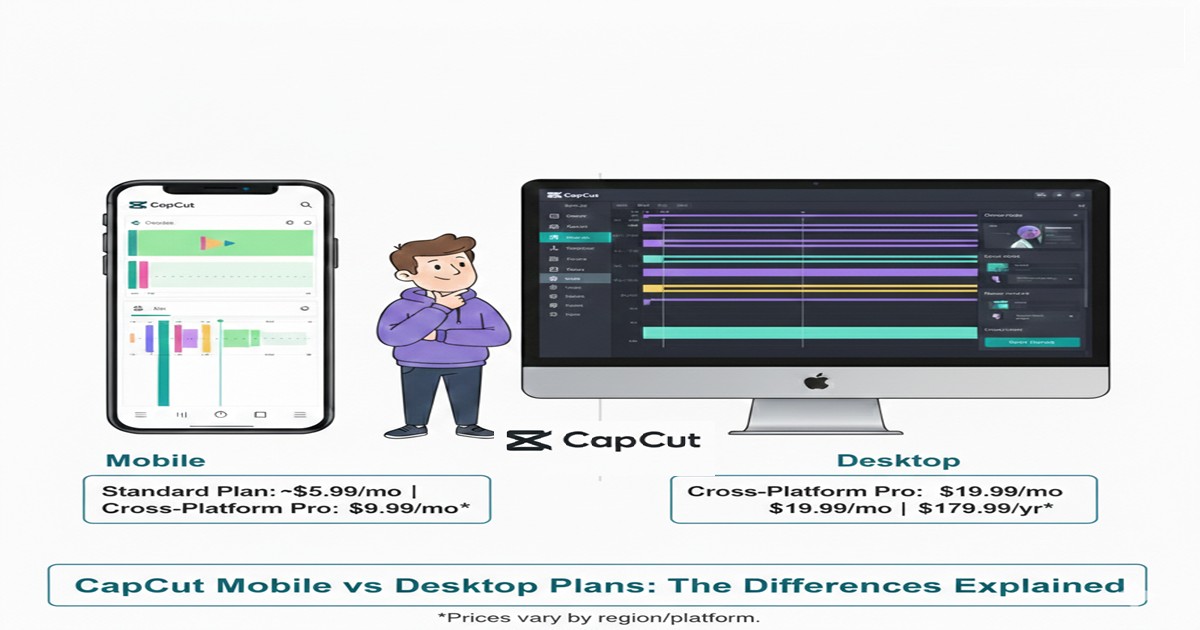
Ever opened CapCut on your phone, then your laptop, and thought, why does this feel like two different apps?
I’ve been there. Same login. Different features. Different prices. Instant confusion.
Here’s the thing. CapCut has grown fast, and short-form video is exploding. Creators want speed, quality, and tools that do not slow them down.
That pressure is why CapCut’s mobile and desktop plans look similar on the surface, but behave very differently once you actually edit.
Stick with me. I’ll break down what each plan really gives you, what you pay for, and which one makes sense for how you create.
Quick Answer: CapCut Mobile vs Desktop Plans – Key Differences
Go Mobile-focused (Standard Plan) if you edit only on phone and want affordable upgrades
- Cheaper (~$9.99/mo or less, varies by region)
- No watermark, premium effects & filters on mobile
- Mobile-only — no desktop or web access
- Great for quick TikTok, Reels, and Shorts creators
Go Cross-Platform (Pro Plan) if you switch between mobile & desktop
- Full access: mobile, desktop, and web (~$19.99/mo or $179.99/yr)
- Advanced AI tools, 4K exports, cloud sync & storage
- Better for longer videos, precise edits, and multi-device workflows
- One subscription unlocks everything across devices
Mobile plans = fast and affordable for phone-only editing.
Desktop-inclusive plans = more power and flexibility when you need both.
Pro tip: If you ever edit on a computer, skip Standard and go straight to Pro to avoid syncing limits later.
What Easily Gets People Confused in CapCut Plans
Here’s the thing most people miss.
CapCut is not just a mobile app anymore. It’s a full editing platform that happens to live on different devices. And that’s where the confusion starts.
On mobile, CapCut feels simple and friendly. You open it, pick a template, tweak a few clips, post, and done.
On a desktop, it feels closer to a traditional editor. Timeline, layers, fine controls, more room to think.
Same account. Same name. Different priorities.
Another reason people get tripped up is how CapCut rolls out features. New tools often show up on one device first.
Sometimes mobile. Sometimes desktop. So people assume a feature is locked behind a plan, when really it’s locked behind the device.
That’s why you’ll hear things like:
“CapCut Pro gives you this feature”
But what they really mean is:
“CapCut Pro on this device gives you this feature”
Once you understand that CapCut is one platform with different editing environments, the plans start to make a lot more sense.
CapCut Mobile Plans Explained
On CapCut Mobile, you start with a free tier that’s surprisingly capable — you can cut, trim, add filters, and export in 1080p most of the time without paying a cent.
It’s perfect for casual TikTok/Reels users or quick edits.
But once you bump into limitations — premium effects, advanced text styles, cloud sync, better AI tools, or 4K exports — that’s where paid plans come in.
Here’s how the official CapCut pricing structure typically breaks down in 2026:
CapCut Standard (Mobile-only)
~$5.99 / month or ~$89.99 / year
- Removes watermarks
- Extra templates, effects, and filters
- Mobile-only access (no desktop or web)
CapCut Pro (Cross-platform)
~$19.99 / month or ~$179.99 / year
- Works on mobile, desktop, and web
- Cloud sync across devices
- Advanced AI tools and premium templates
- Up to 4K exports and more storage
*Prices are approximate and may vary by region, platform (iOS/Android vs web/desktop), taxes, or promotions. Always check the latest details on the official CapCut site or in the app.
Now here’s where things get complicated, and where a lot of creators complain on Reddit:
Many users see different prices depending on where they subscribe; for example, the in-app price on iOS/Android sometimes shows higher rates than the desktop/web price.
Some people claim they’re offered CapCut Pro on mobile at around $9.99/month while the desktop app advertises $19.99/month, yet the subscription still works across devices once purchased.
Reddit threads are full of confusion about why the same “Pro” label appears with two different price tags — and many users believe this is due to App Store/Google Play commissions or inconsistent regional pricing rather than a true product difference.
⚠️ Pro Tip from official guides & Reddit users
If you want the best price on CapCut Pro or Standard, subscribe through the CapCut website or desktop app . Creators consistently report that direct billing avoids the extra markup (often 15–30%) added by mobile app stores.
This simple step can save $2–$10 per month (or more on annual plans). Always compare prices before subscribing.
What you really get with CapCut Pro on mobile:
Premium effects & transitions
AI-powered tools (auto captions, background removal)
Cloud sync so your projects show up on other devices
Watermark-free exports and 4K video support (if your device and plan allow it)
But the mobile experience is still optimized for quick edits — you won’t get the full desktop-style timeline control on your phone, even if you pay for Pro.
CapCut Desktop Plans Explained
CapCut on desktop feels like a different beast compared to mobile.
The free desktop version already gives you way more breathing room:
- Bigger, cleaner timeline
- Easier multi-clip editing
- Better control over layers, audio, and precise timing
If you’ve ever felt cramped editing on your phone, switching to desktop instantly feels liberating — even without paying.
But free still has real limits:
- Advanced effects, premium AI tools, and certain export options stay locked
- You’ll hit walls on more complex projects
Now the pricing part — this is where desktop starts to feel more expensive.
CapCut Pro on desktop is usually displayed as:
- Around $19.99 per month
- Or roughly $179.99 per year (about $15/month equivalent)
People see that number and pause. And honestly, it makes sense at first glance.
Here’s what that Pro price actually unlocks on desktop:
- Advanced AI tools (background removal, smart cutouts, auto-reframe, etc.)
- More premium effects, transitions, and text/animation styles
- Higher-resolution exports and better format options
- Cloud syncing — so projects seamlessly move between desktop and mobile
Desktop Pro isn’t really about speed — it’s about control and polish.
You feel the difference when:
- Stacking multiple clips and layers
- Fine-tuning captions, animations, and audio
- Working on longer videos, YouTube content, or ads
One big thing that confuses people:
Some users spot cheaper Pro prices on mobile (often $5.99–$9.99/month) and think desktop requires a separate, pricier upgrade.
In most cases, Pro is Pro.
If you’re logged into the same account, paying for Pro on mobile usually unlocks full Pro features on desktop too.
The price difference is usually just where you subscribed (app store discounts vs. full desktop/web pricing), not a different tier.
That’s why desktop often looks more expensive — it’s showing the “honest” full Pro rate without the mobile store discounts.
Desktop Pro makes the most sense if you:
- Edit frequently and value precision over speed
- Work on longer videos or more complex projects
- Want fewer creative restrictions and better workflow
If you’re mostly trimming clips and posting daily short-form content (TikTok, Reels, Shorts), the free desktop version — or even mobile Pro — might already be enough, and the full desktop Pro price can feel like overkill.
CapCut Mobile vs Desktop: Feature-by-Feature Comparison
On paper, CapCut Mobile and Desktop look similar.
In real use, they feel very different.
Templates and auto edits
Mobile wins here. Templates are front and center, built for fast trends and quick posts. You can go from raw clips to a finished video in minutes.
Desktop has templates too, but they’re not the main attraction.
Effects, filters, and transitions
Both have a deep library, but mobile makes discovery and applying them easier and faster.
Desktop gives you more control over timing, layering, and fine adjustments.
→ Mobile = speed • Desktop = precision
Text, captions, and subtitles
Desktop is the clear winner. Editing captions, text styles, and timing on a big screen feels much easier and more precise.
Mobile auto-captions work fine for simple jobs, but long or detailed text edits get frustrating fast.
→ Desktop wins for accuracy & comfort
AI tools
Most AI features (auto captions, background removal, etc.) exist on both platforms.
On mobile they’re usually one-tap helpers — quick and simple.
On desktop you can tweak and refine the results much more deeply.
→ Same tools, different level of control: Mobile = quick • Desktop = refined
Timeline and layers
This is where desktop pulls ahead hard.
Multiple layers, cleaner audio waveforms, precise clip stacking, and smoother handling of complex projects.
Mobile works for basic edits, but it starts to feel cramped and limiting as soon as you add more tracks or effects.
→ Desktop is far better for serious, multi-layer editing
Export quality and formats
Both support high-quality exports (up to 4K with Pro).
Desktop feels more reliable for longer videos, heavier files, and complex projects — fewer glitches or slowdowns.
Mobile is great for most social content and quick shares.
→ Desktop = more stable for big projects • Mobile = plenty for everyday use
The simple way to think about it
- Mobile helps you create faster
- Desktop helps you create better
Neither is wrong. They’re just built for different editing habits.
Many creators use both: quick ideas and drafts on mobile, final polish and precision on desktop.
Pricing Breakdown: Mobile vs Desktop (Side by Side)
This is where CapCut confuses a lot of people — the same Pro plan can show very different prices depending on where you subscribe.
On CapCut Mobile (iOS or Android app), many users see:
- Around $5.99 to $9.99 per month (often lower due to regional discounts or promotions)
- Yearly options that work out cheaper per month (e.g., equivalent to ~$7–$8/month)
- Prices vary by region, taxes, App Store/Google Play fees, and current offers
This lower entry price is why tons of creators start with mobile Pro — it feels affordable for quick edits.
On CapCut Desktop (app or web), the price usually shows as:
- Around $19.99 per month
- Or roughly $179.99 per year (about $15/month equivalent)
At first glance, desktop looks way more expensive.
Here’s the key thing most people miss:
In most cases, CapCut Pro is one single subscription.
If you pay for Pro on mobile (even at the lower price), those Pro features usually unlock on desktop too — just log in with the same account.
You’re not buying two separate plans. The difference is just how the price is displayed and billed.
Why the prices look different:
- Mobile app stores (iOS/Android) often show discounted, localized, or promotional pricing (sometimes to compete or offset store fees).
- Desktop/web shows the full global/standard Pro price.
- CapCut runs pricing tests, regional variations, and A/B experiments across platforms.
So yes — two creators can both have full CapCut Pro access and pay very different amounts based on where they subscribed.
Quick decision guide:
- If you only edit short videos on your phone → The lower mobile price feels reasonable and sufficient.
- If you edit longer or more complex videos on desktop → The higher displayed price starts to make sense (but try mobile subscription first for potential savings).
The big mistake to avoid:
Paying the full desktop/web price when you only need mobile features — or assuming mobile Pro won’t work on desktop (it usually does with cross-platform sync).
Always compare prices in-app vs. website/desktop before subscribing, and check your account after to confirm full access!es.

Pros and Cons of CapCut Mobile
CapCut Mobile is popular for a reason. It makes editing feel easy. But it’s not perfect.
Where CapCut Mobile shines
It’s fast. Really fast. You can go from raw clips to a finished video in minutes. Templates, auto captions, and effects are built for speed, not setup.
It’s beginner-friendly. You don’t need to know editing basics to get something decent out. Everything feels guided.
It’s great for short-form content. TikTok, Reels, Shorts. That’s its home.
Where CapCut Mobile falls short
The timeline gets cramped. Once you stack clips, text, music, and effects, things feel tight.
Long videos feel heavy. Edits slow down. Precision becomes harder.
You have less control. Fine timing, detailed animations, and audio tweaks are limited compared to desktop.
CapCut Mobile is amazing when your goal is to post now.
It starts to frustrate you when your edits need polish.
Pros and Cons of CapCut Desktop
CapCut Desktop is where things start to feel serious.
Where CapCut Desktop shines
You get space. A real timeline. Multiple layers without fighting your screen. Editing feels calmer and more controlled.
Precision is better. Adjusting captions, syncing audio, trimming frames, and lining things up is easier and cleaner.
It handles bigger projects well. Longer videos, more assets, and heavier effects do not slow you down as quickly.
Where CapCut Desktop falls short
It’s slower to start. You sit down, open your laptop, and commit to editing. That’s not always what you want.
The price feels high. Seeing the full Pro price upfront scares off a lot of creators.
It can feel like too much if you only post short clips. For quick social edits, desktop can feel unnecessary.
CapCut Desktop is great when editing is part of your workflow.
It feels like overkill when editing is just something you squeeze in.
Common Questions People Have Before Upgrading CapCut
Is CapCut Pro worth it?
It depends on how often you edit. If you post occasionally, the free version is fine. If you post regularly and rely on captions, effects, or AI tools, Pro saves time and frustration.
Does CapCut Pro work on both mobile and desktop?
Yes. One Pro subscription typically unlocks features across mobile and desktop as long as you’re logged into the same account.
Can I switch between mobile and desktop easily?
Yes. With cloud sync enabled, projects can move between devices, allowing you to edit on mobile and finish on desktop.
Are there hidden limits in the free version?
Limits appear when projects get more complex. Free plans restrict premium effects, AI tools, and struggle with long timelines.
When does upgrading to CapCut Pro make sense?
Upgrading makes sense when CapCut starts blocking exports, locking effects, or slowing down your workflow.
Does CapCut Pro remove watermarks?
Yes. CapCut Pro allows watermark-free exports, which is important for professional and brand content.
Are AI captions included with CapCut Pro?
Most AI features, including auto captions and advanced text tools, are fully unlocked or expanded with Pro.
Is CapCut Pro good for TikTok creators?
Yes. CapCut is built for short-form platforms, and Pro users get faster access to trending templates and effects.
Can beginners benefit from CapCut Pro?
Yes. Pro reduces the learning curve by automating transitions, captions, and effects.
Does CapCut Pro improve export quality?
Pro unlocks higher resolution exports, higher frame rates, and better compression options.
Is CapCut Pro billed monthly or yearly?
CapCut offers both monthly and annual plans, with yearly subscriptions usually discounted.
Will my old projects still work after upgrading?
Yes. Existing projects remain intact, and previously locked Pro features become available.
Can I cancel CapCut Pro anytime?
Yes. You can cancel through your app store or account settings, and access continues until the billing period ends.
Is CapCut Pro better than other video editors?
For short-form content, CapCut is faster and more trend-aware than traditional editors.
Can CapCut Pro replace professional editing software?
For most creators and marketers, yes. Advanced editors are still better for cinematic or long-form projects.
Final Verdict: Which CapCut Plan Should You Choose?
If you like editing fast, posting often, and staying on your phone, CapCut Mobile is the better fit. Start free. Upgrade only when you feel the limits. For many short-form creators, mobile Pro is more than enough.
If you care about cleaner edits, longer videos, or more control, CapCut Desktop makes sense. It feels heavier because it is. The higher price only pays off if you actually use the extra control.
Here’s the simplest decision guide:
- Choose mobile if editing needs to be quick and easy.
- Choose desktop if editing needs to be clean and precise.
And remember this part, because it saves money.
You usually don’t need two plans. One Pro subscription often works across both devices. The real choice is not mobile vs desktop. It’s speed vs control.
