
CapCut Monthly vs Yearly: Which Is Cheaper?

Ever looked at the pricing screen and wondered, CapCut monthly vs yearly — should you pay month-to-month, or is the yearly plan actually cheaper over time?
You’re not alone. That tiny price toggle causes way more overthinking than it should.
Here’s the truth: CapCut doesn’t make the difference obvious — and if you’re not careful, you could overpay without realizing it. But don’t worry, I’ve done the digging for you.
In this post, we’ll break down the real costs (with actual math), who should pay monthly vs yearly, and when the upgrade is even worth it at all.
Let’s cut through the confusion.
Capcut Pricing Plans at a Glance
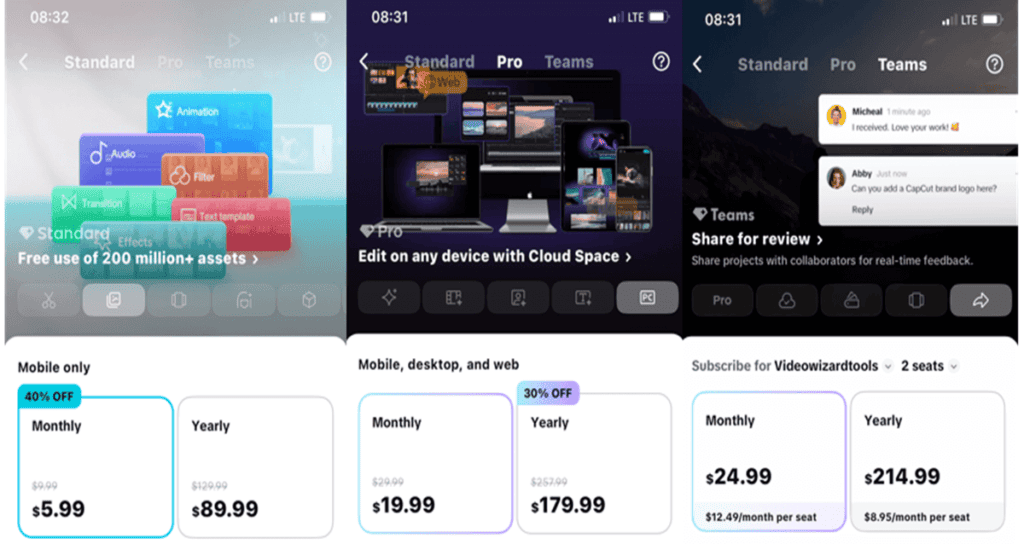
CapCut usually has a free plan plus at least one paid plan. In many regions you’ll see two paid tiers (often called Standard and Pro), and some users also see a Teams option.
The confusing part: the price and even plan names can change depending on your country, device/platform (iPhone App Store vs Google Play vs desktop/web), taxes, and promotions/trials.
- CapCut Free ($0): Enough for basic editing, but you’ll run into locked templates/effects/tools when you try to use premium assets.
- Standard (often the cheaper paid tier): Usually positioned as a lighter upgrade for mobile-first editors (availability and features vary by region).
- Pro (higher paid tier): Usually includes the broadest premium library and is more likely to support multi-device workflows (availability varies by region).
Important: If you see two different yearly prices (example: one lower and one higher), it’s usually because you’re looking at different tiers (Standard vs Pro) or a different checkout path. Always confirm the plan name right next to the price on your purchase screen.
CapCut Monthly vs Yearly: Which Billing Cycle Wins?
The same features, different commitment levels. Here’s how to choose.
📅 Pay Monthly
Monthly Price × 12 = Higher Total
- You’re testing CapCut for the first time
- You only need Pro for a specific project
- You prefer smaller, predictable payments
- You’re not sure how long you’ll need it
🎯 Pay Yearly
One Payment = ~3 Months Free
- You create content weekly or more
- You’ve already tried CapCut and love it
- You want the lowest possible price
- You hate monthly subscription reminders
Still Deciding?
Don’t guess. Test CapCut Pro free for 7 days—no watermark, full features, cancel anytime. Then pick the billing cycle that fits your workflow.
Start Free TrialWant to see exact prices for your region and compare all CapCut plans? Check our full pricing guide.
Do Capcut Monthly and Yearly Plans Have Different Features?
Here’s the thing most people get wrong:
Monthly vs yearly is not a “better plan vs worse plan” situation.
It’s usually the same paid tier. Just a different way to pay.
So, if you’re considering CapCut Pro monthly or CapCut Pro yearly, you’re typically getting the same Pro tools either way.
So what changes?
Only two things:
- How you pay
- Monthly = smaller payment now, repeats every month
- Yearly = bigger payment once, covers the whole year
- How locked-in do you feel
- Monthly feels safer if you’re unsure
- Yearly feels smarter if you know you’ll keep editing
What You Actually Unlock With a Paid Capcut Plan
This is where the “better for you” part really lives.
A paid plan is usually worth it if you need things like:
- more advanced effects and transitions (the ones that make your edits look “pro” fast)
- premium templates
- tools that speed up editing (so you spend less time doing annoying manual work)
- cleaner exports and more flexibility when creating content for TikTok, Reels, and YouTube Shorts
The real question isn’t monthly vs yearly
It’s this:
Do you need Free, Standard, or Pro?
Because if the free plan already covers your needs, then even the cheapest yearly deal is still extra money.
However, if you frequently edit and often encounter locked tools, then yes, the paid plan can save you time and improve the quality of your videos.
CapCut Monthly vs One-Month (and Yearly vs One-Year) Explained
Here’s the clearest way to explain it:
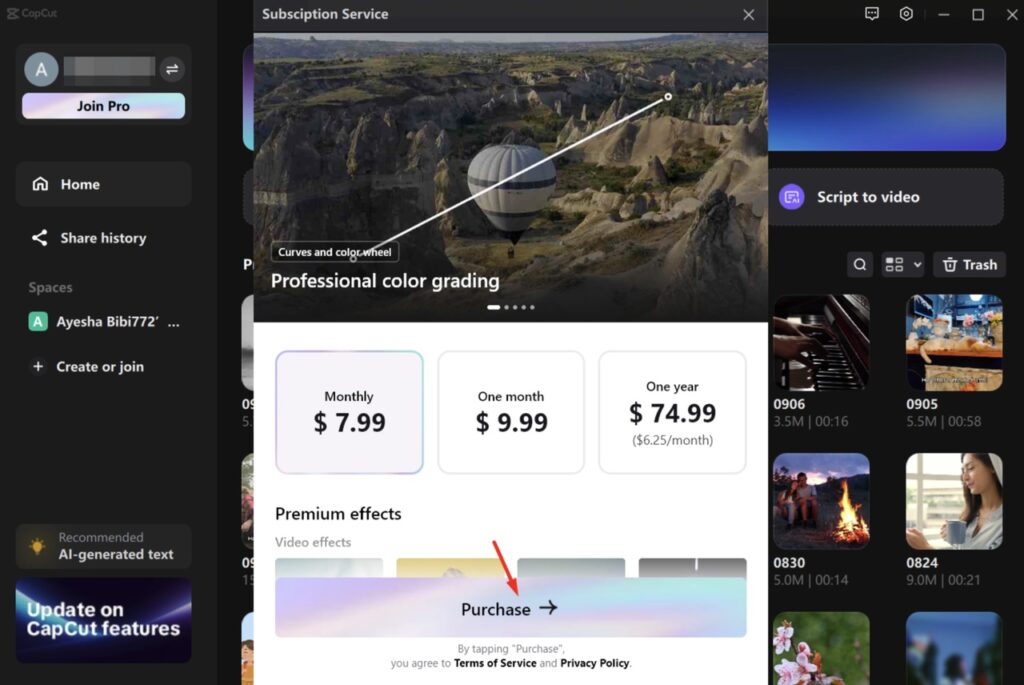
In CapCut, “Monthly” and “One Month” can both give you ~30 days of access — but the billing behavior is often different. Same idea for “Yearly” vs “One Year.”
1) The real difference is usually renewal, not duration
- Monthly = a recurring subscription billed every month (keeps charging until you cancel).
- One Month = one-time access for 1 month (often shown as a single purchase option, not meant to keep renewing).
- Yearly = a recurring annual subscription (renews each year unless canceled).
- One Year = one-time access for 1 year (often positioned like a prepaid year, sometimes used for promos/discounts).
2) Why people get confused
Because CapCut sometimes shows both options on the same screen (example in the screenshot above): Monthly, One month, and One year.
That makes it feel like “Monthly” and “One month” are different plans… when the main difference is often whether it keeps renewing.
3) Quick “don’t get charged again” checklist
When you’re on the purchase screen, look for wording like:
- “Renews automatically” / “until canceled” → that’s the Monthly or Yearly recurring subscription.
- No auto-renew wording/looks like a single purchase → that’s often the One month or One year one-time option.
Quick check: On the purchase screen, look for wording like “renews automatically” or “until canceled”. That usually means it’s a recurring subscription. If it reads like a single purchase (no auto-renewal wording), it may be a one-time duration option.
Typical prices people see
CapCut pricing can vary by platform, promos, and taxes—but these are common “price points” users run into:
- CapCut Pro (individual) commonly listed: $19.99/month or $179.99/year.
- Promo-style in-app/desktop examples (like the screenshot): $7.99 (Monthly), $9.99 (One month), $74.99 (One year).
If you want, paste your exact pricing screenshot/text from your checkout screen, and I’ll rewrite this excerpt to match your exact plan names (Standard vs Pro, etc.) so it reads 100% confidently.
Who Should Choose Capcut Monthly vs Yearly?
This is the part that actually helps people decide without guessing.
Because the “best” CapCut subscription isn’t about the price tag. It’s about how often you edit and how sure you are that you’ll keep using it.
CapCut Monthly vs Yearly: Which Billing Cycle Wins?
The same features, different commitment levels. Here’s how to choose.
📅 Pay Monthly
Monthly Price × 12 = Higher Total
- You’re testing CapCut for the first time
- You only need Pro for a specific project
- You prefer smaller, predictable payments
- You’re not sure how long you’ll need it
🎯 Pay Yearly
One Payment = ~3 Months Free
- You create content weekly or more
- You’ve already tried CapCut and love it
- You want the lowest possible price
- You hate monthly subscription reminders
Still Deciding?
Don’t guess. Test CapCut Pro free for 7 days—no watermark, full features, cancel anytime. Then pick the billing cycle that fits your workflow.
Start Free TrialWant to see exact prices for your region and compare all CapCut plans? Check our full pricing guide.
Once you’ve decided, here’s How To Subscribe to CapCut
Pros and Cons of Capcut Monthly vs Yearly
Let’s be real. Both options are “good.” They just solve different problems.
Monthly solves: I want freedom.
Yearly solves: I want the best deal.
CapCut Monthly Plan Pros
Monthly is best when you want control.
You get:
- Flexibility. Cancel anytime without feeling stuck.
- Low upfront cost. Easier on your wallet today.
- Perfect for testing. Great if you’re not sure CapCut Pro is worth it yet.
- Good for short-term needs. One project, one campaign, one busy season.
CapCut Monthly Plan cons
The downside is simple:
You pay more over time.
- Most expensive long-term
- Easy to forget you’re subscribed (then you’re paying for months you didn’t even edit)
- Feels annoying seeing that charge every month, especially if you only edit once in a while
Capcut Yearly Plan Pros
Yearly is the “smart money” option if you’re committed.
You get:
- Cheaper overall cost compared to paying monthly for 12 months
- One payment, no stress. You don’t think about renewals every month.
- Best for consistent creators who edit regularly
- Better value if CapCut is your main video editor
Capcut Yearly Plan Cons
Yearly has one big catch:
That upfront payment.
- Higher upfront cost even if you might slow down later
- Feels risky if you’re unsure you’ll still be editing in 3–6 months
- If you stop using it, you’ll feel like you wasted money even if the plan was “cheaper”
My honest takeaway: If you’re not sure you’ll keep using CapCut, monthly protects you.
If you already know you’ll keep editing, yearly saves you money.
Frequently Asked Questions
Can I switch from CapCut monthly to yearly?
Yes. The normal move is: start monthly to test it, then switch to yearly once you’re sure you’re using it enough.
Tip: Switch inside the same place you subscribed (App Store, Google Play, or inside CapCut), so you don’t accidentally end up with two subscriptions.
Can I cancel CapCut Pro anytime?
You can cancel anytime, but what happens next depends on how you paid.
- If you cancel a monthly plan, you usually keep access until the current month ends.
- If you cancel a yearly plan, you usually keep access until the year you paid for ends.
Canceling typically stops the next charge. It doesn’t always mean “instant refund.”
What happens if I cancel mid-year?
Most of the time, you don’t lose access right away. You keep the subscription benefits until the end of the billing period.
The main thing to watch is refunds. Some stores and regions handle refunds differently, so it’s smarter to assume yearly is a commitment for that year.
Is CapCut Pro worth it?
It’s worth it when the free version starts slowing you down.
CapCut Pro makes sense if:
- you edit often
- you want premium effects/templates that make videos look polished fast
- you care about speed and convenience while editing
But if you only edit once in a while, or you’re not using the locked tools, the free plan might already be enough.
Do monthly and yearly unlock different Pro features?
No. The paid tier matters more than the billing cycle.
CapCut Pro is CapCut Pro whether you pay monthly or yearly. Yearly doesn’t usually give “extra features” — it just gives a better price for committing.
Do I need CapCut Pro for TikTok, Reels, or YouTube Shorts?
Not always.
If you’re doing basic edits, captions, trimming, and simple transitions, the free version can be fine.
CapCut Pro becomes useful when you want your videos to look more “premium” without spending hours doing manual work.
Conclusion: CapCut Monthly vs Yearly
A yearly CapCut plan is almost always cheaper than paying monthly for 12 months.
That’s the trade-off: you commit upfront, and you typically get a better rate.
But price isn’t the only factor. The best plan depends on how consistently you’ll actually use CapCut.
Choose CapCut monthly if you want flexibility
Monthly is the smarter pick if:
- You’re still testing the paid plan
- You edit only sometimes
- You’re working on a short-term project
- You don’t want a bigger upfront payment
Think of monthly as your low-risk option — you can cancel without feeling like you paid for time you didn’t use.
Choose CapCut yearly if you edit regularly
Yearly is the better pick if:
- You edit weekly (or close to it)
- CapCut is your main editor
- You’re posting consistently for a brand, business, or creator page
- You already know you’ll keep using the premium tools
If you’re editing consistently, yearly is how you stop overpaying for convenience.
The simplest way to decide
If you’re not sure, use this no-stress rule:
Go monthly for one month.
If you’re still using CapCut regularly by the end of that month, switch to yearly to lock in the savings.
If you’re still using CapCut often by the end of the month, switch to yearly.
That’s the safest way to get confidence first, then lock in the savings.
