
How to Edit Capcut Templates: a Step-by-step Easy Guide

Want to customize a CapCut template to match your unique style?
Editing CapCut templates allows you to modify text, effects, transitions, and more, giving your videos a personalized touch without starting from scratch.
Whether you’re a beginner or an experienced creator, knowing how to edit CapCut templates can help you enhance your content effortlessly.
In this guide, we’ll walk you through the step-by-step process to tweak templates, adjust elements, and make your videos stand out.
Keep reading to learn how to edit CapCut templates like a pro and create engaging content with ease!
Also, in this article, we’ll guide you through how to find, use, and edit CapCut templates to make them your own.
For the most comprehensive guide on finding the best templates, plus detailed customization strategies to avoid generic looks, check out our main resource: Best CapCut Templates for Social Media (How to Find + Customize).
What Are CapCut Templates?
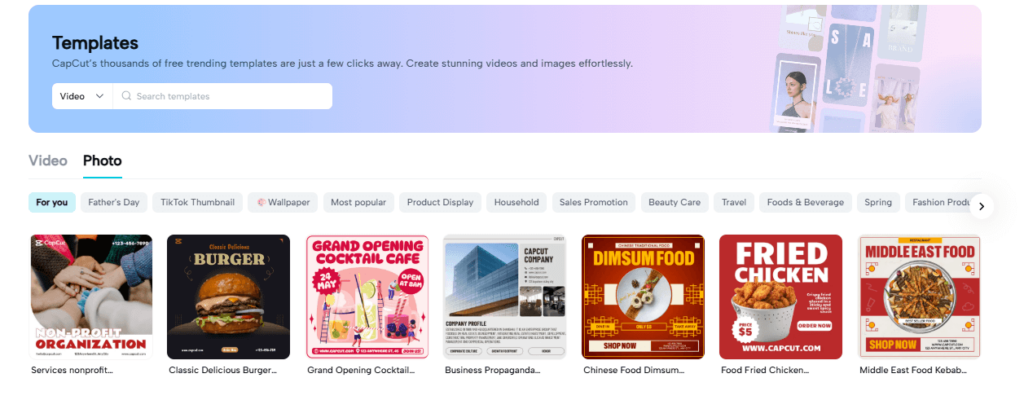
CapCut templates are pre-designed video projects that come with built-in transitions, effects, music, and even text overlays.
These templates are designed to make video creation faster and easier for users by providing ready-made structures for popular video styles such as short-form content, social media reels, or trendy effects.
These templates are commonly used for:
- Social media posts on platforms like TikTok, Instagram, and YouTube Shorts
- Trend-based videos, including challenges and popular editing styles
- Professional-looking video edits that can be created without complex editing knowledge
Can You Edit CapCut Templates?
Yes, you can edit CapCut templates! CapCut offers a range of flexible tools that allow you to customize templates to fit your specific needs.
Whether you want to replace media with your own videos and photos, adjust effects, modify text, or change transitions, CapCut makes it easy to personalize templates while maintaining their overall structure.
This gives you the freedom to create professional-quality videos with your unique style.
Are CapCut Templates Free to Use?
Yes, CapCut templates are free to use! The app provides a wide variety of pre-made templates to simplify your editing process, whether you’re creating a short video or something more elaborate.
These templates often include effects, transitions, and music, giving your content a professional look with minimal effort.
While most templates are free, some premium options may require in-app purchases or a subscription to unlock advanced features.Make sure to review the template details before using them to ensure there are no hidden costs.
Curious about using CapCut for free? Find out more about CapCut’s free version and its features here.

How to Use CapCut Templates
CapCut makes it simple to find and use templates within the app. Here is a simple step-by-step guide:
Step 1: Open CapCut and Explore Templates
When you open the CapCut app, you’ll notice a “Template” tab at the bottom of the screen. Tap on this tab to explore a wide range of templates available for different video types and trends.
These templates are updated regularly and cater to various categories like music videos, vlogs, travel videos, and more.
Step 2: Select a Template
Browse through the available templates and choose one that fits your needs. Once you’ve found a template you like, tap on it to preview the video.
CapCut will provide a short demonstration of how the template looks with its default settings.
Step 3: Add Your Media
After selecting a template, you can add your own media files to the project. CapCut allows you to import photos and videos from your device’s gallery to replace the placeholder media in the template.
This is where your customization begins, as you’re able to use your own content while maintaining the structure of the template.
Step 4: Preview Your Video
Once your media is added, CapCut will automatically apply the template’s effects, transitions, and music to your footage.
You can preview the edited video to see how it looks with your personal media in place.
To learn how to subscribe to CapCut Pro, read our full guide here.
How To Edit CapCut Templates: Step-by-Step Guide
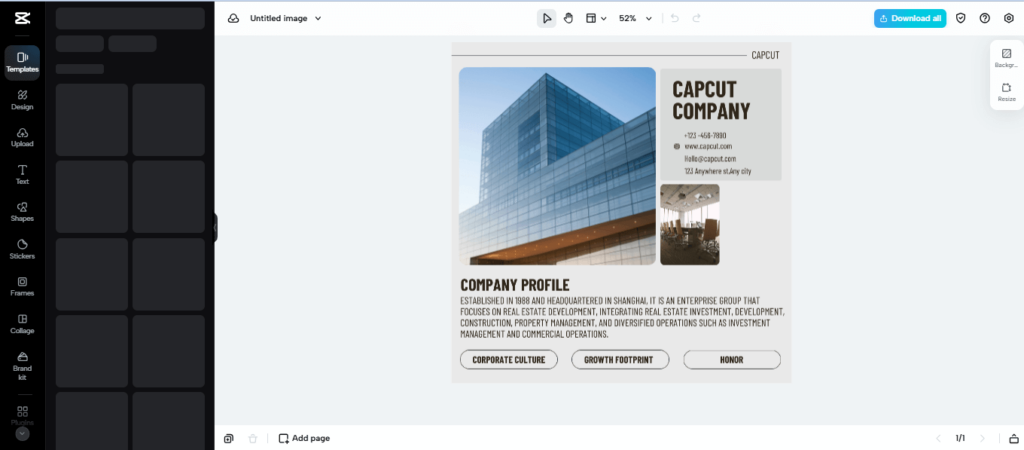
While templates provide a pre-made structure, CapCut also offers the flexibility to edit and customize the templates to better suit your needs.
Here’s how you can modify templates to make them unique:
Replace Media Files
The simplest form of editing CapCut templates is replacing the placeholder media with your own.
You can swap out the default images or video clips with your own content from your device’s gallery. This allows you to maintain the style of the template while using your personalized footage.
Trim or Rearrange Clips
You can further customize the template by trimming or rearranging the clips within the project. CapCut allows you to adjust the start and end points of each video clip, ensuring that the timing matches your preferred duration.
Also, you can rearrange the order of clips within the timeline if you want to change the flow of the video.
Add or Remove Effects
Templates often come with preset effects like filters, transitions, and visual effects. However, you are not limited to using these effects.
CapCut allows you to add new effects, remove unwanted ones, or adjust the intensity of the existing effects in the template. This way, you can create a video that matches your desired aesthetic.
Modify Text
Many CapCut templates include text overlays that complement the video’s visuals. You can customize the text in the template by changing the font, color, size, and placement of the text boxes.
CapCut also allows you to add new text layers or remove any existing text elements if they don’t align with your vision.
Change the Music or Sound Effects
Templates often come with pre-selected background music or sound effects. You can replace the default audio with your own music by uploading tracks from your device or selecting new audio from CapCut’s built-in music library.
Also, you can adjust the volume, apply fade-in or fade-out effects, or remove the audio altogether if it doesn’t fit your project.
Adjust Speed
If you want to create dramatic effects or slow-motion sequences, you can adjust the speed of your video clips within the template.
CapCut allows you to control the speed of individual clips, giving you more creative freedom in how the final video looks.
Use Advanced Editing Tools
CapCut offers advanced editing tools such as keyframe animation, masking, and chroma key (green screen) features.
These tools can be applied to the template to add more complex effects or transitions, allowing you to transform a simple template into a dynamic, professional-looking video.
Benefits of Editing CapCut Templates
Editing CapCut templates offers a variety of benefits that make video creation faster, easier, and more creative:
- Time-Saving: Templates save you time by providing a pre-made structure for your videos. Rather than starting from scratch, you can use a template as a foundation and make quick edits to personalize it.
- Consistency: Using templates helps maintain a consistent style across multiple videos. Whether you’re creating content for social media, business, or personal use, templates ensure that each video adheres to a similar aesthetic, making your overall brand or message cohesive.
- Creative Freedom: Although templates provide a basic framework, you still have the creative freedom to modify and enhance them as needed.
This balance between structure and flexibility allows you to create professional-looking videos with minimal effort.
FAQs About Editing CapCut Templates
Can I edit CapCut templates to fit my own media?
Yes, you can replace the default media in CapCut templates with your photos and videos. This allows you to keep the template’s style while using personalized content.
Can I customize the effects in a CapCut template?
Absolutely! You can customize or remove the effects in a CapCut template. CapCut lets you add new effects, modify existing ones, or completely change the visual style to suit your project.
Is it possible to change the music in CapCut templates?
Yes, you can replace the default music in a CapCut template with your audio files, or select new tracks from CapCut’s built-in music library.
Can I add new text or change the existing text in a template?
Yes, CapCut templates allow full text customization. You can adjust the font, size, color, and placement of the text. Additionally, you can add new text layers or delete existing ones.
Can I adjust the timing of clips in a CapCut template?
Yes, CapCut offers the flexibility to trim, split, or rearrange clips within a template. You can adjust the timing of each clip to align with your project’s goals.
What happens if I want to change the template’s transitions?
CapCut lets you modify transitions in any template. You can add new transitions, remove existing ones, or adjust the duration to create a smoother video flow.
Can I use CapCut templates on both mobile and desktop?
Yes, CapCut templates are available on both mobile and desktop versions, and the editing process is similar across platforms, giving you versatility in editing.
Do CapCut templates work for all types of videos?
CapCut templates are quite versatile, and they work well for various video types, including social media content, vlogs, and promotional videos. However, some templates are tailored for specific styles or trends, so choose one that suits your project’s theme.
Can I add multiple media files to a CapCut template?
Yes, you can add multiple video clips or photos to a CapCut template. CapCut allows you to insert several media files, making it easy to create complex projects.
Are CapCut templates free to use?
Many CapCut templates are free, but some premium templates may require a subscription or purchase. You can access a wide selection of free templates directly from the app.
Can I export edited CapCut templates without a watermark?
Yes, if you’re using the free version, exports will include a watermark. However, you can remove the watermark by subscribing to CapCut Pro.
Can I edit CapCut templates offline?
No, you need an internet connection to access and use templates in CapCut. However, once downloaded, templates can be edited offline.
Final Thoughts
In conclusion, CapCut templates are not only easy to use but also highly customizable.
You can edit templates to fit your personal style, replace media, adjust effects, change music, and modify text to create a unique video that aligns with your vision.
So whether you’re a beginner or an experienced video editor, CapCut’s templates provide a flexible and creative way to produce professional-looking content quickly and efficiently.
By leveraging the power of CapCut templates and their editing capabilities, you can save time while still producing high-quality videos that stand out on social media and other platforms.
If you haven’t tried editing CapCut templates yet, now is the perfect time to explore the possibilities and enhance your video editing workflow.
Related CapCut Guides
Quick reads that answer common CapCut pricing + device questions.
- Free vs Pro vs Teams What each plan unlocks.
- Monthly vs Yearly Which is cheaper for you.
- CapCut on PC? Windows/Mac setup.
- Desktop not recognizing Pro Fix account/sign-in issues.
- Account on two devices Syncing + limits explained.
- Edit offline? What works without internet.
- Best CapCut features Top tools (free + Pro).
- Edit photos in CapCut? What’s possible + limits.
- Pro for Teams Collaboration features.
- Lip sync not working Fast troubleshooting.
- Green screen in CapCut Chroma Key guide.
