
How To Recover Deleted CapCut Projects (Updated 2026)

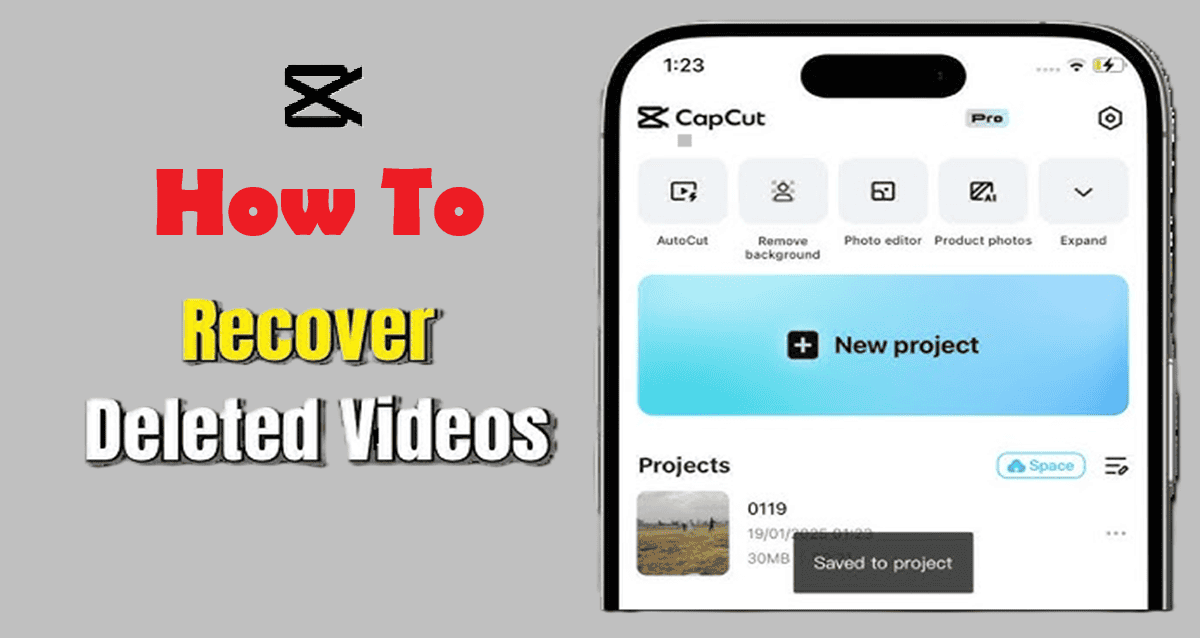
Have you ever spent hours creating the perfect video in CapCut—only for it to disappear after an accidental deletion, app crash, or unexpected glitch?
Losing an important project can feel devastating, whether it’s a work presentation, a viral social media edit, or a personal memory you spent time perfecting.
The good news is that recovering deleted CapCut projects is sometimes possible.
With the right recovery steps—and quick action—you may be able to restore your lost work instead of starting from scratch.
In this complete guide, you’ll learn:
- Whether you can truly recover deleted CapCut projects
- Where CapCut saves project files
- the best recovery methods that can work
- What to do immediately after deleting a project
- How to prevent losing CapCut projects again
By the end, you’ll know the exact steps to take to recover deleted CapCut projects on Android, iPhone, Windows, or Mac.
Can You Recover Deleted CapCut Projects?
Yes, but recovery depends on how and where the project was saved.
Your chances are highest if:
- The project was backed up to the CapCut cloud
- Your device has automatic system backups enabled
- The file hasn’t been overwritten by new data
Recovery becomes much harder if the project existed only in local app storage and the data was cleared or overwritten.
That’s why acting quickly—and using the correct recovery method—is critical.
Next, let’s understand how CapCut stores projects, because this determines whether recovery is possible.
How CapCut Saves Projects
When editing in CapCut, project files are usually saved locally inside the app’s internal storage, not directly in your phone gallery or computer folders.
However, several factors can create additional recovery opportunities:
- Autosave data created while editing
- Cloud backups linked to your CapCut account
- Device-level backups from Google, Apple, or desktop systems
- Temporary cache files that may still contain project data
Because of these multiple storage layers, a deleted project is not always permanently gone—especially if you act fast.
Below are the most effective methods to recover deleted CapCut projects, starting with the easiest solutions first.
How To Recover Deleted CapCut Projects (What Actually Works in 2026)
Before you try anything: stop editing and avoid installing new apps on the same device. New data can overwrite deleted project files and reduce recovery chances.
Method 1: Check CapCut Cloud / “Space” / Trash (Best chance if you had sync on)
If you don’t see Cloud/Space or Trash, cloud sync likely wasn’t enabled on your account or it isn’t available in your region/app version.
Steps:
- Open CapCut → go to your Home/Projects screen
- Tap Cloud / Space / Your Space (the name varies)
- Look for Trash / Recently Deleted
- Select the project → tap Restore / Recover
Note: Deleted cloud items usually have a limited retention window, so check as soon as possible.
Method 2: Check Projects / Drafts / Recent edits (works if app data wasn’t cleared)
CapCut often keeps ongoing edits as Drafts and may store autosaved states. This only works if you didn’t uninstall CapCut, clear its storage, or wipe the app data.
Steps:
- Open CapCut → go to Projects / Drafts
- Scroll for a project with a similar thumbnail/name
- Open it and immediately export a copy so you don’t lose it again
Method 3: Recover the Exported Video from “Recently Deleted” (Saves the final video, not the full project)
This won’t always restore your editable timeline, but it can save the finished exported video, which you can re-import into CapCut.
Check here:
- iPhone: Photos → Albums → Recently Deleted
- Android: Gallery or Google Photos → Trash/Bin
- Windows/Mac: Recycle Bin/Trash (if you deleted exported files)
If you find the exported video, restore it, then import it back into CapCut if you need to re-edit.
Method 4: Restore from a Device Backup (Reliable if you have one, but it can overwrite newer data)
If you have a full device backup from before the deletion, you may be able to restore CapCut data by restoring that backup.
Important warning: Restoring a backup can overwrite newer files and settings since that backup date. If you try this, back up your current important files first.
Method 5 (Last Resort): Use Data Recovery Software (Not guaranteed)
If the project was stored locally and deleted, data recovery tools may find remnants — but success varies a lot, especially on newer devices.
Reality check: These tools are more likely to recover exported videos than a full editable CapCut project timeline.
Use this method only if the project is extremely important and the other options failed.
Immediate Steps to Take After Deleting a CapCut Project
If you’ve just realized your CapCut project is gone, what you do in the next few minutes can strongly affect whether recovery is possible.
Here’s what to do right away:
1. Stop Using CapCut Immediately
The moment a project is deleted, any new editing, exporting, or media importing inside CapCut can overwrite the same storage space where the deleted project existed.
To protect your recovery chances:
- Don’t create new projects
- Don’t export new videos
- Don’t install updates or clear cache
Leave the app untouched until you try the recovery methods.
2. Don’t Clear App Data or Reinstall Yet
Many people try reinstalling CapCut to “fix” the problem — but this often permanently deletes local drafts and autosaves.
Avoid:
- Clearing app storage/data
- Uninstalling CapCut
- Using device cleaner apps
Only reinstall after you’ve checked drafts, cloud space, and backups.
3. Check Cloud Sync Status First
Before trying complex recovery steps, confirm whether you were logged into CapCut and had cloud sync enabled.
If yes:
- Your project may still exist in CapCut Cloud/Space
- Or inside Trash/Recently Deleted
This is usually the highest-success recovery path, so check it first.
4. Avoid Installing Recovery Apps on the Same Device
If you plan to try data-recovery software, installing it on the same phone or drive can overwrite deleted files.
Safer approach:
- Install recovery tools on a computer
- Connect the affected device and scan externally
This reduces the risk of permanent data loss.
5. Recover the Exported Video if the Project Is Gone
Even if the editable project can’t be restored, the final exported video might still exist in:
- Recently Deleted (Photos/Gallery)
- Cloud photo backup
- Computer recycle bin
Recovering the video at least saves your content, even if you must rebuild edits.
The Reality of CapCut Project Recovery
Here’s the honest truth most guides don’t explain clearly:
- Cloud-synced projects → often recoverable
- Local drafts without backup → sometimes recoverable
- Fully deleted local data → rarely recoverable
That’s why acting quickly and carefully matters so much.
How to Avoid Losing CapCut Projects in the Future

Recovering a deleted CapCut project is never guaranteed.
That’s why the most important long-term solution is not recovery — it’s prevention.
Setting up a simple protection system can ensure you never lose hours of editing work again, even if the app crashes, your phone resets, or a project is accidentally deleted.
Here are the most reliable ways to keep your CapCut projects safe.
1. Turn On CapCut Cloud Sync
The single best protection is enabling CapCut’s built-in cloud storage (Cloud/Space).
When cloud sync is active:
- Your projects are stored online, not just on your device
- Deleted projects may stay in Trash/Recently Deleted for recovery
- You can access drafts from another phone, tablet, or computer
Without cloud sync, projects saved only on local storage are much harder to recover.
Best practice:
Always stay logged into your CapCut account and confirm cloud sync is enabled before starting important edits.
2. Export Important Videos Early (Not Just at the End)
Many creators wait until a project is fully finished before exporting.
This is risky.
Instead:
- Export draft versions during editing
- Save key milestones (intro finished, full cut done, final version, etc.)
- Keep at least one playable copy outside CapCut
Even if the editable project disappears, you’ll still have the actual video content.
3. Back Up Exported Videos to External Storage or Cloud
Once a video is exported, protect it immediately by saving copies to:
- Google Drive
- iCloud
- OneDrive
- Dropbox
- External hard drive or USB
This creates multiple recovery points, so one deletion or device failure won’t erase everything.
A simple rule used by professional editors:
If it exists in only one place, it’s not truly safe.
4. Avoid Clearing App Data or Using Cleaner Apps
Phone cleaner apps and storage optimizers often delete:
- Temporary CapCut files
- Autosave drafts
- Cached project data
This can permanently remove projects without warning.
Before using any cleaner:
- Open CapCut and confirm projects are exported and backed up
- Avoid deleting “app data” unless absolutely necessary
5. Keep Enough Free Storage on Your Device
Low storage is one of the most common causes of:
- Failed autosaves
- Corrupted projects
- Export errors
- App crashes
Maintain:
- At least 5–10 GB free space on phones
- Much more for PC/Mac editing
Stable storage = safer projects.
6. Update CapCut Carefully (After Exporting Projects)
App updates sometimes:
- Change storage paths
- Reset cached drafts
- Introduce bugs affecting old projects
Before updating CapCut:
- Export all active projects
- Back them up to cloud or external storage
- Then update safely
This prevents update-related data loss.
Simple Safety Workflow to Follow Every Time
If you remember only one thing from this guide, make it this:
Safe CapCut workflow:
- Enable cloud sync
- Export draft versions early
- Back up exported videos to cloud
- Keep free storage available
- Avoid clearing app data blindly
Following these five habits makes losing a CapCut project extremely unlikely.
Frequently Asked Questions
Quick answers about how to recover deleted CapCut projects, where drafts are stored, and what to do if your project disappears.
Conclusion
Losing a CapCut project can feel frustrating, but recovery is often possible if you act quickly and follow the right steps.
From checking cloud backups and autosave files to restoring device backups or using recovery software, there are several realistic ways to retrieve deleted work depending on how your project was stored.
More importantly, this situation highlights the value of prevention.
Enabling cloud sync, exporting finished videos, and keeping regular backups can save you from permanent loss in the future.
In the end, while deleted CapCut projects aren’t always guaranteed to return, using the correct recovery methods gives you the best possible chance — and building safer backup habits ensures you won’t face the same problem again.
