

Trying to remove a green screen in CapCut, but the edges look messy, or the background won’t fully disappear? You’re not alone.
The good thing is you can Edit Green Screen in CapCut using the Chroma Key tool to cut out green or blue backgrounds fast, then drop in any photo or video behind your subject.
And if you want it to look “real,” you can fine-tune things like strength, shadow, and edge cleanup so you don’t get that green glow.
Table of Contents
- What Is Green Screen Editing?
- Does CapCut Support Green Screen Editing?
- Features of CapCut’s Green Screen Editing Tools
- How to Edit Green Screen in CapCut (Step-by-Step)
- Benefits of Editing Green Screen in CapCut
- Advanced Green Screen Techniques in CapCut
- Best Practices for Green Screen Filming and Editing
- Frequently Asked Questions
- Conclusion
What Is Green Screen Editing?

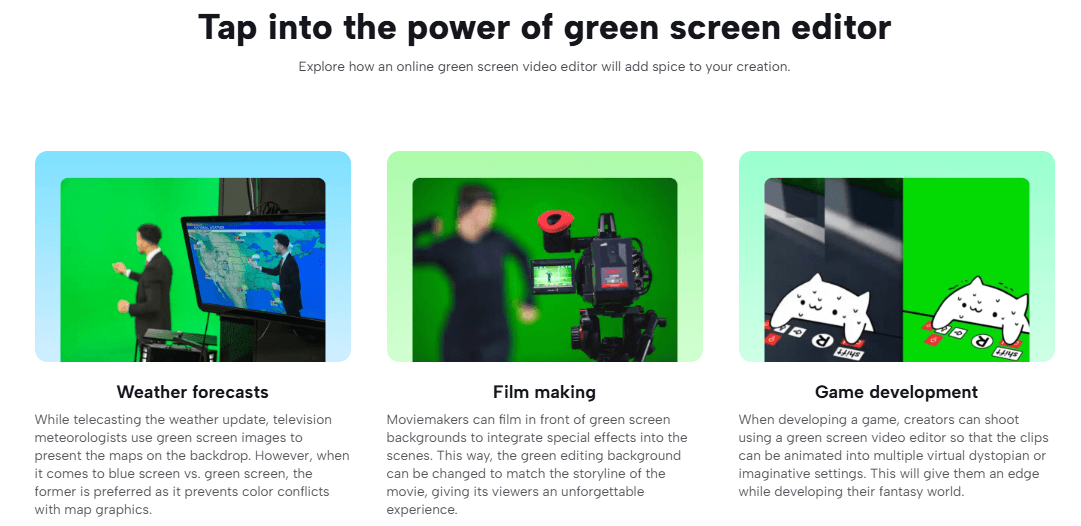
Green screen editing (also called chroma key) is when you film someone in front of a flat green or blue background, then remove that color so a new background shows instead.
That’s how creators place people in a different location, add a virtual set, or make a simple talking video look like it’s happening anywhere.
In CapCut, this is done with Chroma Key, where you tap the green color you want removed and adjust sliders until the cutout looks clean.
Does CapCut Support Green Screen Editing?
Yes. CapCut supports green screen editing on mobile, desktop, and web using its Chroma Key feature.
You pick the background color to remove (green/blue), then adjust controls like Strength/Intensity and Shadow (and in some versions, edge or spill cleanup) to smooth out the cutout.
Features of CapCut’s Green Screen Editing Tools
CapCut’s green screen feature is built around Chroma Key, which lets you remove a green or blue background and drop your subject onto any scene. Here’s what you get:
Chroma Key with adjustable Strength + Shadow
You can sample the green background with a color picker, then fine-tune Strength (how much green gets removed) and Shadow (helps soften or clean the edges) so your subject doesn’t look like a cardboard cutout.
Works on mobile and desktop
On desktop, you’ll usually find it under Video → Remove BG → Chroma Key after selecting your clip. That wording matters because it matches what people search for when they can’t find the tool.
Background replacement that actually looks believable
Once the green is removed, you can layer in any background (image or video). Then you can use CapCut’s normal editing tools like scaling, positioning, filters, and color tweaks to make the subject match the new scene.
Alternative: one-click video background remover (no green screen needed)
If you don’t have a green screen, CapCut also offers an AI video background remover that detects the subject and removes the background automatically. It’s useful for quick edits, but Chroma Key usually wins when you filmed with a properly lit green screen.
Manual cleanup options for tricky clips
For busy scenes (hair, motion blur, low light), CapCut also mentions custom/manual removal options so you can clean up areas where auto tools struggle.

How to Edit Green Screen in CapCut (Step-by-Step)
Editing green screen in CapCut is simple once your clips are in the right order. The main idea is this:
- Put your background on the main track
- Put your green screen clip on top
- Use Chroma Key to remove the green
Step 1: Start a New Project
Open CapCut and create a new project.
- On mobile: tap New project
- On desktop: click Create project
Step 2: Import Your Clips
Import two things:
- Your background (photo or video)
- Your green screen clip (the one with the green background)
Step 3: Put the Background on the Main Track
Add your background first so it sits on the main timeline.
- If it’s a photo, stretch it to match the length of your video.
- If it’s a video, trim it to the part you want.
Step 4: Add the Green Screen Clip as an Overlay
Now place your green screen clip on top of the background.
- On mobile: tap Overlay → Add overlay → pick your green screen clip
- On desktop: drag your green screen clip above the background track
If your subject looks too small or off-center, tap the overlay clip and resize or reposition it.
Step 5: Remove the Green Background with Chroma Key
This is the key step.
- Tap or click the green screen clip to select it
- Find Chroma Key
- Use the color picker/eyedropper to tap the green area in your clip
- The green background should disappear
Step 6: Fix the Edges (So It Looks Clean)
Most “bad green screen” results happen here, not in the chroma key step.
Use the sliders to clean up the cutout:
- Strength/Intensity: increase it until the green is fully gone
- Shadow: adjust it to soften harsh edges and reduce that cut-out look
If you notice a green glow around hair or shoulders, slightly increase Strength and then balance it with Shadow so the edges don’t look crunchy.
Step 7: Match the Subject to the Background
This is what makes the edit look believable.
Try these quick fixes:
- Adjust brightness/contrast so the subject doesn’t look too bright or too dark
- slightly reduce saturation if the subject looks “pasted on”
- Add a light filter over the full video so both layers feel like one scene
Step 8: Add Effects, Text, and Sound (Optional)
Now you can style it.
- Add captions if it’s for TikTok or Reels
- Add motion blur if there’s fast movement
- Add sound effects if the scene needs realism
Keep it simple. Too many effects makes green screen look fake faster.
Step 9: Export Your Video
When you’re done:
- tap Export
- Choose a resolution (1080p is a safe default for most platforms)
- Save and upload
If the edges look rough after exporting, go back and slightly reduce Strength and increase Shadow until it looks smoother.
Benefits of Editing Green Screen in CapCut
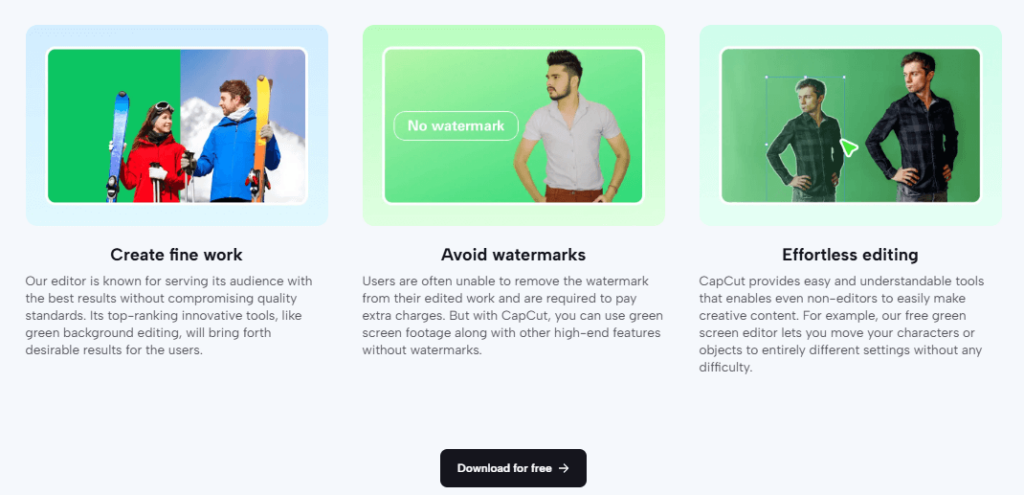
CapCut is a popular choice for green screen edits because it gives you a clean result without needing complicated software.
Beginner-friendly (no steep learning curve)
The Chroma Key tool is easy to find and easy to use. You don’t need to learn advanced editing just to remove a green background.
Fast workflow for TikTok, Reels, and YouTube Shorts
CapCut is built for short-form editing. You can cut clips, remove the green screen, add a background, and export quickly without switching apps.
Free to start
You can remove green screen backgrounds using Chroma Key without paying, which is great if you’re testing ideas or posting often.
All-in-one editing after the cutout
Once the green is removed, you can do everything else in the same project: add text, sound, effects, transitions, and color tweaks. That keeps your workflow simple and saves time.
Advanced Green Screen Techniques in CapCut
Once you’ve done a basic green screen edit, these tricks help your videos look more professional instead of “obviously edited.”
1) Use Multiple Overlays
You can stack overlays to build a more complex scene.
Example: background video on the main track, your green screen subject on top, then add another overlay like smoke, sparkles, a light leak, or text graphics.
Tip: keep overlays short and intentional. Too many layers can make the video look busy and fake.
2) Animate Movement With Keyframes
Keyframes let you move or scale your subject over time.
Use this when you want:
- a slow zoom in on the subject
- The subject slides into frame
- The background moves slightly to create depth
Simple trick: add tiny movement to the background (a slow zoom) and keep the subject steady. It instantly makes the scene feel more real.
3) Match Colors With Basic Color Correction
Green screen looks wrong when your subject and background don’t match.
After removing the green:
- Adjust brightness so the subject isn’t “popping” too much
- Tweak contrast to match the background’s lighting
- Slightly reduce saturation if the subject looks too sharp or colorful
If your background is warm (sunset, indoor lighting), warm up the subject a little too. If the background is cool (night, city lights), cool the subject slightly.
Best Practices for Green Screen Filming and Editing
If you want clean results in CapCut, most of the work happens before you even start editing. A good green screen setup makes Chroma Key way easier.
1) Light the Green Screen Evenly
Uneven lighting creates dark patches and shadows, and those are hard to remove cleanly.
- keep the light smooth across the whole green screen
- try not to let your subject cast shadows on it
- if you can, light the subject and the green screen separately
2) Keep Distance Between Subject and Screen
Don’t stand right against the green screen.
A little space helps:
- reduce shadows behind the subject
- reduce green spill (that green glow on skin and clothes)
3) Avoid Green Clothing or Green Props
Anything green can get removed along with the background.
That includes:
- shirts, hats, headbands
- reflective items that pick up green light
4) Shoot in High Quality
Low-quality footage makes edges look rough.
If possible:
- shoot in good lighting
- avoid heavy compression
- use the highest resolution your device allows
5) Keep the Green Screen Clean and Flat
Wrinkles and folds create darker areas that don’t key out well.
If you’re using a cloth screen:
- stretch it tight
- iron it if needed
Frequently Asked Questions
Does CapCut support green screen editing?
Yes. CapCut supports green screen editing with its Chroma Key tool. You can remove a solid green or blue background, then place a new image or video behind your subject.
Is the green screen feature in CapCut free?
CapCut’s basic Chroma Key tool is usually available for free. However, some extra effects, templates, AI tools, premium assets, or advanced features may require CapCut Pro depending on your version, region, and account.
How do I remove a green screen in CapCut?
Place your background on the main timeline, add the green screen clip above it as an overlay, select the green screen clip, open Chroma Key, pick the green color, then adjust Strength or Intensity and Shadow until the background disappears cleanly.
Can I edit green screen videos on CapCut mobile?
Yes. CapCut mobile supports green screen editing with Chroma Key. You can add your background, place the green screen clip as an overlay, remove the green color, and export the final video directly from your phone.
How do I add a new background after removing the green screen?
Import the background photo or video you want to use, then place it below your green screen clip on the timeline. Once Chroma Key removes the green background, the new background will show behind your subject.
Why is my green screen not working in CapCut?
Green screen problems usually happen because of uneven lighting, shadows, wrinkles, low-quality footage, motion blur, or a poorly selected color sample. Re-pick the green area with the color picker, increase Strength slowly, and adjust Shadow so the edges look smoother.
How do I remove the green outline around my subject in CapCut?
The green outline is usually caused by green spill from the background. Increase Strength or Intensity slightly, then balance it with Shadow so the edges do not look harsh. You can also reduce saturation a little or color-correct the subject to blend better with the new background.
Does CapCut add a watermark to green screen videos?
Most normal CapCut edits can export without a forced watermark, but templates, locked assets, Pro effects, or ending clips may add restrictions. Always check the export screen before saving your green screen video.
Can I use CapCut green screen editing for professional projects?
Yes, if your footage is clean and well-lit. CapCut can create polished green screen results for social media, tutorials, YouTube videos, and short-form content. For advanced film-level compositing, a professional editor may still give you more control.
Can I use CapCut green screen editing offline?
You can usually edit offline once CapCut is installed and your clips are already saved on your device. However, some online assets, templates, AI tools, cloud features, or downloadable effects may still require an internet connection.
Conclusion
Once you learn how to Edit Green Screen in CapCut, you stop being limited by where you filmed. You can drop yourself into any scene, build cleaner visuals for TikTok and YouTube, and make simple videos look way more polished.
The best part is you don’t need expensive software or years of editing experience. CapCut’s Chroma Key tool makes the process quick, and with a little tweaking to strength and shadows, your cutout can look surprisingly professional.
If you want better results, focus on clean footage and good lighting first, then use CapCut’s tools to fine-tune the edges. Do that, and your green screen edits won’t just “work” — they’ll actually look real.
