

If CapCut Desktop is showing Join Pro even though you already paid for CapCut Pro, you are not alone.
This usually happens when CapCut Pro works on your phone, but the desktop app still behaves like a free account.
The frustrating part is that logging in again does not always fix it.
In many cases, CapCut Desktop not recognizing Pro subscription comes from a simple mismatch between your CapCut account, mobile subscription, desktop login session, payment status, app version, or region settings.
Sometimes the desktop app just has not refreshed your Pro access properly.
The good news is that you usually do not need to buy CapCut Pro again.
In this guide, I’ll walk you through the safest fixes first, starting with account checks and QR login, then moving to updates, restore purchase, cache clearing, reinstalling CapCut Desktop, and contacting support if nothing works.
Follow the steps in order. It will save you from deleting files, reinstalling the app, or changing accounts before you actually need to.
Table of Contents
Quick Fix Summary
If CapCut Desktop is not recognizing your Pro subscription, start with these fixes before doing anything advanced.
Check them in this order:
- Confirm that your CapCut Pro subscription is still active on your phone, App Store, Google Play, or CapCut account.
- Make sure CapCut Desktop is logged into the exact same account that has Pro access.
- If you used Google, Apple, TikTok, phone number, or email to sign up, use the same login method on desktop.
- Sign out of CapCut Desktop completely, then sign back in.
- Try QR code login from the phone where CapCut Pro is already active.
- Wait a few minutes after purchase or renewal, then refresh or restart CapCut Desktop.
- Turn off any VPN and make sure your account region is not causing a mismatch.
- Update both CapCut Desktop and the mobile app.
- Restore your purchase on iPhone or Android if your Pro subscription was bought through the App Store or Google Play.
- If Pro still does not appear, clear the CapCut Desktop cache or reinstall the app from the official CapCut website.
In most cases, the issue is not that your subscription disappeared. It is usually that CapCut Desktop is not syncing with the correct paid account yet.
Why CapCut Desktop Says “Join Pro” Even After You Paid
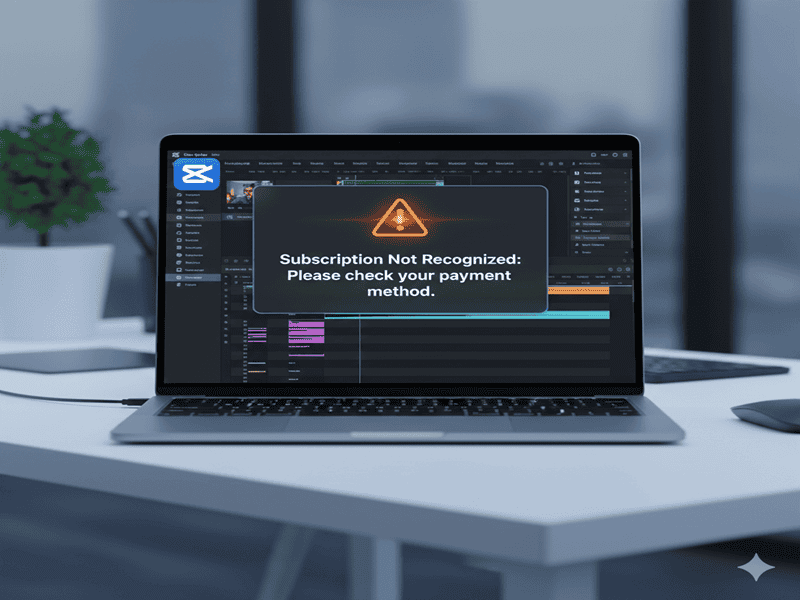
CapCut Desktop may show Join Pro even after you paid because the desktop app is not matching your Pro subscription correctly.
This does not always mean your payment failed. It also does not always mean you need to buy Pro again.
Most of the time, the issue comes from one of these problems:
1. You Are Logged Into the Wrong CapCut Account
This is the most common reason.
Your phone may be logged into the account that has CapCut Pro, while your desktop app is logged into a different account.
This can happen if you use different login methods, such as:
- Apple
- TikTok
- phone number
- QR code login
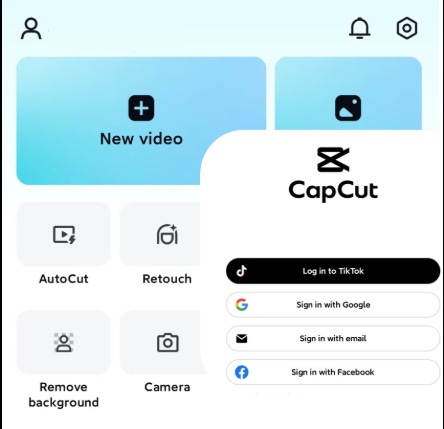
For example, you may have paid for CapCut Pro through one account on your phone, but logged into CapCut Desktop with another email or social login.
To fix this, always use the same CapCut account and the same login method across mobile, desktop, and web.
2. Your Subscription Has Not Synced Yet
Sometimes CapCut takes a few minutes to update your Pro access after purchase, renewal, or restore purchase.
During that time, your phone may show Pro, but desktop may still show locked features or the Join Pro button.
If you just subscribed, wait a few minutes, close CapCut Desktop, reopen it, and check again.
3. CapCut Desktop Is Still Using an Old Login Session
If you have used different CapCut accounts on the same computer before, the desktop app may still be holding old account data.
This can make CapCut Desktop act like you are on a free account even when your current mobile account has Pro.
Signing out and signing back in may fix it. If not, you may need to clear the desktop cache later in the guide.
4. Your Login Method Does Not Match
This is easy to miss.
You may think you are using the same account because the email looks similar, but CapCut may treat different login methods as different sessions.
For example:
- You subscribed using Apple login on your phone.
- Then you logged into desktop using email.
- Or you subscribed through Google login.
- Then you logged into desktop using TikTok.
- If Pro is not syncing, try logging out and using the exact same login method you used when you bought CapCut Pro.
5. VPN or Region Settings Are Interfering
CapCut Pro access may also be affected by region, payment location, or IP location.
If you bought Pro in one country but your desktop is using a VPN from another country, CapCut may not refresh your subscription properly.
Turn off your VPN, restart CapCut Desktop, and try logging in again.
6. CapCut Desktop Is Outdated
An outdated desktop app may not sync correctly with your account or may not show newer Pro features properly.
If your mobile app is updated but your desktop app is old, update CapCut Desktop before trying more advanced fixes.
7. The App Cache Is Corrupted
If all the account and payment checks look correct, the problem may be local cache.
This means CapCut Desktop may be storing old login or account data on your computer.
Do not start here. Cache clearing should come after you have checked your account, payment status, login method, VPN, and app version.
How to Fix CapCut Desktop Not Recognizing Pro Subscription
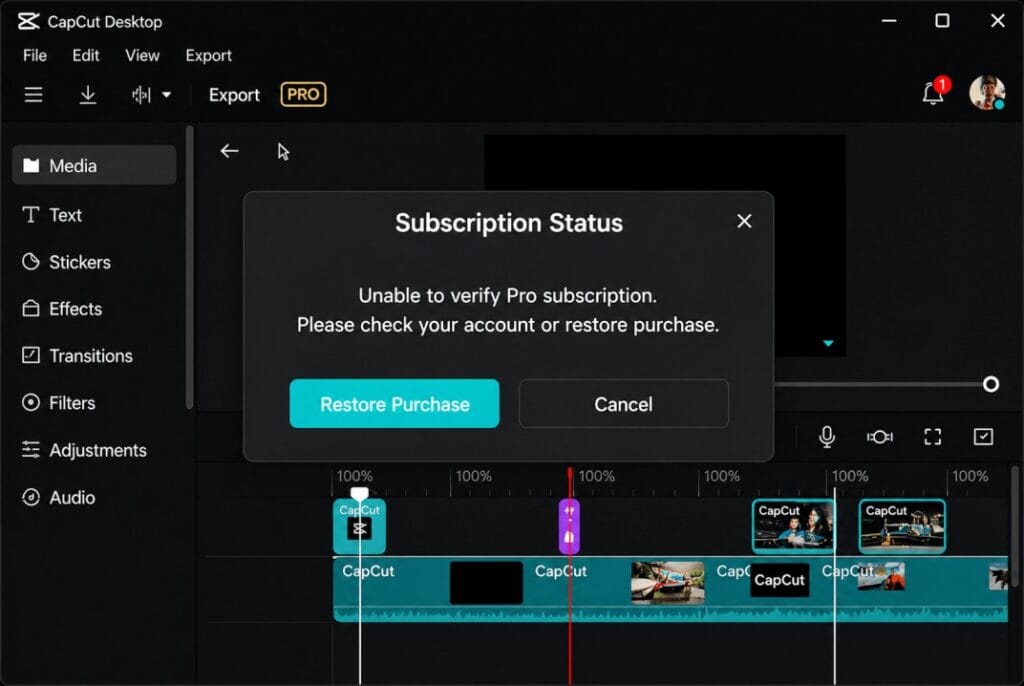
Now that you know the common causes, let’s go through the fixes in the safest order.
Start with the simple account and payment checks first. If those do not work, then move to login refresh, QR login, restore purchase, cache clearing, and reinstalling CapCut Desktop.
Fix 1: Confirm Your CapCut Pro Subscription Is Active
Before changing desktop settings, first confirm that your CapCut Pro subscription is actually active.
This matters because CapCut Desktop cannot recognize a Pro plan if the subscription has expired, failed to renew, or is connected to a different account.
Check your subscription in the place where you originally paid.
If You Paid Through iPhone or iPad
Open your iPhone or iPad settings and check your Apple subscriptions.
Go to:
Settings → Your Name → Subscriptions → CapCut
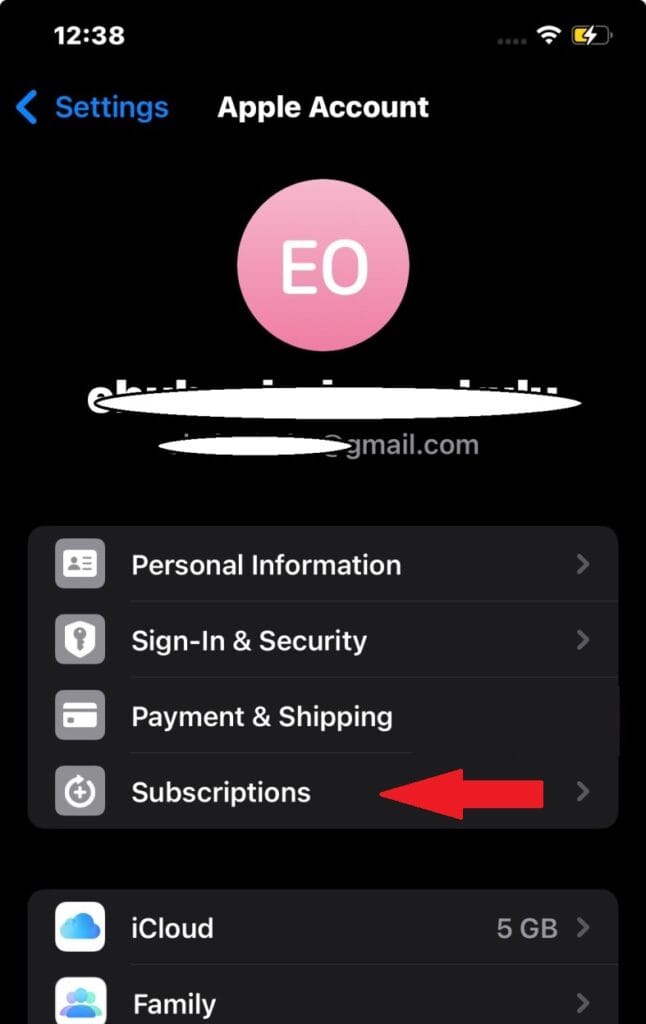
Make sure the subscription is active and not expired, cancelled, or waiting for a payment update.
If You Paid Through Android
Open Google Play and check your subscriptions.
Go to:
Google Play Store → Profile Icon → Payments & subscriptions → Subscriptions → CapCut
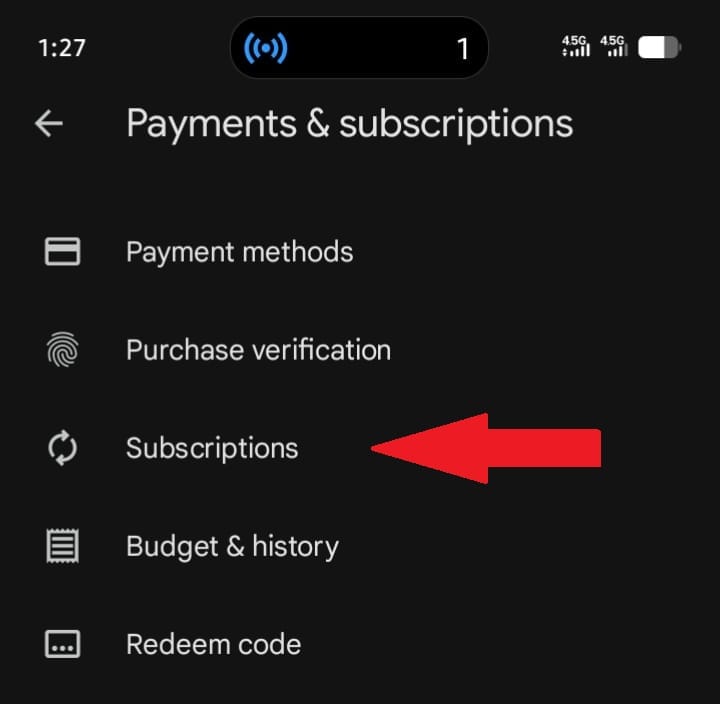
Make sure CapCut Pro is active under the same Google account you used to subscribe.
If You Paid Through CapCut Directly
Log in to CapCut Online and check your account or billing area.
Make sure the account you are checking is the same account you are using on CapCut Desktop.
What to Check Before Moving On
Before trying the next fix, confirm these four things:
- Your CapCut Pro subscription is active.
- Your payment did not fail. (If it has, here’s how to add or change your CapCut payment method.)
- You are checking the correct Apple, Google, or CapCut account.
- The subscription has not expired or been cancelled.
- If your subscription is not active, fix the payment or renewal issue first.
- If your subscription is active but CapCut Desktop still shows Join Pro, move to the next step.
Fix 2: Make Sure You Are Using the Same Capcut Account on Desktop
If your subscription is active, the next thing to check is your account.
This is the most common reason CapCut Pro works on mobile but not on desktop.
You may have more than one CapCut login without realizing it. For example, your phone may be using one login method, while your desktop is using another.
CapCut can treat these as different accounts:
- Email login
- Phone number login
- Google login
- Apple login
- TikTok login
- QR code login
So even if the name or profile picture looks familiar, your desktop may not be connected to the same account that holds your Pro subscription.
How to Check the Account on Your Phone
- Open CapCut on your phone.
- Go to your profile or account settings.
- Check the email, phone number, or login method connected to the account.
Also check where your Pro subscription is active.
How to Check the Account on Desktop
- Open CapCut Desktop.
- Click your profile icon.
- Check the account details shown there.
- Compare it with the account on your phone.
If the email, phone number, or login method is different, sign out of desktop and log back in with the exact same account you use on mobile.
Important Login Tip
Do not switch randomly between Google, Apple, TikTok, phone number, and email login.
Use the same login method everywhere.
For example, if you bought CapCut Pro while logged in with Apple on your iPhone, try using the same Apple-linked account on desktop.
If you bought CapCut Pro while logged in with Google on Android, use that same Google account when logging into desktop.
What to Do Next
After logging into the correct account, close CapCut Desktop and reopen it.
Then test a Pro feature, such as a Pro template, premium effect, background remover, or export option.
If CapCut Desktop still shows Join Pro, continue to the next fix.
Fix 3: Sign Out, Restart CapCut, and Use QR Code Login
If your subscription is active and you are using the correct account, the next step is to refresh the desktop login session.
Sometimes CapCut Desktop keeps showing Join Pro because the app has not updated your account status properly.
A clean sign-out and QR login can force the desktop app to reconnect with the account that already has Pro access.
Here is what to do:
- Open CapCut Desktop.
- Click your profile icon.
- Choose Sign Out.
- Close CapCut Desktop completely.
- Reopen CapCut Desktop.
- Choose the QR code login option.
- Open CapCut on the phone where your Pro subscription is active.
- Scan the desktop QR code from the CapCut mobile app.
- Wait a short moment, then check if Pro features unlock.
Make sure you scan the QR code using the phone that is already logged into the Pro account. If you scan it from a different account, CapCut Desktop may still show the free version.
Fix 4: Check CapCut Online and Wait for Your Subscription to Sync
Before clearing cache or reinstalling the desktop app, check whether your Pro subscription appears on CapCut Online.
Open CapCut Online in your browser and log in with the same account you are using on desktop.
Then check your account, profile, billing, or membership area.
This helps you understand where the problem is:
If CapCut Online shows Pro but CapCut Desktop does not, the issue is likely with the desktop app, login session, cache, or app version.
If CapCut Online does not show Pro either, the issue is likely with your account, payment, login method, or subscription status.
Also, if you just subscribed, renewed, or restored your purchase, wait a few minutes before trying advanced fixes. Sometimes, Pro access does not appear instantly across every device.
After waiting, close CapCut Desktop, reopen it, and test a Pro feature again.
Fix 5: Turn Off VPN and Update CapCut on All Devices
A VPN or outdated app version can sometimes stop CapCut Desktop from recognizing your Pro subscription correctly.
First, turn off your VPN if you are using one.
Then close CapCut Desktop and reopen it without the VPN active.
This matters because your CapCut account, payment method, App Store, Google Play, or desktop location may not match if your VPN is showing a different region.
Next, update CapCut on both devices.
Update CapCut on your phone.
Update CapCut Desktop on your computer.
Restart both apps.
Log in again with the same account.
Then test a Pro feature.
This is especially important if the issue started after an app update, subscription renewal, or switching between mobile and desktop.
Fix 6: Restore Purchase on iPhone or Android
If you bought CapCut Pro through the App Store or Google Play, restoring your purchase can help CapCut detect your active subscription again.
If You Use iPhone or iPad
Open CapCut on your iPhone or iPad.
Go to the Pro, membership, subscription, or account area.
Look for a Restore Purchase option if available.
You can also confirm your subscription through Apple:
Settings → Your Name → Subscriptions → CapCut
Make sure CapCut Pro is active under the Apple ID you used to subscribe.
If You Use Android
Open the Google Play Store.
Tap your profile icon.
Go to:
Payments & subscriptions → Subscriptions → CapCut
Make sure CapCut Pro is active under the Google account you used to subscribe.
After confirming or restoring your purchase, open CapCut again on your phone. Then return to CapCut Desktop, sign out, and log back in with the same CapCut account.
Fix 7: Clear Cache or Reinstall CapCut Desktop
If none of the earlier fixes work, CapCut Desktop may be stuck with old local data from a previous login session.
This is where clearing cache or reinstalling the app can help.
Before doing this, make sure your important projects are synced to your CapCut account or backed up. Do not delete local app files if you are not sure your projects are safe.
Clear CapCut Cache on Windows
Close CapCut Desktop completely.
Press Windows + R.
Type:
%AppData%
Look for the CapCut folder and delete it.
Then press Windows + R again.
Type:
%LocalAppData%
Look for the CapCut folder and delete it if you see one.
Restart your computer.
Open CapCut Desktop and log in again with the correct Pro account.
Clear CapCut Cache on Mac
Close CapCut Desktop completely.
Open Finder.
Click:
Go → Go to Folder
Check these folders:
~/Library/Application Support/
~/Library/Caches/
~/Library/Preferences/
Look for CapCut-related files or folders and remove them carefully.
Restart your Mac.
Open CapCut Desktop and log in again with the correct Pro account.
Reinstall CapCut Desktop
If cache clearing does not work, uninstall CapCut Desktop.
Restart your computer.
Download CapCut Desktop again from the official CapCut website or a trusted app store.
Install it fresh.
Open CapCut Desktop.
Log in with the exact same account that has Pro access.
Then test a Pro feature before opening older projects.
Avoid downloading CapCut installers from random third-party websites. This can cause security issues or install an outdated version — the same risk that applies if you’re looking for old versions of the CapCut Pro APK instead of the official installer.
What to Do If CapCut Still Does Not Recognize Pro
If CapCut Desktop still shows Join Pro after trying the fixes above, the issue may need help from CapCut support.
At this point, do not keep buying Pro again, creating new accounts, or switching login methods randomly. That can make the problem more confusing.
Instead, collect proof that your subscription is active and send CapCut a clear support request.
What to Prepare Before Contacting CapCut
Before reaching out, gather these details:
- Your CapCut account email, phone number, or user ID
- The login method you used, such as Google, Apple, TikTok, email, or phone
- A screenshot showing your active CapCut Pro subscription
- A screenshot of CapCut Desktop showing Join Pro or locked Pro features
- Your App Store, Google Play, or CapCut receipt
- Your device type, such as Windows PC or Mac
- Your CapCut Desktop version
- Your country or region
Message to Send CapCut Support
You can copy and paste this message or something like it:
Hi CapCut Support, my CapCut Pro subscription is active on my mobile account, but CapCut Desktop still shows Join Pro and locks Pro features. I have confirmed the subscription is active, checked that I am using the same account, signed out and back in, tried QR login, updated the app, restored purchase, and cleared cache/reinstalled CapCut Desktop. Please help me check why my Pro access is not syncing on desktop.
What to Avoid
Avoid doing these things while waiting for support:
- Do not buy CapCut Pro again unless CapCut confirms you need to.
- Do not create a new account just to test it.
- Do not keep switching between Google, Apple, TikTok, email, and phone login.
- Do not share your CapCut login with someone else.
- Do not delete more local files if you are not sure your projects are backed up.
If the problem is account-side, only CapCut support can fully fix it.
How to Prevent CapCut Desktop Pro Sync Problems Again
Once CapCut Desktop recognizes your Pro subscription, try to keep your account setup simple.
Most Pro sync problems happen when CapCut sees different accounts, different login methods, old desktop sessions, or region changes.
Here are the best ways to avoid the issue again:
- Use the same CapCut account on mobile, desktop, and web.
- Use the same login method every time, such as Google, Apple, TikTok, phone, or email.
- Avoid switching between multiple CapCut accounts on the same computer.
- Keep CapCut Desktop and the mobile app updated.
- Avoid using a VPN when logging in, restoring purchases, or syncing Pro access.
- Check your subscription status after payment renewals or app updates.
- Do not share one CapCut Pro login with multiple people.
- If you work across multiple devices, sign in carefully and confirm that each device is using the same Pro account.
A simple rule helps:
If CapCut Pro works on one device but not another, check the account and login method first before reinstalling anything.
Frequently Asked Questions
FAQs
QDo I need to buy CapCut Pro again for desktop?
No, not usually. If you already have an active CapCut Pro subscription, first check that CapCut Desktop is logged into the same account that has Pro access. Do not buy Pro again until you confirm the account, payment, and login method are correct.
QWhy is CapCut Pro working on my phone but not desktop?
This usually happens because of an account mismatch, login method mismatch, delayed sync, outdated app version, VPN or region issue, or old desktop cache. Start by checking that your phone, desktop, and CapCut Online are using the same account.
QWhy are my CapCut Pro features still locked after subscribing?
Your Pro features may stay locked if CapCut has not synced your subscription yet, if you are logged into the wrong account, or if the desktop app has not refreshed your membership status. Wait a few minutes, restart CapCut, and log in again with the correct account.
QHow do I sync CapCut Pro from phone to desktop?
Sign out of CapCut Desktop, then log back in using the same account that has Pro access on your phone. QR code login can also help, but make sure you scan the desktop QR code using the phone where CapCut Pro is already active.
QWill clearing CapCut cache delete my projects?
It depends on where your projects are stored. Before clearing desktop cache or deleting local CapCut folders, make sure important projects are synced to your CapCut account or backed up somewhere safe. If you are not sure, skip cache deletion and contact CapCut support first.
QDoes this fix work for CapCut on Windows and Mac?
Yes, the general troubleshooting steps apply to both Windows and Mac. The main difference is where the local cache and app files are stored. Windows uses AppData folders, while Mac uses Library folders.
QWhat if App Store or Google Play shows active but CapCut does not?
If your App Store or Google Play subscription is active but CapCut does not show Pro, check that you are using the same CapCut account and login method. Then try restore purchase on mobile, refresh CapCut Online, and log into desktop again with the same account.
QWhy does CapCut ask me to pay again after an update?
An update may refresh your login session or make the app temporarily lose sync with your account. Before paying again, sign out and back in, check your subscription status, update both mobile and desktop, and confirm you are using the correct account.
Final Summary
The “CapCut Desktop not recognizing Pro subscription because of old account/login history” problem is frustrating, widespread, and completely fixable.
In most cases, the solution is:
- Fully sign out of CapCut Desktop
- Delete all cache and license folders on your computer
- Reinstall fresh from capcut.com
- QR login with the correct mobile Pro account
Do it once correctly, and you’ll never see the issue again.
You now have the most complete, battle-tested guide available anywhere. Go get your Pro features back because you paid for them.
