

Ever closed CapCut and immediately thought, “Wait… did my edit save?”
You’re not alone. CapCut does not work like older editing apps with a clear Save button, so it can feel weird when you spend an hour cutting clips, adding captions, and syncing music without manually saving anything.
The good news: your work is usually safer than it feels.
The catch? A saved draft is not always a protected draft. Before you delete the app, clear storage, switch phones, or assume your project is backed up, there are a few things you need to understand.
Table of Contents
- Does CapCut Autosave Projects and Drafts?
- Where Does CapCut Save Drafts?
- Autosave Is Not the Same as Exporting
- Does CapCut Save Projects Automatically When You Close the App?
- Does CapCut Autosave to the Cloud?
- Why Did My CapCut Draft Not Save?
- How to Make Sure CapCut Saves Your Project
- Can You Recover a Missing CapCut Draft?
- How to Protect CapCut Drafts Before Deleting the App
- Frequently Asked Questions
- Final Thoughts
- Official Resources
Does CapCut Autosave Projects and Drafts?
Yes, CapCut usually autosaves projects and drafts while you edit.
That is why many users can close CapCut, reopen it later, and still find their unfinished edit waiting in the Drafts area or Recent Projects section.
You normally do not need to tap a big “Save” button every time you make a cut, add text, move a clip, or change music. CapCut is designed to keep your editing progress as a draft so you can continue later.
But there is one big warning.
Autosaved does not always mean safely backed up. A project can be saved inside CapCut on your phone, tablet, or computer without being fully protected in cloud storage.
The simple rule
CapCut may autosave your draft, but you should still back up anything important.
Think of autosave like leaving your notebook on your desk. Your notes are saved, yes. But if the desk is thrown away, the notebook may go with it.
That is how local CapCut drafts can work. They may be saved inside the app or device, but they are not always safe if you delete the app, reset storage, or switch devices without syncing.
Where Does CapCut Save Drafts?
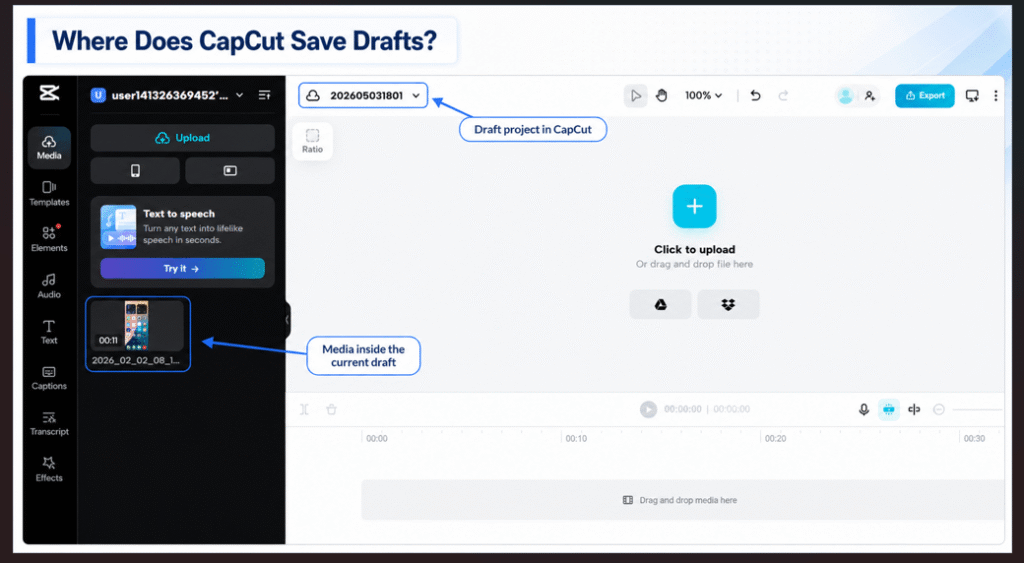
CapCut drafts may be saved locally on your device, in cloud storage if you use cloud features, or in a desktop project location if you edit on a computer.
This is why two users can have very different experiences. One person may reinstall CapCut and see projects return because they were synced. Another person may reinstall the app and find an empty drafts page because their projects were only saved locally.
The safest way to think about it is this: unless you can clearly see that a project is backed up or synced, assume the draft is stored on your device.
On mobile
On iPhone and Android, CapCut drafts often live inside the app’s local storage unless you use cloud or account-based saving features.
That means the draft may stay there when you close the app, but it may not survive every risky action. Deleting the app, clearing app data, changing phones, or using storage cleaner tools can put local drafts at risk.
Use this:
If you’re thinking about deleting CapCut to fix storage or lag, check whether deleting CapCut removes drafts before you uninstall anything.
On desktop
CapCut automatically saves on PC and desktop versions while you edit, much like the mobile app. Projects are usually stored locally unless they’re synced using cloud features.
So even if the project itself is autosaved, the source files still matter.
Note: Understanding where CapCut saves drafts is closely tied to how much storage the app uses. For practical tips on managing drafts, clearing cache, and freeing space without losing projects, see our CapCut Storage Guide.
Autosave Is Not the Same as Exporting
This is where many beginners get confused.
Yes, CapCut saves your videos after you export them, but exported videos and autosaved drafts are two different things.
An autosaved project is not the same as an exported video.
An autosaved project is the editable draft inside CapCut. It keeps your timeline, cuts, clips, captions, layers, effects, and music so you can keep working.
An exported video is the final video file saved outside CapCut, usually in your gallery, Photos app, Downloads folder, or computer folder.
Why this matters
If CapCut autosaves your draft, you can usually return and keep editing.
But if you want a finished video you can upload, share, or keep outside CapCut, you still need to export it.
Autosave protects your editing progress inside CapCut. Exporting creates the actual video file outside CapCut.
So if a project matters, do both: let CapCut save the draft, then export the finished video when you are done.
Does CapCut Save Projects Automatically When You Close the App?
In most cases, yes. If you close CapCut normally, your project should still appear as a draft when you reopen the app.
That is one of the reasons CapCut feels easy for quick edits. You can start a video, leave the app, come back later, and continue from where you stopped.
Still, I would not close the app during a heavy export, while a large file is still importing, or while your phone is almost out of storage. That is when things can get messy.
Before closing CapCut, do this
- Wait a few seconds after your last edit.
- Return to the home screen or drafts area if possible.
- Make sure your phone or computer has enough storage.
- Do not force close the app while media is importing.
- Export important finished videos before deleting anything.
This may feel like overkill, but it helps prevent those “where did my edit go?” moments.
Does CapCut Autosave to the Cloud?
Not always.
This is the biggest mistake people make with CapCut autosave. They think because CapCut saved the draft, the project must also be saved online.
That is not always true.
A project can be autosaved locally on your device without being uploaded to cloud storage. If you want cloud protection, you need to check whether the project is actually synced or saved to your CapCut account or cloud space.
Do CapCut Projects Save Across Devices?
Not automatically. Autosaving a project on your phone does not guarantee it will appear on your PC, tablet, or another device.
For projects to be available across devices, they usually need to be synced through your CapCut account or cloud storage features.
Autosave and cloud save are different
Autosave means CapCut kept your editing progress.
Cloud save means the project may be stored online, which can make it easier to access from another device or recover after a device problem.
Those are not the same thing.
If you edit without internet, your project may stay local until it can sync, if cloud syncing is available and turned on.
This matters if you often edit while traveling, commuting, or working with weak Wi-Fi. You can also read this guide on using CapCut offline to understand what works without an internet connection.
Do CapCut Projects Sync Across Devices?
Not automatically. CapCut autosaving a project on one device does not guarantee that the same project will instantly appear on another device.
For CapCut projects to sync across devices, you typically need to sign in to the same account and use available cloud-sync features. If a project is only stored locally on your phone or computer, it may not be accessible from another device.
This is why some users can open the same project on both mobile and desktop, while others cannot. Autosave protects your editing progress, but syncing across devices usually requires cloud storage or account-based syncing.
Why Did My CapCut Draft Not Save?
If your CapCut draft did not save, something may have interrupted the app before it could store your latest changes.
CapCut usually saves as you work, but no app is perfect. A draft may fail to save properly if your phone runs out of storage, the app crashes, your device shuts down, or the source media is moved before the project finishes loading.
Common reasons drafts do not save
- Your phone or computer was almost out of storage.
- CapCut crashed while you were editing.
- You force closed the app too quickly.
- The video was still importing when you closed CapCut.
- You cleared app data instead of cache.
- You deleted or moved the original clips.
- You signed back into a different account.
- The project was local and never synced to cloud.
That “cleared app data instead of cache” bullet trips up a lot of people, since the two settings sit right next to each other on Android, see does clearing CapCut cache delete projects for exactly which one is safe.
If CapCut keeps crashing before your edits save, the issue may be bigger than autosave. This guide on CapCut errors and crashes can help you fix the app before you lose more work.
How to Make Sure CapCut Saves Your Project
The best way to protect a CapCut project is to give autosave a little help.
You do not need to panic-save every five seconds, but you should build a few simple habits if the edit matters.
This is especially true for long videos, client work, school projects, YouTube videos, TikTok edits, and anything you do not want to rebuild from scratch.
Use this safe saving routine
- Wait a few seconds after making big edits.
- Return to the home screen or drafts area before closing CapCut.
- Keep enough storage free on your device.
- Export finished versions as backup copies.
- Back up original clips, photos, audio, and voiceovers.
- Check whether cloud sync is turned on for important projects.
- Avoid clearing app data instead of cache unless you are ready to lose local drafts.
This routine takes less than a minute, but it can save you from rebuilding an edit that took hours.
Can You Recover a Missing CapCut Draft?
Sometimes, yes. But it depends on where the draft was saved.
If the project was autosaved and still exists in CapCut, you should be able to find it in your drafts or recent projects. If it was synced to cloud storage, you may be able to access it again after signing into the right account.
If the draft was local and the app data was deleted, recovery becomes much harder.
Check these places first
- Your CapCut Drafts or Projects area
- Your cloud-synced projects, if you use CapCut cloud
- The account you originally used to edit the project
- Your Photos app, Gallery, Downloads folder, or desktop folder for exported versions
- Your phone backup, computer backup, iCloud Drive, Google Drive, or external drive
If the draft is already missing, this guide on how to recover deleted CapCut projects is the best next step. It can help you check the places where your project or exported video may still exist.
How to Protect CapCut Drafts Before Deleting the App
Do not delete CapCut just because your draft appears to be saved.
Your project may still be stored locally inside the app. If you delete CapCut, clear app data, reset your device, or switch phones without syncing first, the draft may disappear.
Before deleting CapCut, run through this quick checklist:
- Open the draft and make sure it still loads
- Export any finished videos
- Back up your original clips, photos, audio, and voiceovers
- Check whether the project is synced to CapCut cloud
- Make sure you know which CapCut account you used
- Save important client, school, or YouTube projects outside CapCut too
- Avoid clearing app data unless you understand the risk
Autosave helps, but backups protect you. That is the mindset to keep.
Frequently Asked Questions
Does CapCut autosave projects?
Yes, CapCut usually autosaves projects while you edit. Your unfinished edits should normally appear in drafts or recent projects when you reopen the app.
Does CapCut autosave drafts?
Yes, CapCut drafts are usually saved automatically as you edit. But autosaved drafts may still be stored locally, so they are not always safe if you delete the app or clear app data.
Does CapCut autosave to the cloud?
Not always. CapCut may autosave a project locally without uploading it to cloud storage. Check your cloud or sync settings before assuming your draft is backed up online.
Where are CapCut drafts saved?
CapCut drafts may be saved locally on your device, in a desktop project folder, or in cloud storage if you use cloud features. If you cannot confirm cloud sync, treat the draft as local.
Why did my CapCut draft disappear?
Your draft may have disappeared because the app crashed, local data was cleared, CapCut was deleted, source files were moved, or you signed into a different account. If it is missing, check this guide on recovering deleted CapCut projects.
Final Thoughts
CapCut usually autosaves projects and drafts while you edit, so you do not have to manually save every small change.
But autosave is not the same as cloud backup, and it is not the same as exporting. A project can be saved locally inside CapCut and still be at risk if you delete the app, clear app data, switch devices, or lose the original media files.
The safest habit is simple: let CapCut autosave your draft, then export finished videos and back up important files outside the app. That way, one glitch, reinstall, or storage cleanup does not wipe out hours of work.
