

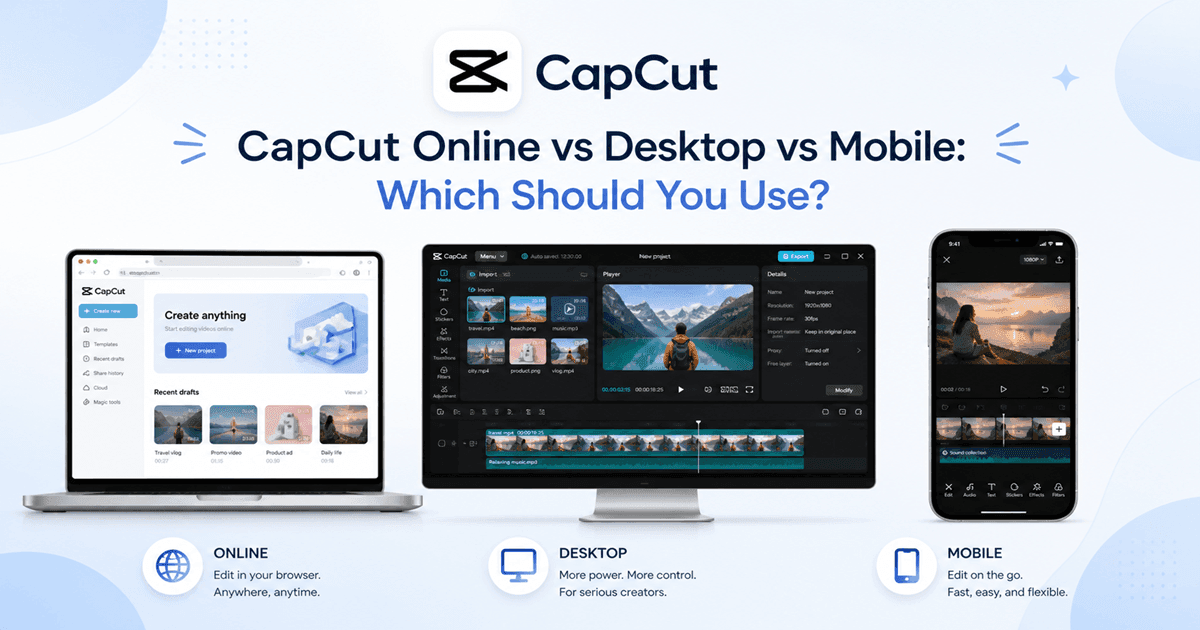
Choosing between CapCut Online, CapCut Desktop, and the CapCut mobile app can feel confusing because they all edit videos.
But here’s the thing: they are not built for the exact same workflow.
One version is better when you want speed. Another is better when you need more control. Another makes sense when you want to edit in a browser without installing software.
So before you pick one, think about how you actually edit.
Are your videos on your phone? Are you working with long videos or large files? Do you need a bigger screen? Do you want to avoid downloading an app?
The best CapCut version depends on what you edit, where your files are stored, how powerful your device is, and whether you care more about speed, control, storage, or convenience.
Table of Contents
- CapCut Online vs Desktop vs Mobile: Main Differences
- Which CapCut Version Is Best for Beginners?
- Which CapCut Version Is Best for TikTok, Reels, and Shorts?
- Which CapCut Version Is Best for YouTube and Long Videos?
- Which CapCut Version Is Best for Low Storage Devices?
- Frequently Asked Questions
- Final Thoughts
- Official Resources
CapCut Online vs Desktop vs Mobile: Main Differences
The easiest way to compare the three versions is to look at how they handle real editing needs.
| Editing Need | Best Version |
|---|---|
| Quick TikToks, Reels, and Shorts | CapCut Mobile |
| Templates, trends, and phone-recorded clips | CapCut Mobile |
| Long videos and YouTube edits | CapCut Desktop |
| Large files, 4K footage, and multi-layer projects | CapCut Desktop |
| Client work, tutorials, and detailed timeline edits | CapCut Desktop |
| Editing without installing software | CapCut Online |
| Chromebooks, shared computers, or temporary devices | CapCut Online |
| Low phone storage with bigger projects | CapCut Desktop |
If you only remember one thing from this table, remember this: mobile is usually faster for simple social videos, while desktop is usually better for heavy editing.
CapCut Mobile Overview
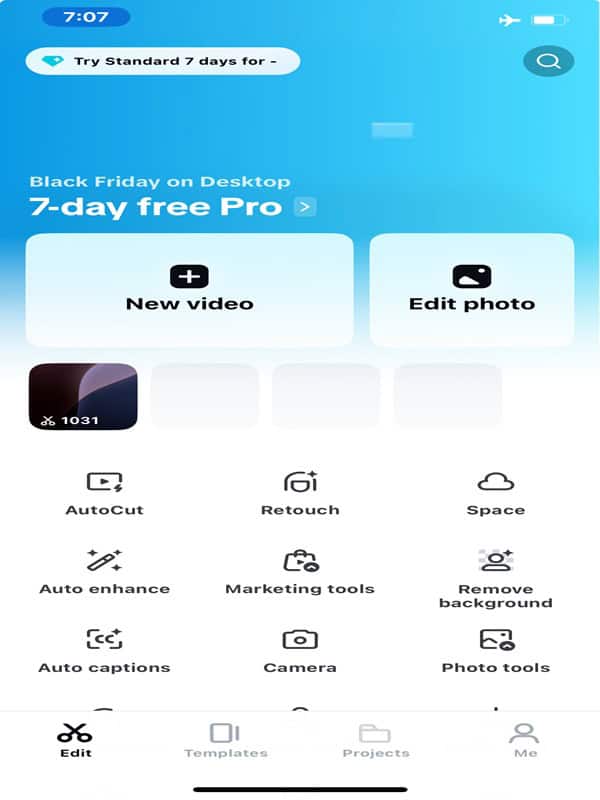
CapCut mobile is best for fast, simple, social-first editing.
If your videos are already on your phone, the mobile app feels natural. You can record, import, trim, add captions, use templates, apply effects, and export without moving files around.
That is why many TikTok, Reels, and Shorts creators still prefer the mobile app, even when they also have a laptop.
CapCut mobile is the best choice when speed matters more than detailed timeline control.
If your workflow is built around TikTok, you can get more from the mobile-style workflow by learning how to use CapCut for TikTok.
Where CapCut Mobile Can Feel Limited
CapCut mobile can feel limited when the project gets big, detailed, or messy.
A phone screen is small, so working with many clips, overlays, audio tracks, keyframes, and tiny timeline changes can get annoying fast. Your fingers may cover the exact thing you are trying to adjust. We have all been there.
Mobile can also struggle more with storage, overheating, long videos, and large 4K files.
That does not mean CapCut mobile is bad. It just means it is better for lighter projects, not every serious edit.
Projects that can feel harder on mobile:
- Long YouTube videos
- Large 4K projects
- Many timeline layers
- Detailed audio editing
- Client projects with lots of revisions
- Big file management
- Heavy effects on long clips
If your phone keeps lagging, overheating, or running out of storage during bigger edits, the issue may be the project load, not just the app.
Before forcing a heavy project on mobile, check whether CapCut can handle long videos and large files for the type of edit you are making.
CapCut Desktop Overview
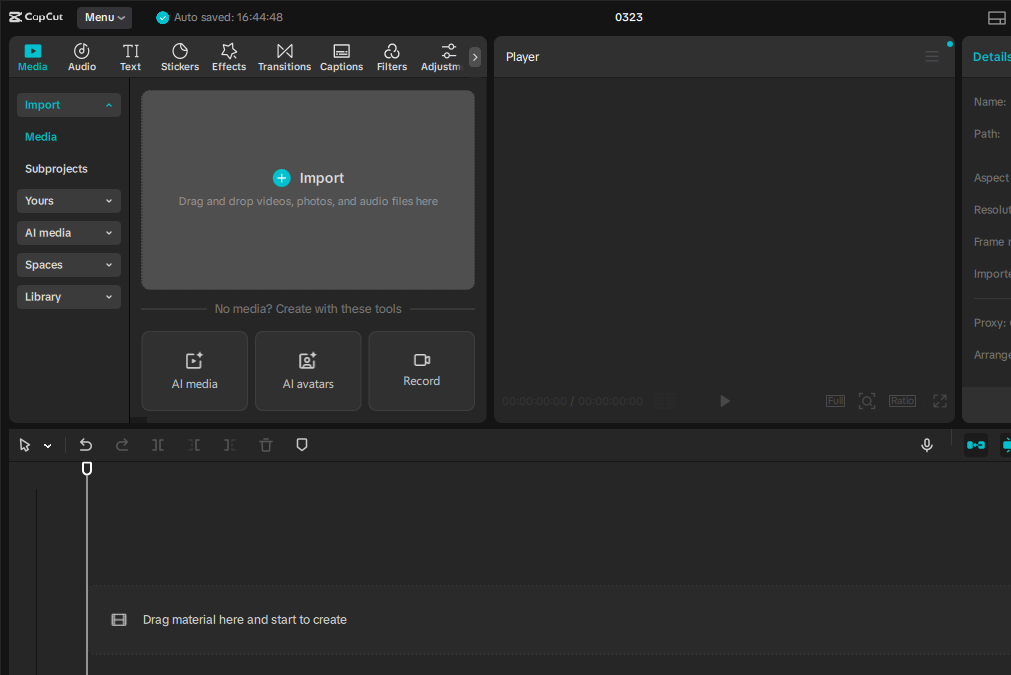
CapCut Desktop is best for bigger, cleaner, more controlled editing.
The biggest advantage is space. A larger screen makes it easier to see your timeline, arrange clips, adjust layers, manage audio, and make small edits without feeling cramped.
Desktop also gives you better file management. You can organize source clips, exports, music, images, folders, backups, and external drives more easily than you can on a phone.
Use CapCut Desktop when your project needs more control than speed
Where CapCut Desktop Can Feel Limited
CapCut Desktop is useful, but it is not always the easiest option for every creator.
If your footage is already on your phone, moving files to a computer can slow you down.
You may need to send clips through cloud storage, cable transfer, AirDrop, Google Drive, Dropbox, or another file-sharing method before you even start editing.
Desktop can also feel less natural if you are used to mobile controls, templates, and quick social posting.
Some tools, effects, templates, or account features may also vary by platform, region, or app version.
Desktop is better for heavier edits, but mobile may still be faster for simple phone-first videos.
Situations where CapCut Desktop may slow you down:
- You only make quick phone videos
- You do not want to move files from phone to computer
- Your computer is old or low on storage
- You prefer touch controls
- You rely heavily on mobile-first templates or effects
- You need to post immediately from your phone
If your main question is whether a phone or computer gives the better editing experience, compare whether CapCut is better on phone or laptop before choosing your main setup.
CapCut Online Overview
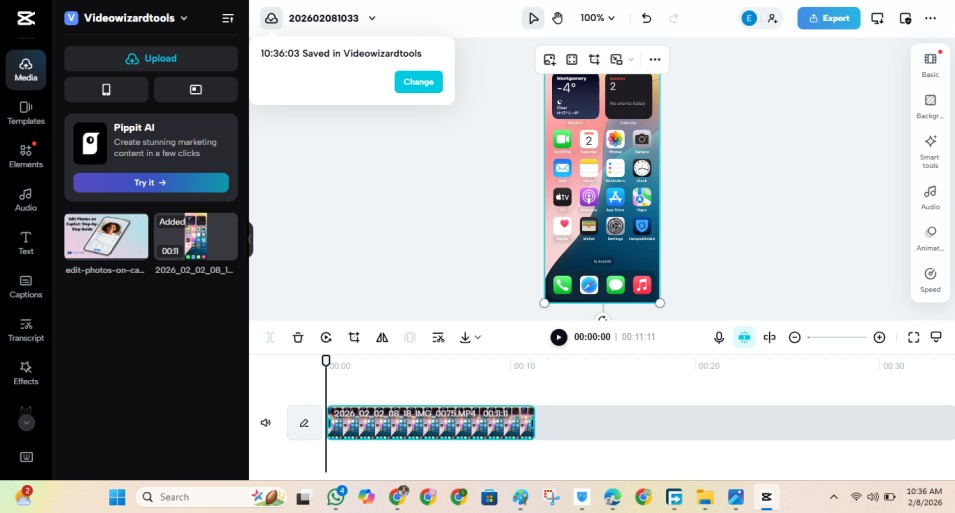
CapCut Online is best when you want to edit in a browser without downloading the desktop app.
It can be useful if you are using a shared computer, Chromebook, school device, work device, or temporary laptop where you do not want to install software.
CapCut’s online editor is built around browser-based editing, uploading media, online tools, templates, and workspace access.
Some CapCut web tools also ask users to log in before uploading files or using the workspace. :contentReference[oaicite:1]{index=1}
Use CapCut Online when browser access matters more than raw editing performance.
Where CapCut Online Can Feel Limited
CapCut Online can feel limited when your project depends on large uploads, heavy effects, long timelines, or a weak internet connection.
Since it runs in a browser, it may depend more on your internet speed, browser performance, account access, cloud storage, and upload time.
If your file is large, you may spend extra time uploading before you even start editing.
That can be frustrating when you only want to make a quick change to a big video file.
For heavy long-form edits, CapCut Desktop is usually the safer choice than CapCut Online.
Situations where CapCut online editing can feel frustrating:
- Very large video files
- Long 4K projects
- Slow or unstable internet
- Heavy multi-layer edits
- Projects with lots of local media files
- Creators who prefer offline editing
- Situations where upload time matters
If you need to edit without a stable connection, CapCut Online is not the best choice.
Check what works when you use CapCut offline before planning an edit around browser access.
Which CapCut Version Is Best for Beginners?
CapCut mobile is usually the easiest version for beginners.
The mobile app is built for quick editing, and most tools are easy to tap, test, and undo.
If your videos are already on your phone, mobile also removes the headache of moving files around.
That said, beginners who want to make longer videos may prefer CapCut Desktop after learning the basics.
The bigger screen makes the timeline easier to understand, especially when you start using more clips, captions, audio tracks, and layers.
CapCut Online can also work for beginners who want to test the editor in a browser, but it is less ideal if your internet is slow or your files are large.
Which CapCut Version Is Best for TikTok, Reels, and Shorts?
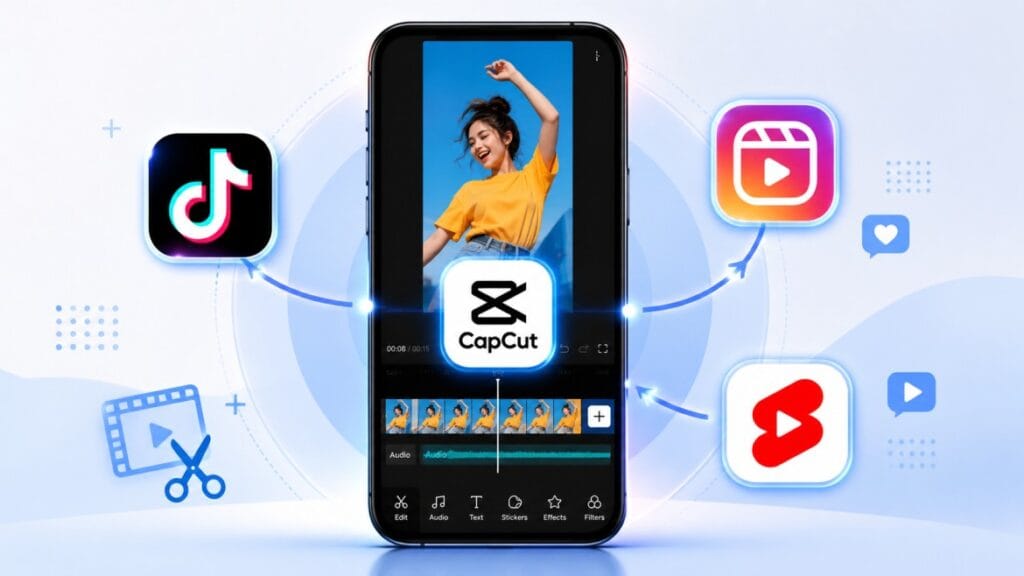
CapCut mobile is usually the best choice for TikTok, Instagram Reels, and YouTube Shorts.
Short-form content is often filmed on a phone, edited on a phone, and posted from a phone. That makes the mobile app faster and more natural for social creators.
Mobile also tends to feel better for templates, trends, quick captions, vertical edits, and fast exports.
If your content starts and ends on your phone, CapCut mobile is usually the smoothest option.
I Recommend Use of mobile if your workflow is:
- Film on phone
- Edit on phone
- Add captions or templates
- Export quickly
- Post to TikTok, Reels, or Shorts
If your videos are mainly for Instagram, you can build a faster workflow by learning how to use CapCut for Instagram Reels.
Which CapCut Version Is Best for YouTube and Long Videos?
CapCut Desktop is usually the better option for YouTube videos and long-form edits.
Long videos need more timeline space, better file management, stronger performance, and more comfortable audio control. Capcut desktop gives you more room to work without fighting a tiny screen.
If you are editing tutorials, commentary videos, vlogs, screen recordings, reaction clips, course videos, or client projects, CapCut desktop will usually feel less cramped.
Use CapCut Desktop when the edit is longer, heavier, or needs more timeline control.
Use CapCut desktop if your workflow is:
- Editing videos longer than a few minutes
- Working with many clips and audio tracks
- Managing organized folders
- Exporting in 1080p, 2K, or 4K
- Making YouTube videos, tutorials, courses, or client content
If YouTube is your main platform, learn how to use CapCut for YouTube before building your full workflow around one version.
Which CapCut Version Is Best for Low Storage Devices?
It depends on where the storage problem is.
If your phone is full, CapCut Desktop may be better because you can move files to a computer drive or external storage.
If your computer is full, mobile may be easier for quick projects. If both devices are low on storage, CapCut Online may help for lighter browser-based edits, but large uploads can still be slow or frustrating.
For large files and long videos, CapCut desktop with enough local or external storage is usually the safest setup.
If CapCut keeps filling your phone or computer, check why CapCut takes so much storage before deleting drafts, cache, or project files.
Frequently Asked Questions
Is CapCut better on desktop or mobile?
CapCut Desktop is better for long videos, large files, 4K footage, detailed edits, and client work. CapCut mobile is better for quick TikToks, Reels, Shorts, templates, and simple phone-based editing.
Is CapCut Online the same as the app?
No. CapCut Online runs in a browser, while CapCut mobile and CapCut Desktop are installed apps. The online version is convenient for browser access, but it depends more on internet speed, uploads, browser performance, and account access.
Which CapCut version is best for beginners?
CapCut mobile is usually best for beginners because it is simple, fast, and works well for short social videos. CapCut Desktop may be better once your projects get longer, heavier, or more detailed.
Is CapCut Desktop better for YouTube videos?
Yes. CapCut Desktop is usually better for YouTube videos because it gives you more screen space, better file management, stronger control, and a more comfortable timeline for longer edits.
Can I use CapCut Online without downloading the app?
Yes. CapCut Online lets you edit in a browser without downloading the desktop app. It is useful for quick online edits, Chromebooks, shared computers, and temporary devices, but large files may take longer to upload and process.
Final Thoughts
CapCut Online, Desktop, and Mobile all work, but they are not equally good for every job.
Use CapCut mobile when speed, templates, and social posting matter most. Use CapCut Desktop when you need more control, more timeline space, and better handling for bigger edits. Use CapCut Online when browser access is more convenient than installing software.
For most creators, the best setup is not one version forever. It is using the right version for the right job.
You might edit quick TikToks on your phone, handle longer YouTube videos on desktop, and use CapCut Online when you are on a Chromebook or shared computer.
The best CapCut version is the one that removes friction from your workflow. If it helps you edit faster, stay organized, and finish videos without fighting your device, that is the right choice.
