

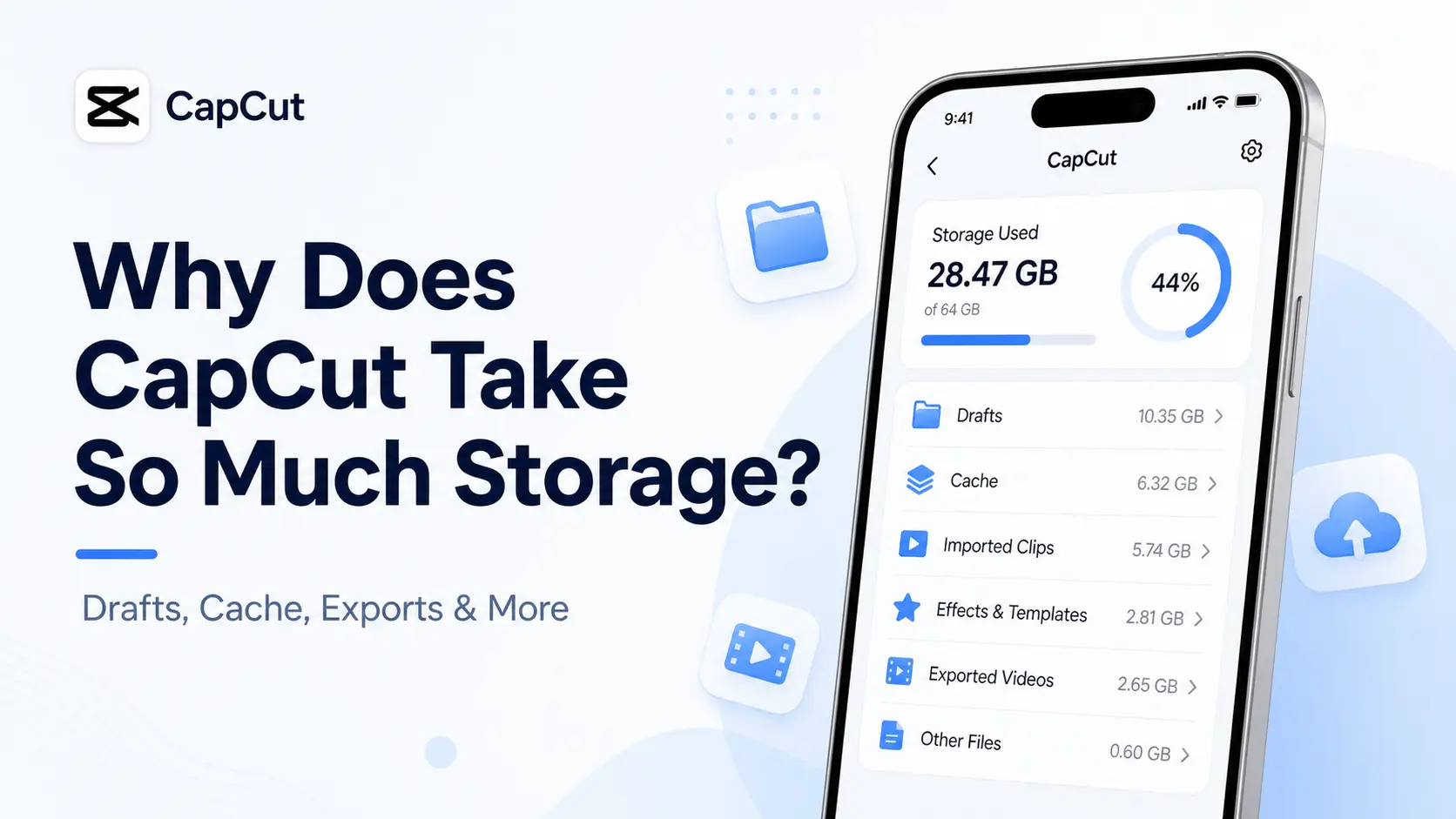
Have you ever checked your phone storage and found CapCut sitting there like it pays rent? One day it is a normal editing app. The next day, it is eating 10GB, 30GB, or even more.
The simple reason is this: CapCut stores more than just the app itself. It can keep drafts, imported clips, preview files, cache, effects, templates, exported videos, audio files, and temporary editing data.
So no, you are not imagining it. CapCut can take a lot of storage, especially if you edit often, use long videos, work with 4K clips, or keep many drafts inside the app.
Table of Contents
- Why Does CapCut Take So Much Storage?
- Why Does Capcut Use a Lot of Data?
- Does CapCut Storage Include Your Drafts?
- Does CapCut Cache Take Up Storage?
- Why Is CapCut Bigger Than the Videos You Imported?
- Why CapCut Storage Gets Bigger After Exporting
- Why Does CapCut Increase File Size?
- Why CapCut Uses So Much Space on iPhone
- Why CapCut Uses So Much Space on Android
- Why Does CapCut Keep Saying Insufficient Storage?
- How to Reduce CapCut Storage Without Losing Projects
- What Not to Delete in CapCut
- Why CapCut Comes Back Large After You Clear Space
- Quick Checklist to Free CapCut Storage Safely
- Frequently Asked Questions
- Final Thoughts
- Official Sources
Why Does CapCut Take So Much Storage?
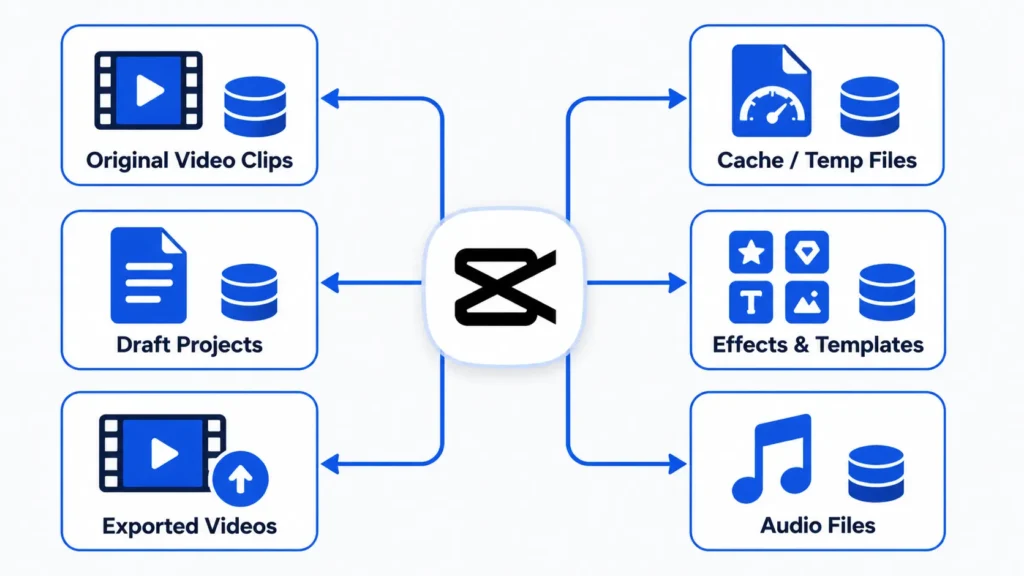
CapCut takes so much storage because video editing creates a lot of extra files behind the scenes.
When you edit a video, CapCut may store your draft, copied media, previews, thumbnails, effects, downloaded assets, temporary render files, and cache. All of that can grow quickly, especially if your videos are long or high quality.
Think of CapCut like a kitchen while you are cooking. The final meal is your exported video, but the kitchen also has bowls, scraps, ingredients, pans, and half-used sauces everywhere. Those extras are the hidden files CapCut uses while you edit.
The more you edit, the more those extras pile up.
The biggest storage hogs in CapCut
- Large video drafts
- 4K or high-resolution clips
- Long videos
- Cache files
- Temporary render files
- Downloaded effects, filters, and templates
- Auto captions and audio files
- Exported videos saved on your device
- Old projects you forgot to delete
This is why CapCut can look much larger than expected in your phone settings. You are not only seeing the app. You are seeing the app plus the editing files it has collected over time.
Why Does Capcut Use a Lot of Data?

Yes, CapCut can use a lot of data if you regularly download templates, use AI features, sync projects, stream online assets, or upload drafts to the cloud.
Users who edit mostly offline on Wi-Fi may notice much lower data usage.
If you use templates, cloud projects, online effects, stock assets, AI tools, music, captions, or account syncing, CapCut may download and upload files while you work.
That data use can add up fast if you edit on mobile data instead of Wi-Fi.
CapCut may use data when you:
- Download templates
- Use online effects or filters
- Upload drafts to cloud storage
- Sync projects across devices
- Use AI tools
- Generate captions or text-to-speech
- Download music, stickers, fonts, or stock assets
- Export or share videos directly to another platform
If you often edit away from Wi-Fi, this matters. CapCut can still work for many editing tasks without internet, but online assets and syncing may need a connection. This guide on using CapCut offline explains what works without Wi-Fi and what may need data.
Does CapCut Storage Include Your Drafts?
Yes, CapCut storage can include your drafts.
Drafts are one of the biggest reasons CapCut grows over time. Every unfinished project can hold clips, edits, text, effects, audio, preview files, and timeline data.
Even if a draft looks small from the home screen, it may be connected to large video clips behind the scenes.
Why drafts can take so much space
A CapCut draft is not just a tiny note that says, “cut this clip here.” It can include editing instructions, cached previews, imported media data, audio files, thumbnails, and other project files.
If you keep ten unfinished edits, and each one uses several HD or 4K clips, your storage can climb quickly.
This is why deleting old drafts can free up space. But be careful. Once you delete a draft, you may lose the editable timeline. If you still need the project, export it or back it up first.
If you are unsure what happens when drafts are removed, read this guide on whether deleting CapCut deletes drafts before cleaning too aggressively.
Does CapCut Cache Take Up Storage?
Yes, CapCut cache can take up a lot of storage.
Cache is temporary data that helps CapCut load previews, thumbnails, effects, and edits faster. It is useful while you are editing, but it can grow into a giant pile of old files if you use the app often.
CapCut’s own help pages mention clearing cache as a fix for storage, lag, preview, and sharing problems. They also warn users not to clear app data through phone system settings because local drafts can be deleted.
What cache can include
- Preview files
- Thumbnails
- Temporary render files
- Downloaded assets
- Editing leftovers
- Effect and template files
- Audio waveform data
Clearing cache can help free space, but make sure you clear cache, not app data. Those are not the same thing.
If you want the safer explanation first, read this guide on whether clearing CapCut cache deletes projects.
Why Is CapCut Bigger Than the Videos You Imported?
CapCut can become bigger than your original videos because editing creates extra working files.
For example, you may import a 1GB video, but CapCut might also create preview files, cache files, thumbnails, temporary renders, audio data, and project files around that video.
Then, when you export the finished version, that exported video may also take more storage on your phone or computer.
So your device may end up holding three things at once:
- The original video you imported
- The CapCut draft and editing files
- The exported finished video
That is how a single edit can quietly take much more space than expected.
Why CapCut Storage Gets Bigger After Exporting
CapCut storage can get bigger after exporting because your device may keep both the editable project and the finished video file.
Before export, you have the draft. After export, you may still have the draft, plus the new video saved to your gallery, Photos app, Downloads folder, or computer folder.
That means one project can take up space in more than one place.
Example
Let’s say you import a large video, edit it in CapCut, and export the final version.
Your device may now store:
- The original video clip
- The CapCut draft and editing files
- The exported finished video
- Cache and preview files created during editing
So even if the final export is only one video, the full editing process may leave several files behind.
Why Does CapCut Increase File Size?
CapCut can increase file size when exported settings are higher than the original video’s settings. For example, exporting at a higher bitrate, resolution, or frame rate can produce a larger file than the source video.
Effects, filters, color adjustments, overlays, and additional audio tracks can also increase the amount of data that needs to be stored in the final export.
If your exported videos seem much larger than expected, check the resolution, frame rate, and bitrate settings before exporting.
Why CapCut Uses So Much Space on iPhone
On iPhone, CapCut storage can grow because app data, drafts, cache, downloaded assets, and exported files may all sit in different places.
Your iPhone storage screen may show CapCut using a lot of space because it includes the app plus its documents and data. That can include local drafts, editing files, previews, and temporary files.
Also, exported videos saved to Photos may take up storage outside CapCut too. So even after you clear space inside CapCut, your iPhone may still be full if your Photos library has large exported videos.
What to check on iPhone
- Check CapCut drafts you no longer need.
- Check the Photos app for large exported videos.
- Check Recently Deleted in Photos.
- Clear CapCut cache, not app data.
- Back up important videos before deleting anything.
If your iPhone storage is almost full, avoid deleting CapCut too quickly. Local drafts may disappear if the app is removed and they were not backed up.
Why CapCut Uses So Much Space on Android
On Android, CapCut can take a lot of space because of drafts, cache, downloaded assets, exported videos, and app data.
Android also gives you more storage buttons, which can be helpful but risky. “Clear cache” is usually the safer cleanup option. “Clear data” can reset the app and may remove local drafts.
This is where many users get into trouble. They want to free storage, tap the strongest-looking cleanup button, and only realize later that their projects are gone.
What to check on Android
- Check CapCut drafts before deleting anything.
- Clear cache before trying riskier cleanup steps.
- Avoid Clear Data unless your projects are backed up.
- Check your Gallery, Downloads, and file manager for exported videos.
- Move large videos to cloud storage or an SD card if your device supports it.
If CapCut is taking too much space on Android, start with cache and old exports before touching app data.
Why Does CapCut Keep Saying Insufficient Storage?
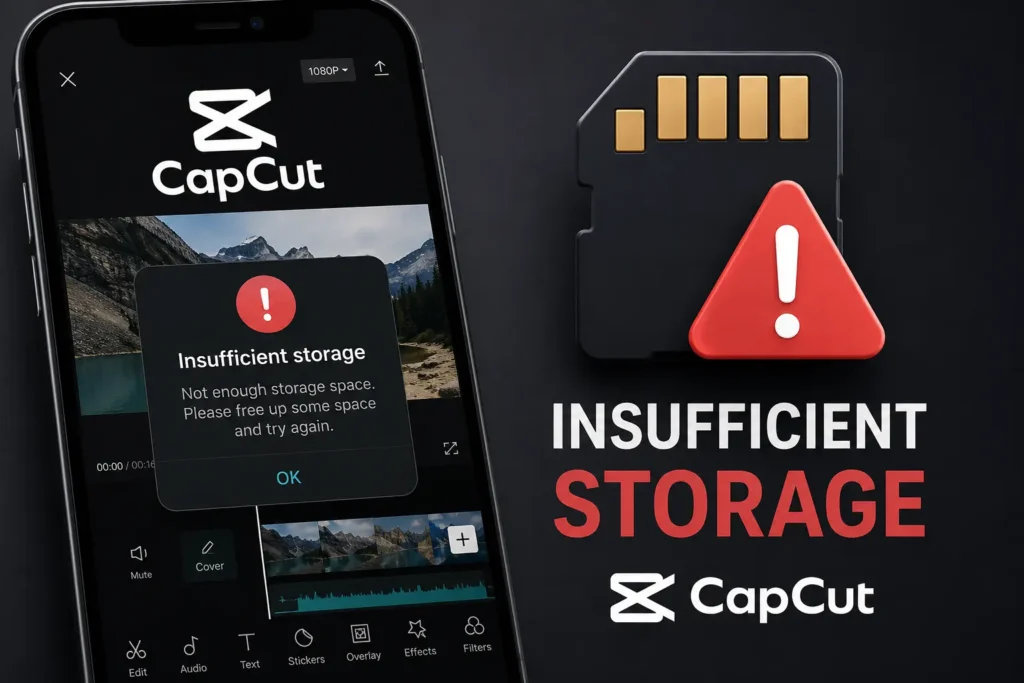
If CapCut says you have insufficient storage or no storage available, the app may not have enough free space to create temporary editing files, save drafts, render previews, or export videos.
This warning can appear even when your device still has some free storage left. Large projects, 4K footage, cache files, and existing drafts may require more working space than CapCut currently has available.
If you’re wondering why CapCut says you have no storage, try deleting unnecessary files, clearing cache, removing old drafts, or moving large videos to cloud storage before continuing your edit.
How to Reduce CapCut Storage Without Losing Projects
The safest way to reduce CapCut storage is to remove what you no longer need while protecting anything you still want to edit.
Do not start by deleting the app. Start by checking your drafts, exports, source clips, and cache.
1. Export important projects first
Before deleting drafts or clearing storage, export any finished videos you care about.
This gives you a saved copy outside CapCut. You may still lose the editable timeline if you delete the draft, but at least the final video is safe.
2. Delete old drafts you no longer need
Old drafts can take a lot of space, especially if they use long videos, 4K clips, effects, captions, or multiple layers.
Only delete drafts you are truly done with. Once a draft is deleted, you may not be able to edit that project again unless you have a backup.
3. Clear CapCut cache safely
Clearing cache can free space without deleting the whole app.
Just make sure the option says cache, not data. Cache is temporary. Data can include local app files and drafts.
4. Move exported videos somewhere else
Exported videos can take huge amounts of storage, especially if you save in 1080p, 2K, or 4K.
Move older finished videos to Google Drive, iCloud Drive, OneDrive, Dropbox, an external hard drive, or another safe location.
5. Use better export settings
Sometimes CapCut feels huge because your exported videos are bigger than they need to be.
You can often reduce file size by choosing the right resolution, frame rate, and bitrate. For a deeper walkthrough, use this guide on the best CapCut export settings.
What Not to Delete in CapCut
When you are low on storage, it is tempting to delete anything that looks big. But some files matter more than others.
If you delete the wrong thing, your project may open with missing clips, broken audio, or no editable timeline.
Be careful with these
- Active drafts you still need to edit
- Original video clips used in projects
- Voiceovers and music files used in your timeline
- Desktop project folders
- App data or documents and data
- Cloud projects that have not fully synced
If you are not sure whether a file is safe to delete, export the project first and back up the source files.
Why CapCut Comes Back Large After You Clear Space
CapCut may become large again after you clear space because it rebuilds files as you edit.
When you reopen projects, import media, preview effects, use templates, or export videos, CapCut can create new cache and temporary files.
That is normal. Clearing storage once does not stop CapCut from creating new editing files later.
How to keep CapCut storage under control
- Delete old drafts after exporting and backing them up.
- Clear cache from time to time.
- Move finished videos out of your phone storage.
- Avoid keeping several versions of the same export.
- Use lower export settings when 4K is not needed.
- Keep enough free space before starting big edits.
The goal is not to keep CapCut tiny forever. Video editing apps naturally grow. The goal is to stop old projects, cache, and exports from piling up forever.
Quick Checklist to Free CapCut Storage Safely
Use this checklist before deleting anything from CapCut.
- Open important drafts and make sure they still work.
- Export finished videos.
- Back up source clips, audio, and images.
- Delete drafts you no longer need.
- Clear cache, not app data.
- Move large exported videos to cloud or external storage.
- Restart CapCut and check your projects again.
This order helps you free space without accidentally deleting the edits you still care about.
Frequently Asked Questions
Why does CapCut take so much storage?
CapCut takes so much storage because it can save drafts, cache files, preview files, downloaded effects, templates, imported media, temporary render files, and exported videos on your device. The more projects you edit, the more storage these files can consume.
Does CapCut use a lot of data?
Yes, CapCut can use a lot of data when downloading templates, effects, music, fonts, AI features, or stock assets. It may also use data when syncing projects across devices or uploading drafts to cloud storage.
Why does CapCut keep saying insufficient storage?
This warning usually appears when your device does not have enough free space for drafts, cache files, temporary renders, or video exports. Clearing cache, deleting old drafts, and freeing device storage often helps resolve the issue.
Does deleting CapCut cache free storage?
Yes, clearing CapCut cache can free storage by removing temporary files such as previews, thumbnails, and cached assets. It should not normally delete projects, but make sure you clear cache rather than app data.
Why does CapCut increase file size?
CapCut can increase file size when videos are exported with higher bitrate, resolution, frame rate, or additional effects compared to the original file. Export settings have a major impact on the final video size.
Can I delete CapCut data to free space?
You should be careful. Deleting CapCut app data can remove local drafts, settings, and project files. Clear cache first, and only delete app data after backing up important projects.
Why is CapCut still taking storage after I deleted videos?
CapCut may still have drafts, cache files, previews, downloaded assets, or exported videos stored elsewhere on your device. Also check your Photos app, Gallery, Downloads folder, and Recently Deleted folder.
Final Thoughts
CapCut takes so much storage because video editing is file-heavy. Drafts, cache, previews, effects, templates, source clips, and exported videos can all pile up fast.
The safest fix is not to delete everything blindly. Export important videos, back up source files, delete old drafts, clear cache, and move large exports somewhere safe.
Once you understand what CapCut is storing, cleanup gets much less scary. You can free space without putting your best edits at risk.
Managing CapCut storage gets easier once you know what the app actually saves. For more detailed tips on cache, drafts, exports, and keeping your device clean, visit our full CapCut Storage Guide.
