
How to Use CapCut for Free(2026): Features, Limits Breakdown

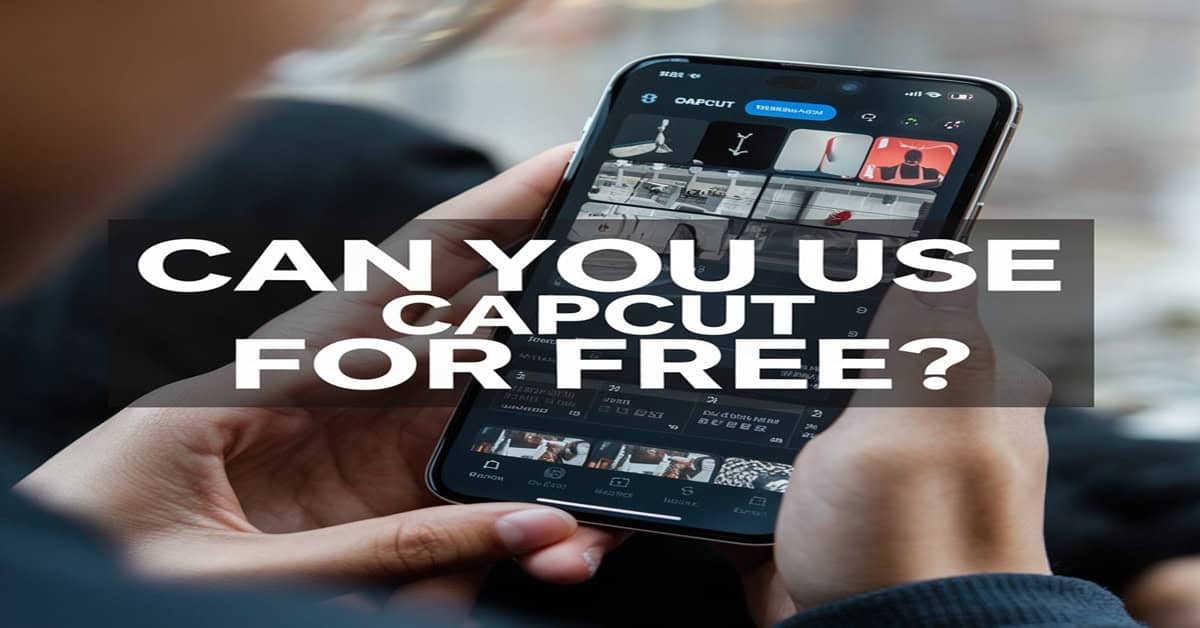
CapCut has quickly become one of the most widely used video editing apps in the world, especially among creators making content for TikTok, Instagram Reels, YouTube Shorts, and other social platforms.
Its simple interface, powerful editing tools, and large collection of effects make it appealing to both beginners and experienced editors.
Because of how feature-rich the app looks, many people assume it must require a paid subscription to work properly. This leads to one of the most common questions new users ask:
Can you really use CapCut for free, or do you eventually have to pay?
The short answer is yes — you can use CapCut for free. However, the full picture is a bit more nuanced.
CapCut follows a freemium model, which means the core editing tools are free, while certain premium effects, templates, and advanced features are locked behind CapCut Pro.
Understanding exactly what is free and what is paid is important if you want to avoid surprises such as Pro watermarks, locked templates, or missing export options after you finish editing a video.
In this complete guide, you’ll learn:
- Whether you can truly use CapCut for free without limitations
- Which editing tools are included in the free version
- What features require CapCut Pro
- When upgrading is actually worth it (and when it isn’t)
By the end, you’ll know exactly what to expect from CapCut’s free plan and whether it’s enough for your editing needs.
Can You Use CapCut for Free?
Yes, you can use CapCut for free, and most people are able to create complete, high-quality videos without paying for a subscription.
CapCut provides a fully functional free plan that includes the essential tools needed for everyday video editing.
You can trim and split clips, add music and sound effects, apply filters, insert text and transitions, adjust video speed, and export your finished video in high quality — all without spending money.
This is one of the main reasons CapCut has grown so quickly compared to many other editing apps.
While some video editors restrict basic tools or force watermarks on free exports, CapCut allows users to complete real editing work on the free version alone.
However, being able to use CapCut for free does not mean that every feature inside the app is unlocked. CapCut operates on a freemium structure, where:
- Core editing tools are free
- Many effects, templates, and advanced features are labeled Pro
- Certain premium assets may trigger upgrade prompts during editing or export
Because of this, two users can both be using the free version of CapCut but have slightly different experiences depending on:
- The templates or effects they choose
- Their device (mobile vs desktop)
- Their region or current promotions inside the app
The most important thing to understand is this:
You can absolutely use CapCut for free to edit and export videos, as long as you avoid Pro-only assets and premium features.
For casual creators, students, and social media users, the free version is often more than enough.
For advanced creators who rely heavily on premium templates, AI tools, or exclusive effects, CapCut Pro may eventually become necessary.
So while the free plan is genuinely useful, knowing its boundaries helps you avoid frustration later in the editing process.
What You Can Do When You Use CapCut for Free
When people ask whether they can use CapCut for free, what they usually want to know is simple:
Can the free version actually edit real videos, or is it too limited to be useful?
The good news is that CapCut’s free plan is genuinely powerful.
You can complete full video projects from start to finish without paying, as long as you avoid features marked Pro.
Below is a clear breakdown of what you can realistically do when you use CapCut for free.
Basic Video Editing Tools
The core editing system inside CapCut is fully available on the free plan.
You can:
- Trim clips to remove unwanted parts
- Split long footage into smaller segments
- Rearrange clips on the timeline
- Combine multiple videos into one project
- Adjust playback speed for slow motion or fast motion
These are the most important tools for everyday editing, and CapCut does not lock them behind a paywall.
This means beginners and casual creators can still produce polished videos without upgrading.
For many users, this alone is enough reason to use CapCut for free instead of paying for other editing apps.
Text, Stickers, Transitions, and Visual Effects
CapCut includes a large collection of:
- Text styles and fonts
- Animated stickers
- Scene transitions
- Visual filters and effects
A significant portion of these assets are available on the free plan.
However, some newer or trend-based effects are labeled Pro, which means they require a subscription.
Even so, the number of free creative elements is still large enough to design engaging social media videos without spending money.
This balance is what makes it practical for many creators to continue to use CapCut for free long-term.
Music, Sound Effects, and Voiceovers
Audio editing is another area where the free version remains strong.
When you use CapCut for free, you can:
- Add background music from the built-in library
- Import your own music or audio files
- Record voiceovers directly inside the app
- Adjust volume levels for each track
- Apply simple fade-in and fade-out effects
Some premium music tracks and sound packs are restricted to Pro, but the free library is still large enough for most casual editing needs.
Because of this, many social media creators never feel forced to upgrade.
Speed Control and Simple Enhancements
CapCut’s speed adjustment tools are also included in the free version.
You can:
- Create slow-motion effects
- Speed up clips for time-lapse style edits
- Smoothly transition between speed changes
These features are essential for modern short-form video editing, and having them available for free makes CapCut much more competitive than many other editors.
Exporting Videos Without Paying
One of the biggest concerns people have before they use CapCut for free is whether their final video will include a watermark.
In many cases, CapCut allows watermark-free export on the free plan.
However, this depends on an important condition:
If your project includes Pro-only effects, templates, or assets, you may see a watermark or be asked to upgrade before exporting.
As long as you stick to free tools, you can usually export high-quality videos without paying anything.
This is one of the strongest reasons CapCut’s free version is considered more generous than many competing apps.
Real-World Editing Experience on the Free Plan
In practical use, most beginners can:
- Film a video
- Edit it completely
- Add music, text, and effects
- Export and post to social media
—all while continuing to use CapCut for free.
The limitations only become noticeable when creators begin relying heavily on:
- Premium templates
- Advanced AI tools
- Exclusive visual effects
- Cloud-based collaboration features
At that point, upgrading to Pro becomes a creative choice rather than a basic requirement.
What You Cannot Do When You Use CapCut for Free
Even though you can use CapCut for free to complete real video projects, the free version is not unlimited.
CapCut follows a freemium model, which means some tools, assets, and advanced capabilities are only available through CapCut Pro.
Understanding these limits is important so you don’t spend time editing a video only to discover that an effect, template, or export option requires payment.
Below are the most common restrictions you’ll encounter when you continue to use CapCut for free.
Pro-Only Effects, Filters, and Templates
One of the first limitations users notice is that many newer or trend-based visual assets are marked Pro.
These may include:
- Premium transitions
- Advanced cinematic filters
- Trending social media templates
- Certain animated text styles or overlays
You can still edit videos without them, but if your project depends on a Pro template or effect, CapCut may:
- Add a watermark during export, or
- Ask you to upgrade before finishing the export
This is the most frequent reason free users consider switching to Pro.
Some AI Tools and Advanced Features Are Locked
CapCut continues to add AI-powered editing tools, but not all of them are fully available when you use CapCut for free.
Depending on your device, region, and app version, features that may require Pro include:
- Advanced background removal or subject cutout
- Higher-quality auto captions or voice tools
- Certain enhancement or retouching features
- Premium template automation
Basic AI features sometimes remain free, but the more advanced or newer ones are often part of the paid plan.
Premium Music and Asset Libraries
While the free version includes music and sound effects, the full audio library is not always accessible.
When you use CapCut for free, you may find:
- Some tracks labeled Pro
- Limited access to newly added sound packs
- Restrictions based on region or licensing
This usually isn’t a major issue for casual creators, but it can matter for professional or branded content.
Cloud Storage, Syncing, and Collaboration Limits
Another difference appears in workflow features rather than editing tools.
Free users can still edit normally, but may have limited access to:
- Cloud project storage
- Cross-device syncing features
- Team collaboration tools
- Shared asset libraries
These features are designed more for teams, agencies, or heavy creators, which is why they are commonly tied to paid plans.
Export Flexibility and Premium Output Options
Most free users can export high-quality videos, but some advanced export-related benefits may require Pro, such as:
- Access to certain premium templates without watermark
- Exclusive visual processing or enhancement tools
- Higher-tier creative assets bundled into export
For everyday social media videos, the free export is usually enough.
But professional workflows sometimes require the paid version.
The Real Meaning of CapCut’s Free Plan
The key takeaway is this:
You can absolutely use CapCut for free for real editing work.
However, CapCut is designed so that creative convenience and advanced polish gradually sit behind the Pro upgrade.
This doesn’t make the free version useless — in fact, it remains one of the most capable free editors available.
It simply means the free plan is best suited for:
- Beginners
- Casual creators
- Students
- Simple social media editing
While professionals or heavy creators may eventually benefit from Pro.
CapCut’s Editing Features: Audio, Green Screen & More
Even when you use CapCut for free, the platform still provides a surprisingly wide range of editing features that cover most everyday creative needs.
These include audio editing tools, green screen effects, basic photo editing, desktop editing support, offline workflows, customizable templates, and simple collaboration options.
While some advanced tools or premium assets may require CapCut Pro, the core functionality remains accessible on the free plan.
Audio Editing
CapCut allows you to import music, record voiceovers, trim audio clips, adjust volume levels, and apply simple fade-in or fade-out effects without paying.
For many social media creators, these free audio tools are already enough to produce polished videos.
Green Screen (Chroma Key)
The built-in green screen feature lets you replace solid-color backgrounds with images or video.
Basic chroma key controls are available on the free plan, making this one of the most powerful free visual tools inside CapCut.
Photo Editing Support
CapCut also supports simple photo editing, including filters, text overlays, stickers, and visual adjustments.
This makes it easy to combine images and video clips into a single project without needing extra software.
Desktop and Offline Editing
You can use CapCut for free on Windows, macOS, Android, and iOS.
Projects can also be edited offline using files stored on your device, which is useful when working without a stable internet connection.
Templates and Collaboration
CapCut includes ready-made templates and basic project-sharing options.
However, many newer templates and smoother collaboration features are tied to CapCut Pro, which is where the main limitations of the free plan begin to appear.
Is It Worth Trying to Use CapCut for Free Before Upgrading?
For most people, the smartest first step is simple:
Try to use CapCut for free before even thinking about paying.
Because the free version already includes the core editing tools, many creators discover they never actually need the Pro upgrade.
You can trim clips, add music, apply effects, include text, and export finished videos without spending anything — which is enough for a large percentage of social media content.
This makes CapCut very different from editors that heavily restrict free users or force watermarks on every export.
When the Free Version Is More Than Enough
You can comfortably continue to use CapCut for free if your editing needs are fairly simple.
This usually includes:
- TikTok, Reels, or Shorts content
- Basic YouTube videos
- School or personal projects
- Small business social media clips
- Casual content creation
In these situations, the free tools already cover everything required to produce clean, engaging videos.
Many successful short-form creators never move beyond the free plan.
Signs You Might Eventually Need CapCut Pro
While the free version is strong, certain patterns suggest an upgrade could become useful.
You may benefit from Pro if you:
- Regularly hit Pro-locked templates or effects
- Depend on specific premium visual styles
- Need advanced AI editing tools
- Want smoother multi-device syncing or collaboration
- Produce content professionally or at high volume
At this stage, the upgrade is less about unlocking basic editing and more about saving time and expanding creative options.
Why Starting Free Is Still the Best Decision
Even if you later upgrade, beginning with the free version has clear advantages:
- You learn the editor without financial risk
- You understand which features you truly need
- You avoid paying for tools you may never use
In other words, choosing to use CapCut for free first is not just possible — it’s the most practical approach for nearly every new user.
The Bottom Line on Free vs Paid
CapCut’s free plan is powerful enough to handle real-world editing.
The Pro plan simply adds speed, convenience, and premium creative control.
That means the decision to upgrade should come from:
your workflow, not pressure from the app.
And for many creators, staying free remains a perfectly valid long-term choice.
Frequently Asked Questions
Final Verdict: Should You Use CapCut for Free?
After looking at what the free version includes—and where its limits begin—the answer becomes clear:
Yes, it is absolutely worth it to use CapCut for free, especially if you are a beginner, casual creator, student, or small business owner creating regular social media content.
The free plan is not a stripped-down demo.
It is a fully functional editing environment that allows you to:
- Edit complete videos from start to finish
- Add music, effects, text, and transitions
- Export high-quality content
- Create professional-looking short-form videos
For everyday content creation, this is more than enough.
Who Should Definitely Use CapCut for Free
You should confidently continue to use CapCut for free if:
- You create TikTok, Reels, or Shorts content
- Your edits rely mostly on basic tools and free effects
- You only publish occasionally
- You are still learning video editing
- You want strong results without paying for software
In these situations, upgrading provides comfort, not necessity.
Who May Eventually Need CapCut Pro
On the other hand, CapCut Pro becomes useful when editing turns into:
- Professional content production
- Brand or client work
- Heavy use of premium templates or AI tools
- Team-based or multi-device workflows
- High-volume publishing schedules
Here, the upgrade is less about whether you can edit and more about
how fast, flexible, and polished your workflow becomes.
The Most Honest Way to Decide
The best decision method is simple:
- Start free
- Edit real projects
- Notice what blocks you
- Upgrade only if those limits matter
If nothing blocks you, there is no real reason to pay.
That’s why millions of creators continue to use CapCut for free long-term without feeling restricted.
Related CapCut Guides
- CapCut Free vs Pro vs Teams: Full Comparison
- 7 Best Features of CapCut
- How to Edit Audio in CapCut
- How to Edit Green Screen in CapCut
- Can You Edit Photos on CapCut?
- Can You Edit in CapCut Offline?
- Edit CapCut on a Laptop
- Edit CapCut with Other People
- Use CapCut Pro on Multiple Devices
- Enhance Video Quality in CapCut
