
Can You Use Same CapCut Account on Two Devices? (Yes, See How)

If you edit on multiple devices, like shooting on your phone and finishing on your laptop, you’ve probably wondered if you can use the same CapCut account on two devices.
The short answer is yes. But your Pro subscription and projects don’t always sync automatically unless your devices are set up correctly.
This guide explains how CapCut’s multi‑device system works and how to make your account sync smoothly, so you can pick up your edits anywhere without losing progress.
Let’s walk through what works, what doesn’t, and how to make multi‑device editing truly seamless.
Related Post: Using CapCut Pro Subscription on Multiple Devices
What it Means to Use the Same CapCut Account on Two Devices
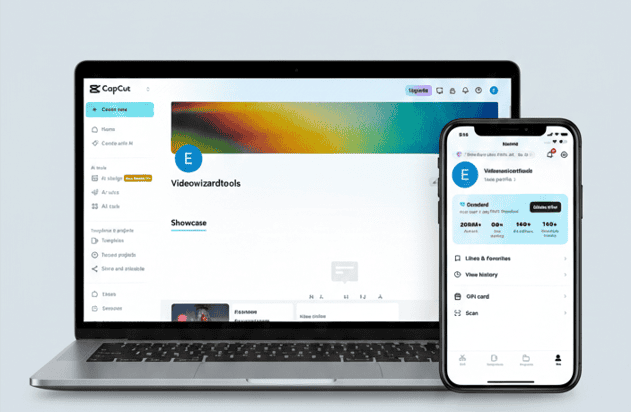
Here’s how “same account, two devices” usually plays out with CapCut — and why people want it:
- Creators often shoot video on their phone for convenience, then switch to a computer for faster editing, more power, and easier export. Logging in with one account across both devices saves a bunch of headaches.
- Flexibility matters: edit on the go, then finish later wherever you want.
- Syncing isn’t automatic: working on two devices doesn’t guarantee perfect syncing — CapCut’s account, cloud, and device policies determine how smooth the process is.
Can You Actually Use the Same CapCut Account on Multiple Devices?
Yes, you can log into the same CapCut account from different devices (phone, tablet, PC, etc.) and have access to your subscription and account features.
Here’s how it works in practice:
- If you buy CapCut Pro on one device, you get Pro features (premium filters, cloud storage, etc.) on all devices — as long as you log in with the same account.
- CapCut ties subscriptions to your account, not to a specific device. That means Pro perks follow you wherever you log in.
Important Note: Using the same CapCut account across devices is meant for single‑user use.
The company’s guidance makes it clear that sharing one account among multiple people (like a team or group of friends) may violate their terms and cause problems.
So, if it’s you switching from phone to PC, you’re good. If it’s several people trying to use one account at once, that’s risky.
It’s better to use CapCut Teams, which is designed for multi‑user editing without conflicts.
Does CapCut Limit How Many Devices You Can Log Into?
CapCut doesn’t publicly state a strict device limit, but in practice, you can stay logged in on several devices at once — phone, tablet, laptop, and desktop.
The key is that the account is meant for one person, not a group.
If CapCut detects too many devices or suspicious logins (different locations, shared accounts, multiple people using it at once), it may trigger:
- Temporary login restrictions
- Forced logouts
- Sync delays
- In rare cases, account warnings
For normal personal use — switching between your own devices — you’re very unlikely to hit any limit. Problems only arise if your account appears to be shared widely or used simultaneously by multiple people.
Can You Be Logged Into CapCut on Multiple Devices at the Same Time?
Yes, you can stay logged into CapCut on multiple devices at the same time.
However, being logged in is very different from editing at the same time. CapCut only supports a single active editor per project.
Here’s what that means in real-world use:
✔ What is allowed:
- Logged in on phone + tablet
- Logged in on phone + PC
- Logged in across multiple personal devices
- Viewing your cloud projects from any of them
✘ What isn’t allowed (or will cause problems):
- Two people editing the same project at once
- Editing the same project on two devices simultaneously
- Switching devices before the cloud finishes updating
- Rapid device switching that causes version conflicts
The app can get confused if two devices try to save edits to the cloud at the same time. Always finish editing, let it fully sync, and then safely switch to the next device.
How to Use One CapCut Account on Two Devices (Without Losing Anything)
Switching devices should feel simple—like picking up where you left off. The key is to make sure your project is in CapCut’s cloud/workspace before you open it on the other device.
Phone + Tablet
- Install CapCut on both devices.
- Log in with the same account on both (TikTok/Google/Apple/phone—whatever you used).
- On your phone, open the project and upload/sync it to your Cloud/Space (tap the cloud/upload option in the project screen).
- Wait until the upload finishes before closing CapCut.
- On your tablet, open CapCut, refresh your projects/cloud/workspace list, and open the synced project.
- Edit on either device—just finish syncing before switching again.
Phone → Laptop/Desktop (Windows, Mac, or Web)
- On your phone, open the project and upload/sync it to your Cloud/Space.
- Wait for the upload to fully complete.
- On your computer, open CapCut Desktop (or CapCut Web) and sign in with the same account.
- Go to your Workspace/Cloud area and open the project from there.
- Edit with desktop tools (bigger timeline, keyboard shortcuts, etc.).
Best Practices (So You Don’t Lose Progress)
- Always wait for syncing/uploading to finish before you close the app or switch devices.
- Don’t edit the same project at the same time on two devices.
- If something looks outdated on the second device, refresh the Cloud/Workspace list first.
- If the project still won’t show up, log out on that device and log back in (then check the Cloud/Workspace again).
Quick rule: One CapCut account on two devices works best when you treat cloud sync like “Save”—don’t switch until it’s done.
How to Switch Devices On CapCut Without Messing Anything Up
Switching from one device to another should feel smooth — but only if you follow a few simple habits. These steps prevent sync problems, missing edits, and broken media on your second device.
1. Close the Project Before Switching
Make sure you fully exit the project on your first device.
If the app is still autosaving in the background, the cloud upload may be incomplete.
2. Wait for the Cloud Icon to Finish
Only switch devices when:
- The cloud icon stops spinning
- The project shows a solid cloud
- No “processing” message appears
If you switch too early, you’ll open an outdated version on the next device.
3. Don’t Switch While Offline
Offline edits are saved locally.
Until you reconnect and sync, your second device won’t know the new changes exist.
4. Avoid Editing the Same Project on Both Devices
Even if you’re the only user, CapCut can’t merge changes from two devices.
Pick one device at a time, finish your edits, then move.
5. Keep Your Media Files Cloud-Ready
If your media is stored locally on Device A, Device B may show broken clips.
Before switching:
- Upload clips to CapCut Cloud,
- Or move them to a shared folder (Google Drive, Files app, etc.).
Following these steps ensures your project stays clean, complete, and ready no matter which device you pick up next.

Common Sync Problems (And What They Actually Mean)
1. Drafts Not Showing Up
If a project you edited on your phone isn’t appearing on your laptop, it usually means it never finished uploading to the cloud.
Fix it: Open the project on your phone, wait for the cloud icon to stop spinning, then refresh on your other device.
2. Missing Videos or Clips
Sometimes the project loads but some media files look broken or blank because they’re stored locally.
Fix it: Move the clips into CapCut Cloud before switching devices.
3. Stuck Sync or “Processing” Forever
Usually caused by weak internet.
Fix it: Close the app completely → reconnect to strong Wi-Fi → reopen.
4. Conflicting Versions
Happens when you edit the same project on two devices at once.
Fix it: Keep the version you want → delete the duplicate.
5. Project Opens in “View-Only” Mode
The project hasn’t fully downloaded yet.
Fix: Wait a few seconds or log out / log back in.
How CapCut Syncing Works Behind the Scenes (Simple Explanation)
Let’s break this down in a way that actually makes sense.
Think of CapCut like a backpack.
When you edit locally, everything stays inside one backpack — your phone’s storage.
When you switch devices, that second device doesn’t have your backpack… so it can’t see your stuff.
Cloud Projects are different.
They’re like putting your project in a locker that all your devices have the key to.
Here’s what really happens:
1. CapCut Saves Two Types of Projects
- Local Projects: stored only on your device
- Cloud Projects: stored on CapCut’s servers so they can travel with you
If you want true multi-device freedom, you need cloud — not local.
2. Edits Don’t Sync Instantly
CapCut uploads your project in chunks.
So when you switch devices too fast, the second device might open an older version.
It’s not broken… it just didn’t finish packing the “backpack” for delivery.
3. Media Files Matter
If your clips are stored only on one device, CapCut can’t magically copy them to another.
That’s why you sometimes see missing media on your second device.
4. Auto-Save Isn’t Full Sync
CapCut saves your work often, but it doesn’t push it to the cloud until the upload icon shows it’s done.
So, if you close the app early?
Your changes stay stuck on the first device.
When a Capcut Account on Two Devices Becomes a Headache
Using the same CapCut account on two devices is super convenient—until your project doesn’t match on both screens. Avoid these situations if you don’t want missing clips, broken sync, or wasted edits.
- Huge 4K or heavy projects
Long 4K videos, complex effects, or 10+ layers can take a long time to upload. If you switch devices mid-sync, you may open an incomplete or glitchy version of the project. - Weak internet or working offline
Spotty Wi-Fi, mobile data, flights, buses—anything unstable can pause cloud syncing. Your edits may stay on one device, so the other device can show an older version or missing assets. - Sharing the account with other people
CapCut isn’t built for team editing. Two people editing the same project can cause duplicates, version conflicts, or corrupted drafts. - Public, work, or school computers
Logging in on a shared computer can expose your drafts and media—or leave your account signed in. It’s a privacy and security risk.
Bottom line: A CapCut account on two devices works best when you have fast, stable internet—and you’re the only one editing.
Final Thoughts
Using the same CapCut account across two devices is absolutely possible — and when set up correctly, it can make your editing workflow far more flexible.
The key is understanding how CapCut handles local projects versus cloud projects, and giving the app enough time to sync before switching devices.
If you rely on cloud backup, close projects properly, and avoid editing offline or on unstable connections, you’ll be able to move between phone, tablet, and desktop without losing progress.
Just remember: CapCut’s multi‑device system is designed for single‑user use, not team collaboration, so keep your account personal to avoid conflicts.
In short, CapCut can be seamless across devices — but only if you treat the cloud as your bridge. With the right habits, you’ll spend less time worrying about sync issues and more time creating the videos you want.
