
CapCut Free vs Pro vs Teams: Which Plan Is Best in 2026?

Can CapCut really grow with you — from free hobby edits to full-team content production? If you’re comparing CapCut Free vs Pro vs Teams, you’re not alone.
CapCut’s pricing has shifted, and knowing what each plan actually offers can save you money and frustration.
- The Free version offers basic editing tools and templates at $0 — ideal for quick TikToks and personal projects.
- Pro unlocks premium tools like advanced AI editing, cloud storage, and 4K exports for around $19.99/mo or $179.99/yr.
- Teams builds on Pro with collaboration features and shared assets at about $24.99/mo or $214.99/yr per user, ideal for agencies and groups.
In this guide, you’ll learn not just what each plan costs, but what it means — so you can pick the one that fits your workflow and budget.
What CapCut Is and Who It’s For
Look, CapCut didn’t get popular by accident.
It’s built for people who want to create scroll-stopping videos fast, without learning complicated editing software. Think TikTok, Reels, Shorts, and quick YouTube videos. Drag, drop, tweak, post. That’s the whole vibe.
CapCut shines when:
- Speed matters more than perfection
- You’re creating content often
- You don’t want to fight timelines, layers, and confusing menus
It’s especially loved by solo creators, influencers, small brands, and social teams who need results now, not after weeks of learning curves.
But here’s the honest part.
CapCut is not made for:
- Long-form cinematic editing
- Complex color grading workflows
- Heavy professional film production
If you want Hollywood-level control, this isn’t your tool. If you want content that performs on social platforms and gets done quickly, CapCut hits the sweet spot.
CapCut Free ($0): What You Really Get
CapCut Free is generous. That’s why so many people stick with it longer than they expect.
You can cut clips, add music, throw on text, use templates, and export decent-looking videos without paying a cent.
For casual creators or anyone just testing content ideas, this feels almost too good to be true.
Here’s what CapCut Free does well.
You can:
- Edit short-form videos quickly
- Use basic effects, transitions, and text
- Access a large library of templates
- Export without a hard paywall slapping you in the face
For many people, that’s enough. Especially if you’re posting a few times a week and just want your videos to look clean and modern.
But here’s where things start to pinch.
Most users hit limits when:
- You want premium effects or fonts and keep seeing locked icons
- You need higher consistency across videos
- You’re editing often and wasting time working around restrictions
Free is great for learning and light posting. It’s not built for speed at scale.
Who CapCut Free is perfect for: Beginners. Hobby creators. Anyone validating ideas before committing money.
Who will outgrow it fast: Daily posters. Brand accounts. Creators who care about polish and efficiency.
CapCut Pro: Is It Worth Your Money?
This is where CapCut starts to feel less like a toy and more like a real workflow tool.
CapCut Pro removes most of the friction you feel on the free plan. Those locked effects, fonts, and tools? Gone.
Editing becomes faster because you stop hunting for workarounds and start focusing on the video itself.
What really changes with Pro isn’t just access. It’s time.
With Pro, you spend less effort making videos look good and more time shipping content. That matters if you’re posting daily or managing multiple platforms.
Pro makes sense when:
- You create content consistently
- You want cleaner branding across videos
- You rely on effects, text styles, and polish to stand out
But let’s be honest. Pro isn’t for everyone.
Pro can be a waste if:
- You post once in a while
- Templates do most of the heavy lifting for you
- You don’t care about visual consistency
If CapCut Free already feels “good enough,” Pro won’t magically change your results. It pays off only when speed, consistency, and quality actually matter to your goals.
CapCut Teams
CapCut Teams isn’t an upgrade for better effects. It’s an upgrade for how people work together.
If Pro is about editing faster, Teams is about not stepping on each other’s toes.
This plan is built for situations where multiple people touch the same content. Editors, social managers, brand leads
Everyone needs access. Everyone needs consistency. And nobody wants files flying around on random drives.
Teams start to make sense when:
- More than one person edits or reviews videos
- Brand assets need to stay consistent
- Projects get reused, updated, or repurposed
The biggest win here is shared control. Templates, brand elements, and projects live in one place. That alone can save hours each week and prevent messy mistakes.
But Teams is not a flex plan.
You should skip Teams if:
- You’re a solo creator
- You don’t collaborate on edits
- Pro already covers your needs
Paying for Teams without collaboration needs is like renting a conference room to work alone. It looks official, but it’s pointless.

CapCut Free vs Pro vs Teams: Side-by-Side Comparison
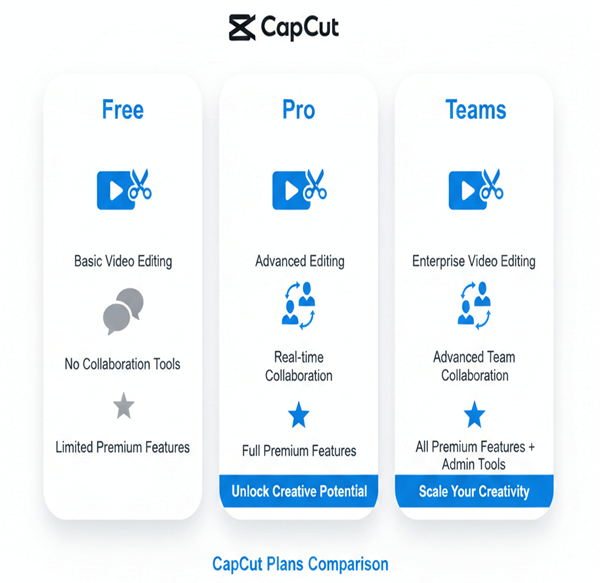
| Feature / Use Case | CapCut Free | CapCut Pro | CapCut Teams |
|---|---|---|---|
| Cost | Free | Paid (individual) | Paid (per user) |
| Best For | Beginners, casual users | Serious solo creators | Teams, agencies, brands |
| Editing Speed | Moderate | Fast | Fast with team coordination |
| Premium Effects & Assets | Limited or locked | Fully unlocked | Fully unlocked |
| Branding Consistency | Manual | Easy | Centralized and enforced |
| Collaboration | None | None | Full team collaboration |
| Project Sharing | No | No | Yes |
| Scalability | Low | Medium | High |
| Long-Term Value | Short-term | Strong for individuals | Strong for organizations |
Most comparisons stop at features. That’s not helpful.
What really matters is how each plan affects your workflow, how fast you can publish, and whether it supports what you’re trying to build long-term.
Let’s break it down properly.
CapCut Free: Flexible but Friction-Heavy
CapCut Free is designed to help you start. You can edit, experiment, and post without commitment. For beginners, that’s powerful.
But as volume increases, friction creeps in:
- You spend more time working around locked tools
- Visual consistency becomes harder to maintain
- Editing speed slows once expectations rise
Free works best when content is casual, inconsistent, or experimental.
CapCut Pro: Built for Speed and Consistency
Pro isn’t about “more features.” It’s about less interruption.
Once you upgrade, the editing process becomes smoother:
- You stop seeing locked assets mid-edit
- You can reuse styles, effects, and templates confidently
- Visual quality becomes predictable across posts
Pro shines when content creation is intentional and frequent. If you publish daily or manage multiple platforms, Pro pays for itself in time saved.
CapCut Teams: Workflow Over Everything
Teams isn’t an editing upgrade — it’s a production upgrade.
This plan exists for coordination:
- Shared access to projects and assets
- Brand consistency across editors
- Fewer mistakes, fewer file handoffs, fewer headaches
Teams only makes sense when multiple people touch the same content. If collaboration isn’t part of your process, this plan adds cost without value.
The Real Difference (What Most Reviews Miss)
- Free is about access
- Pro is about efficiency
- Teams is about control at scale
Choosing the wrong plan doesn’t just cost money — it costs time, clarity, and momentum.
If you’re editing alone and posting often, Pro is the sweet spot.
If you’re managing people, brands, or approvals, Teams becomes necessary.
If you’re still finding your footing, Free is enough — for now.
Which CapCut Plan Should You Choose? (By Use Case)
Instead of guessing, match your situation below. This is where most people finally get clarity.
If You’re a Beginner or Just Testing Content
Best choice: CapCut Free
If you’re learning video editing, experimenting with TikTok or Reels, or posting inconsistently, Free is more than enough.
At this stage:
- Speed doesn’t matter yet
- Branding isn’t critical
- You’re figuring out what content even works
Upgrading too early won’t improve results — it’ll just add pressure.
Upgrade signal: You start posting consistently and feel slowed down by locked tools or repetitive workarounds.
If You’re a TikTok, Reels, or Shorts Creator
Best choice: CapCut Pro
Short-form creators benefit the most from Pro.
Why? Because short-form rewards:
- Fast editing
- Clean visuals
- Consistency across posts
Pro removes creative friction. You don’t second-guess styles or effects — you just reuse what works and publish faster.
Pro pays off when: You post multiple times per week and care about looking polished without wasting time.
If You’re a YouTuber
Best choice: Depends on your workflow
- Short-form focused YouTubers: Pro
- Long-form, cinematic editors: CapCut may not be ideal
CapCut works well for:
- YouTube Shorts
- Simple talking-head videos
- Repurposed content
If your edits rely on heavy color grading, advanced timelines, or complex effects, you’ll feel capped — even on Pro.
If You’re a Freelancer or Solo Social Media Manager
Best choice: CapCut Pro
If you manage content for clients, Pro gives you:
- Faster turnaround
- Cleaner branding
- Less editing friction
You don’t need Teams unless clients actively collaborate inside CapCut. Most solo freelancers don’t.
Avoid Teams unless multiple editors are touching the same projects.
Read our Full Guide on CapCut For Social Media
If You Run an Agency or Brand Team
Best choice: CapCut Teams
This is where Teams becomes non-negotiable.
If you have:
- Multiple editors
- Approval workflows
- Brand guidelines to protect
Teams saves time, prevents mistakes, and keeps everyone aligned. The cost makes sense because it replaces chaos.
If You’re Scaling Content Seriously
Best choice: Start with Pro → move to Teams
Most creators outgrow Free → upgrade to Pro → later realize they need Teams once collaboration increases.
That progression is normal — and smart.
Hidden Trade-Offs Most CapCut Reviews Don’t Mention
On paper, CapCut’s plans look straightforward. In practice, each one comes with trade-offs that only show up after you’ve used the tool for a while.
These are the things people complain about after upgrading — not before.
1. Free Isn’t Limited by Features — It’s Limited by Momentum
CapCut Free gives you enough tools, but it quietly slows you down over time.
What happens:
- You hesitate mid-edit because an effect is locked
- You rebuild the same styles repeatedly
- You spend more time tweaking than creating
The hidden cost isn’t money. It’s lost consistency. Many creators don’t quit because they’re bad — they quit because editing starts feeling annoying.
2. Pro Solves Speed, Not Scale
CapCut Pro is excellent for solo creators, but it has a ceiling.
Pro works great until:
- You’re managing multiple brands
- You need approvals or feedback loops
- Someone else touches your projects
There’s no built-in collaboration logic. Files still depend on individual workflows. Once teamwork enters the picture, Pro starts to feel like a workaround.
3. Teams Adds Control — and Responsibility
CapCut Teams gives structure, but that structure needs managing.
Hidden realities:
- Someone has to enforce brand rules
- Poor organization affects everyone
- More users means more oversight
Teams isn’t “set it and forget it.” It’s powerful only when roles and standards are clear.
4. Storage and Asset Sprawl Creep Up Fast
As you create more content:
- Old projects pile up
- Assets multiply
- Revisions get messy
This hits Teams users hardest if organization isn’t intentional. Without discipline, even good tools feel chaotic.
5. Upgrading Doesn’t Fix Bad Content
This one hurts, but it’s true.
- Pro won’t make weak ideas perform
- Teams won’t fix unclear messaging
- Tools amplify what’s already there
CapCut improves execution — not strategy.
The Smart Way to Think About CapCut Plans
Instead of asking “What features do I get?”, ask:
- How fast do I need to publish?
- How many people touch my content?
- How consistent does my brand need to be?
Those answers matter more than price or hype.
CapCut Pricing Breakdown: What You’re Really Paying For
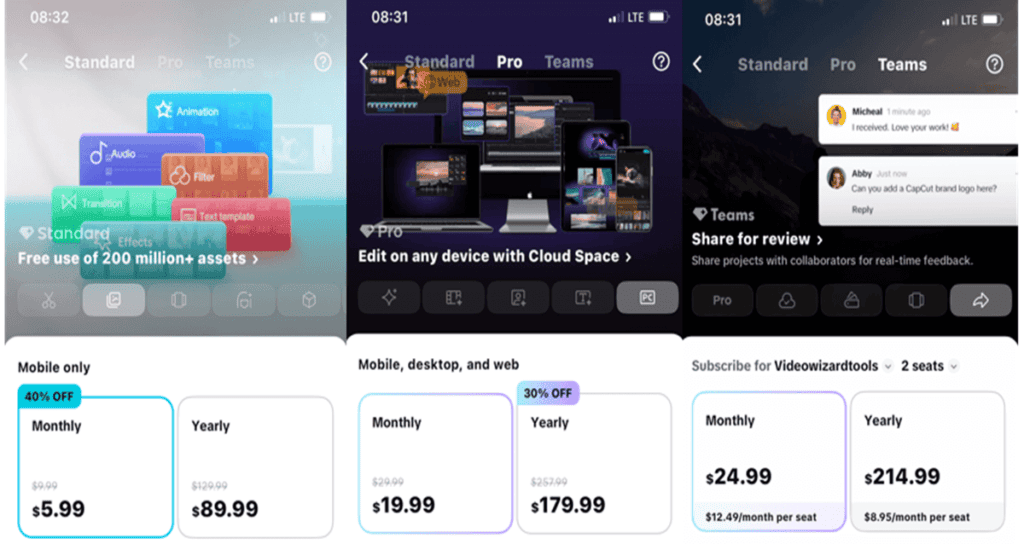
CapCut’s pricing might seem simple on the surface — Free, Standard (Mobile), Pro, and Teams — but once you break it down, what you’re paying for is more about efficiency, workflow, and collaboration, not just unlocked features.
Here’s the current pricing structure:
| Plan | Monthly Price | Annual Price | Who It’s For |
|---|---|---|---|
| Free | $0 | $0 | Beginners, casual creators |
| Standard (Mobile Only) | ~$5.99 / month | ~$89.99 / year | Mobile editors who want extra tools |
| Pro (Cross-Platform) | ~$19.99 / month | ~$179.99 / year | Serious creators with consistent publishing needs |
| Teams (Per User) | ~$24.99 / month | ~$214.99 / year | Agencies and collaborative teams |
Let’s break down what that really means financially.
CapCut Free: $0
Free is great because there’s no cost, no risk — but there’s a hidden cost: your time.
You “pay” in:
- Extra manual work around locked tools
- Repeating branding choices manually
- Slower edits when you hit invisible limits
CapCut Standard Plan: $5.99/month or $89.99/year
This tier is mobile only and sits between Free and Pro.
What you unlock:
- Watermark removal
- Additional templates and effects
- Better export quality than Free
For hobbyists or part-time creators editing mostly on phones, this tier smooths the experience without a big bill.
Pro Plan: $19.99/month or $179.99/year
This is where CapCut gets serious.
The cost here isn’t just the subscription — it’s time saved and better quality delivered.
With Pro, you get:
- Cross-platform access (mobile + desktop + web)
- Full premium assets and effects
- Advanced AI tools (auto captions, background removal, motion tracking)
- Larger cloud storage and project sync
If content creation is tied to visibility, audience growth, revenue, or client work, Pro quickly pays for itself in productivity and polish.
Teams: $24.99/user/month or $214.99/user/year
Teams isn’t just a beefed-up Pro plan — it’s built around collaboration.
Here’s why this pricing tier is different:
- Shared access to projects and cloud assets
- Role control and centralized templates
- Coordination tools that stop version chaos
If more than one person edits, reviews, or manages the same content, Teams saves far more time than it costs.
👉 Read Our full CapCut pricing breakdown
Quick Cost vs Value Summary
| What You Pay | What You Get Back |
|---|---|
| Free | Zero upfront cost, but slower growth |
| Standard | Small monthly bill, smoother mobile editing |
| Pro | Faster workflow and cross-device power |
| Teams | Control, consistency, and collaborative efficiency |
When Upgrading Actually Makes Financial Sense
You should consider upgrading when:
✔ Your editing time impacts output
✔ You publish regularly (weekly or more)
✔ You collaborate with others often
✔ You earn revenue or build a brand with video
CapCut’s paid plans aren’t about just having tools — they’re about saving hours, improving quality, and coordinating workflows.
Frequently Asked Questions (FAQs)
Is CapCut Pro worth it compared to Free? +
Yes — if you edit regularly. CapCut Pro is worth it when you post weekly or more and want faster edits, consistent visuals, and full access to premium tools. If you only edit occasionally, the Free plan is still fine.
What’s the difference between CapCut Pro and CapCut Teams? +
The difference isn’t editing power — it’s collaboration.
- Pro is for solo creators
- Teams is for multiple people working on the same content
Teams adds shared projects, centralized brand assets, and collaboration controls. If you work alone, Pro is enough.
Can I use CapCut Pro on both mobile and desktop? +
Yes. CapCut Pro works across mobile, desktop, and web, allowing you to start a project on one device and continue on another.
Is CapCut Teams priced per user? +
Yes. CapCut Teams is charged per user, which makes it ideal for agencies, brands, and content teams — but unnecessary for solo creators.
Can I downgrade from CapCut Pro or Teams? +
Yes. You can downgrade or cancel your subscription at any time. Access to premium assets and collaboration features will be removed once your billing period ends.
Does CapCut Free add a watermark? +
CapCut Free generally does not add a forced watermark, but some premium templates or assets may include branding unless upgraded. If you’re hitting export blocks or want to remove watermarks without paying, see our guide on how to export CapCut without Pro.
Is CapCut good for YouTube? +
- YouTube Shorts
- Talking-head videos
- Repurposed social content
For advanced cinematic YouTube editing, CapCut may feel limited even on the Pro plan.
Which CapCut plan is best for TikTok and Reels? +
CapCut Pro is the best choice for TikTok and Reels creators. It’s optimized for short-form content and removes the limits found in the Free plan.
Does CapCut Teams replace other collaboration tools? +
Not entirely. CapCut Teams helps with editing collaboration, but it does not replace full project management or communication tools.
Final Verdict: CapCut Free vs Pro vs Teams
If you’ve read this far, the choice shouldn’t feel confusing anymore. Each CapCut plan has a clear job, and problems only start when people use the wrong one for their situation.
Here’s my straight answer.
Choose CapCut Free if:
- You’re just starting out
- You post occasionally or inconsistently
- Video is experimental, not strategic
Free is a learning tool. It’s not broken — it’s just not built for momentum.
Choose CapCut Pro if:
- You post consistently (weekly or more)
- You’re a solo creator, freelancer, or content manager
- Speed, polish, and consistency matter
For most serious individual creators, Pro is the sweet spot. It removes friction, saves time, and scales comfortably — until collaboration enters the picture.
Choose CapCut Teams if:
- More than one person touches your content
- You manage brand consistency
- Mistakes, revisions, or delays are costly
Teams isn’t optional once collaboration becomes real. It replaces chaos with structure — and that’s what you’re paying for.
Who Should Skip CapCut Entirely?
CapCut may not be the right tool if:
- You need advanced cinematic editing
- You rely heavily on deep color grading
- Your workflow depends on complex timelines
In those cases, traditional editors make more sense.
Bottom Line:
CapCut isn’t trying to be everything.
It’s trying to help people create and publish fast.
Pick the plan that supports your workflow today, not the one you might need someday — and upgrade only when friction starts costing you consistency.
