


If you’re comparing CapCut pricing in 2026, the main question is simple: how much does CapCut cost, and which subscription plan is actually worth paying for: Standard, Pro, or Teams?
That answer can be confusing because CapCut does not always show the same pricing to everyone.
Your country, device, app store, taxes, promotions, and account type can affect the plans and prices you see.
One person may see Free and Pro, another may see Standard, Pro, and Teams, while another may get a trial or discount offer.
That is why this guide breaks everything down in a simple way.
Below, we’ll look at the main CapCut pricing plans, including Free, Standard, Pro, and Teams.
You’ll also see what each plan is best for, how CapCut subscription prices usually work, why prices may differ by region, and how to check the exact price inside your own CapCut account before you pay.
CapCut Pricing Plans Overview: Free, Standard, Pro, and Teams
CapCut now has several plan options, but the exact plans you see can depend on your country, device, platform, and account.
Here is the simple breakdown:
Free — best for basic editing and casual creators.
Standard — a lighter paid upgrade for users who want fewer limits than Free.
Pro — the main paid plan for creators who want more premium tools, effects, templates, cloud features, and export options.
Teams — a collaboration plan for brands, agencies, businesses, and creator teams.
CapCut Subscription Cost Explained
CapCut subscription cost isn’t the same for everyone.
Your country, your device (iOS/Android/Desktop/Web), taxes, and promotions can change both the plan names you see and the amount you’re charged.
The table below gives you a practical reference point for the CapCut prices many users may see.
Your exact price can still vary by country, device, taxes, app store, and promotions, so always confirm the final amount inside your own CapCut Upgrade or Subscription screen before paying.
| CapCut subscription plan | Typical price example |
|---|---|
| Standard Plan | $5.99/month or $89.99/year |
| Pro Plan | $19.99/month or $179.99/year |
| Teams Plan | $24.99/month per user or $214.99/year per user |
These are example prices only. Your final CapCut subscription cost may vary by country, device, taxes, app store, promotion, and account type.
If you want a quick comparison between the two most common paid options, read our guide to CapCut Standard vs Pro.
Why CapCut Pricing Differs by Country, Device, and Platform
CapCut pricing is not always the same for every user. Two people can open the Upgrade or Subscription screen and see different prices, plan names, trials, or discounts.
The most common reasons are:
Region pricing — your country, currency, and local market can affect what you see.
Device and platform — iPhone, Android, desktop, and web may not always show the same plans or offers.
Taxes and payment rules — taxes can change the final amount you pay at checkout.
Promotions and free trials — some users may see limited-time discounts or free trials, while others may not.
Plan availability — some accounts may see Free, Standard, Pro, and Teams, while others may see fewer options.
The safest approach is simple: do not rely only on screenshots, old reviews, or prices from another country. Always check the final price inside your own CapCut account before subscribing.
How to Check Your Exact CapCut Subscription Price
The fastest way to confirm your real CapCut price is to check it directly inside your own app or account.
Here is how to do it:
- Open CapCut on your phone, desktop, or web account.
- Sign in to the same account you plan to use for editing.
- Go to Me, Profile, Upgrade, Pro, or Subscription. The exact label may depend on your device or app version.
- Review the plans shown on your screen, such as Standard, Pro, or Teams.
- Check the monthly price, yearly price, local currency, tax details, and whether a free trial or discount is available.
- If you use CapCut on more than one device, compare the price on mobile, desktop, and web before paying.
Tip: If you see different prices on different devices, choose the option that gives you the best value, but make sure you are signed in to the same CapCut account before subscribing.

How to Subscribe to CapCut Pro, Standard, or Teams
Upgrading in CapCut is simple. The exact plan names you see can vary by country and device, but the steps are the same.
- Install CapCut
Download CapCut from the App Store (iPhone/iPad) or Google Play (Android). If you’re on a computer, install CapCut Desktop or use CapCut Web (if available in your region). - Sign in to the account you’ll keep
Log in with TikTok, Google, Apple ID, email, or phone. For multi-device use, make sure you use the same login on every device. - Open the Upgrade / Subscription screen
Tap Me (or Profile) → then tap Upgrade, Pro, or Subscription (the label can differ by version). - Choose your plan and billing
Pick the plan you want (for example: Standard, Pro, or Teams) and choose Monthly or Yearly. - Confirm payment
Complete checkout using your App Store / Google Play payment method (or web/desktop checkout if that’s what your version uses). After payment, your premium features should unlock immediately.
What Do You Get With a CapCut Subscription?
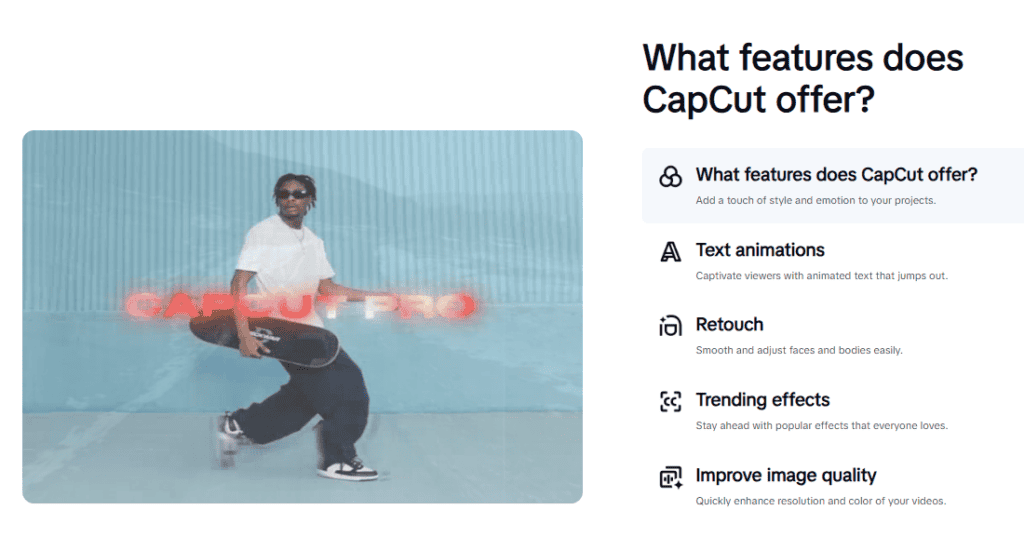
A CapCut subscription is not only about removing limits. The real value is in the extra tools you unlock when you upgrade from the free version.
Depending on your plan, device, and region, a paid CapCut subscription may unlock more premium effects, templates, creative assets, cloud features, export options, and advanced editing tools.
Here are the main upgrade areas to look at:
- Premium effects, templates, and assets: Paid plans may unlock more effects, transitions, filters, stickers, templates, and other creative tools that are limited or locked on the free plan.
- Watermark and export limits: A subscription may reduce watermark restrictions or give you better export options, depending on the plan, asset, template, and device you use.
- Cloud storage and multi-device editing: Some paid plans may include cloud storage or syncing, which helps if you edit across mobile, desktop, and web.
- Advanced editing tools: Depending on your plan and platform, you may get access to more creator-focused tools for faster editing, cleaner videos, and more professional workflows.
- Team features: CapCut Teams is mainly useful if multiple people need shared access, collaboration features, or a more organized editing workflow.
Before upgrading, do not only ask, “Which CapCut plan is cheapest?” Ask, “Which plan gives me the tools I will actually use?”
If you want a deeper breakdown of CapCut’s editing tools, templates, export options, and creative capabilities, read our full guide here: Best CapCut Features: Full Editing Guide.
Is CapCut Pro Worth It? Free vs Standard vs Pro vs Teams
The real question is not only how much does CapCut cost. The better question is: which CapCut plan matches the way you edit?
If you only make simple videos once in a while, the free plan may be enough.
But if you edit often, use premium assets, export regularly, or create content for clients, a paid CapCut subscription can save time and make your workflow easier.
Free — Best for casual editing
The Free plan is best if you only edit simple videos for fun, school, personal use, or occasional social media posts.
It can be enough if you mostly need basic tools like trimming, splitting, captions, simple effects, templates, and standard exports.
Choose Free if:
You edit only a few times a month.
You do not need many premium templates, effects, or assets.
You are okay with some features being locked behind a paid plan.
You are still learning CapCut and do not want to pay yet.
Standard — Best for mobile-first creators
CapCut Standard is usually the lighter paid upgrade. It can make sense if you mainly edit on your phone and want fewer limits than the free plan without paying for the full Pro tier.
Choose Standard if:
You edit mostly on mobile.
You post content regularly but do not need every advanced feature.
You want more creative tools than Free gives you.
You are not building a heavy desktop or team workflow.
Standard can be a good middle option, but always compare it with Pro before paying. In some cases, Pro may give you better long-term value depending on the price shown in your region.
Pro — Best for serious creators and client work
CapCut Pro is usually the best option if you create content consistently, earn from video, or want access to the strongest paid features available to your account.
For most people comparing CapCut paid plans, Pro is the plan to look at first because it usually gives the strongest mix of features, value, and flexibility.
Choose Pro if:
You post videos every week.
You create content for YouTube, TikTok, Instagram, business pages, or clients.
You want more premium tools, effects, templates, and export options.
You edit across more than one device.
You want fewer creative limits while working on serious projects.
For many creators, Pro is the plan that makes the most sense because it is built for people who use CapCut as part of a real content workflow, not just occasional editing.
Teams — Best for brands, agencies, and collaborators
CapCut Teams is only worth considering if more than one person needs to work inside the same editing setup.
Choose Teams if:
You are a brand, agency, business, or content team.
You work with two or more editors.
You need shared access, shared assets, or a more organized collaboration workflow.
You want to reduce confusion when multiple people are working on content.
If you edit alone, Teams is probably more than you need. But if video creation is shared across a team, it can be the cleanest option.
Quick Decision Guide: Which CapCut Plan Should You Choose?
| Your situation | Best plan | Worth it? |
|---|---|---|
| You make simple edits for fun | Free | Yes |
| You edit mostly on mobile and want fewer limits | Standard | Usually |
| You post often or create content for money | Pro | Usually the best value |
| You work with a brand, agency, or editing team | Teams | Yes, if you collaborate regularly |
Simple rule
Stay on Free if you only edit occasionally.
Choose Standard if you are a mobile-first creator who wants more tools without jumping straight to Pro.
Choose Pro if you post consistently, use CapCut for business, or want the best overall upgrade.
Choose Teams only if multiple people need to collaborate.
CapCut Subscription Cost FAQs
What are the current CapCut pricing plans?
CapCut usually has a free version and paid options such as Standard, Pro, and sometimes Teams. However, the exact plans you see can vary by country, device, platform, and account offer. Always confirm the final plan details inside your own CapCut Upgrade or Subscription screen before paying.
How much does CapCut cost per month and per year?
CapCut cost can vary by country, device, taxes, app store, billing cycle, and promotion. Some users may see different monthly or yearly prices on iPhone, Android, desktop, or web. The most accurate price is the one shown inside your own CapCut account before checkout.
Is CapCut Pro a monthly or yearly subscription?
Yes. CapCut Pro is usually offered as a subscription with monthly and yearly billing options. Monthly billing is better for short-term use, while yearly billing may be cheaper overall if you plan to use CapCut long term. For more details, read this guide on CapCut Pro subscription.
What is the difference between CapCut Standard and CapCut Pro?
CapCut Standard is usually the lighter paid upgrade, while CapCut Pro is usually the stronger plan for creators who want more premium tools, effects, templates, assets, cloud features, and export options. Availability can still vary by device and region, so compare the plan details inside your account. You can also read this guide on CapCut Standard vs Pro.
Is CapCut free to use?
Yes. CapCut has a free version that can work well for basic editing, captions, templates, trimming, simple social media videos, and standard exports. However, some premium effects, templates, assets, cloud features, and advanced tools may require a paid CapCut subscription.
Does CapCut offer a free trial?
Sometimes. CapCut free trials may appear for certain users, countries, devices, accounts, or promotions, but they are not always available to everyone. If a trial is available for your account, you should see it directly on the Upgrade or Subscription screen. You can learn more in this guide to the CapCut free trial.
Why is CapCut showing a different price on my phone and computer?
CapCut prices can vary by device, platform, country, taxes, app store, and available promotions. Your iPhone, Android phone, desktop app, or web account may not always show the same plan or price. If you compare prices across devices, make sure you are signed in to the same CapCut account.
Can I cancel CapCut anytime?
Yes. You can usually cancel your CapCut subscription through the platform where you subscribed, such as the Apple App Store, Google Play, or CapCut’s own billing area. Your paid access normally continues until the end of the current billing period. For step-by-step help, read this guide on how to cancel a CapCut subscription.
Final Verdict: Which CapCut Plan Should You Choose?
For most beginners, the free version of CapCut is still the best place to start. It gives you enough tools to edit simple social media videos, TikToks, Reels, Shorts, and personal projects without paying immediately.
CapCut Standard can make sense if you want a lighter paid upgrade, especially if you mainly edit on mobile and do not need every advanced feature.
CapCut Pro is the best option for creators who edit often, use premium effects or templates, create content for clients, or want fewer limits while working across projects.
CapCut Teams is only worth it if more than one person needs to collaborate on video projects. If you edit alone, Free, Standard, or Pro will usually be the better fit.
The best CapCut plan depends on how often you edit, which features you actually use, and whether you work alone or with a team. Start with Free, upgrade to Pro when you need more creative power, and choose Teams only when collaboration becomes important.
Check out our full video on CapCut pricing on our YouTube channel
